Table of Contents
This practical guide explains how to easily convert brave into an rss reader in minutes. Follow the steps in order, review the requirements first, and use the troubleshooting notes when a setting or option does not work as expected.
Enable Brave RSS reader
Brave calls its RSS reader Brave News. For most users, this feature is enabled by default, but if you have a custom setup, you may have chosen not to enable it.
Open a New Tab window in Brave and try scrolling down. If you can't get past the search box at the bottom of the screen, you don't have Brave News enabled. If you can scroll further, you'll see a list of stories from the default publications in your feed. Don't worry! You can change the source.
If not, you can easily enable it on both desktop and mobile devices.
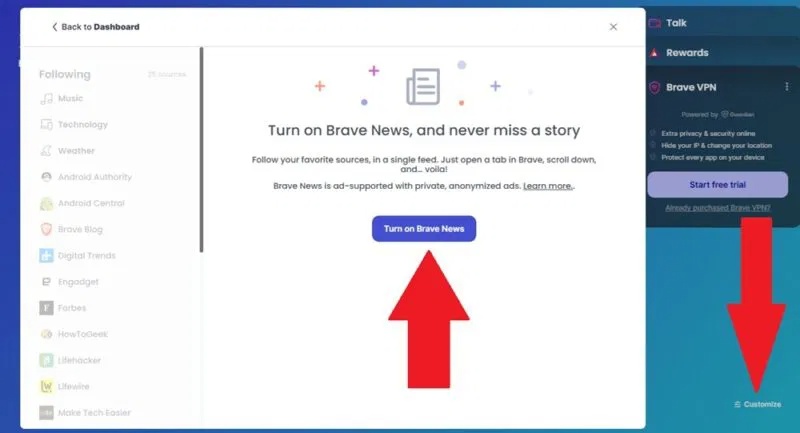
For desktop, click Customize in the lower right corner and click Brave News in the left pane. Click Turn on Brave News to enable the feed. We'll customize in a moment.
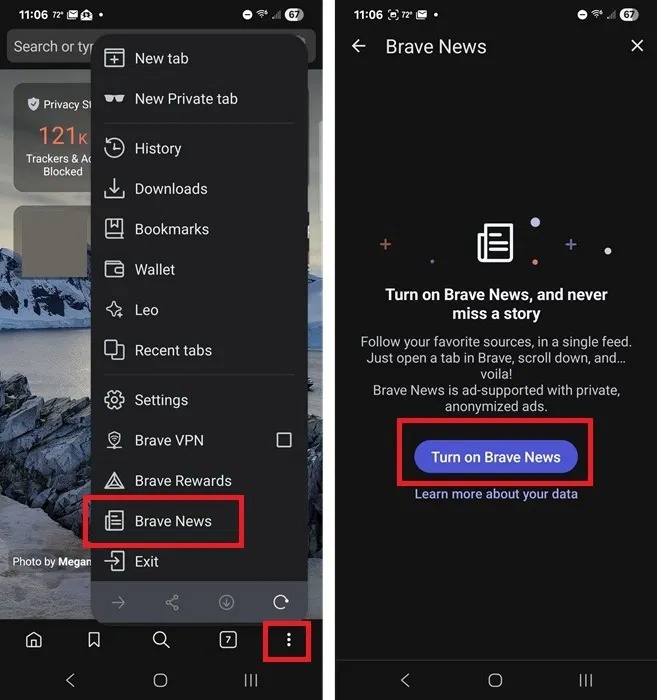
For the Brave mobile app, open a new tab and tap the Settings button in the bottom right corner (three stacked dots). Tap Brave News > Turn on Brave News .
Access Brave News settings on desktop and mobile
Once you enable this feature, you have a few ways to access your Brave News settings to change what you follow. Before we dive into the different ways to customize your feed, let's look at how to actually access the settings.
On desktop, open a new tab in Brave and do one of the following:
- Click Customize in the lower right corner
- Scroll down until Brave News (the Brave RSS reader) appears and click the + next to Channels or Publishers on the left
- Click the Customize button (three horizontal lines) in the lower right corner
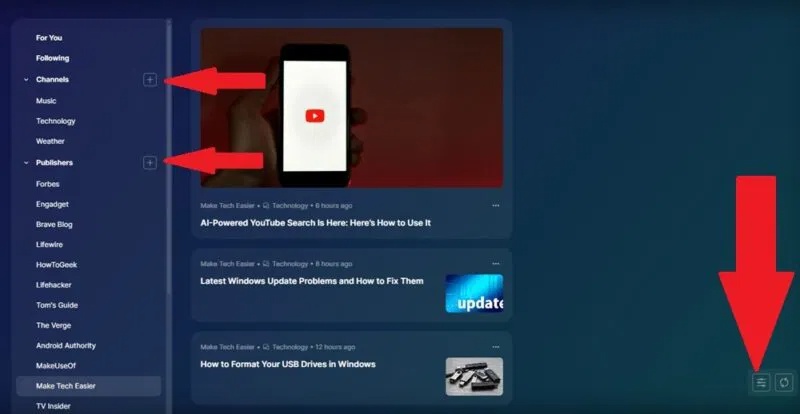
All 3 methods take you to the same window to add/remove sources.
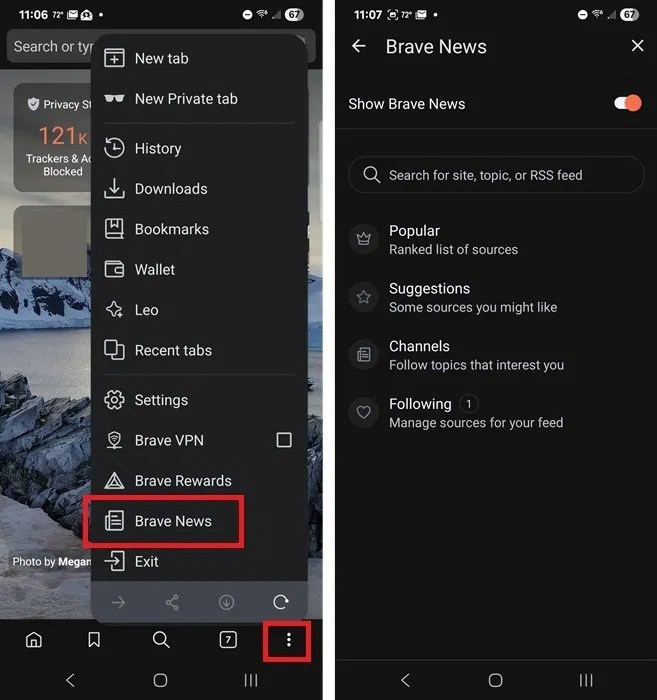
On mobile, you only have one method. Open a new tab and click the Settings button (three stacked dots) in the lower right corner. Tap Brave News .
Follow and unfollow channels in Brave
If you're not sure which sites you want to follow, Channels is a good choice. These are categories around specific topics, like sports games, technology, news, etc. Brave will organize your sources for you using this method.
For desktop, open Brave News settings and scroll down to the Channels section. Click the + next to any channel to follow it.
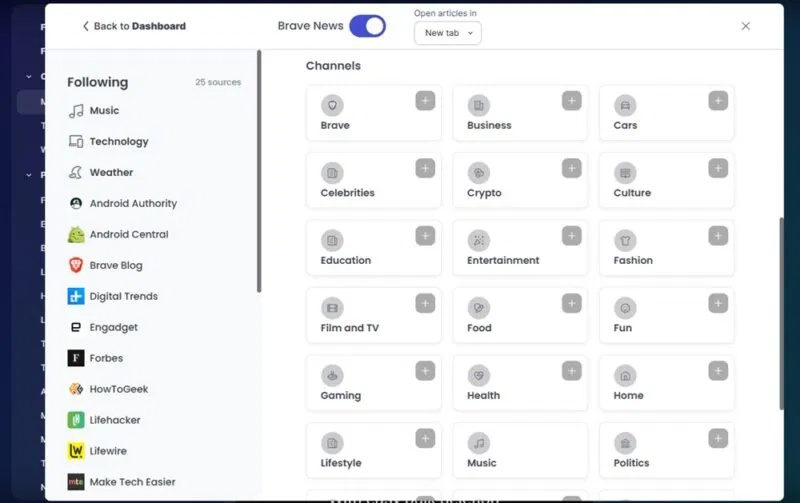
If you follow a channel and don't like it, go back to the Channels section. Hover over the channel you want to unfollow and click the – next to the channel name.
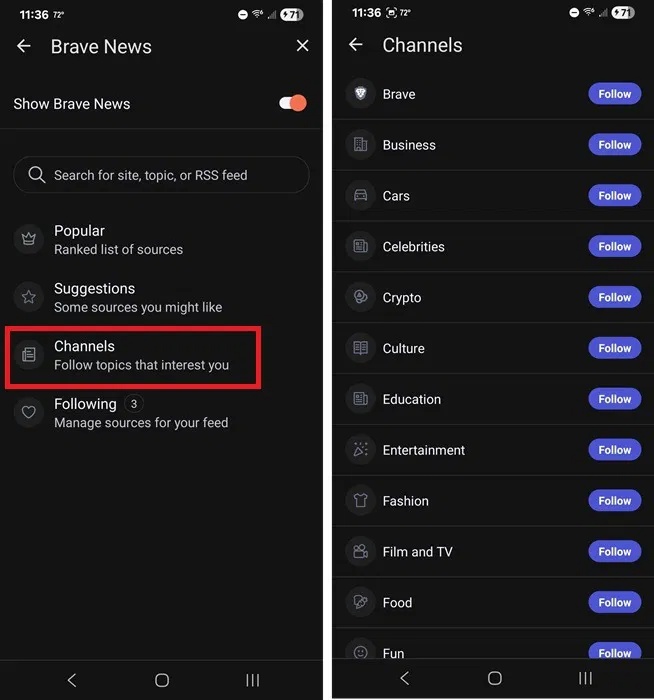
For the mobile app, open Brave News settings, tap Channels , and select Follow next to the channels you want to follow. For any channels you don't want to follow, tap Unfollow .
Add Custom Source to RSS feed
Brave News isn't limited to just a few curated sources. People often like their custom Brave RSS reader to be filled with the sources they care about most.
Open Brave News settings and enter a topic, website, or RSS feed into the search box. This process works the same on both desktop and mobile.
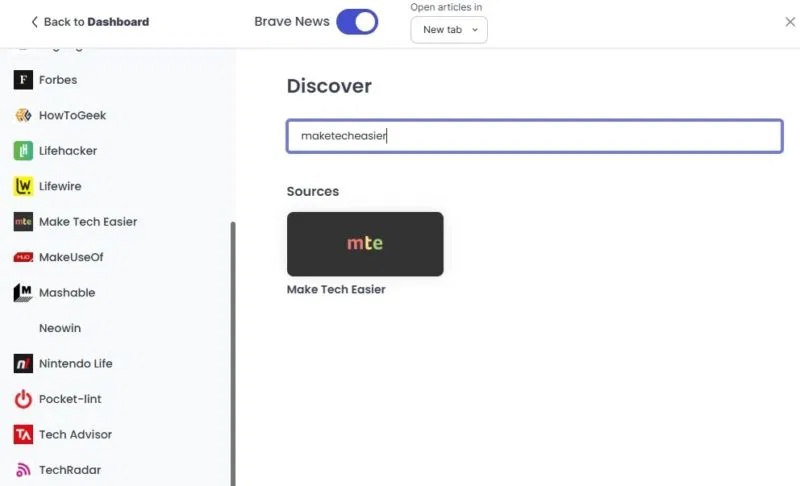
To remove a source, click Unfollow next to any source on the list in Brave News settings. For desktop, hover over the source name to see the Unfollow option.
Add suggested source
At first, Brave's suggestions may seem trivial. But as you add sources and channels, Brave gets a better sense of what you're interested in. It's a good idea to add a few sources or channels and use the feed for about a week before you see what Brave suggests to you. Otherwise, you'll just see a few of the most popular sources.
In Brave News settings on desktop or mobile, scroll down to Suggestions . On desktop, click View more to see more suggestions. Follow any that look interesting. You can always delete it later if you want.
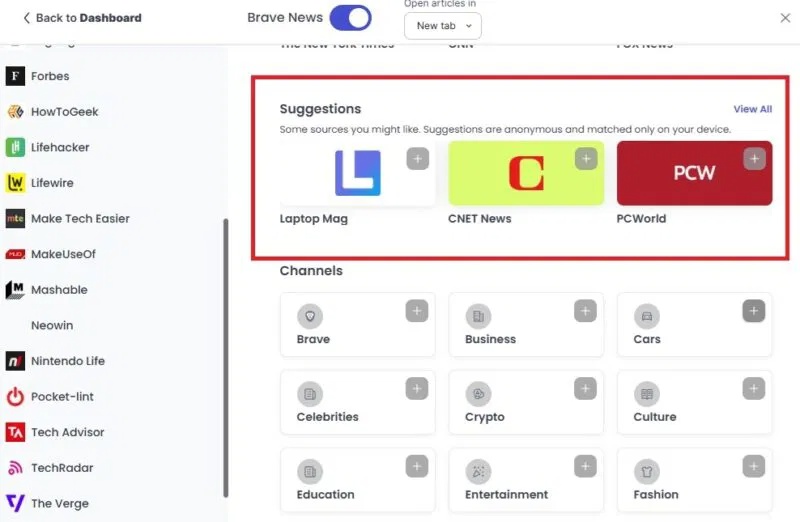
Additionally, as you scroll through your feed, Brave will sometimes list some suggestions.
FAQ
What should you know about enable Brave RSS reader?
Brave calls its RSS reader Brave News. For most users, this feature is enabled by default, but if you have a custom setup, you may have chosen not to enable it.
What should you know about access Brave News settings on desktop and mobile?
Once you enable this feature, you have a few ways to access your Brave News settings to change what you follow. Before we dive into the different ways to customize your feed, let's look at how to actually access the settings.
What should you know about follow and unfollow channels in Brave?
If you're not sure which sites you want to follow, Channels is a good choice. These are categories around specific topics, like sports games, technology, news, etc. Brave will organize your sources for you using this method.
What should you know about add Custom Source to RSS feed?
Brave News isn't limited to just a few curated sources. People often like their custom Brave RSS reader to be filled with the sources they care about most.
Related Articles
 Learn Brave Browser, What Makes Brave Special?9 minutes read
 How to Convert PDF to Word Using Foxit Reader and UniPDF3 minutes read
 How to Convert Hours to Minutes in Excel3 minutes read
 Linh Download Free PDF Reader 28 minutes read
 Brave Search Will Now Let Users 'Downvote' Bad Website Results6 minutes read
 Brave - Fast and Secure Personal Web Browser: What You Need to Know16 minutes read
Reader Comments 0
Sign in with email or Google to join the discussion.