Table of Contents
This updated guide examines How to Delete a Person from a Photo in Photoshop and organizes the essential facts, background, and practical takeaways in clear American English.
There are many interesting ways to use Photoshop when editing images. This article will show you how to use Photoshop to remove someone from one of your photos.
The steps are as follows:
Step 1:
Open the image you want to edit. Make a copy of the background layer by right-clicking on "Background" in the Layers panel and selecting Duplicate. Then select the Clone Stamp Tool.
Step 2:
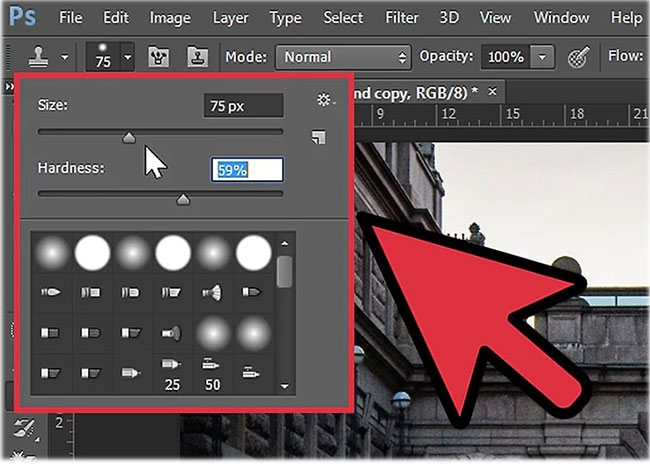
Adjust the brush type, size and hardness. It all depends on the size and shape of the person you want to delete from the photo.
Step 3:
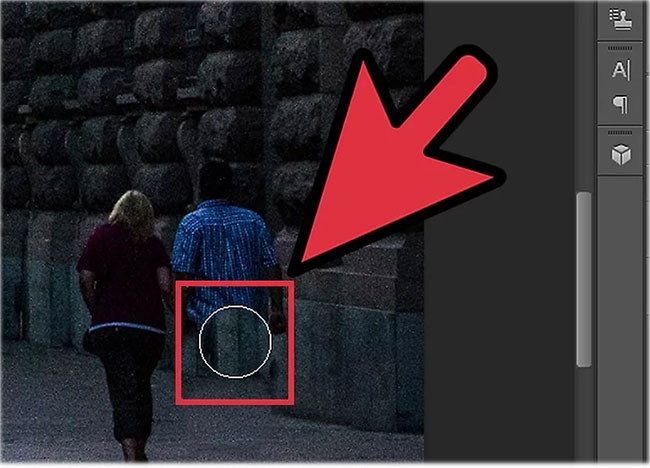
HoldAltwith Clone Tool selected. Click anywhere in the image to sample that area. After sampling an area, your cursor will be closely related to the sample area, that is, when you draw, it will merge the sample area on the area you are drawing.
As you draw, the pattern area will follow. Try to get an area that has good mixing capabilities on the image. You can change your sample area by holding theAltkey and clicking the other area you want. Keep working until the image you want to remove is removed from the picture.
FAQ
What is How to Delete a Person from a Photo in Photoshop about?
It provides a structured overview of Photoshop, explains the main context, and highlights practical takeaways for readers.
Why does this topic matter?
Understanding the main concepts helps readers evaluate the issue, avoid common mistakes, and make better-informed decisions.
How should readers use this information?
Use the guidance as a practical starting point, confirm details that may have changed, and follow current product, safety, or security recommendations.
Related Articles
 How to Use Photoshop CS5 - Part 9: Delete Complex Backgrounds in6 minutes read
 How to Erase Text on Photos Using Photoshop: Step-by-Step Guide5 minutes read
 How to Delete Photo Backdrops in Photoshop4 minutes read
 How to Use Photoshop Fix Delete Excess Details in Photos5 minutes read
 Instructions for Using Photoshop CS5 to Edit Photos in Full Set5 minutes read
 Use Photoshop Mix to Delete Details in the Image6 minutes read
Reader Comments 0
Sign in with email or Google to join the discussion.