Table of Contents
With JotForm AI Chatbot, creating an intelligent chatbot is easier than ever. Simply input information about the intended use, the data to be extracted, or the.
Jotform AI Chatbot is separate from Canva's own AI tools. If you only need generated copy, images, or layout help, compare the built-in options in TipsMake's guide to Canva AI tools. For prompt-based image work, also see the overview of AI image generators.
Before you connect the app
- Confirm that you are working in the correct Canva design and Jotform account.
- Check whether your plan supports the chatbot features you need.
- Do not paste passwords, payment data, private client files, or confidential business information into the bot.
- Plan a small set of test questions and verify the answers before publishing or sharing.
The steps below show how to find the app, create an assistant, adjust its appearance, save the configuration, and open the chat from a Canva design. Review Jotform's data and sharing settings before entering customer information or other sensitive material.
Guide to creating an AI chatbot on Canva
Step 1:
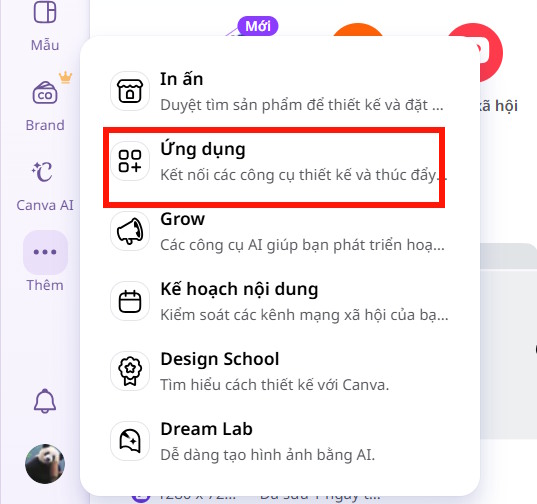
On the Canva interface, click the three-dot icon and then select "Apps" as shown below.
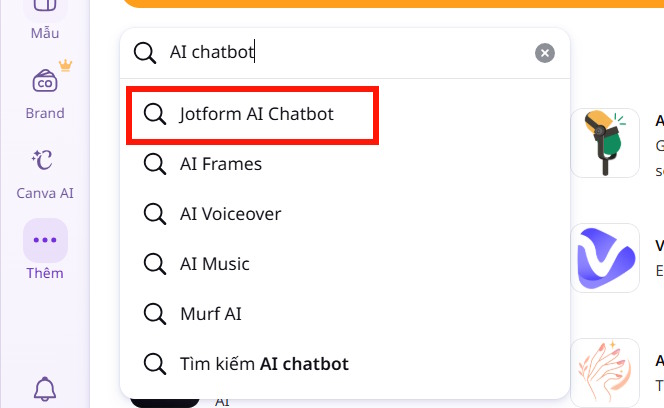
In the interface, in the search bar, type the keyword "chatbot" and then click on JotForm AI Chatbot to find the application.
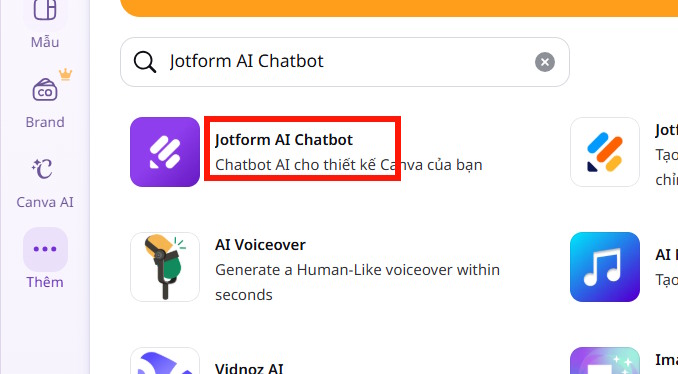
Now you just need to tap on the JotForm AI Chatbot app to use it.
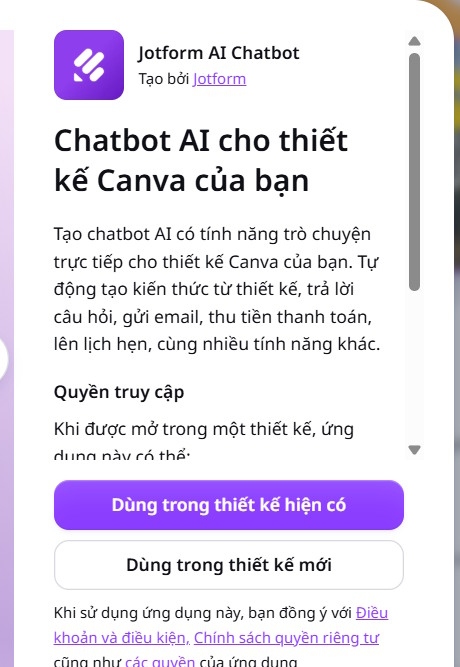
Step 2:
Here you will be asked to set up the chatbot for an existing or new design on Canva. Select the design style that suits you.
Step 3:
On the main interface, click on "Create AI chatbot" to proceed.
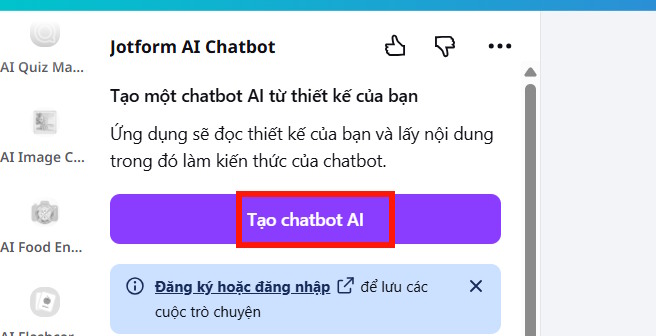
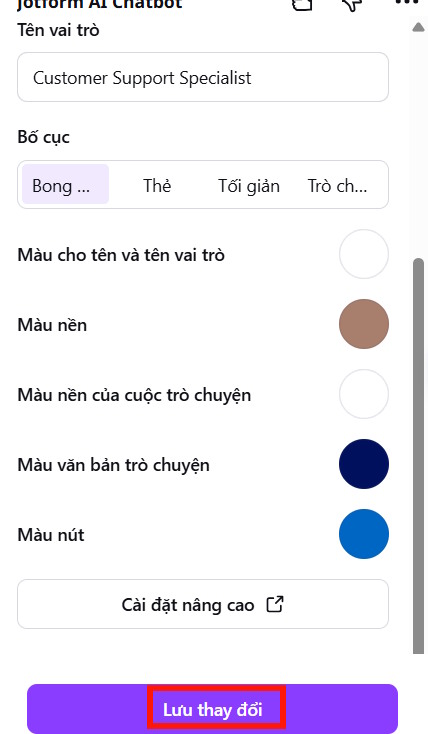
Now you will see the default interface for the design assistant in Canva. We can change the name, image, and color of the chat box to our liking.
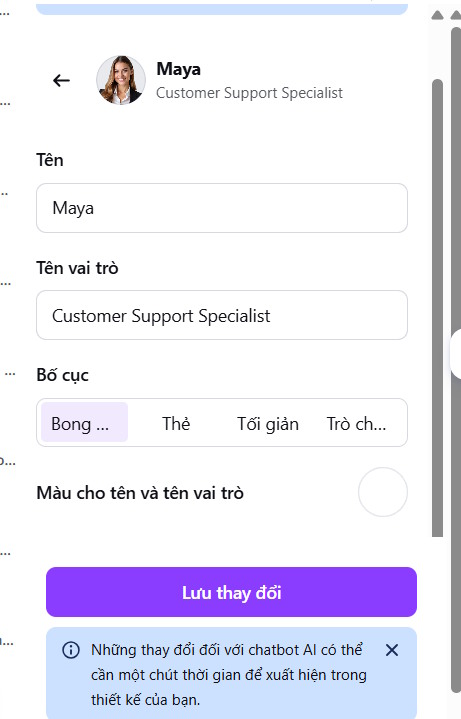
If there are any changes, the saving process will take longer; click Save Changes to apply them.
Step 4:
As a result, we now have an AI chatbot for your current design on Canva. You can open the chat and test questions that match the assistant's intended purpose. Check the answers before sharing the design because generated responses may be incomplete or incorrect. Double-click the chat box to start chatting with the assistant.
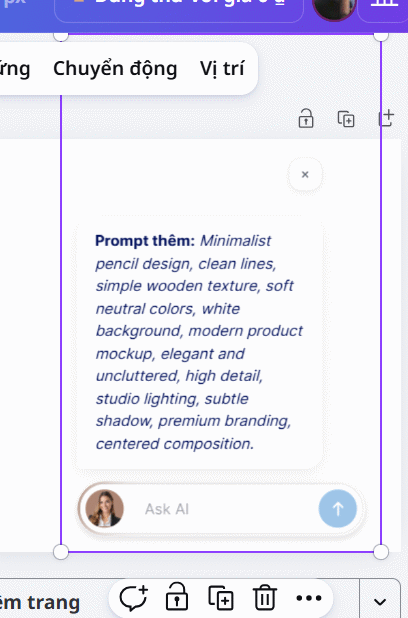
For users who are not logged into their JotForm AI Chatbot account, the conversation history will not be saved.
Related Articles
 Design Infographics in Canva AI from Data4 minutes read
 How to Create Leaflets Using Canva9 minutes read
 Instructions for Creating QR Codes on Canva3 minutes read
 5 Steps to Design a Free Logo on Canva3 minutes read
 Instructions for Creating Stickers on Canva3 minutes read
 How to Design 3D Text on Canva3 minutes read
Reader Comments 0
Sign in with email or Google to join the discussion.