Table of Contents
How to Ghost Computer with File ** .Tib UEFI Standard is easier to understand when the core ideas are paired with practical examples. The sections below explain the topic clearly, highlight useful steps, and point out details that can prevent common errors.
The concept of computer ghost is certainly no stranger to technology people. With this ghost win, we will not need to waste time reinstalling Win, just extract the ghost file to get the complete operating system as it was.
- How to backup and restore Windows in just 10 minutes with Acronis True Image
- Instructions for creating USB boot with Hiren's BootCD quickly
- How to create USB Boot, USB install Windows by Rufus
Guide computer ghost with file *.tib (UEFI standard)
Step 1:
Firstly, download Acronis True Image software according to the link below and then install it on your computer.
- Download Acronis True Image software
Step 2:
Start the software and then access the main interface of Acronis True Image. Here, click on the Home tab on the left side of the interface. Then look to the right of the Recover section and click on My Disks .

Step 3:
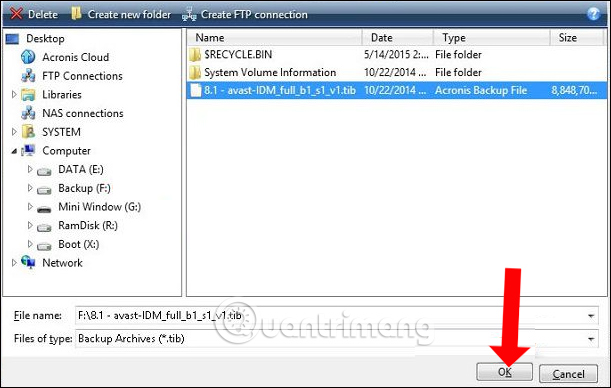
Appear on the computer interface. Click the Browse button and navigate to the partition containing the ghost file in.tib format . Then click OK to confirm.
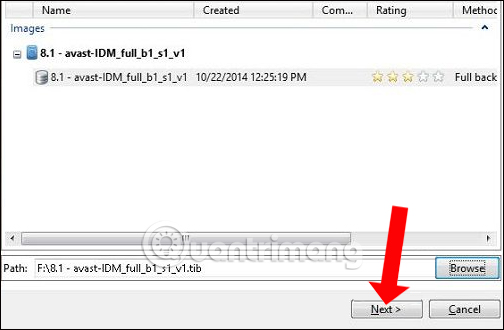
Then click the Next button to continue.
Step 4:
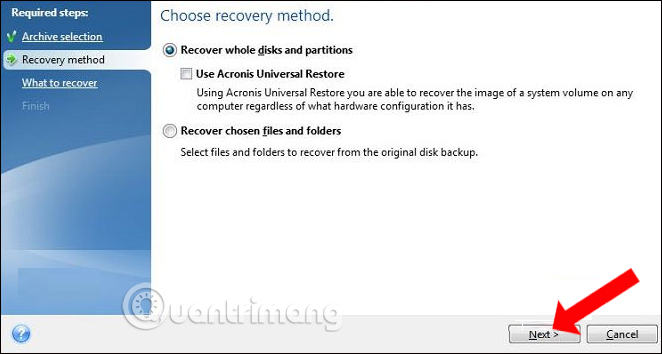
In Recover Method, click Recover whole disk and partition , then click Next next.
Step 5:
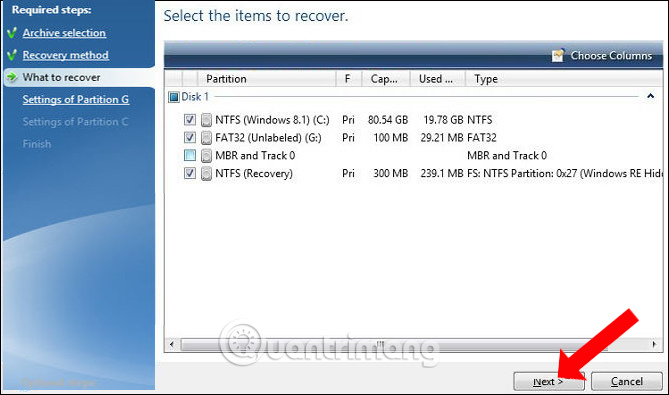
Then click on the partitions and do not select MBR and Track 0, to ensure all data on the hard drive is retained.
Step 6:
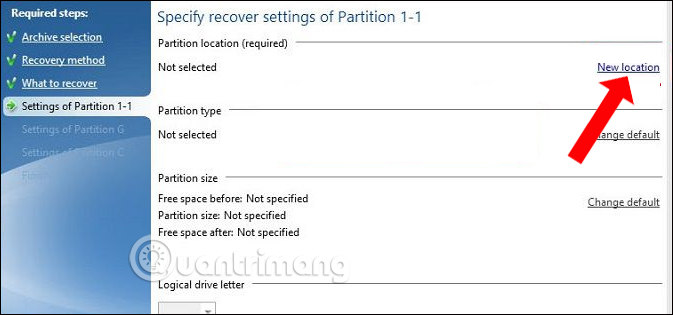
In the Settings of Partition 1-1 section , click on the New location to select the ghost file partition.
Step 7:
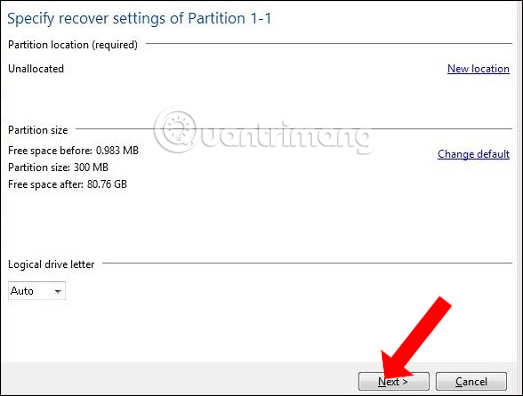
New interface appears and click on the Unallocated partition that you have prepared earlier, then click Accept to proceed .

Continue to click Next in the interface below.
Step 8:
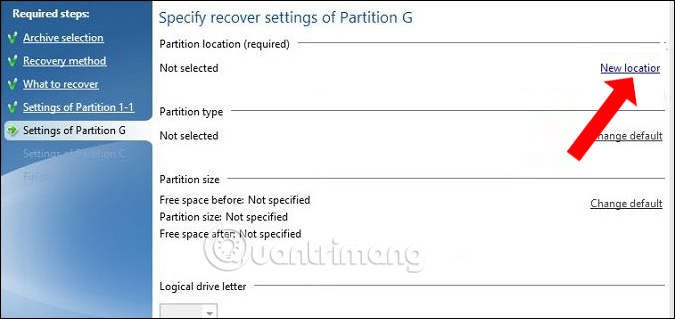
Click on Settings of Partition G , click on New lacation as shown below.
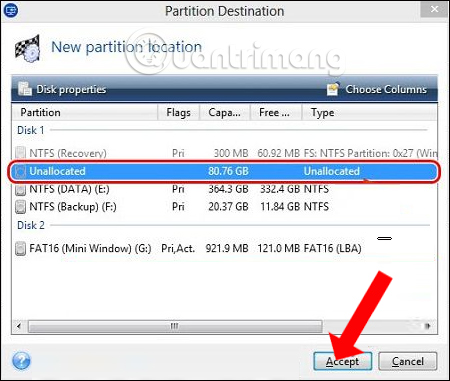
New interface appears, users also click the Unallocated partition then click Accept to accept.
Also click Next to continue.
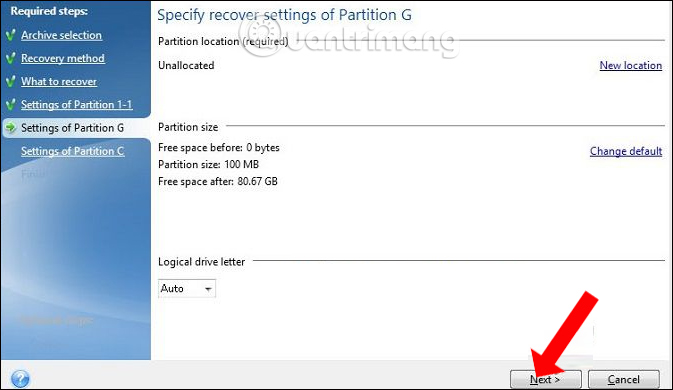
Step 9:
Go to Settings of Partition C and also select New location .
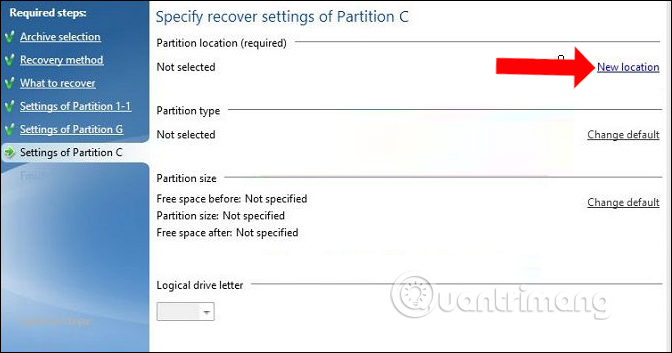
Click next to Unallocated and click Accept .

Then we also click Next below to continue.
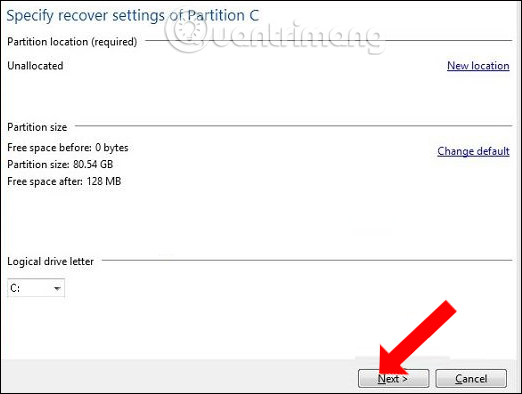
Step 10:
After you've done the above steps, click Proceed to start extracting ghost files to the selected partition.
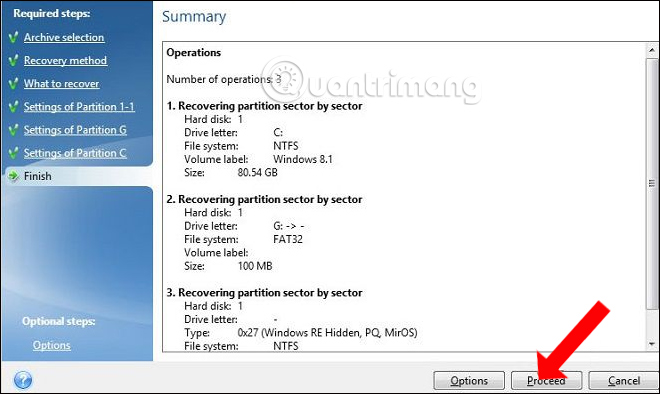
The process of extracting the ghost file will have 2 options to restart the computer or shutdown after the ghost is finished. We click on 1 of the 2 options and wait for the above process to finish.

- Instructions to create USB installation, boot Windows with Windows 7 USB Download Tool
- Instructions on how to install Windows 7 from the HDD
- 20 ways to create the best USB boot
I wish you all success!
FAQ
What is How to Ghost Computer with File ** .Tib UEFI Standard?
The concept of computer ghost is certainly no stranger to technology people.
Why is How to Ghost Computer with File ** .Tib UEFI Standard important?
A clear understanding of How to Ghost Computer with File ** .Tib UEFI Standard helps you make informed decisions, avoid common mistakes, and use the relevant tools or techniques more effectively.
How should beginners approach How to Ghost Computer with File ** .Tib UEFI Standard?
Start with the fundamental concepts, follow the examples step by step, and test each change in a safe environment before applying it to important systems or data.
Related Articles
 What Is a TIB File? How to Ghost a Computer with a Standard6 minutes read
 How to Create and Extract Ghost in UEFI Standard and Standard GPT Hard6 minutes read
 How to Ghost UEFI-GPT Standard Tib File for Computer, Laptop5 minutes read
 How to Create USB BOOT Standard UEFI - GPT Standard5 minutes read
 What Is Uefi: Concept of Uefi Standard in Computers5 minutes read
 Create UEFI Standard USB Boot with DLC Boot6 minutes read
Reader Comments 0
Sign in with email or Google to join the discussion.