On Windows, you can use ImgBurn to burn an ISO image to a disc, and on macOS, you can use Finder to burn the ISO image directly to a disc.
To create a Blu-Ray disc from any video, all you need to prepare is:
- A Blu-Ray burner : Blu-ray has become a standard, and many computer manufacturers have completely removed optical drives . If you don't already have one, you'll need to buy a Blu-Ray burner, which typically costs between $40 and $60 , depending on whether you want an internal or external drive. To burn Blu-rays from a Mac, you'll need an external burner, as most Macs cannot use internal drives without some kind of protective enclosure.
- Blank Blu-Ray discs : Of course, you'll need a blank disc to record your movie (or any video). Blank Blu-Ray discs are usually more expensive than DVDs, but the price can be cheaper if you buy in bulk. Blank discs also come in two types: single-layer and dual-layer. Single-layer Blu-Ray discs can store up to 25GB, while dual-layer Blu-Ray discs can store up to 50GB.
- TsMuxeR (Windows/Mac): Before burning video to disc, you must set the correct video format. If your video is in MP4, MKV, or other supported common formats, tsMuxeR is a simple utility that can reorganize these files into something your Blu-Ray player can read. Technically, this process is called 'muxing' rather than encoding, so it won't cause any issues with your video quality.
- ImgBurn (Windows): This is a handy tool that can burn files, folders, or disc images to a Blu-Ray disc. In this tutorial, we will use tsMuxeR to create an ISO file that ImgBurn can easily burn directly to the disc.
- Finder (Mac): On a Mac, the disc burning process is even much easier. Finder has built-in capabilities to directly burn ISO images as long as you have a connected drive.
- Install or plug in your Blu-ray drive, install the necessary application, then activate tsMuxeR to remux your videos to the appropriate format.
Step 1: Convert the video to Blu-Ray format using tsMuxeR
Regardless of which operating system you're using, you'll need to convert your video files to Blu-Ray format. Technically, this is done using a process called multiplexing or "muxing".
In this context, muxing involves combining multiple video or audio files into a new format without altering their content. While it's not necessary to change the audio stream and sound of the movie, you need to rearrange them into the correct format so that a Blu-Ray player can read them. To convert video files to Blu-Ray, you can use a tool called tsMuxeR, which supports high-speed video to Blu-Ray conversion and is available for both Windows and Mac.
To use tsMuxeR, you need to install the program from here:
- For Windows: Download tsMuxeR
- For Mac: Download tsMuxeR for Mac
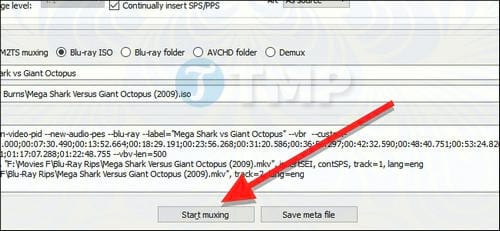
First, open tsMuxeR and click Add on the right side of the window. Find the video file you want to convert, then click Open . You can find a list of video formats and corresponding codecs that you can convert on the application's website here.
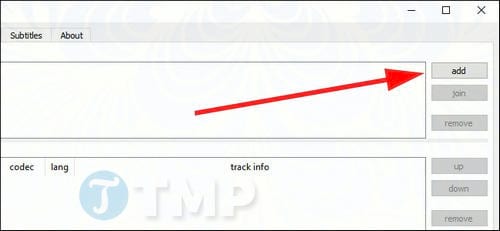
In the Output section , select " Blu-ray ISO ". This will create a disc image that you can burn directly to disc from several programs. Alternatively, you can use a ' Blu-ray folder ' if the application you are using does not support ISO. In this tutorial, we are using ImgBurn for Windows and Finder on macOS, both of which support ISO burning, and ImgBurn also supports burning folders directly.
Next, on the right side of the screen, click the Browse button to find the location where you want to save the converted Blu-Ray files. This storage location must have enough free space to store a complete copy of the movie (or video) you want to burn, at least temporarily, so make sure there is enough free space on that drive.
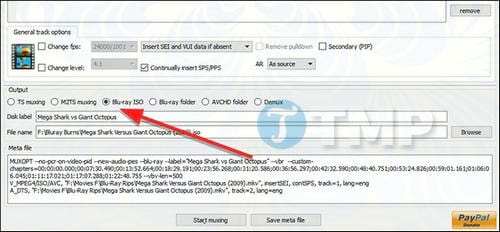
Once complete, click Start muxing to convert (or remux) your video into a folder of files that you can burn to Blu-Ray.
Conversely, if you want to convert Blu-ray to video, you can refer to many software programs that support converting Blu-ray to video on tipsmake, such as WinX Blu-ray DVD to iPhone Ripper.
Step 2: Burn the image to disk.
After you've converted (remuxed) your video to a Blu-Ray-compatible ISO format, you can then burn that image to a blank Blu-Ray disc, and it will play on any Blu-Ray player.
An ISO file is essentially a copy of an entire disc, so there's no need to convert the ISO file when copying. In fact, you can mount the ISO on Windows or macOS and use it just like a disc in a drive.
An ISO file is essentially an exact copy of an entire disc, so it won't need to be converted while it's being copied. In fact, you can mount a standard ISO in Windows or macOS and play it as if it were a disc in a drive. If you want a physical disc, here's how to burn the ISO to a blank disc.
Windows: Burning ISO using ImgBurn
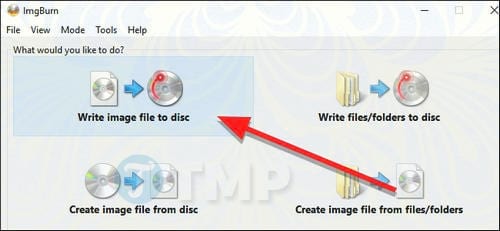
ImgBurn is a free utility that can easily burn files, folders, and images to disc. To do this, open ImgBurn and click on "Write image file to disc" .
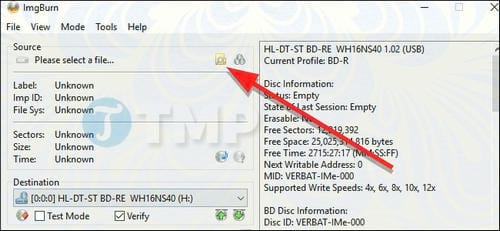
In the Source section , click the yellow folder icon to find the ISO file of the movie (video you want to burn).
Make sure that your destination drive is selected in the Destination section, then click the Burn button in the bottom corner of the window.
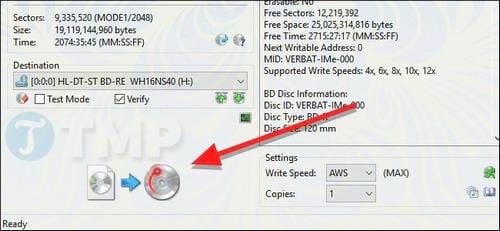
ImgBurn will begin burning the ISO to DVD. The burning process will take some time, and the tray may pop open and close once or twice, so make sure your drive is not obstructed. Once complete, you can play the disc you just burned on any Blu-ray player. There will be no menus, so the movie (or other videos you burn) will automatically play as soon as it's inserted.
macOS: Burning ISO using Finder
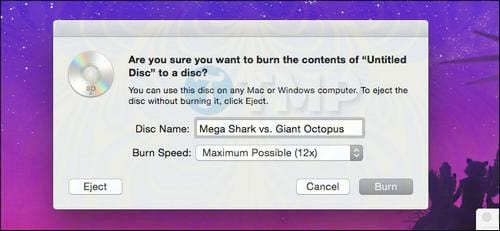
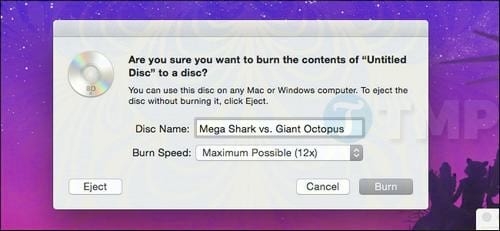
On a Mac, Finder can burn ISO images directly to a disc. Open the folder containing your ISO image in the Finder window. Then click File and select the menu option Burn [IMAGE NAME] to Disc .
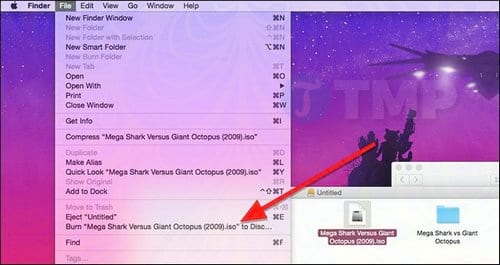
A small window will appear on the screen; name your drive, then click Burn .
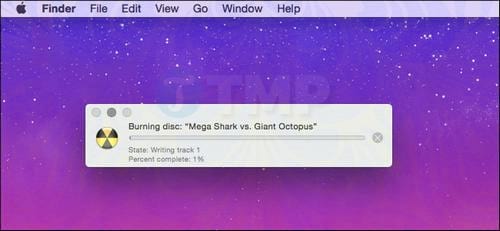
Another small window with a progress bar will appear. Once it finishes, your disk will be completely burned.
Once you've created a Blu-ray disc from any video, you can play it on any Blu-ray player, and it will automatically play your movie.
Related Articles
 Create Your Own DVD Video with the DVD Flick Program6 minutes read
 Disc: How to Copy Computer Games from Cd to Your Hard Drive5 minutes read
 How to Burn ISO File to DVD: Clear Instructions6 minutes read
 How to Create a Recovery Disc in Windows 713 minutes read
 Burn Video DVD Disc with Windows DVD Maker5 minutes read
 Coal Disc Player: Top 5 Best Coal Players 20197 minutes read
Reader Comments 0
Sign in with email or Google to join the discussion.