Table of Contents
In TeamViewer Classic, hover over the displayed random password and select the circular-arrow icon to generate a new one. You can also open the three-dot menu beside Your ID and choose the new-random-password option. The previous random password can no longer start a new connection after it changes.
Changing this password is only one part of revoking access. It does not necessarily disconnect an active session, change the TeamViewer account password, remove a personal unattended-access password, or disable Easy Access. Review each access method separately.
Know which TeamViewer password you are changing
| Credential | Purpose | How to revoke it |
|---|---|---|
| Random password | Temporary incoming ID-and-password connections | Generate a new random password or disable that connection method |
| One-time password or session code | One attended connection | End the session; a one-time credential cannot be reused |
| Personal password | Unattended access to a device | Change or remove it in security settings |
| TeamViewer account password | Signs in to the TeamViewer account | Change it through account security and review signed-in devices |
| Easy Access or managed assignment | Account-based access without typing a device password | Remove the assignment, access permission, user, or device |
If your current TeamViewer interface uses session links rather than an ID and random password, create a fresh session instead. The screenshots in this guide show TeamViewer Classic.
Generate a new random password immediately
- Open TeamViewer Classic on the computer that can be controlled.
- Find the password in the Remote Control area.
- Move the pointer over the password field until the circular-arrow icon appears.
- Select the icon. TeamViewer replaces the old value with a new random password.
- Give the new password only to the trusted person who needs the next attended session.
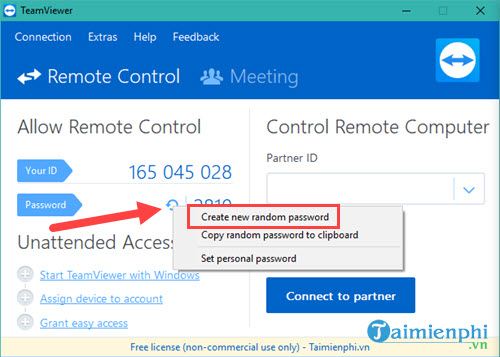
The same command may appear in the three-dot menu beside Your ID. Restarting TeamViewer can also generate a new value, depending on the configured password behavior, but the explicit refresh control is clearer and easier to verify.
Increase the random password strength
- Open TeamViewer Classic.
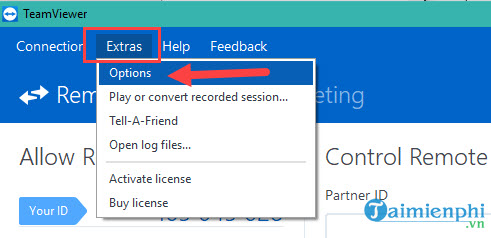
- Select the gear-shaped Options button.
- Open Security.
- Under Random Password (for spontaneous access), choose the strength.
- Select OK to save.
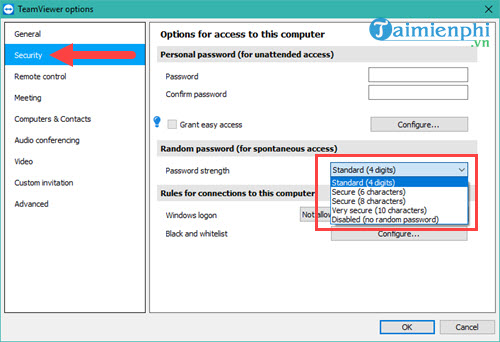
TeamViewer's current Classic documentation lists these options:
- Secure: 6 alphanumeric characters;
- Secure: 8 alphanumeric characters;
- Very secure: 10 characters, including special characters;
- Disabled: no random password is generated.
The old claim that the default password is always four characters is outdated. Choose the strongest setting that works with your supported workflow. Disabling the random password is appropriate only when another deliberate access method—such as a secure session link or properly managed Easy Access—will be used.
Generate a new password after every session
- Open TeamViewer Classic Options and select Advanced.
- Find Advanced settings for connections to this computer.
- For Random password after each session, choose Generate new.
- Save the settings.
TeamViewer recommends generating a new random password after each completed session. Other available behaviors can keep the value until restart, deactivate it after use, or ask for confirmation. Keeping the same temporary password undermines its value as a short-lived credential.
End current access before changing credentials
If somebody is already connected, changing the displayed password is not a substitute for ending the session. Use the session controls to disconnect, or close TeamViewer on the computer being controlled. Then generate the new password.
After an unexpected or suspicious connection, complete this checklist:
- Disconnect the active session.
- Generate a new random password.
- Change or remove any personal password.
- Review Easy Access, account assignment, device groups, allowlists, and authorized users.
- Review the TeamViewer account's sign-ins and security settings.
- Remove unknown software, users, startup items, or scheduled tasks from the computer.
- Change any password or verification code exposed during the session from a clean device.
Use a one-time session when possible
For attended support, a session link or one-time credential is easier to reason about than a reusable password. TeamViewer's one-time access credential expires after the connection ends, while the current TeamViewer Remote interface recommends session links for attended support.
Remember that a one-time access method does not automatically block all other paths. A personal password, Easy Access, account assignment, or another active user can still permit a connection until separately revoked.
Personal passwords for unattended access
A personal password is different from the automatically generated value. Use one only for a justified unattended-access setup on a device you own or administer.
- Create a long, unique password and store it in a password manager.
- Do not use dictionary words, keyboard patterns, names, or dates.
- Do not reuse the TeamViewer account password.
- Restrict access with account permissions and an allowlist when the environment supports them.
- Prefer managed account-based access for business devices.
- Change the password immediately if it was disclosed, reused, or accessed by somebody whose authorization ended.
Routine calendar-based password changes are less useful than a strong unique credential plus immediate rotation after exposure. Review access regularly and remove unnecessary methods.
If the password control is missing
- Your client may use the newer session-link workflow rather than TeamViewer Classic's random password.
- A company policy may hide or enforce the setting.
- One-Time Access may temporarily replace the random-password display.
- The random password may be disabled in Security settings.
- QuickSupport, Host, and the full client expose different controls.
- The installed TeamViewer version may be outdated; update it from the official site.
Do not enable a personal password simply to make a missing random-password field reappear. Identify which TeamViewer module and access policy the device is supposed to use.
Security practices that matter
- Never share a TeamViewer ID, password, or session code with an unsolicited caller.
- Verify a helper through a separate trusted channel.
- Protect the TeamViewer account with strong authentication.
- Keep TeamViewer and the operating system updated.
- Turn off startup and unattended access when no longer required.
- Close banking, email, identity, and password-manager windows before attended support.
TeamViewer's official random-password guide documents the refresh control, strength choices, and after-session behavior. For a broader review of temporary and persistent connection methods, see TipsMake's remote access tools overview and its guide to creating stronger passwords.
Related Articles
 Set a Password for Teamviewer - Set a Password for2 minutes read
 Change the Password Length of Teamviewer for More Security2 minutes read
 Detecting Security on TeamViewer Allows Hackers to Steal the System3 minutes read
 How to Use Teamviewer: How to Set a Fixed Password on Teamviewer3 minutes read
 Here's How to Check If Your Teamviewer Account Is Hacked.6 minutes read
 What Is TeamViewer? Explained2 minutes read
Reader Comments 0
Sign in with email or Google to join the discussion.