Table of Contents
To use an existing Gmail address on an iPhone, add the Google account to Apple Mail or sign in through Google's Gmail app. These methods do not create a new Gmail address; they connect an account you already own. Choose Apple Mail for a unified inbox with other providers, or the Gmail app for Google's full Gmail-specific interface.
Add Gmail to Apple Mail
- Open Settings. On current iOS versions, go to Apps > Mail > Mail Accounts > Add Account. On older versions, the path may be Mail > Accounts or Passwords & Accounts.
- Select Google. Use this provider option instead of choosing Other, because it opens Google's supported authorization flow.
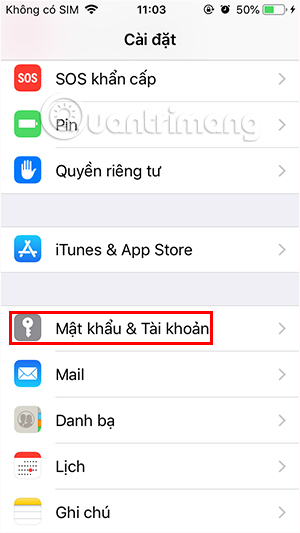
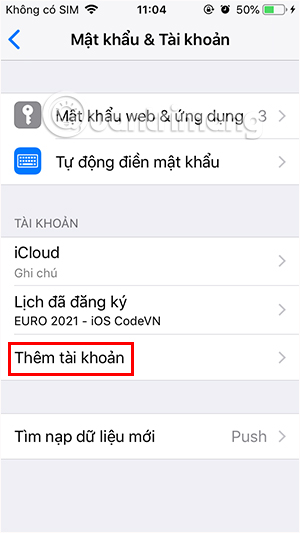
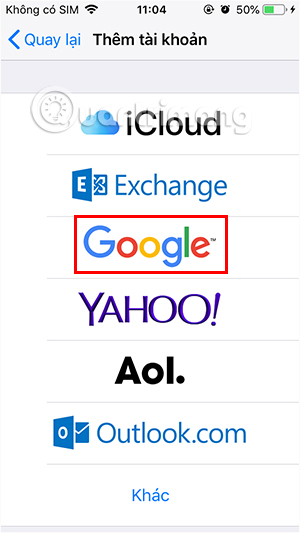
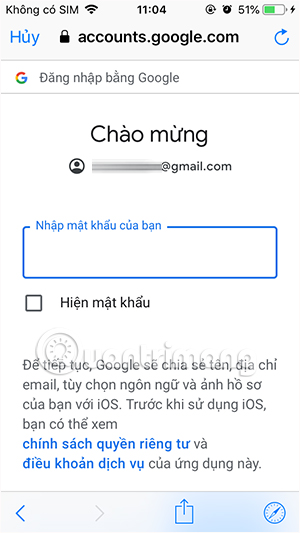
- Enter your Gmail address on Google's sign-in page, continue, and complete the requested authentication. Review the account name carefully if several Google accounts are listed.
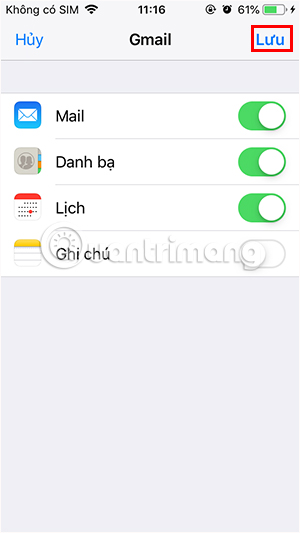
- When iOS asks what to sync, enable Mail. You can also enable Contacts, Calendars, or Notes if you want that Google data available in Apple's apps.
- Tap Save, then open Mail. The first synchronization may take a few minutes.
Change Gmail sync options or remove the account
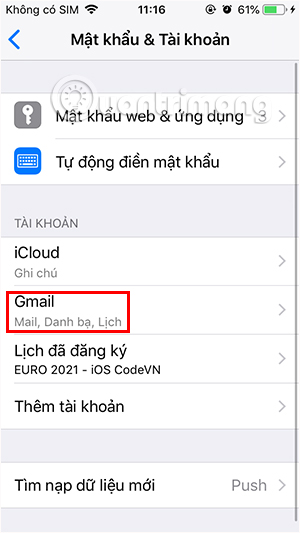
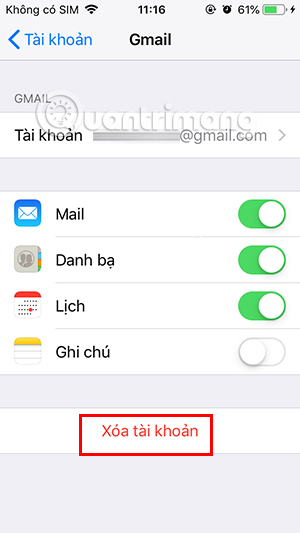
Return to the account list in Mail settings and select the Gmail account. You can turn individual data types on or off without deleting the Google account itself. Choosing Delete Account removes the account and its synchronized data from this iPhone; it does not delete the Gmail account or mail stored by Google.
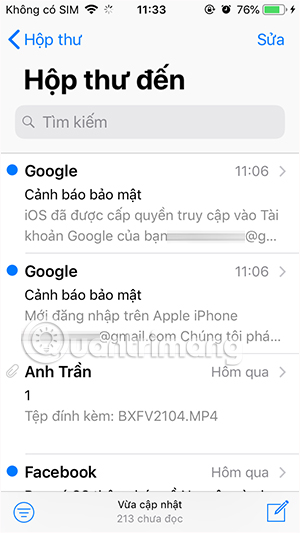
Open Apple Mail and check the Mailboxes screen if the Gmail inbox is not immediately visible. You can view the Gmail mailbox separately or use All Inboxes to combine mail from multiple accounts.
If you later want to disconnect it, follow TipsMake's steps for removing Gmail from an iPhone.
Use the Gmail app instead
- Install the official Gmail app from Apple's App Store. Verify that Google LLC is shown as the developer.
- Open Gmail and tap Sign in or your profile picture, then choose Add another account > Google.
- Complete Google's sign-in and authentication prompts, then allow the app to use the selected account.
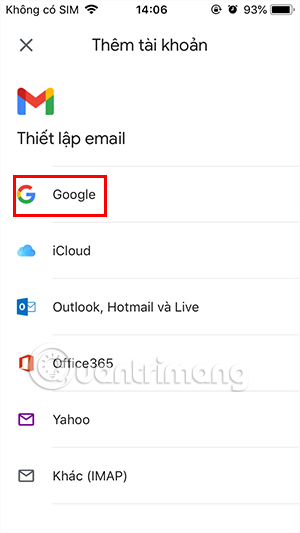
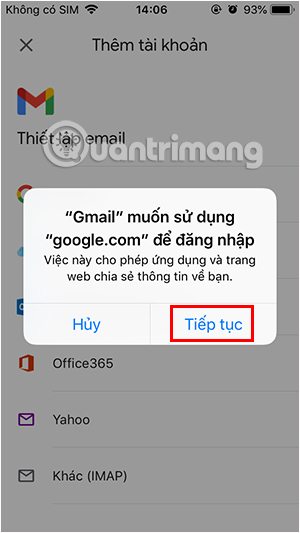
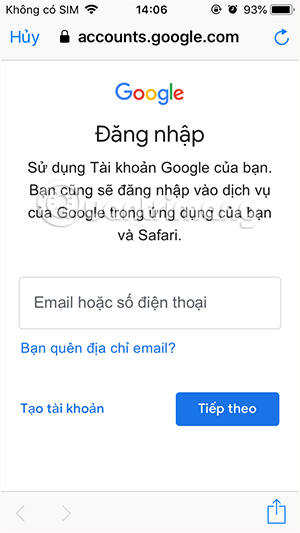
The Gmail app can also connect supported non-Google email accounts. Adding them to Gmail does not convert those addresses into Gmail accounts.
Apple Mail or the Gmail app?
- Choose Apple Mail if you want one inbox for Gmail, iCloud, Outlook, and other accounts; close integration with iOS sharing; and a consistent Apple interface.
- Choose Gmail if you rely on Gmail categories, labels, Google Meet integration, Google-specific search, or quicker access to new Gmail features.
- Using both is possible, but duplicate notifications can be confusing. Disable alerts for one app if both are connected to the same account.
For a broader comparison, read why some users find that Apple Mail still suits their iPhone workflow better than Gmail.
If Gmail will not connect or update
- Confirm that Safari can load a website, then retry the account setup.
- Complete two-step verification through Google's supported prompt. Do not enter your password into a third-party form.
- Open the Google account's security page and review blocked or unfamiliar sign-in activity.
- Check that Mail is enabled for the account and that Low Power Mode, background restrictions, or notification settings are not delaying updates.
- If messages are missing, check All Mail, Spam, Trash, and the selected mailbox rather than adding the account repeatedly.
- As a last step, remove the account from the iPhone, restart the phone, and add it again. Confirm that important server-side mail is visible at Gmail on the web before removing anything.
Related Articles
 How to Own Multiple Gmail Addresses with Just One Account3 minutes read
 How to Sign up for Gmail, Create and Create a Google Account5 minutes read
 How to Register a New Gmail, Create a Gmail, Create a Gmail Account7 minutes read
 How to Create Virtual Gmail from Your Real Gmail4 minutes read
 Instructions for Quickly Transferring Gmail Accounts with the2 minutes read
 Instructions for Deleting Gmail and Google Accounts6 minutes read
Reader Comments 0
Sign in with email or Google to join the discussion.