Table of Contents
This updated guide examines 'Hand-free' to Clean up Windows 10 Without the Need for and organizes the essential facts, background, and practical takeaways in clear American English.
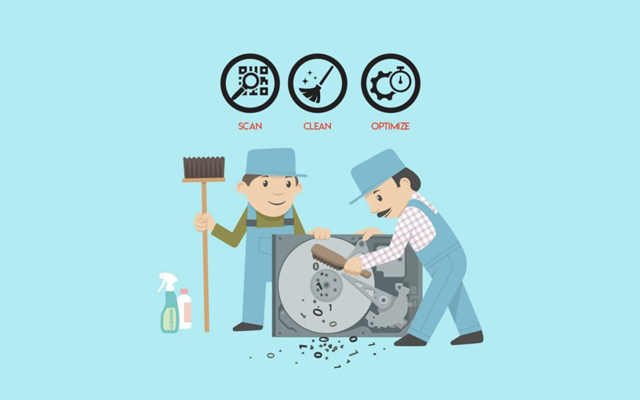
Knowing this, the software to clean junk for Windows continues to "make a profit" after many versions of Windows were released. However, this method is extremely dangerous because it has many potential risks. Because they are software, they will work automatically, and no one is sure that they will not accidentally delete some important system files or other data on the computer.
Therefore, manually "garbage" Windows manually is not a wise choice. This way, you may not be able to clean Windows, but it will partly reduce the amount of "garbage" generated by a long time and contribute to help Windows work faster and more stable.
1. Delete the temp data in the Temp folder
"Temp" is a directory containing some temporary data. For example, when you install a software from *.msi file, the internal data may be extracted into Temp folder. In addition, when browsing the internet, if you have the option to open only the view for a file to download, the file will be downloaded by default. But maybe after the use is complete, the data has not been deleted, causing disk space usage. Therefore, if you want to delete all "junk" data in Temp, you can do as follows:
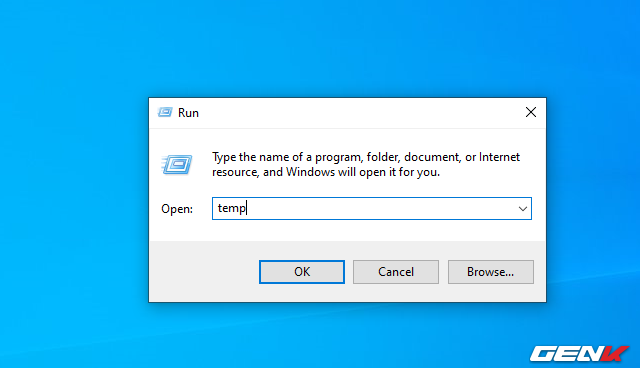
Enter the command "temp" in the RUN dialog box and click OK.
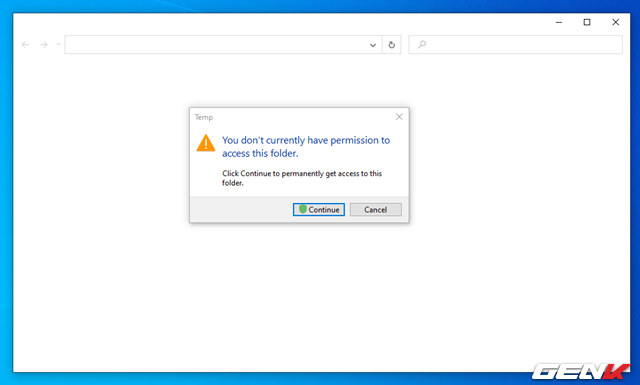
File Explorer opens, accompanied by an access confirmation dialog. Click Continue.
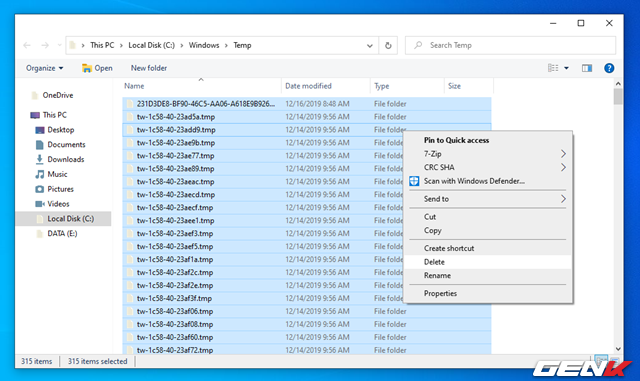
Windows will list all the junk data related to the keyword you enter. Done, press the keyboard shortcut Ctrl + A to select all and press Delete to delete them is finished.
There may be some files that cannot be deleted, you should ignore them.
2. Empty the Recycle Bin
The Recycle Bin is not a directory or a file. We will briefly mention the Recycle Bin function, simply when you delete one or more files or items, the system will "move" them to the Recycle Bin.
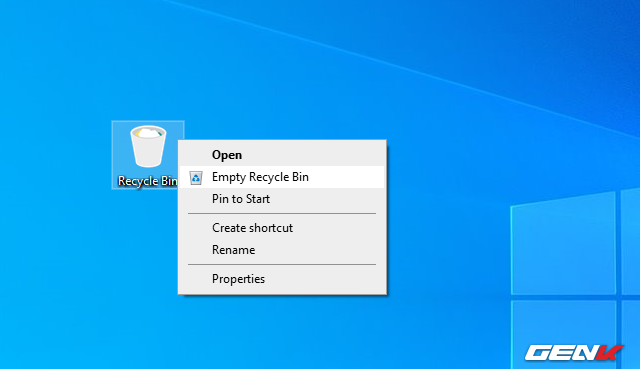
This is a "special" place to "help" store deleted data until you delete them permanently or restore them when necessary. However, you will probably "forget" the existence of Recycle Bin on the desktop and maybe it is "containing" GB of old data in it.
3. Delete unused applications and software
Software and applications are no longer used, but if not removed, they still exist services and files that run in the background. And if unfortunately this data conflicts with the data or files of other software and applications, then they become a "burden" for the system. Therefore, it is advisable to uninstall applications that are no longer in use.
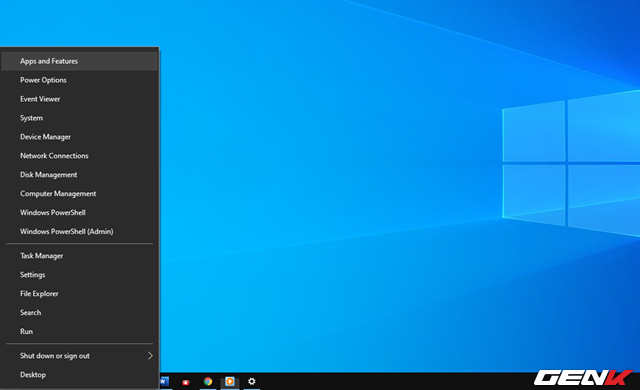
Right-click the Start button and select Apps and Features.
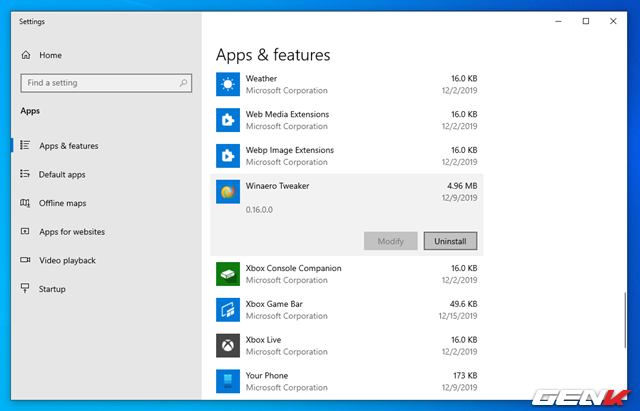
A list of applications and software installed on the computer will appear. Find the application, the software you are not using and uninstall it (Uninstall) is finished.
4. Use the Disk Cleanup tool
Disk Cleanup is one of the "maintenance" tools built into Windows over a long period of time. This tool allows users to free up more space on the computer by "cleaning" temporary files and system files that are no longer in use but take up quite a large amount of space. installation files and previous Windows version updates.

Enter the keyword "Disk Cleanup" into Search and click the result as shown.
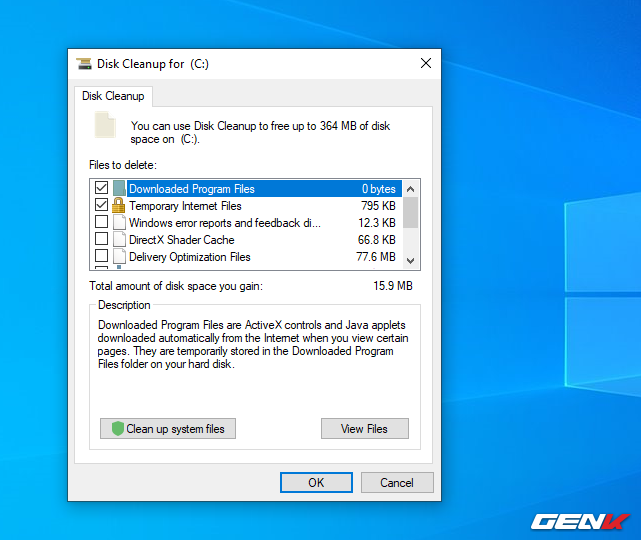
After selecting the scan partition, Disk Cleanup will display the cleaning options for you to choose.
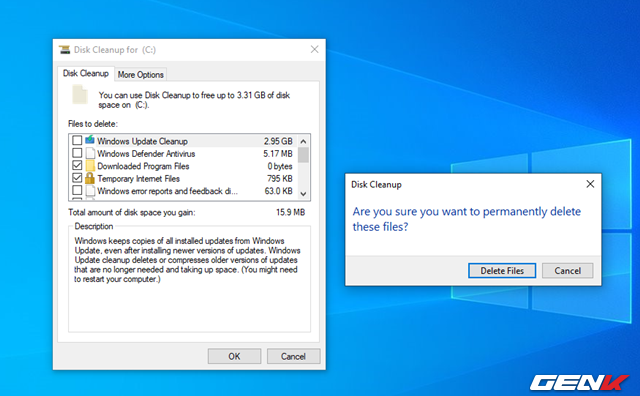
The cleaning process is quite fast and safe so you can safely use it.
5. Defragmenting hard drive partitions
After completing the above cleaning steps, the last thing you need to do is to defragment the hard drive partitions. And Disk Defragmenter will help you.
By default, Defragment and Optimize Drives are set to work automatically every 1am every Wednesday morning. Of course, you also do not need to let the computer run all night because in case the computer does not work, the utility will automatically transfer the disk defragmentation to the time the computer is idle (next time).
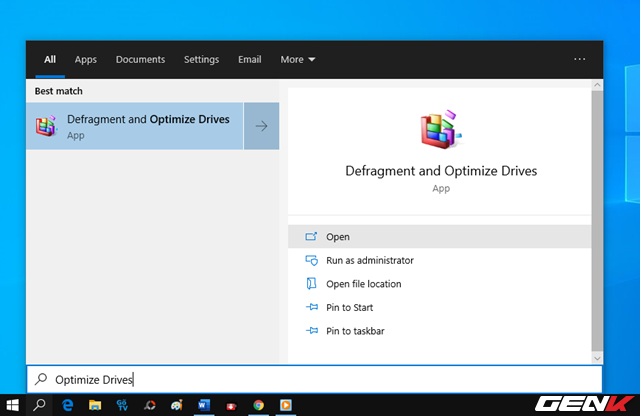
Enter the keyword "Optimize Drives" into Search and click on the result as shown.
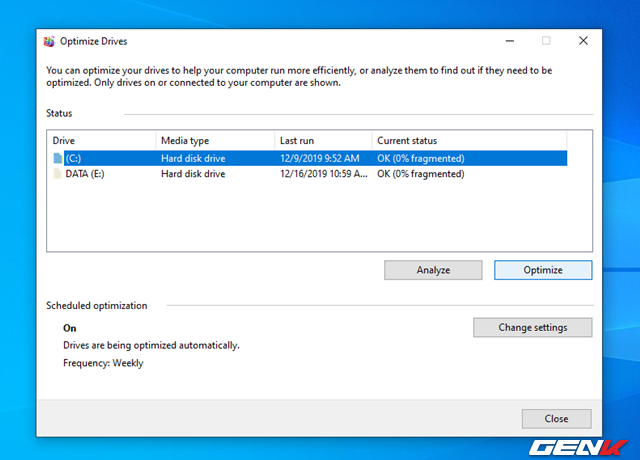
Click on the system partition (usually "C") and click Optimize.
Pretty simple, right? Hope the article will be useful for you.
FAQ
What is 'Hand-free' to Clean up Windows 10 Without the Need for about?
It provides a structured overview of tricks, explains the main context, and highlights practical takeaways for readers.
Why does this topic matter?
Understanding the main concepts helps readers evaluate the issue, avoid common mistakes, and make better-informed decisions.
How should readers use this information?
Use the guidance as a practical starting point, confirm details that may have changed, and follow current product, safety, or security recommendations.
Related Articles
 How to Fix Recycle Bin Not Self-cleaning on Windows 106 minutes read
 How to Make Your Own Hand Sanitizer at Home Following WHO Guidelines5 minutes read
 A Simple Way to Clean the Oil-free Fryer Protects the Non-stick5 minutes read
 School Party Craft: Explained5 minutes read
 How to Use Clean Master to Clean up, Speed up Windows6 minutes read
 How to Clean Windows PC Using Command Prompt: Complete Guide12 minutes read
Reader Comments 0
Sign in with email or Google to join the discussion.