Table of Contents
The Canva Connected App lets Gemini create a Canva design from a prompt or generated image, find and manage Canva assets, and make supported edits such as replacing text or changing fonts and background colors. More complex visual work still opens in Canva's editor.
Requirements
- Sign in to Gemini with a personal Google Account. The Canva connection is not currently available for work or school Google accounts.
- Turn on Keep Activity for Gemini Apps.
- Use the Gemini web app or Gemini mobile app.
- Use English. The Canva Connected App is currently available only in English.
- Have a Canva account that can be linked to the Google Account.
The integration is not available in every Gemini experience, including some Gems and Live chats. Availability can also vary by location and rollout.
Change the Google language to English if needed
Open your Google Account settings and select Personal info.
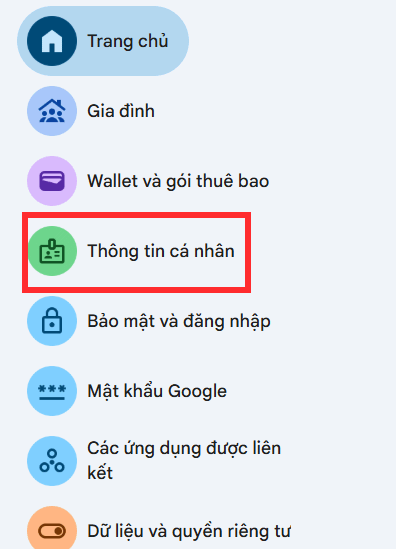
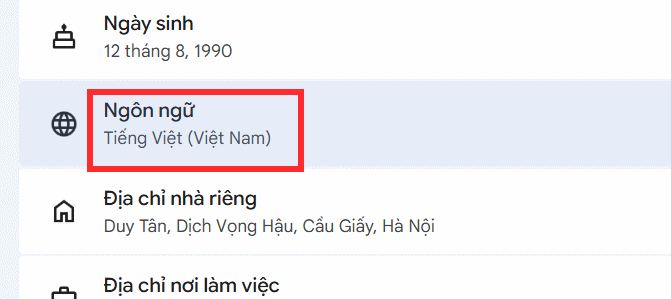
Find the general preferences area and open Language.
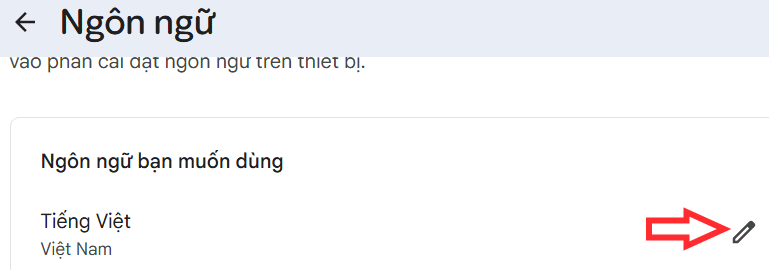
Select the edit icon next to the current preferred language.
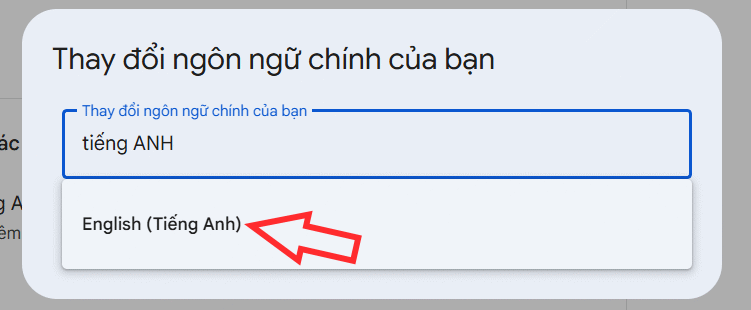
Search for and select an English locale, then reload Gemini.
If Canva already appears in Gemini's Connected Apps, you do not need to change unrelated device or browser language settings.
Connect Canva to Gemini
You can start from Gemini settings or trigger the connection by mentioning Canva in a prompt.
Method 1: Connected Apps settings
- Open Gemini and select the profile or Personal Intelligence area shown in your interface.
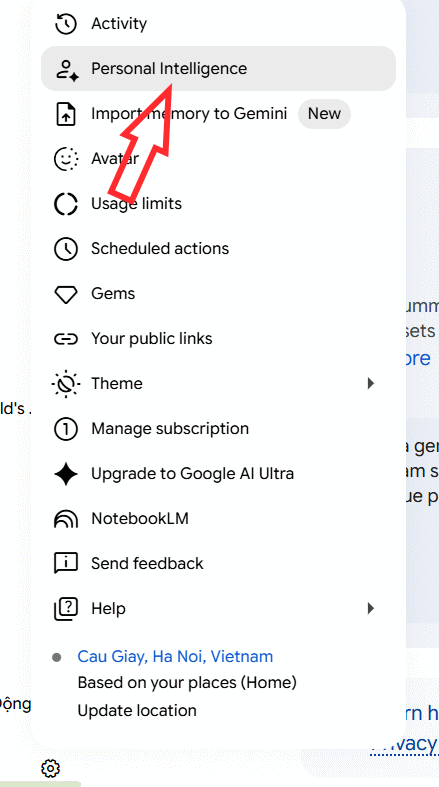
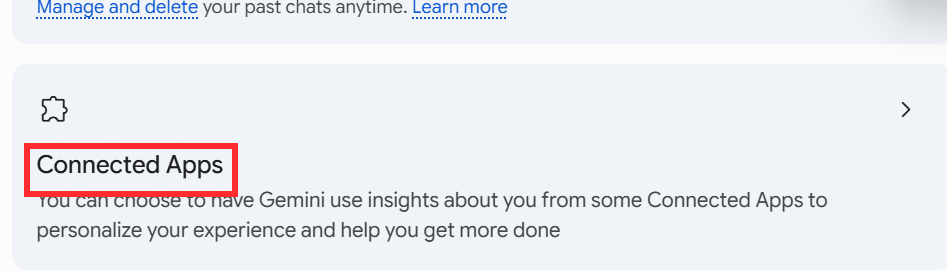
- Select Connected Apps.
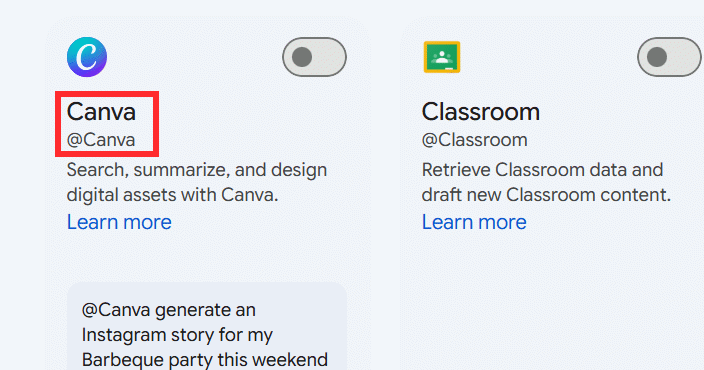
- Select Canva.
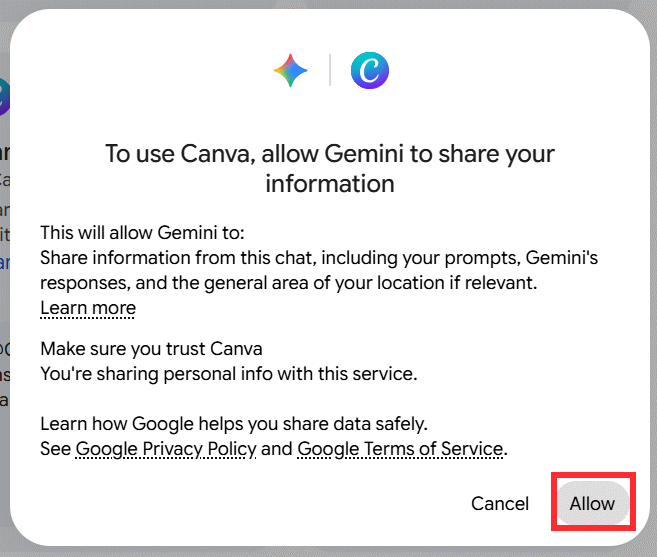
- Read the connection notice and choose Allow only if you accept the listed data access.
- Select Continue, then review the next confirmation rather than clicking through automatically.
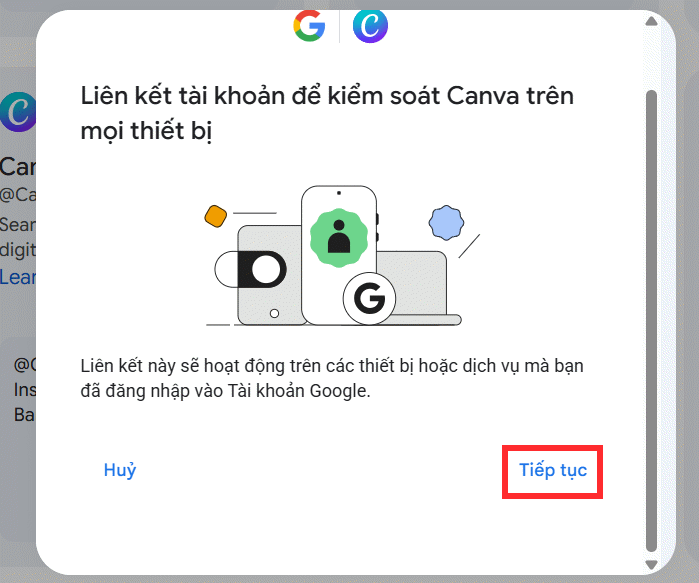
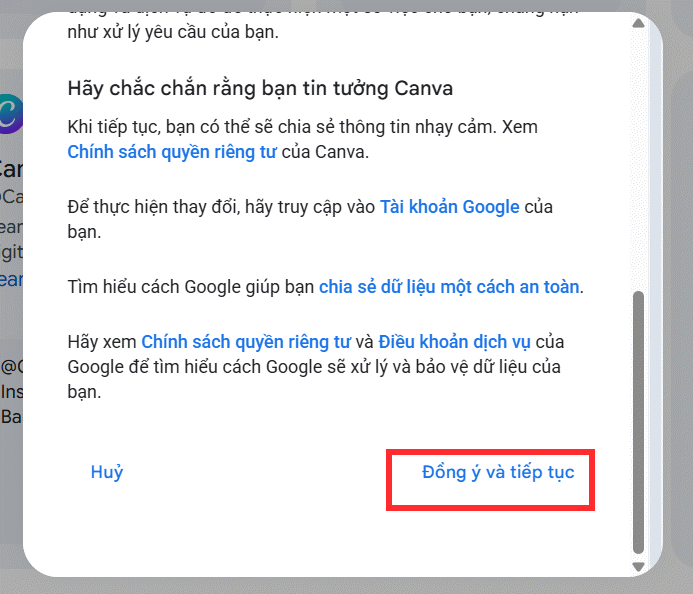
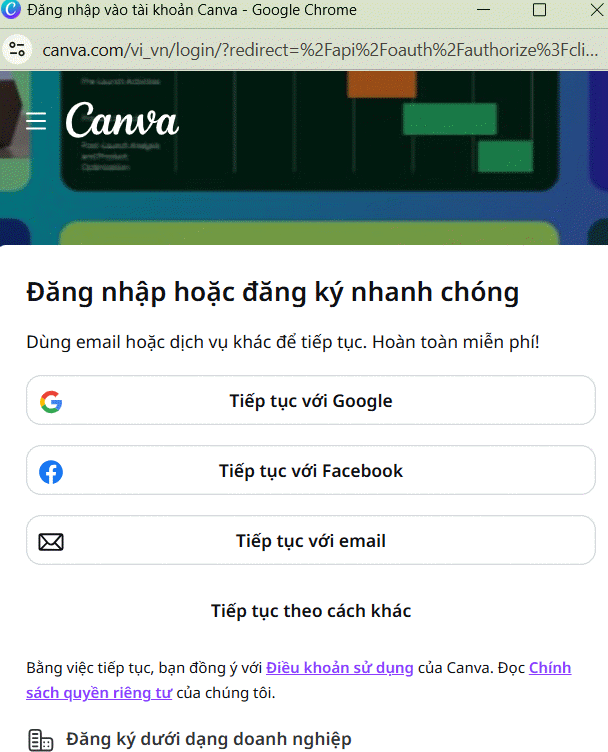
- Sign in to the correct Canva account.
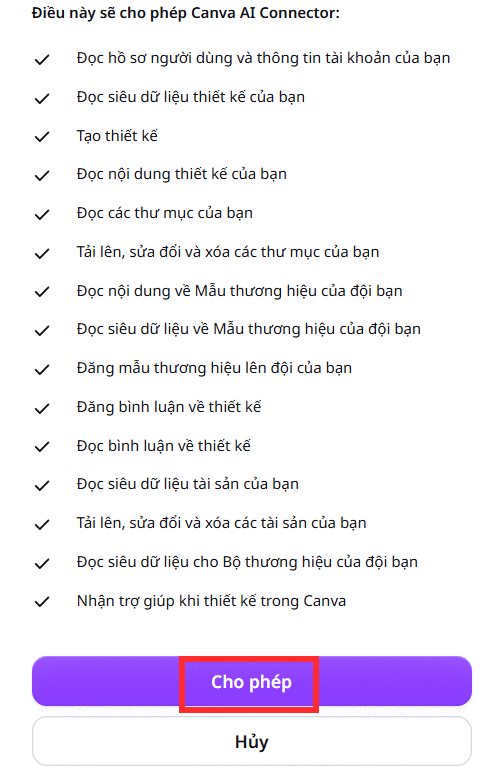
- Review the Canva AI Connector permissions and select Allow if they match what you intend to do.
Gemini should show Canva as connected when authorization succeeds.
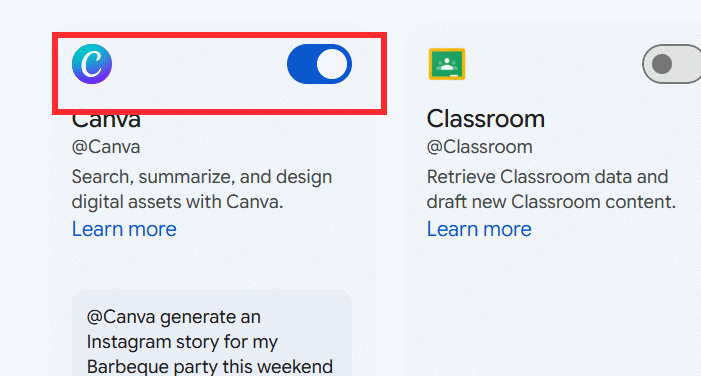
If Canva asks which Team to connect, choose the Team containing the designs you need. Enterprise-only actions require a Canva Team with the appropriate Enterprise access.
Method 2: Connect from a prompt
In a regular Gemini chat, ask for a Canva action and name the app:
@Canva create an Instagram post announcing a community book sale.
Use a 1:1 layout, navy and cream colors, and leave space for the date and venue.
If Canva is not connected, Gemini should offer the connection flow. Follow the same permission review and account-selection steps.
Create an image and send it to Canva
- Ask Gemini to generate the image you need. Include subject, composition, aspect ratio, colors, and any empty area needed for text.
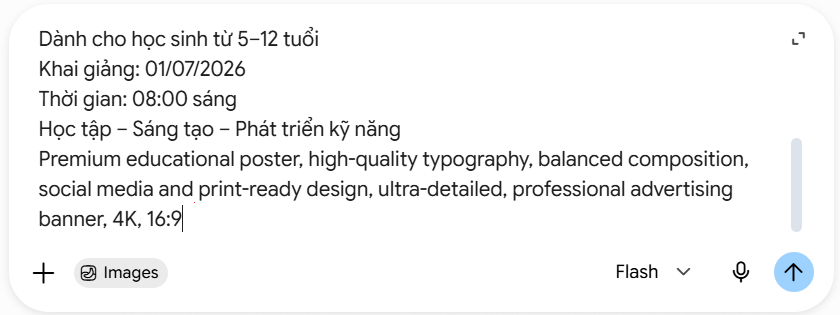
- In the next prompt, type
@and select Canva.
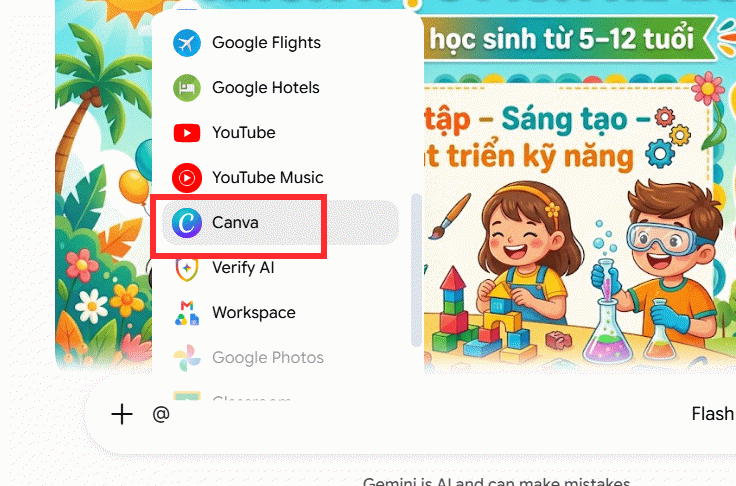
- Describe the Canva design and edits, not just “edit picture.” Specify the output format, text, layout, colors, and what must remain unchanged.
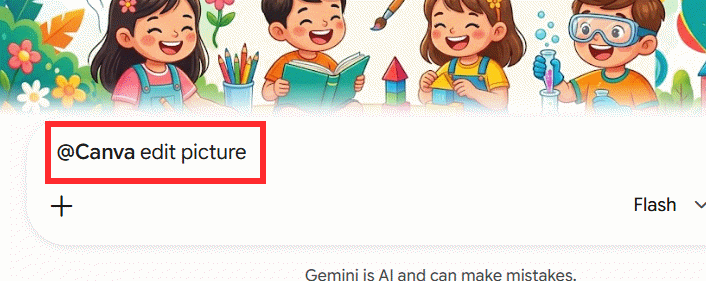
Example editing prompt
@Canva turn the generated image into a 1080 × 1080 event post.
Add the heading “Spring Book Sale,” a smaller date line, and a high-contrast button area reading “Free entry.”
Keep the main subject visible, use no more than two fonts, and do not change the supplied wording.
Open and finish the design in Canva
Gemini returns a Canva result or a link to the created design. Open it to continue in Canva.
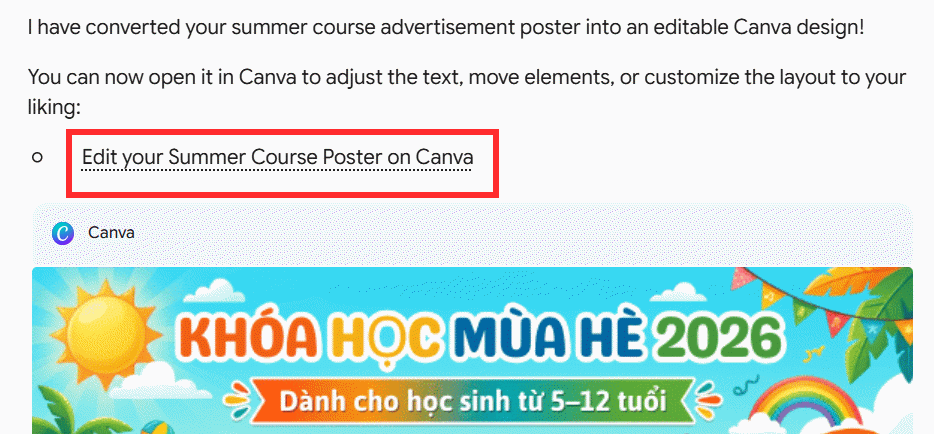
The Canva editor provides precise control over crop, alignment, layers, spacing, text, brand assets, export format, and accessibility.

Before downloading or sharing:
- Proofread every word; generated image text may be inaccurate.
- Check that the aspect ratio matches the destination platform.
- Confirm contrast, font size, and safe margins.
- Replace any irrelevant or misleading visual.
- Verify that you have rights to the image, logo, font, and template.
- Add alt text or a text equivalent when the design will be published online.
Other Canva actions Gemini can perform
Depending on account access, Gemini can also ask Canva to find designs, list folders or pages, return design details, create folders, move assets, and work with comments. These actions can affect shared team content, so name the target design or folder precisely and inspect the result.
Disconnect Canva or change accounts
Open Gemini's Connected Apps settings and disable Canva. If the wrong Canva account or Team was authorized, disconnect first and reconnect with the intended account. You can also review and revoke third-party access from the relevant Google and Canva account settings.
Troubleshooting
- Canva is not listed: confirm that Gemini uses a personal Google Account, English, a supported region, and Keep Activity.
- The connection opens the wrong Canva account: sign out of unwanted Canva sessions or disconnect and repeat the authorization.
- @Canva does nothing: start a regular text chat; the app may not work in a Gem or Live chat.
- The design is created but not editable: open the Canva link while signed in to the connected account and Team.
- An action is unavailable: it may require a particular Canva plan, Team permission, or staged rollout.
Connecting the apps grants real access to Canva content. Use the minimum account and Team needed, avoid confidential designs in an unnecessary connection, and disconnect the integration when you no longer use it.
Related Articles
 How to Add Photos to a Frame in Canva4 minutes read
 Best AI Photo Editing Tools10 minutes read
 Quick Tips to Turn Photos into Frames in Canva4 minutes read
 Instructions for Blurring Photos on Canva Are Very Simple4 minutes read
 How to Restore Old Photos with AI Gemini: Step-by-Step Guide5 minutes read
 How to Crop an Image into a Circle on Canva4 minutes read
Reader Comments 0
Sign in with email or Google to join the discussion.