Table of Contents
OmniVoice can generate speech from written text, create a synthetic voice from a description, or reproduce the characteristics of a recorded voice. The right workflow depends on whether you want a ready-made voice, a fictional custom voice, or a clone of a real speaker.
Use voice cloning responsibly: upload only your own recording or audio you have explicit permission to use. Do not use a cloned voice to impersonate someone, mislead an audience, or bypass voice-based security.
Create an AI voice with OmniVoice
1. Open the text-to-speech tool
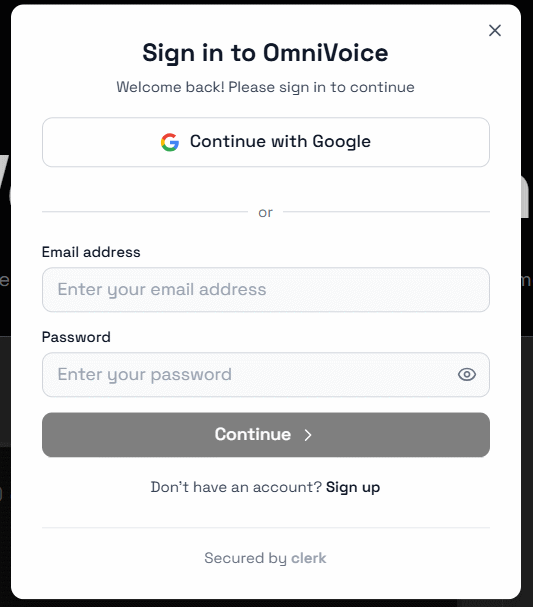
Go to the OmniVoice text-to-speech generator. Depending on the current service flow, you may be able to try it directly or be asked to sign in. Free usage and credit requirements can change, so check the limits shown in your account before processing a long script.
2. Design a synthetic voice
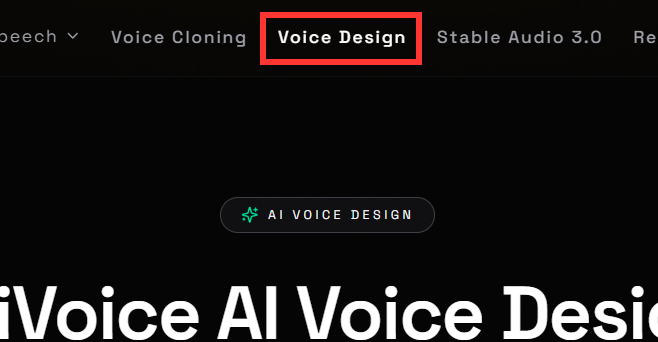
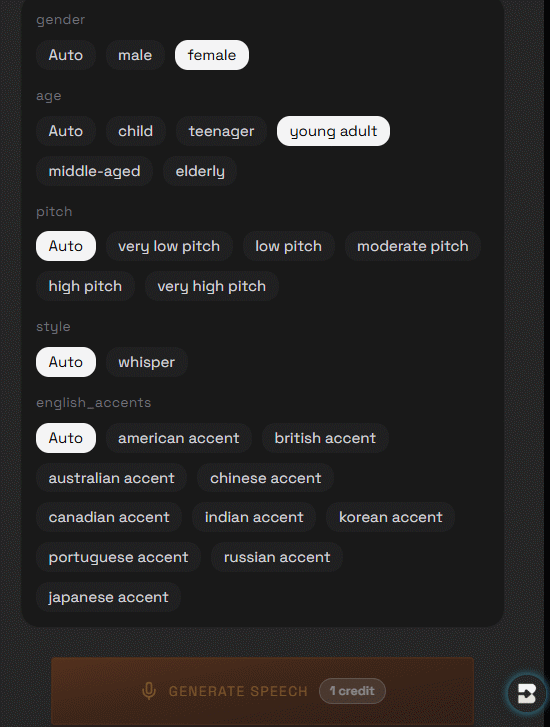
Open Voice Design if you want a new voice without supplying a sample. Describe the voice characteristics the interface asks for, such as speaking style, pitch, accent, age range, or intended use. Start with a short test sentence so you can adjust the design before generating a full narration.
Set the available voice controls one at a time and listen after each meaningful change. Testing a neutral sentence and a sentence with punctuation helps reveal problems with pace, pauses, and pronunciation.
3. Enter the script and generate speech
Paste your text into the input box and select Generate Speech. Check names, abbreviations, numbers, and punctuation before generating; these are common sources of unnatural delivery. If the interface shows a credit estimate, confirm it before submitting a long script.
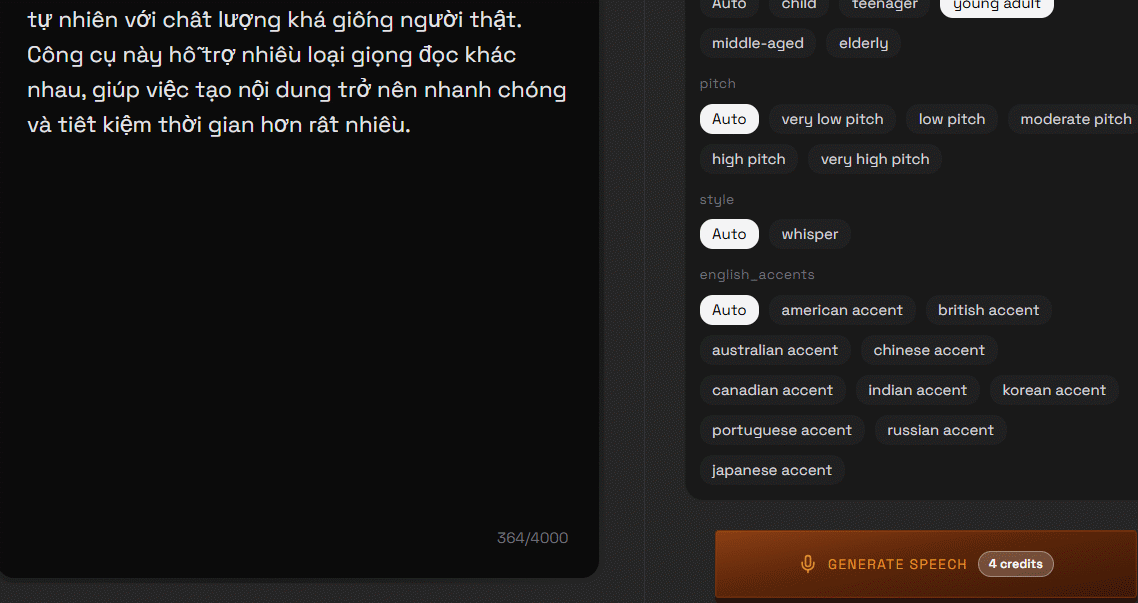
Listen to the complete result rather than judging only the opening. Regenerate or divide the script into smaller sections if pronunciation, emphasis, or pacing changes midway through the audio. For alternatives, compare these AI voice generator tools.
Clone a permitted voice in OmniVoice
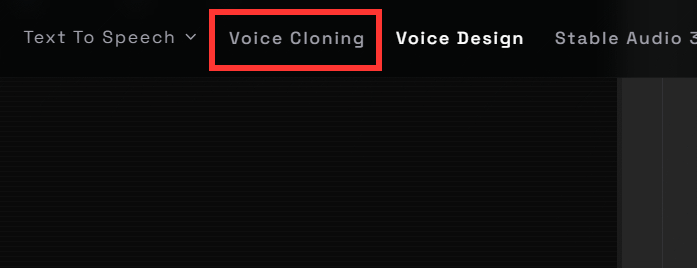
1. Open Voice Cloning
Select Voice Cloning. This mode uses a reference recording to reproduce a speaker's vocal characteristics; it is different from Voice Design, which creates a synthetic voice from descriptive settings.
2. Record or upload a clean sample
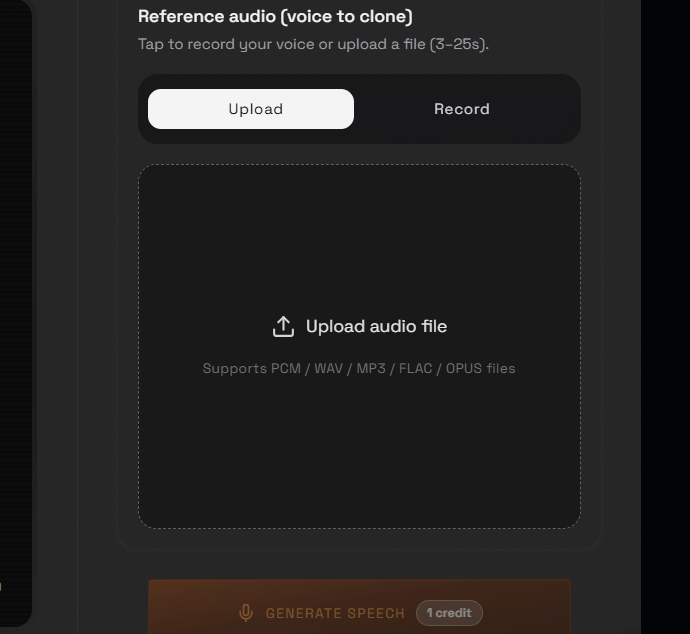
Upload an authorized audio file or record your own voice in the interface. Use a clean sample with one speaker, little background noise, no music, and a natural speaking pace. Avoid heavily compressed clips because artifacts can carry into the generated result.
If the source recording is noisy, clean it before upload rather than trying to compensate with the script. These AI audio noise-removal tools can help prepare a clearer sample.
3. Generate and review the cloned speech
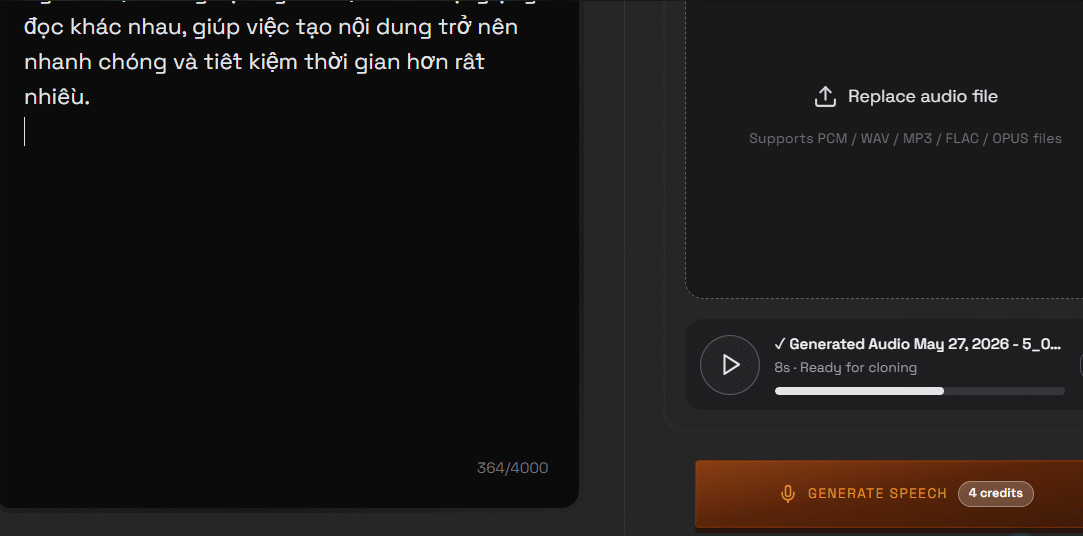
Enter the text you want the cloned voice to speak, then select Generate Speech. Review the output for pronunciation, identity consistency, and unintended artifacts. Keep the original consent record and disclose synthetic audio when the publishing platform or context requires it.
Voice Design or Voice Cloning?
- Use Voice Design for fictional characters, brand voices, prototypes, or narration when no real person's identity is needed.
- Use Voice Cloning only when preserving an authorized speaker's vocal identity is important.
- Use a built-in TTS voice when speed, simplicity, and a lower privacy risk matter more than a custom identity.
Quality checklist
- Proofread the script and expand ambiguous abbreviations.
- Test names, dates, and numbers in a short sample first.
- Use punctuation to guide pauses without overloading the text.
- Listen on both headphones and ordinary speakers.
- Keep the source recording and generated file clearly labeled.
- Do not publish a cloned voice without the speaker's permission.
Related Articles
 How to Create AI Voices Using Speechma with 500 Voices3 minutes read
 OmniVoice Studio: an Open-Source AI Voice Solution Worth Trying9 minutes read
 Instructions for Creating a Wordpress Blog Page17 minutes read
 How to Create Mind Maps Using AI4 minutes read
 How to Create Professional Review Games with Genially AI6 minutes read
 How Anyone Can Detect AI Voices and Avoid Being Scammed6 minutes read
Reader Comments 0
Sign in with email or Google to join the discussion.