Table of Contents
Speechma converts a short script into downloadable MP3 narration without requiring an account. The web app currently advertises more than 580 voices across over 75 languages and dialects, but the practical result depends on choosing the right regional voice and preparing the text for speech.
Open Speechma, then follow the steps below. The website currently limits each conversion to 2,000 characters, so split a long script at natural section breaks rather than in the middle of a sentence.
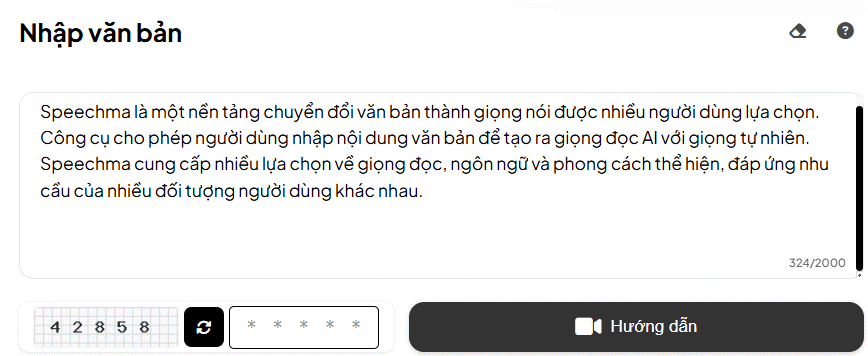
1. Prepare and paste the script
Write the script in the language you want the voice to speak, then paste it into the Input Text field. Remove visual elements that should not be read aloud, such as navigation labels, raw URLs, footnote markers, and repeated headings.
Use ordinary punctuation to shape the delivery. Commas create short breaks, while full stops separate complete thoughts. Spell out unusual abbreviations if the voice pronounces them incorrectly. For a long article, generate one paragraph or section at a time and name the downloaded files in order.
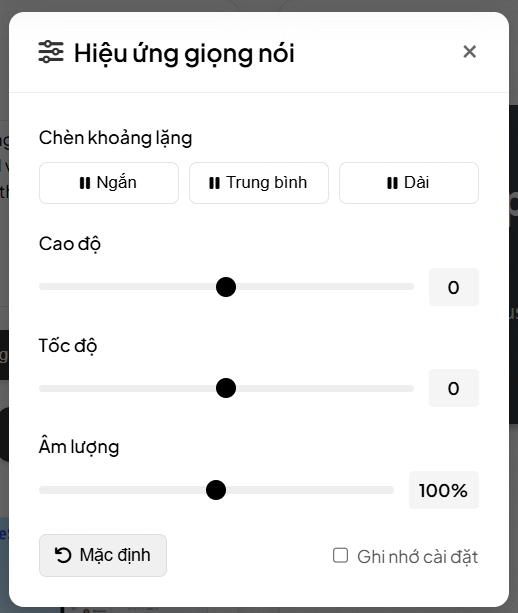
2. Adjust voice effects only when needed
Select Voice Effects to change pitch, speed, and volume or insert pauses. Start with the defaults and generate a short sample before making large adjustments. Excessive speed can make names and technical terms difficult to understand, while extreme pitch changes usually sound less natural.
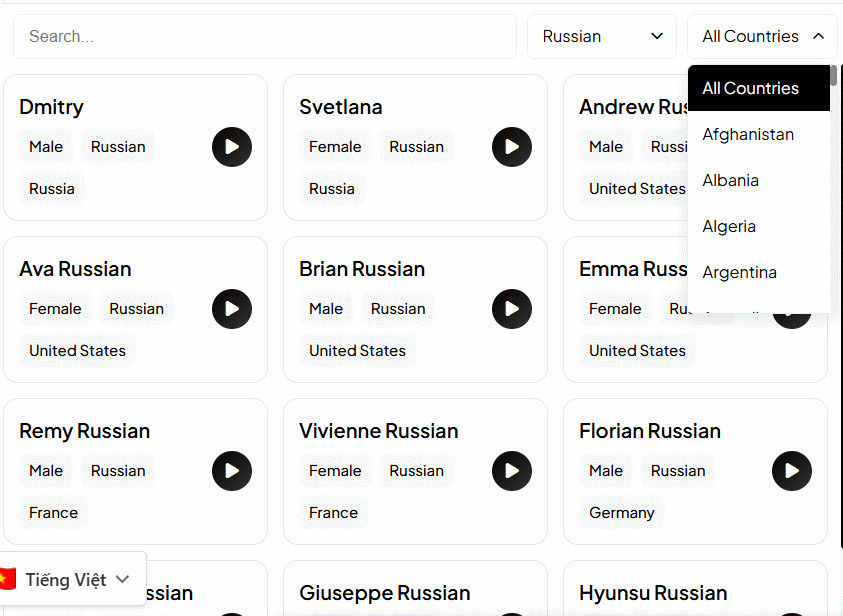
3. Choose the language, region, and voice
Scroll to Voice Selection, choose the correct language, and compare the available regional voices. A voice labeled for a different country may pronounce dates, names, and common words differently even when the language is the same.
Preview several options with a representative sentence from your script. Include at least one proper name, number, and technical term in the test. Choose for intelligibility and consistent pacing, not simply the most dramatic sample.
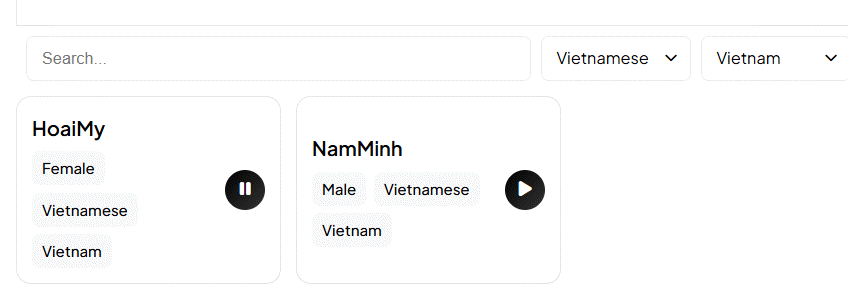
4. Enter the security code and generate audio
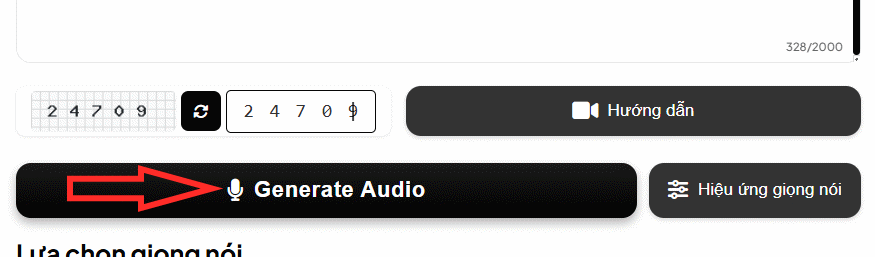
Enter the five-digit CAPTCHA shown beside the text field, then select Generate Audio. Speechma says the code expires after about a minute. If the page rejects a correctly entered code, refresh the CAPTCHA, enter the new digits, and try again.
Generation can take longer for a full 2,000-character block. Avoid pressing the button repeatedly because this may create duplicate jobs.
5. Review and download the MP3
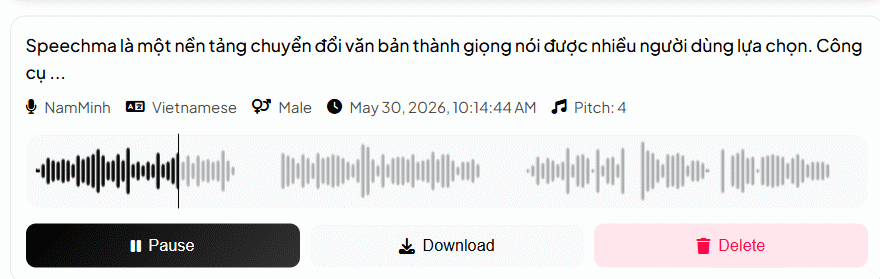
Listen to the entire result before downloading it. Check names, numbers, acronyms, pauses, and sentence endings. If one term is wrong, revise its spelling or surrounding punctuation and generate that section again rather than accepting an unclear voiceover.
Select Download to save the MP3. Speechma keeps generated items in browser storage, according to its current documentation, so download important audio before clearing site data or changing browsers.
Tips for cleaner narration
- Break dense sentences into shorter lines that are easier to hear.
- Write dates and units the way you want them spoken.
- Use phonetic spelling cautiously for difficult names, and keep the original spelling in any on-screen captions.
- Generate all sections with the same voice and effects settings.
- Join clips in an audio editor only after their volume and pacing are consistent.
- Keep a copy of the final script so captions and corrections match the narration.
Usage and consent
Speechma states that audio generated on its service may be used commercially, but that claim does not grant rights to text, music, trademarks, or other material you do not own. Review the service's current terms and the rules of the platform where the recording will be published.
Do not present synthetic speech as a real person's statement, use it for impersonation, or hide its origin where disclosure is expected. Speechma currently offers stock text-to-speech voices rather than voice cloning, which reduces some impersonation risk but does not remove the creator's responsibility for the message.
For alternatives with different editing and licensing options, compare TipsMake's guide to AI voice-generation tools. Android users who mainly want text read aloud can also review these text-to-speech apps for Android.
If Speechma does not generate audio
- CAPTCHA error: refresh the code and submit it promptly.
- Text rejected: reduce the block to 2,000 characters or fewer and remove unusual control characters.
- Wrong pronunciation: confirm the selected language and region, then rewrite the difficult term phonetically.
- Download missing: check the browser's download list and permission settings, then try the download button again.
- Audio sounds rushed: restore default speed, add punctuation, and split the paragraph into shorter sentences.
Related Articles
 How to Create AI Voices on OmniVoice3 minutes read
 Instructions for Creating a Wordpress Blog Page17 minutes read
 How to Create Mind Maps Using AI4 minutes read
 How to Create Professional Review Games with Genially AI6 minutes read
 How Anyone Can Detect AI Voices and Avoid Being Scammed6 minutes read
 Guide to creating exams using AI on AutoExam5 minutes read
Reader Comments 0
Sign in with email or Google to join the discussion.