In today's article, excluding cases of hardware failure, TipsMake will guide you on how to fix the Windows 7 error of not recognizing the CD/DVD drive with just a few simple steps on your computer.
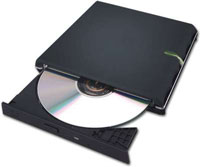
To ensure the absolute security of information stored on your computer, Windows 7 has integrated several security features, including a feature that helps identify whether drivers are from trusted sources.
In this case, the problem may be that the driver for your drive is not considered trusted by Windows 7, so it won't recognize it.
To fix the Windows 7 error of not recognizing the CD/DVD drive:
Step 1 : Turn off and restart your computer, press the F8 key on your keyboard to access the Advanced Boot Options window in Windows 7, and select " Disable driver signature enforcement" .
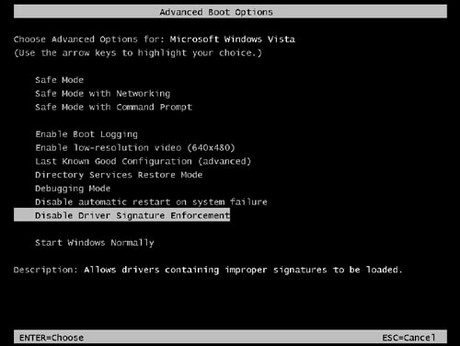
Next, restart your computer to see if it recognizes the drive. If not, you can proceed to step 2.
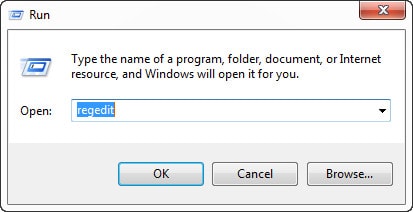
Step 2 : Press the 'Windows+R' key combination to open the Run window , then type "Regedit" and press OK .
The Registry Editor window will appear. Click on the following items in order: HKEY_LOCAL_MACHINE ->SYSTEM->CurrentControlSet->Control->Class-> {4D36E965-E325-11CE-BFC1-08002BE10318}
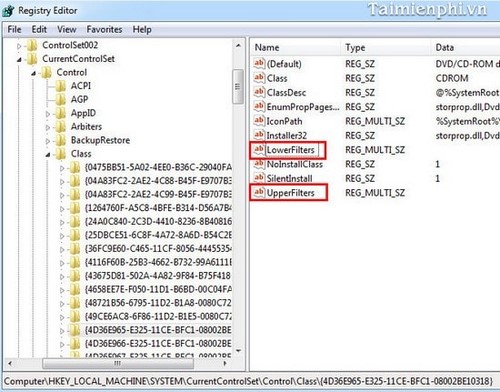
Look at the right-hand column, click on the UpperFilters and LowerFilters items , right-click on those lines and select Delete.
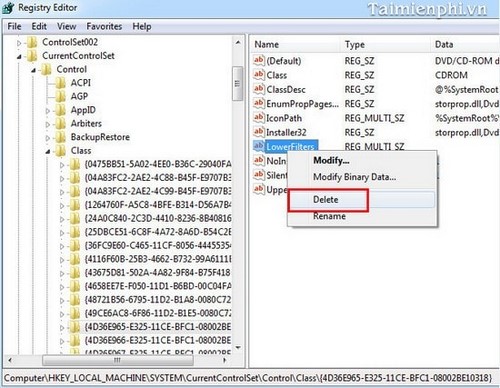
And this is the result after deleting those two items.
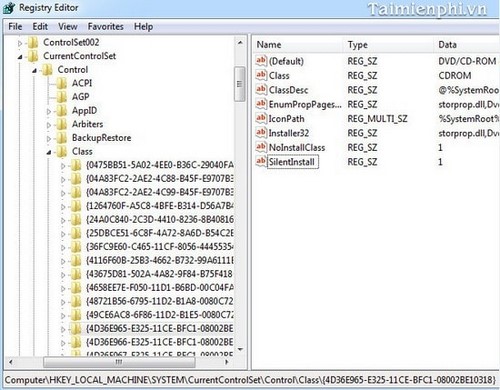
After deleting the drive , restart your computer to see if it recognizes the drive.
If it still doesn't work, proceed to step 3.
Step 3 : Open the Command Prompt window (refer to the article "6 ways to start Command Prompt on Windows 7 ").
Type the following command into the Command Prompt window : bcdedit /set loadoptions DDISABLE_INTERGRITY_CHECK.
If you see the message ' The operation completed successfully ', you have succeeded. The next step is simply to restart your computer.
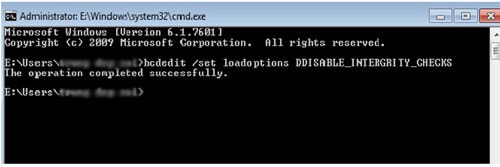
Hopefully, after reading and following the instructions in the article 'Fixing Windows 7 Not Recognizing CD/DVD Drive', your computer will recognize the CD/DVD drive normally again.
Related Articles
 Ways to Fix AirPods That Only Work in One Ear11 minutes read
 Fixing the Issue of CD/DVD Drives Not Showing Up on Windows 10/8.1/7 Computers9 minutes read
 Fixing the Windows 10 Taskbar Not Working or Not Responding6 minutes read
 Some Ways to Fix Lost DVD Drive Errors on Windows 104 minutes read
 Create Windows 10 Boot USB6 minutes read
 How to Fix Widgets Not Working on Windows 114 minutes read
Reader Comments 0
Sign in with email or Google to join the discussion.