Table of Contents
If only one AirPod plays sound, start by checking whether the silent earbud is charged and seated correctly in the case. Then inspect its speaker mesh, confirm the stereo balance is centered, and test the pair with another device. Unpairing or resetting should come later, after the simple causes have been ruled out.
Why one AirPod may stop playing
- One earbud did not charge because its contact or the case is dirty.
- The speaker mesh is blocked, making one side extremely quiet rather than completely silent.
- The connected device has a temporary Bluetooth or audio-routing problem.
- The left-right balance is set to one side.
- The AirPods pairing data is damaged or incomplete.
- An earbud has liquid, impact, battery, or other hardware damage.
1. Check the battery level of both earbuds
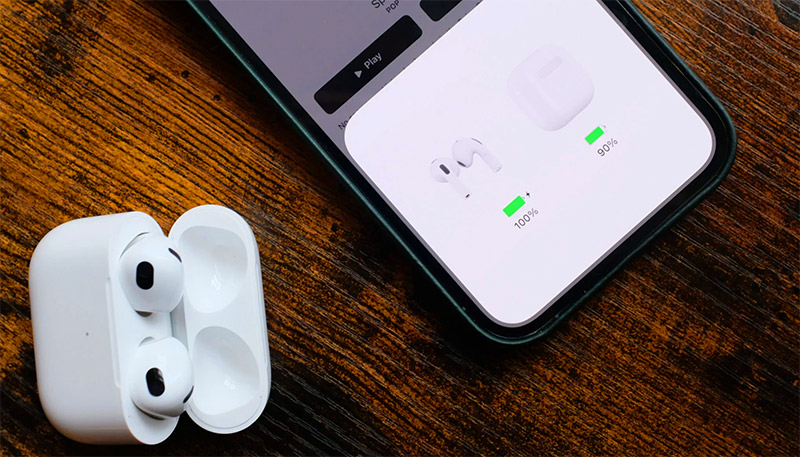
Put both AirPods in the case and connect the case to power for at least 15 minutes. On an iPhone or iPad, open the lid near the device, then check the separate battery level shown for each earbud. On a Mac, open Control Center, select Sound, and view the connected AirPods.
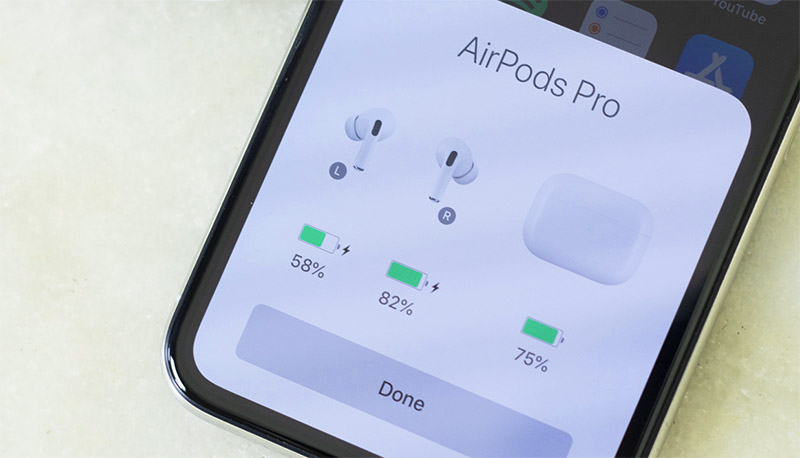
If one side remains at zero, remove and reseat it. Confirm that the case recognizes the earbud and that the charging contact is free of debris. A charging problem must be resolved before Bluetooth troubleshooting will help.
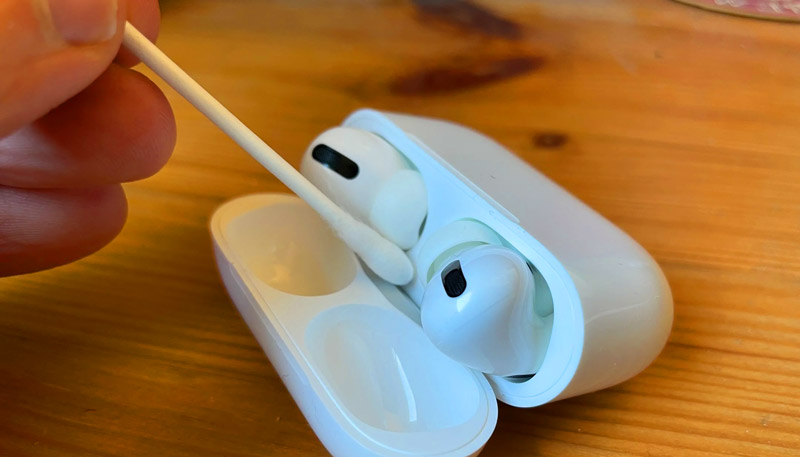
2. Inspect and clean the speaker mesh and case
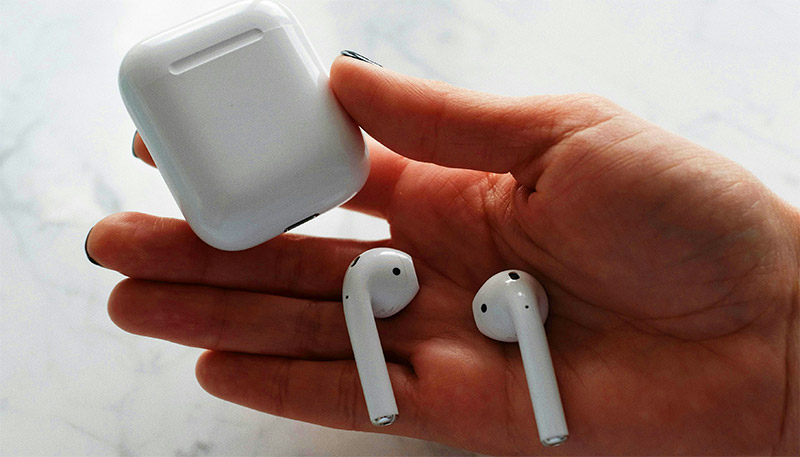
Remove the silicone tip from AirPods Pro and compare the speaker meshes. A layer of debris can make one side sound almost silent. Clean only with the method specified for your AirPods model; Apple provides different procedures for different meshes.
Do not push sharp tools into a mesh, use compressed air, or return damp earbuds to the case. Follow Apple’s AirPods cleaning instructions and allow cleaned parts to dry fully.
3. Put both AirPods in the case and restart the source device
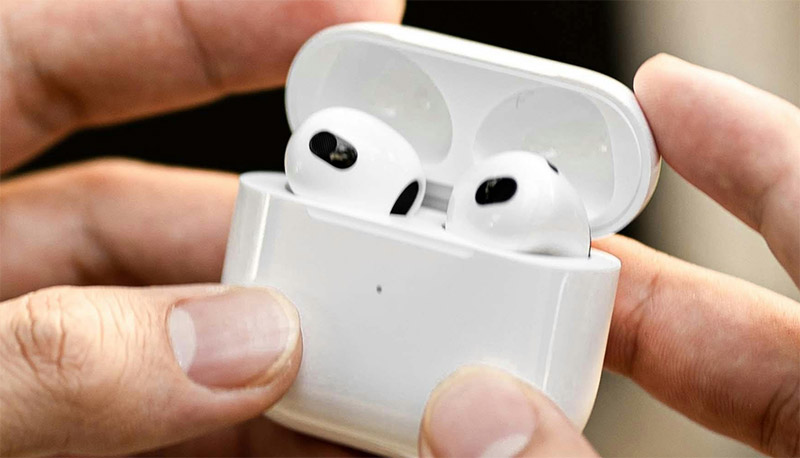
Place both earbuds in the charging case, close the lid for about 30 seconds, and then try them again. This gives the pair a chance to reconnect as a set.
Restart the iPhone, iPad, Mac, Windows PC, Android phone, or other source. After it starts, turn Bluetooth on and play a track with obvious sound in both channels.
4. Test the AirPods with another device
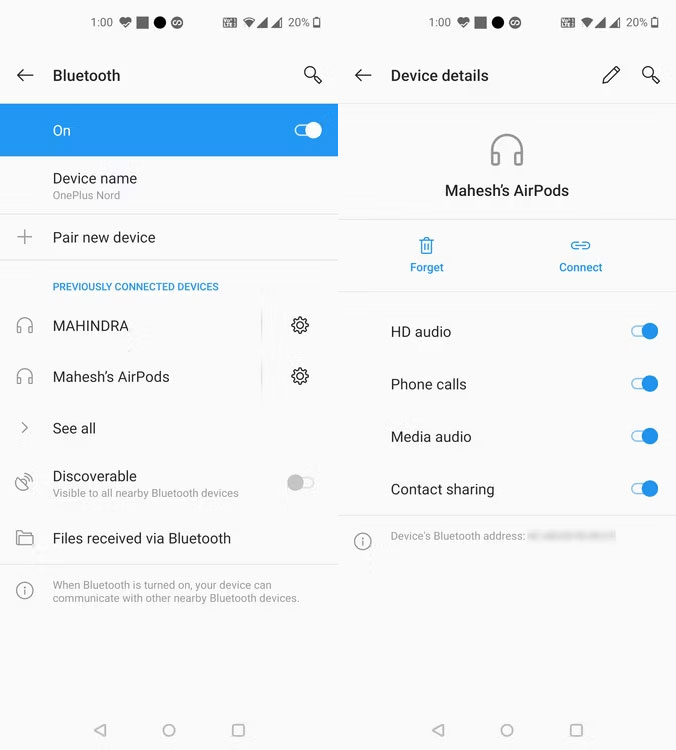
Pair the AirPods with a different phone, tablet, or computer. If both sides work there, the original device’s settings, Bluetooth service, or application is the likely cause. If the same earbud remains silent on every source, focus on charging, cleaning, pairing, and possible hardware failure.
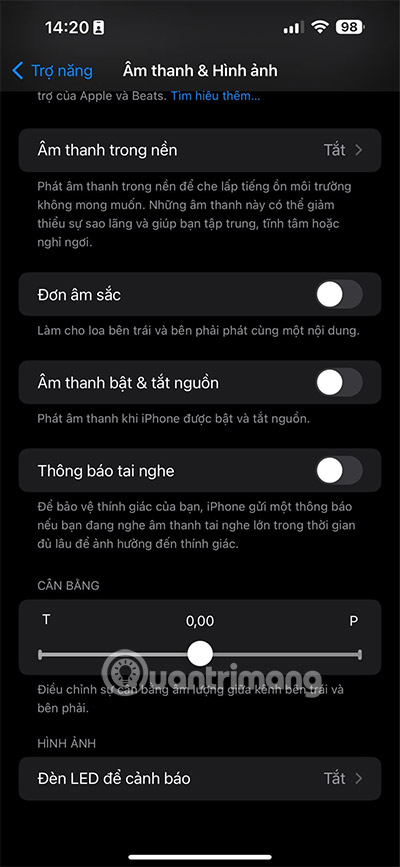
5. Center the left-right audio balance
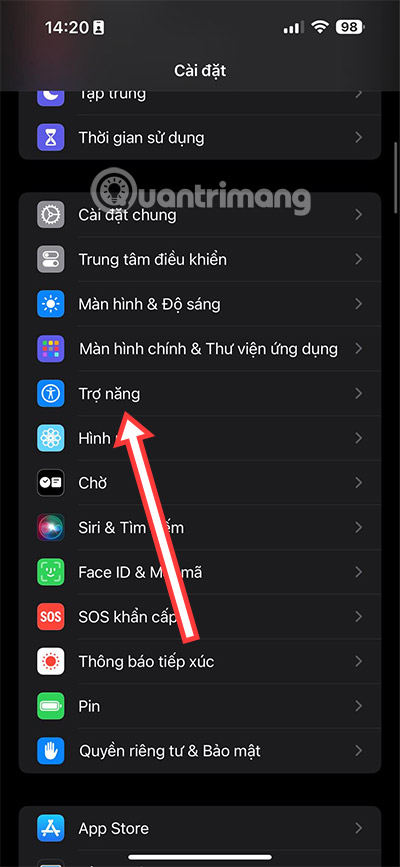
On an iPhone or iPad, open Settings > Accessibility > Audio & Visual. Under Balance, place the slider in the center. Also check whether Mono Audio or Headphone Accommodations are affecting the test.
Other operating systems have their own channel-balance settings. Test with more than one app because a particular recording or application may contain one-sided audio.
6. Forget the AirPods and pair them again
Removing the saved Bluetooth pairing creates a fresh connection. Use the instructions for the device you are testing.
iPhone or iPad
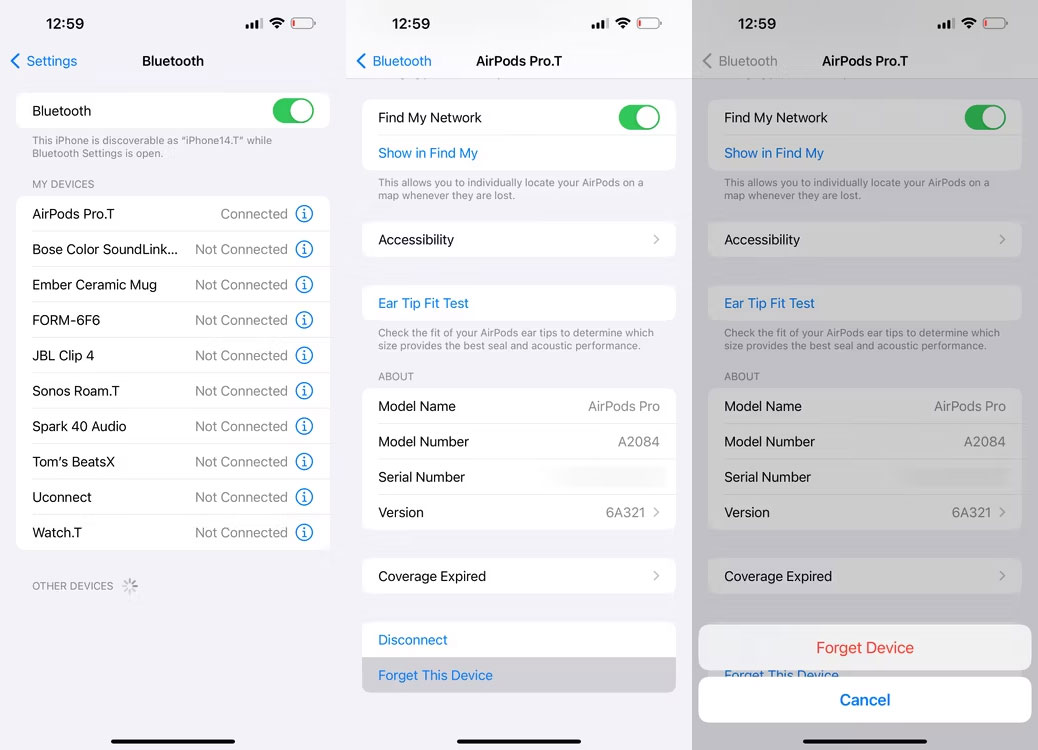
Open Settings > Bluetooth, tap the information button next to the AirPods, and choose Forget This Device.
Android
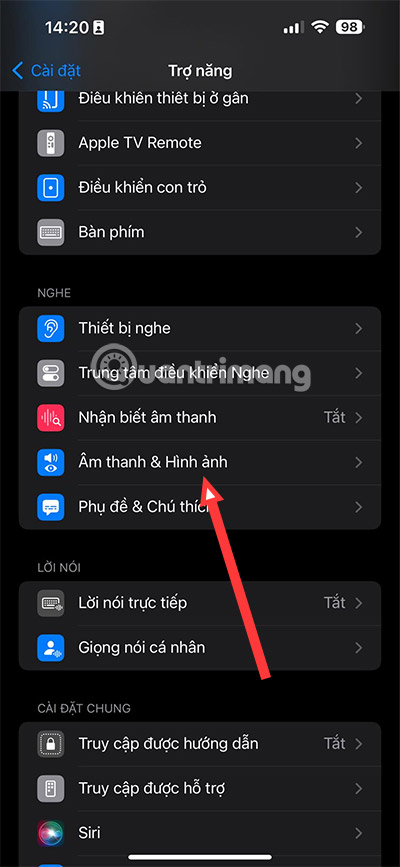
Open Bluetooth settings, tap the gear or details control beside the AirPods, and select Forget or Unpair.
Mac
Open System Settings > Bluetooth, select the details control beside the AirPods, and choose Forget This Device.
Windows
Open Settings > Bluetooth & devices > Devices, find the AirPods, open the three-dot menu, and select Remove device.
After removal, put both earbuds in the case and start the normal pairing process for your AirPods model. If your issue involves movement between Apple devices rather than missing sound, use the focused guide to fix AirPods automatic switching.
7. Reset the AirPods as a final software step
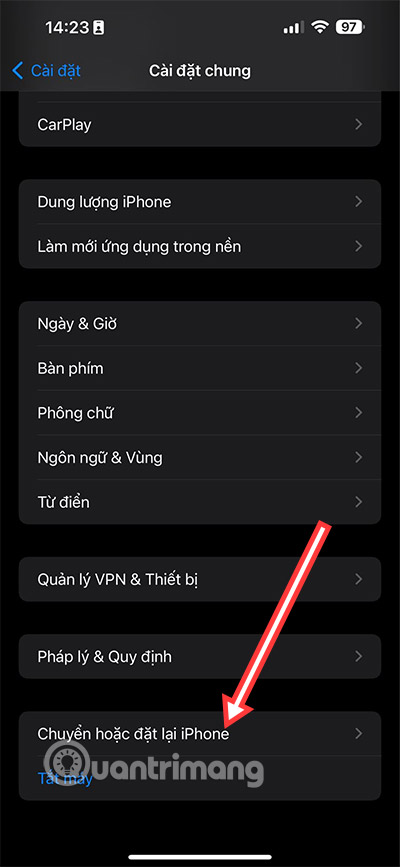
A reset erases the AirPods pairing and custom settings. The method depends on the model: older charging cases use a setup button, while AirPods 4 and AirPods Pro 3 use a sequence of taps on the front of the case. Verify the model before following a reset procedure.
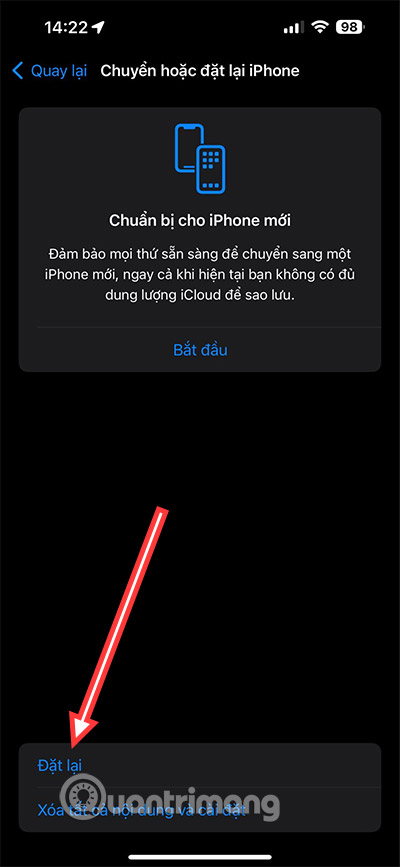
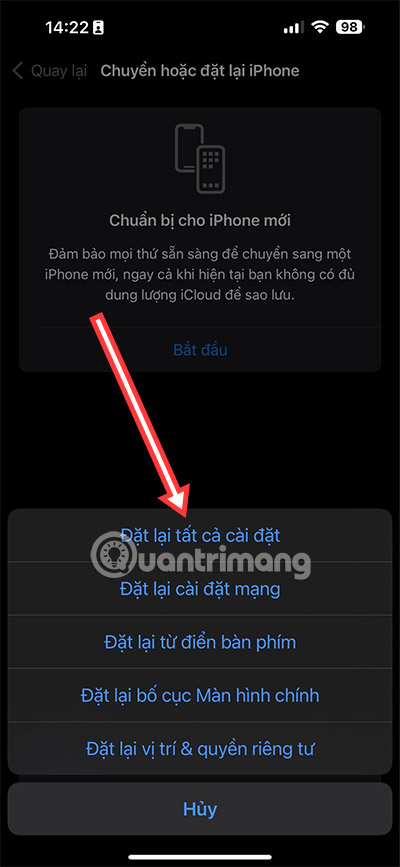
Do not reset all network or device settings just to fix one earbud unless other Bluetooth accessories also fail and you understand what will be removed. Network resets can erase saved Wi-Fi networks and other connections without addressing a damaged AirPod.
8. Arrange service when one side still fails
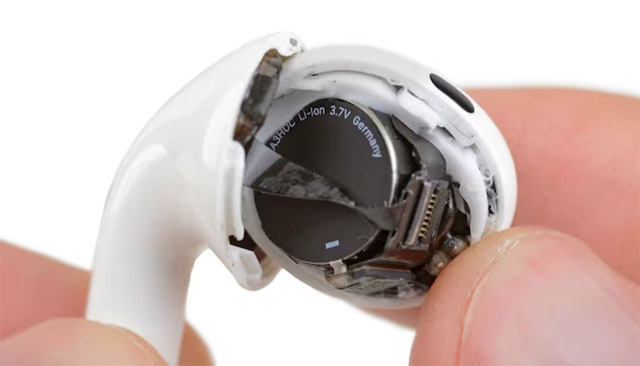
If the same earbud will not charge or play on multiple devices after cleaning, re-pairing, and a model-correct reset, it may need service. Liquid exposure, a hard impact, battery failure, or internal damage cannot be repaired through Bluetooth settings.
Check warranty or coverage status and use Apple or an authorized service provider where available. If damage followed poor fit or frequent drops, this comparison of AirPods Pro and an alternative earbud shape may help when choosing a replacement.
Related Articles
 5 Ways to Check the Battery of Airpods, Pro, and Airpods Max4 minutes read
 Detailed Comparison of Airpods Pro 3 vs Airpods Pro 2: Should You: Key Facts6 minutes read
 How to Connect Airpods to PS43 minutes read
 Comparing Airpods Pro and Airpods, Is It Worth Upgrading?6 minutes read
 5 Ways to Check AirPods Model: Complete Guide9 minutes read
 What to Do If the Airpods Get Wet?5 minutes read
Reader Comments 0
Sign in with email or Google to join the discussion.