Recently, you've noticed that the time displayed on Windows is often incorrect, requiring you to manually adjust it daily. Furthermore, every time you start your computer, you receive an error message: 'CMOS Checksum error'.
CMOS is where computer settings for hardware parameters such as RAM and CPU buses, or the computer clock, are stored. Thanks to CMOS, when you turn on your computer, it uses the settings stored in CMOS to boot up. However, sometimes the computer displays a message like this:
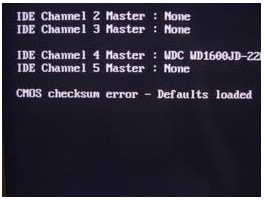
Above, you can see the line ' CMOS checksum error – Defaults loaded' and below there is the instruction line ' Press F1 to continue, DEL to enter SETUP' .
Fix 'CMOS checksum Error' error
This situation is due to your CMOS battery being completely depleted, rendering the CMOS ineffective . There isn't enough power to supply the BIOS to save the computer's hardware settings, preventing the computer from booting. Additionally, a dead CMOS battery is also a common cause of the computer's clock displaying the wrong time.
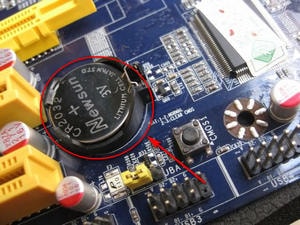
As shown in the image, this is the CMOS battery. Your task now is to find a computer store and ask to buy a CMOS battery, then begin the replacement process. First, you must unplug the power cord from the computer, then remove the case and replace the old battery with the new one, then start the computer.
By following the steps above, you can see that fixing the CMOS error preventing you from booting into Windows is very simple. This allows you to use your computer efficiently without wasting time adjusting settings, etc., caused by the 'CMOS checksum error' on your system.
Related Articles
 How to Fix Cmos Checksum Errors6 minutes read
 How to Replace CMOS Battery6 minutes read
 Troubleshooting and Fixing the 'BIOS Checksum Error' on Your Computer3 minutes read
 6 Ways to Fix Checksum Errors in Winrar6 minutes read
 How to Fix Checksum Error Winrar When Extracting Files4 minutes read
 How to Verify MD5, SHA-1 and SHA-256 Checksums in Windows7 minutes read
Reader Comments 0
Sign in with email or Google to join the discussion.