Table of Contents
From instant file previews to automatic downloads, batch renaming, and faster file transfers, users can rely on a number of add-ons to fix any File Explorer glitch.
With the right free tools, you can fix annoyances, speed up tedious tasks, and even add features that Microsoft never included. From instant file previews to automatic downloads, batch renaming, and faster file transfers, You can rely on a number of add-ons to fix just about any File Explorer issue.
6. Windhawk
Enjoy modern interfaces and smarter folder details
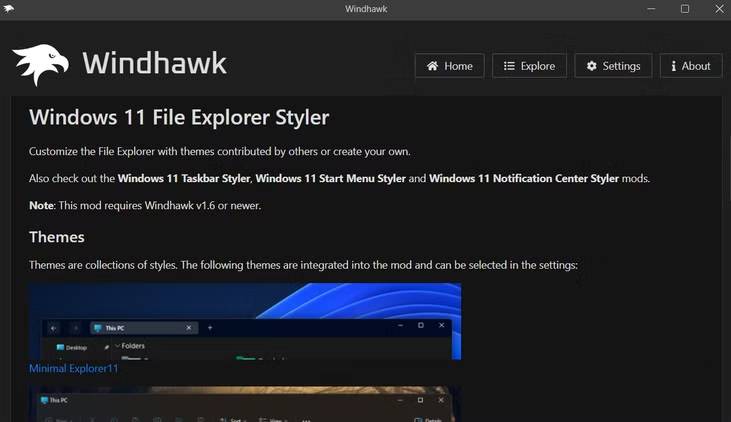
While there are plenty of ways to tweak and customize the look and feel of your Windows PC, Microsoft doesn't offer much flexibility in File Explorer. Windhawk is like a Swiss Army knife for fixing everything that ails Windows. It's a collection of modules designed to patch bugs and unlock features for your PC.
One standout module is the Windows 11 File Explorer Styler. This tool lets you swap out the usual monotonous interface for a variety of fresh, modern themes. From sleek, minimalistic interfaces to bold colors, this module gives you plenty of options.
5. TeraCopy
Easy file transfer
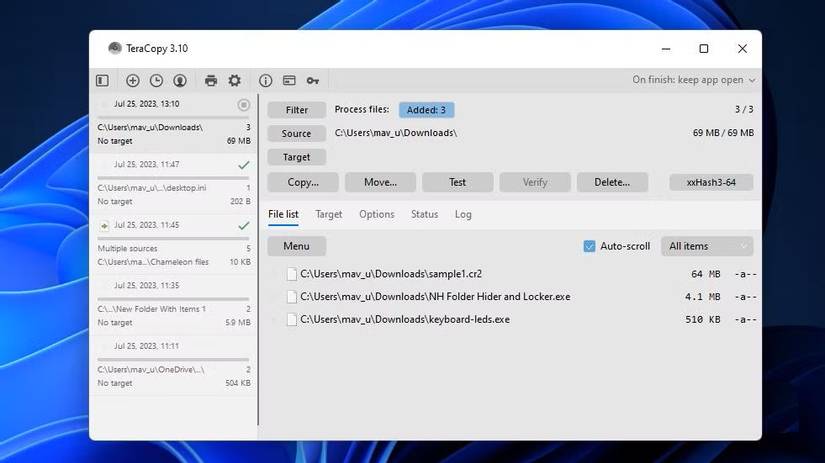
Anyone who has ever seen File Explorer handle file transfers knows how unreliable it can be, from quickly pausing and resuming to crashing completely when something goes wrong. TeraCopy is built to make moving and copying files faster, smarter, and a lot less stressful. It lets you pause and resume file transfers, skip problematic files without stopping the entire process, and even verify copied files to make sure everything is transferred safely.
4. DropIt
Automatically sort files
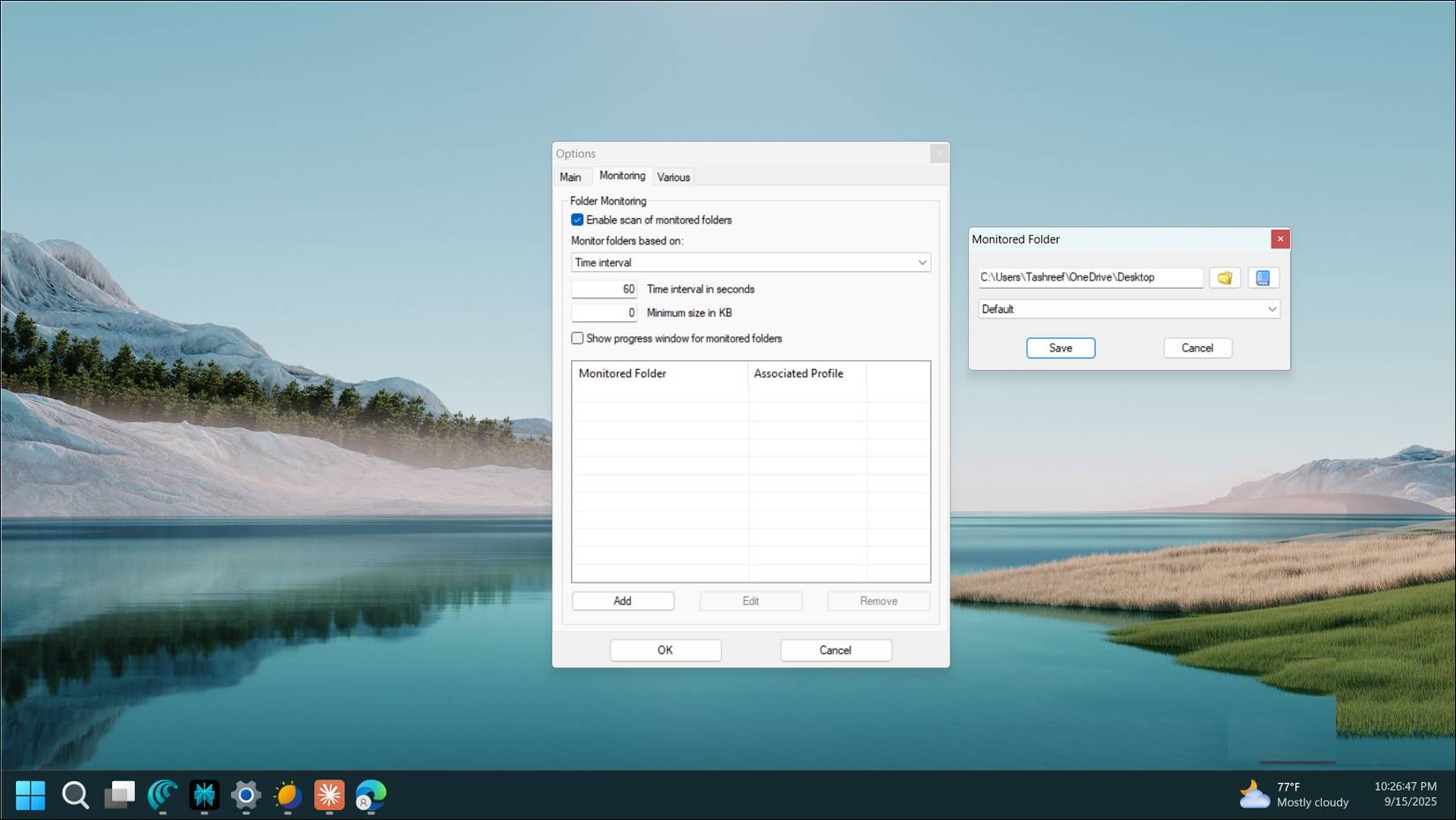
While TeraCopy makes moving files easier, doing it manually for every download can still be a hassle. Unfortunately, File Explorer doesn't offer any built-in way to automate the process. DropIt is a free tool that lets you create simple rules to automatically sort downloaded files into the right folders.
3. Listary
Find files instantly
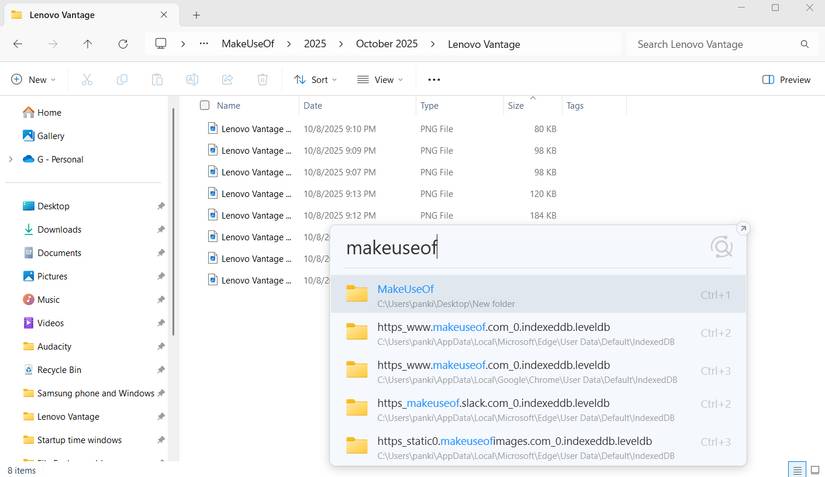
File Explorer has always had a hard time finding files quickly. Sure, you can navigate folders or use the search box, but it's often slow and cumbersome. Listary solves that problem by integrating instant file search right into File Explorer. It has all the useful search options that File Explorer offers, but it's much faster. You can open Listary and find any file or folder in seconds. When you find the file you need, just double-click it and it will open immediately in File Explorer.
2. PowerToys PowerRename
Batch renaming is simple and powerful
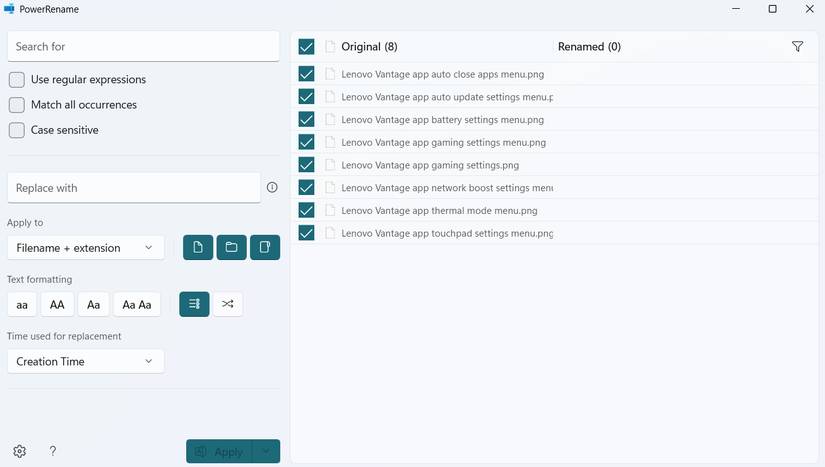
When managing files, sometimes you have to rename a bunch of files. Of course, renaming them one by one isn't the ideal solution. PowerRename is a handy PowerToys module that solves that problem. It lets you rename multiple files at once using search and replace, patterns, or even regular expressions.
Once installed, you can right-click any file in File Explorer and select PowerRename From the context menu. A window will appear where you can specify how to rename the file. You can add sequential numbers, remove unwanted text, or normalize file names. There's even an option to capitalize all file names or lowercase them.
1. QuickLook
Preview files without opening them
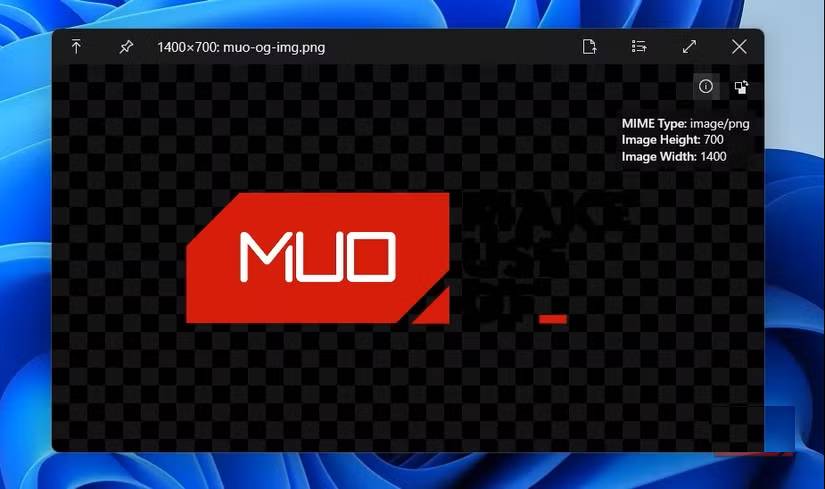
File Explorer includes a Preview Pane that lets you preview files without opening them in a separate app. This is handy when you're looking for a specific file within a bunch of files. However, it doesn't support all file types and isn't great for quickly browsing multiple documents. QuickLook, inspired by macOS, solves this problem by letting you preview almost any file instantly without launching its full app.
While PowerToys also offers a similar module called Peek, it requires pressing Ctrl + Space To preview files, which is the main reason why many people install QuickLook separately.
FAQ
What should you know about the options in this guide?
In practical terms, from instant file previews to automatic downloads, batch renaming, and faster file transfers, users can rely on a number of add-ons to fix any File Explorer glitch.
Which option is the best choice?
The best choice depends on your priorities, compatibility, budget, and the specific features discussed in the comparison.
What should you compare before deciding?
Compare core features, limitations, ease of use, compatibility, and long-term value before making a decision.
Related Articles
 6 Windows File Explorer Add-ons That Make Life Easier7 minutes read
 7 Useful Changes Microsoft Should Make to File Explorer7 minutes read
 6 Hidden Windows File Explorer Features: Practical Guide6 minutes read
 How to Fix File Explorer Lag on Windows 11: Step-by-Step Guide8 minutes read
 This Is the New File Explorer Interface Designed by Microsoft3 minutes read
 Top 5 Leading Wmi Tools6 minutes read
Reader Comments 0
Sign in with email or Google to join the discussion.