Table of Contents
Safety first: Stop using the tablet if the battery is swollen, the device is unusually hot, the port smells burnt, or liquid damage is suspected. Do not insert metal tools into a charging port or force a damaged connector.
A tablet that won't turn on while charging is a common problem that worries many people because the device suddenly becomes unresponsive even when plugged in. This article will help you understand the reasons why your tablet won't power on and suggest simple, effective solutions you can do at home.
Why won't my tablet charge and turn on?
A tablet failing to power on is a fairly common problem after a period of use. Identifying the correct cause will help you find a quick solution and avoid causing more serious damage to the device.
The battery is depleted or has been used for a long time
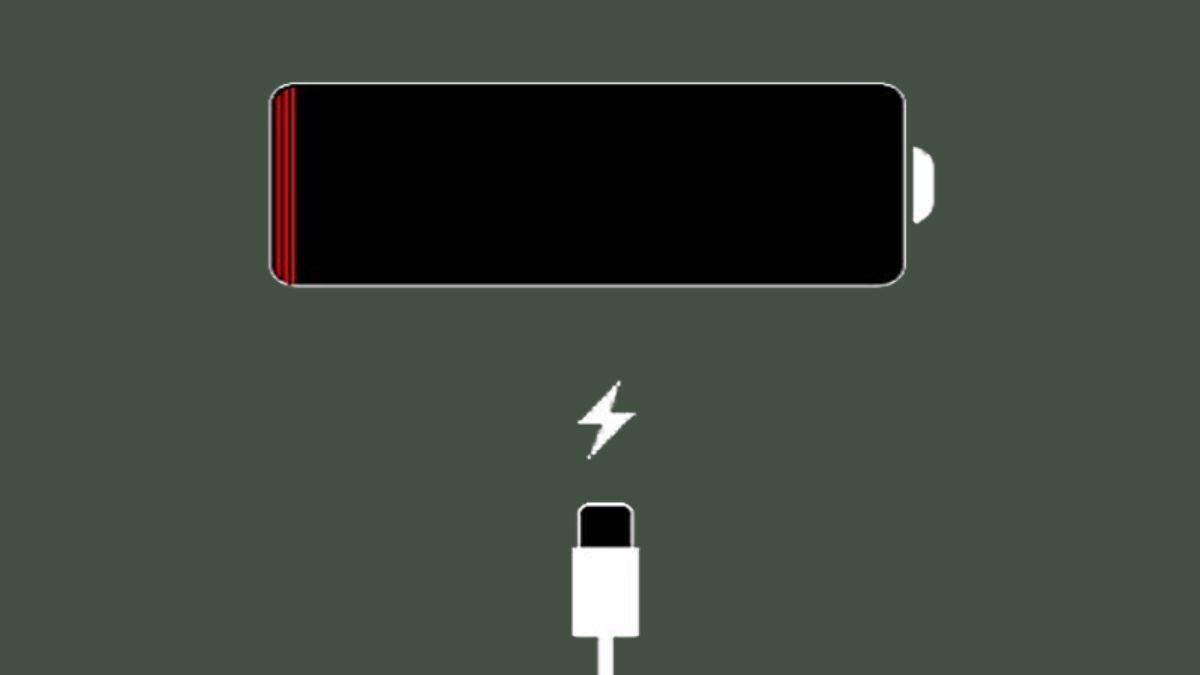
Batteries degrade easily over time. When the battery is worn out or completely depleted, the device may become unresponsive even when plugged in. This is one of the common reasons why tablets won't power on. In many cases, you need to keep it plugged in for 20 to 30 minutes to allow the battery to recover before trying to power it on again.
If your tablet won't power on due to a faulty cable or charger, replacing it with a quality accessory is essential. Discover genuine, durable, and stable charging cables and chargers to ensure your device always works properly.
The charging cable, power adapter, or power outlet is malfunctioning
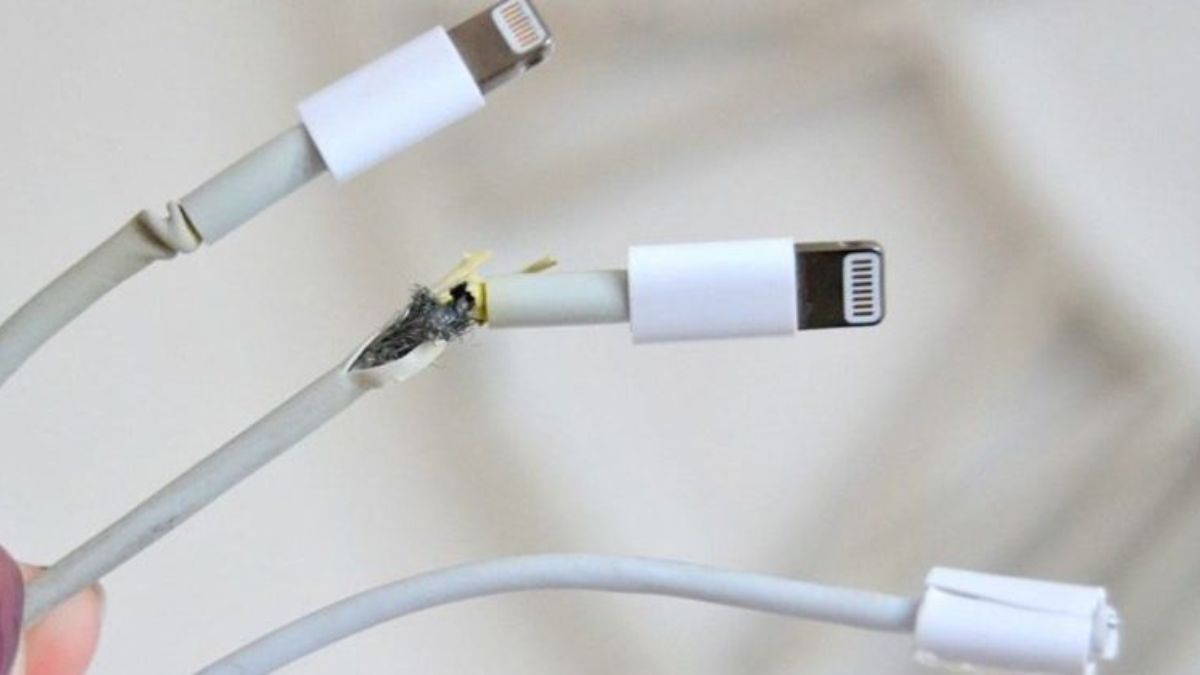
A faulty charger or a broken cable can also prevent the device from receiving power. Users might mistakenly think the tablet is charging but won't turn on due to a device malfunction. You should try a different charging cable, a different power adapter, or plugging it into a different outlet to check if the device receives power and displays a charging indicator.
The charging port is dusty, loose, or has broken pins
After prolonged use, the charging port may accumulate dust or become loose due to frequent plugging and unplugging. This causes unstable current flow to the device. If you notice the charging pins are bent or loose, you should gently clean them or have the device inspected to avoid damaging internal components.
The system froze; there was a software error
Sometimes a device won't power on not because of a hardware problem, but because the system has frozen. When the operating system malfunctions, the screen may turn off completely, leading users to believe the tablet isn't charging. In this case, try a forced restart by holding the power button for a few seconds.
Power button or power IC is faulty
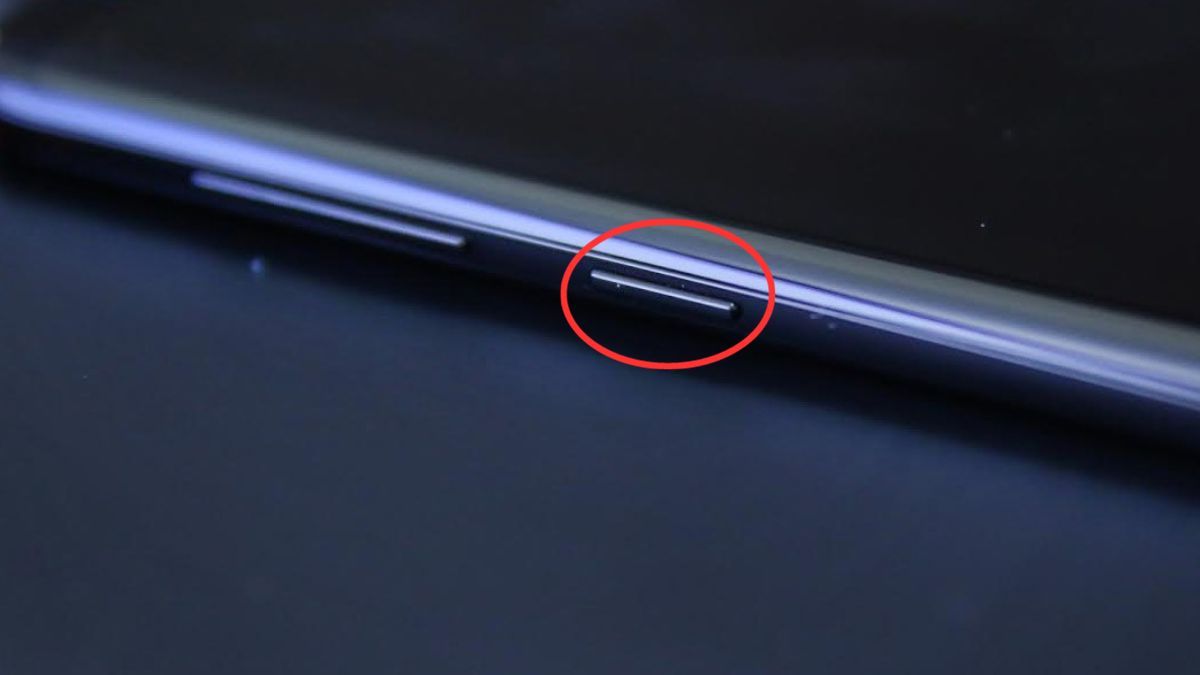
If the power button is stuck, broken, or the power IC is malfunctioning, the device will not be able to start up even if the battery and charger are working normally. This is a hardware-related issue. When this happens, it's best to take the device to a reputable repair center for inspection and replacement of components if necessary.
Safe troubleshooting steps
Here are some simple ways to check and troubleshoot when your tablet won't power on. Depending on the specific cause, you can try each method; doing it correctly will help the device function properly again.
Plug in the charger correctly
Sometimes a device won't charge simply because it's not plugged in correctly. Make sure the cable is securely plugged into the device's charging port and the charger is firmly connected to the power outlet. You should use a charger that is compatible with your device. Proper charging can quickly resolve the issue of a tablet not charging.
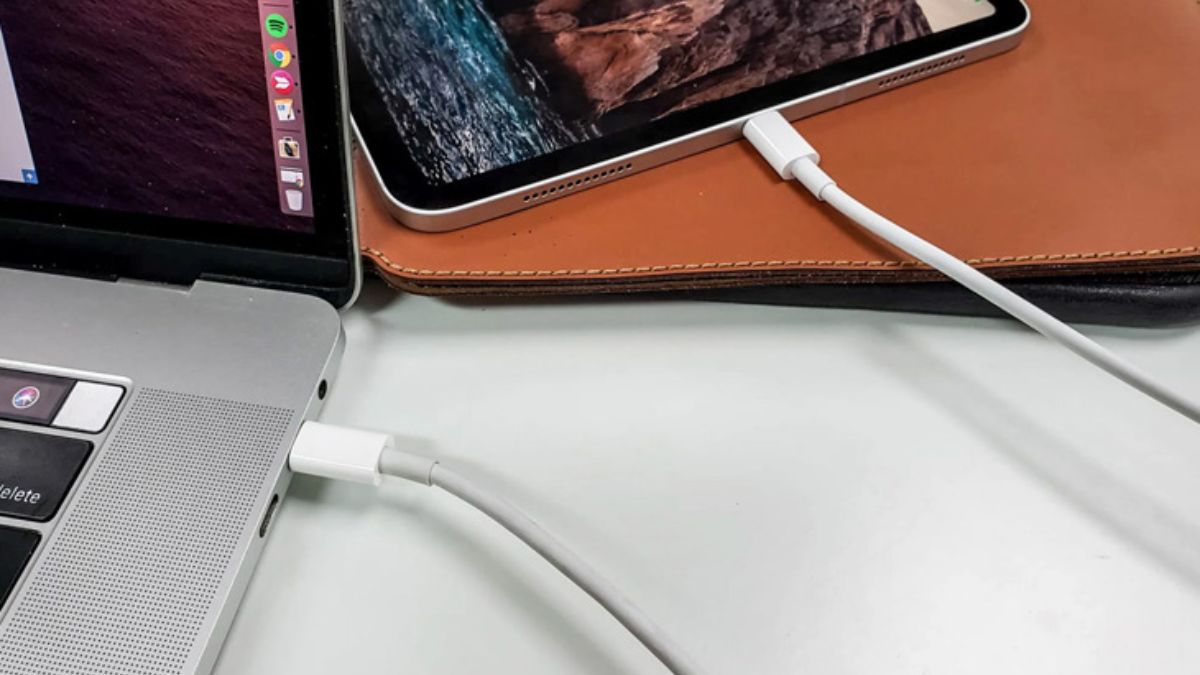 Make sure the charger is plugged in correctly and has a stable connection.
Replace the charging cable or charger
A damaged charging cable or adapter is a fairly common reason why a device won't power on. The charging cable might have an internal break, or the adapter might have reduced power output after prolonged use. You should try replacing the charger with another one that is compatible with your device to check. If the device starts powering on again, the problem may lie with the charging accessory.
Clean the charging port and check the charging pins
After prolonged use, charging ports often accumulate dust or small foreign objects that hinder electrical contact. You should clean this area with a dry cotton swab or gently blow away any accumulated dust and dirt inside the charging port. At the same time, check if the charging pins are bent, loose, or broken so that you can address any issues promptly and ensure stable charging.
Restart using the hard keys
A hard restart can help resolve issues when a device freezes or becomes unresponsive. Press and hold the power button simultaneously for 10 to 15 seconds until the screen lights up or the boot logo appears. With some devices, you may need to hold the power button and the volume down button at the same time to force a restart.
Check software only after the tablet powers on
A factory reset is not a normal fix for a device that cannot charge and can erase local data. If the tablet starts, install trusted system updates and review battery diagnostics before considering a reset.
Distinguishing between a tablet that won't charge due to a battery issue or a screen problem
Many people confuse battery problems with screen problems when their device becomes unresponsive. In reality, these two situations have different symptoms. Below is a table to help you distinguish between a tablet not charging due to a battery issue or a screen problem, and determine the appropriate troubleshooting steps.
|
Token |
Battery malfunction |
Screen error |
|
Feedback when plugged in for charging. |
No vibration, no charging icon displayed. |
The device may vibrate and make sounds, but the screen remains dark. |
|
Temperature during charging |
The machine does not usually get unusually warm or hot. |
The machine is still slightly warm, as if it's running. |
|
Notification sound |
No sound or vibration |
You can still hear the notification sound, ringtone, or alert. |
|
Connect to the computer |
The computer does not recognize the device. |
The computer can still recognize the device. |
|
Display screen |
Completely dark. |
The screen is black, but the device is still running in the background. |
Note: The symptoms described above are for reference only, as some hardware or software errors may present similarly in reality. To accurately determine the cause, you should perform further checks or seek assistance from a technician.
Common mistakes that prevent tablets from turning on
In many cases, a tablet failing to charge isn't necessarily due to a serious malfunction, but rather stems from incorrect habits. Below are some common mistakes users often make when dealing with this situation.
- Using low-quality or incompatible charging cables and adapters.
- The charger might not be plugged in securely, or the power outlet might be loose or intermittent.
- Using the device while it's charging continuously causes the battery to wear out quickly and reduces its lifespan.
- Failure to clean the charging port for an extended period allows dust and dirt to hinder electrical contact.
- Allow the battery to completely drain for an extended period before recharging.
- Attempting to disassemble or repair a device without expertise can easily damage internal components.
Related Articles
 Tablet Screen Won't Turn On?12 minutes read
 The Best and Most Effective Ways to Use a Tablet That You Should Know7 minutes read
 Simple Guide to Fix Tablet That Won't Turn on at Home11 minutes read
 We Have Been Charging the Wrong Way for a Long Time5 minutes read
 Top 9 Best Tablets 20198 minutes read
 Different Types of Hosting Solutions for Businesses5 minutes read
Reader Comments 0
Sign in with email or Google to join the discussion.