Table of Contents
The Calendly integration lets an ElevenLabs agent check availability and manage supported booking actions during a conversation. Set up the scheduling rules in Calendly first, connect a Personal Access Token in ElevenLabs, then test the actual appointment outcome before giving callers access.
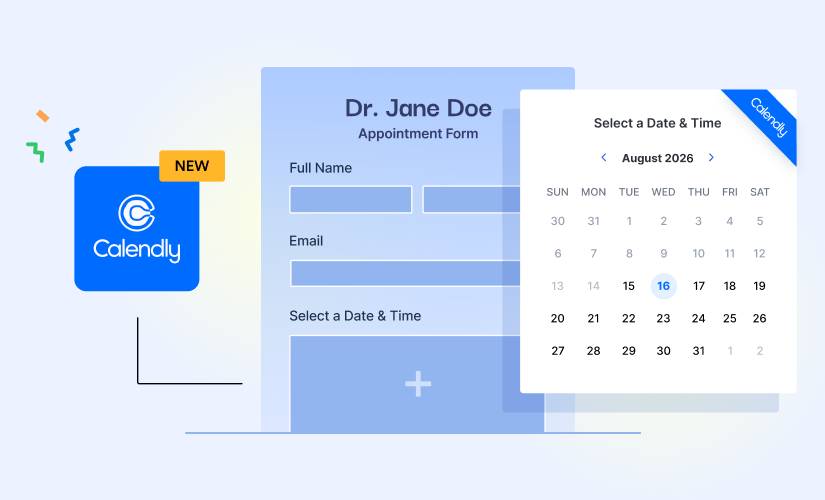
Prepare Calendly before connecting
Create the event type you want the agent to use. Check its duration, time zone, available hours, buffers, minimum notice and destination calendar. Open the normal scheduling link and verify that it offers the times you expect.
Decide which actions the agent needs. Checking free slots, creating a meeting, listing events and canceling an appointment have different consequences. Do not expose unnecessary booking or cancellation actions to an unverified caller.
Check integration limitations
| Capability | Documented support |
|---|---|
| Zero Retention Mode | Not supported by this integration |
| Attachments in tools | Not supported; tools operate on text |
Review the official ElevenLabs integration reference for current capabilities and account requirements. Successful connection does not guarantee access to every Calendly API operation.
1. Generate a Personal Access Token
- In Calendly, open Integrations & Apps > API and Webhooks.
- Find Personal Access Tokens and choose Get a token now or Create a token, depending on the screen.
- Give the token a descriptive name that identifies this integration.
- Create it and copy it securely when shown.
Calendly displays the token once. If you lose it, revoke the old token and create a replacement. Replacing a token also means updating integrations that use it. See Calendly's token guidance.
2. Connect it to the intended agent
Open the Calendly integration setup in ElevenLabs and enter the token in the Access Token field. Use the credential field or supported secret storage, not the agent's system prompt, knowledge base or a public example.
Review the tools attached to the agent and their required parameters. Make sure the event type and account are the ones you prepared. A token for a different user or workspace can produce a valid connection to the wrong schedule.
3. Define the conversation flow
The agent should establish the full date and time zone, check actual availability, collect required attendee details and obtain confirmation before creating a booking. A concise instruction pattern is:
Ask which configured appointment type the caller needs and their preferred date and time zone.
Check availability with the connected Calendly tool. Offer only returned times.
Confirm the chosen date, local time, time zone, attendee name and email address.
Create the appointment only after the caller confirms.
Describe the booking status returned by the tool; never announce success based only on having sent a request.
If the result is uncertain, check for an existing booking before retrying.
For cancellations or existing-event details, follow the configured identity and authorization checks.
Match instructions to the actual tools available. For related concepts, see ElevenAgents tools and function calls and runtime variables. Caller-supplied context is not proof of permission.
4. Test before deployment
- Availability: Compare the agent's returned slots with the event's booking page.
- Time zones: Test a caller in another zone and read back the final local time.
- Contact details: Confirm a spoken email address before submission.
- Creation: Use an attendee address you control and inspect the actual Calendly event and invitation.
- Failure: Check how the agent responds to an unavailable time, an invalid field or a tool timeout.
- Cancellation: Test only with an appointment you control and confirm that unrelated events cannot be changed.
If it does not work
Check whether the token was revoked, the intended event type is active, availability rules permit the requested time and your plan supports the action. Inspect the tool's error rather than asking the model to guess.
If a token appears in a transcript, screenshot or shared file, revoke it and update the integration. A successful voice response is not the final verification—the calendar record and its correct details are.
Related Articles
 How to Connect ElevenLabs Agents to Cal.com Scheduling
 How to Connect ElevenLabs Agents to Cursor Coding Agents
 How to Connect an ElevenLabs Agent to Exa Web Search
 How to Connect ElevenLabs Agents to Freshdesk
 How to Connect External MCP Tools to an ElevenLabs Agent
 How to connect an external text channel to the ElevenLabs agent via webhook
Reader Comments 0
Sign in with email or Google to join the discussion.