Table of Contents
To find the IP addresses published for a website, query its DNS A records for IPv4 and AAAA records for IPv6. nslookup, Resolve-DnsName, and dig are more informative than ping because they let you request a specific record type and see aliases.
A website may legitimately return several addresses, different results by location, or a content-delivery network address. The result is not necessarily the origin server and does not measure the site's quality.
1. Quick check with ping
On Windows:
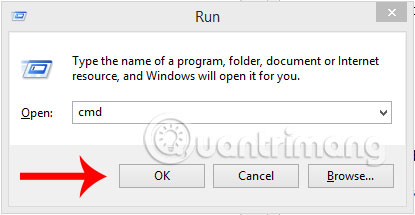
- Press Windows + R, enter
cmd, and press Enter.
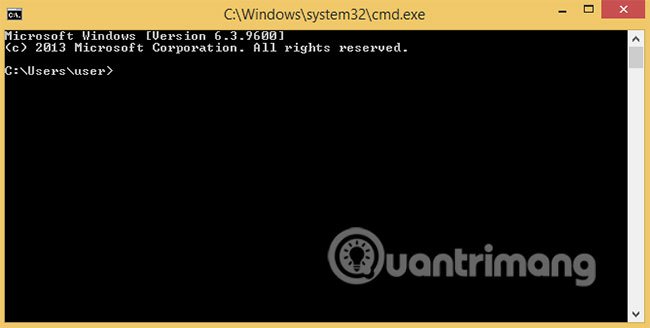
- Enter
ping example.com, replacingexample.comwith the hostname. Do not includehttps://, a path, or a slash.
The address in brackets is the IP selected for that ping attempt.
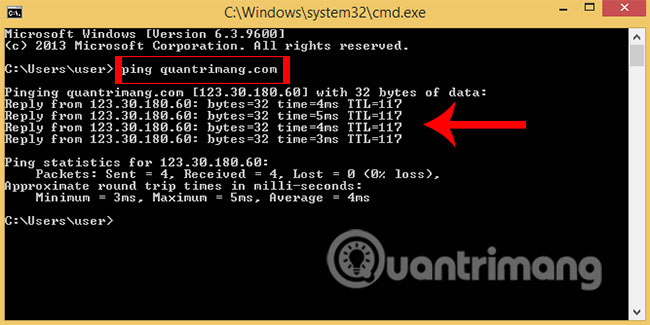
ping is only a quick resolution check. Many servers block ICMP echo replies, so a timeout does not mean that the website or DNS record is unavailable. The command may also show only one address from a larger pool.
2. Query DNS with nslookup
nslookup is included with Windows and is available on many other systems.
nslookup -type=A example.com
nslookup -type=AAAA example.com
nslookup -type=CNAME www.example.com- A returns IPv4 addresses.
- AAAA returns IPv6 addresses.
- CNAME shows whether the hostname is an alias for another hostname.
To compare a public resolver with the computer's default DNS resolver, append its address:
nslookup -type=A example.com 1.1.1.1
nslookup -type=A example.com 8.8.8.8
Different answers can be normal when a CDN routes users geographically or when DNS changes are still propagating.
3. Use PowerShell Resolve-DnsName
On Windows, PowerShell provides structured DNS output:
Resolve-DnsName example.com -Type A
Resolve-DnsName example.com -Type AAAA
Resolve-DnsName www.example.com -Type CNAME
For a compact list of returned addresses:
Resolve-DnsName example.com -Type A |
  Select-Object -ExpandProperty IPAddress
4. Use dig on macOS or Linux
Many macOS and Linux systems include dig, or provide it through a DNS utilities package:
dig +short A example.com
dig +short AAAA example.com
dig +short CNAME www.example.com
Remove +short when you need TTL values, the responding resolver, flags, and other diagnostic details.
5. Use an online DNS lookup
An online checker is convenient on a phone and shows how a resolver outside your network sees the record. Enter only the domain or hostname and select A or AAAA.
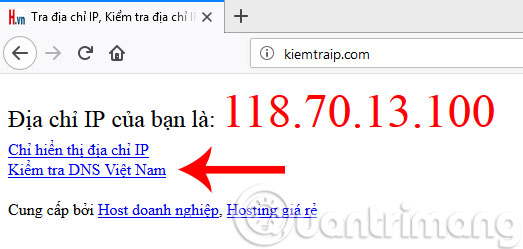
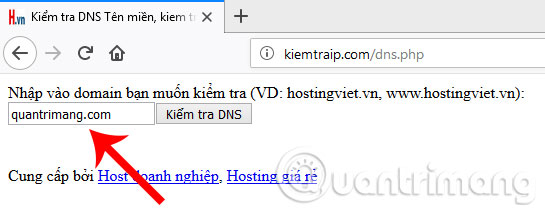
Do not submit private internal hostnames to a public lookup service. Public tools also reflect their own resolver and location, which may differ from the result on your device.
6. Check from a mobile device
A browser-based DNS lookup is normally sufficient and avoids installing an unknown utility. If you already use a reputable networking app, enter the hostname in its DNS lookup or ping field, start the query, and inspect the resolved address.
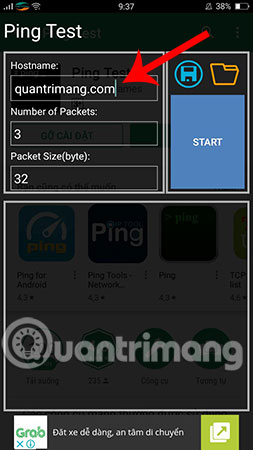
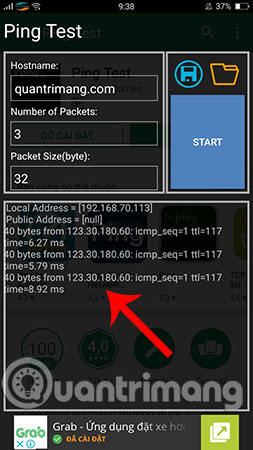
The app screenshots show a legacy ping utility; current menus and availability may differ. Avoid apps that request unrelated permissions or claim they can reveal a site's private origin behind a CDN.
How to interpret the result
| Result | Likely meaning |
|---|---|
| Several A or AAAA records | Load balancing, redundancy, or CDN routing |
| A CNAME before the address | The hostname delegates resolution to another hostname or service |
| Different results on two resolvers | Propagation, caching, geography, split DNS, or resolver filtering |
| No A record but an AAAA record exists | IPv6-only hostname |
| Ping times out but DNS resolves | The host or network may block ICMP while web service remains available |
| An IP changes later | Normal for dynamic hosting, failover, or a CDN; do not hard-code it without a documented requirement |
Checking whether a domain points to the intended service
- Query both the bare domain and the exact host used by the website, such as
example.comandwww.example.com. - Compare A, AAAA, and CNAME results with the records configured at the DNS provider.
- Check TTL values and allow old cached data to expire after a change.
- Test from more than one resolver and network when diagnosing propagation.
- Confirm the HTTPS certificate and HTTP response; matching an expected IP alone does not prove that the correct website is configured.
Use the TipsMake DNS and developer tools for a browser-based lookup, or read the deeper nslookup troubleshooting guide. The network utility hub also groups related IP, DNS, port, and connection checks.
Related Articles
 View IP Website: How to Check Website IP Address // Domain Name5 minutes read
 How to Check. Vn Domain Name on VNNIC5 minutes read
 Checking Domain Names: Instructions on How to Check Website Life2 minutes read
 How to Choose a Domain Name: How to Choose the Best Domain Name?8 minutes read
 How to Edit the Hosts File on a Mac3 minutes read
 The Simplest Way to Check IP Address on Computer, Check IP6 minutes read
Reader Comments 0
Sign in with email or Google to join the discussion.