Table of Contents
Your iPhone battery never seems to last as long as you'd like. But with a few smart tweaks, you can dramatically extend your battery life without changing the way you use your phone.
5. Always use Dark Mode
Turning on Dark Mode can extend your iPhone's battery life because it reduces the amount of power the screen needs to stay bright. This is thanks to the OLED displays on modern iPhones.
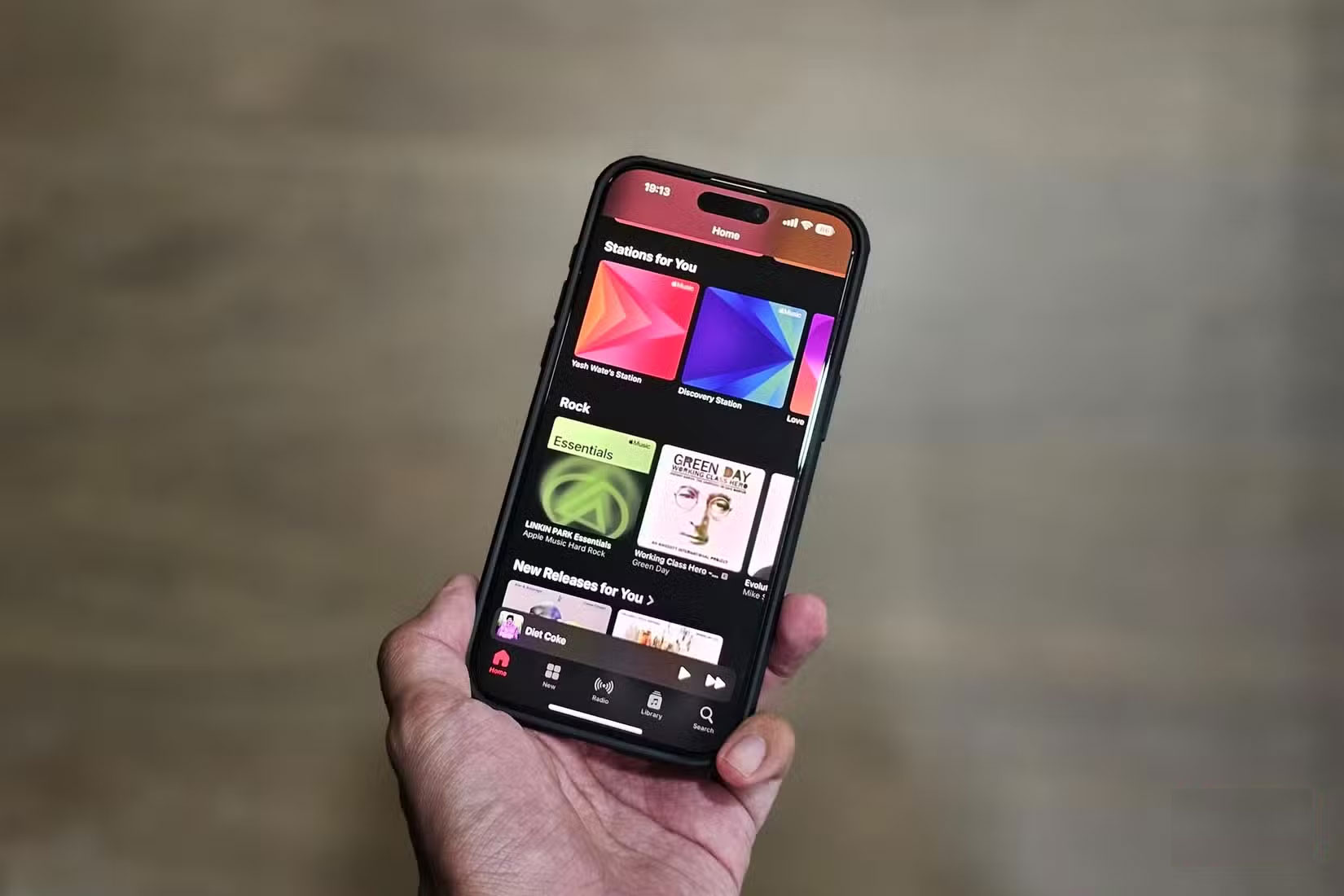
So, turning on Dark Mode means your screen will display darker colors in most apps, which reduces power consumption and extends battery life over time.
The downside is that the OLED display isn't as easy to read in direct sunlight when displaying dark colors, so readability can suffer a bit outdoors. But overall, it's a small trade-off for the extra hours of battery life.
4. Change the apps you use most
Changing your default apps can also make a big difference in battery life, especially for the apps you open the most. A good example is your browser, where Google Chrome consumes more battery than Apple Safari.

Google apps are some of the biggest battery drainers. For example, Gmail and Google Maps tend to run more heavily in the background than Apple's built-in apps.
3. Turn off Optimized Battery Charging
This might sound a little strange, but you should actually turn off Optimized Battery Charging on your iPhone. This feature is designed to learn your charging habits and slow down charging after 80%, only charging to 100% when necessary.
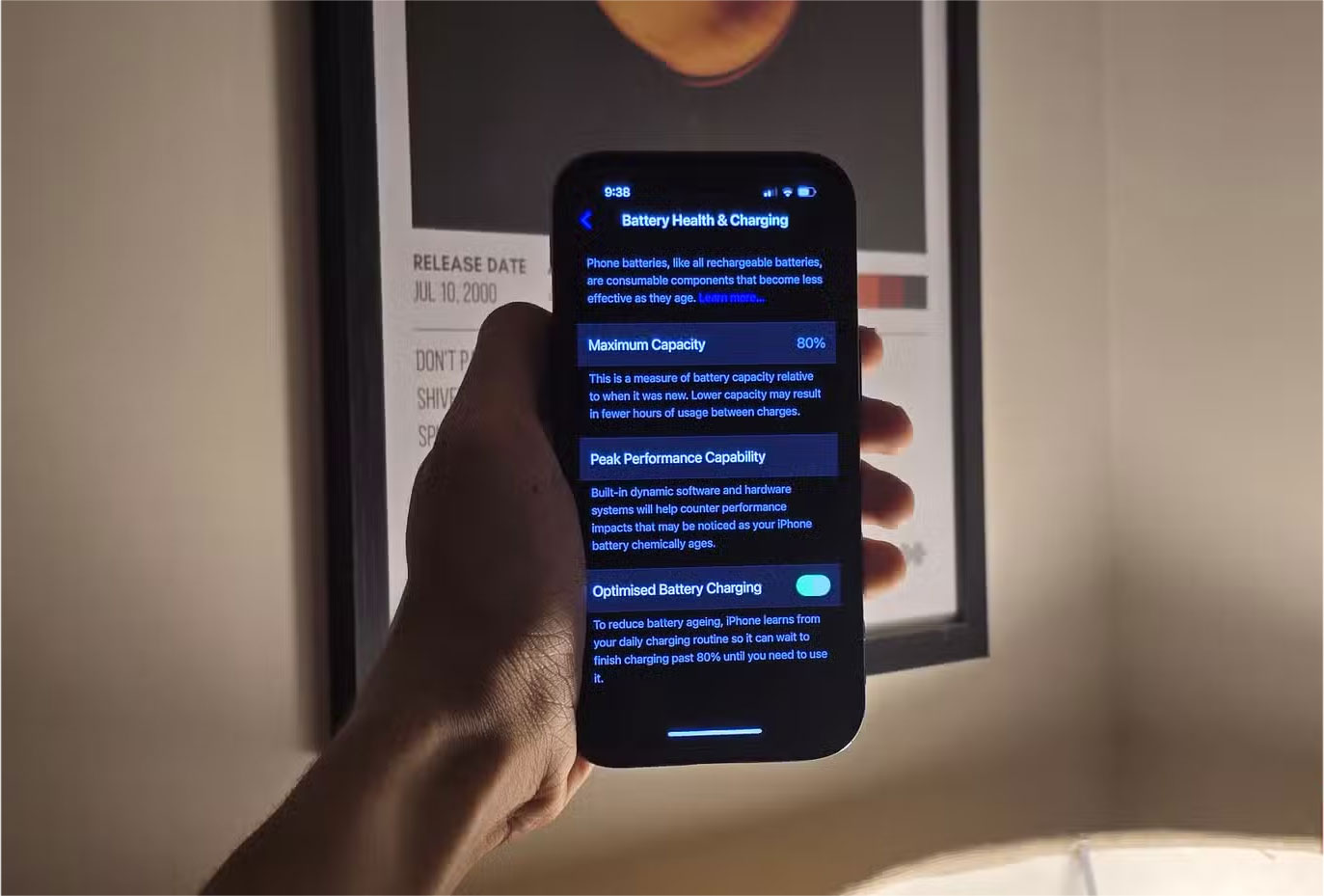
The goal is to reduce the time the battery spends at full charge and improve long-term battery health. In practice, however, this is wildly inconsistent. Many people regularly wake up with their iPhone stuck at 80% even on days when they need a full charge, and sometimes it charges up to 100% when it doesn't.
2. Turn on Low Power mode continuously
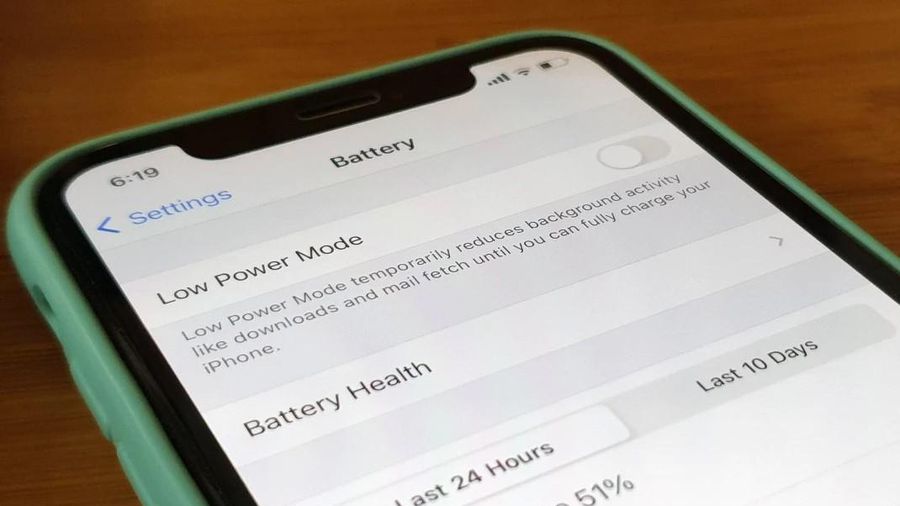
You should also turn on Low Power mode and keep it on as long as possible. This will cut down on all power-hungry features to maximize battery life.

Whether or not you should turn it on regularly depends on how you use your iPhone. If you primarily use your iPhone for everyday tasks like calling, texting, web browsing, and social media, Low Power Mode makes little difference and can extend your battery life even further.
On the other hand, if you play a lot of games, edit videos, or use heavy applications, you may see performance drop to unbearable levels.
1. Adjust location settings
You should also check which apps and system services have access to your location, as GPS can be a big battery drain. Many apps and services can track your location in the background, which adds up over time. You should turn off location services completely, as many important functions (like navigation) rely on it. But cutting back on unnecessary permissions is worth it.
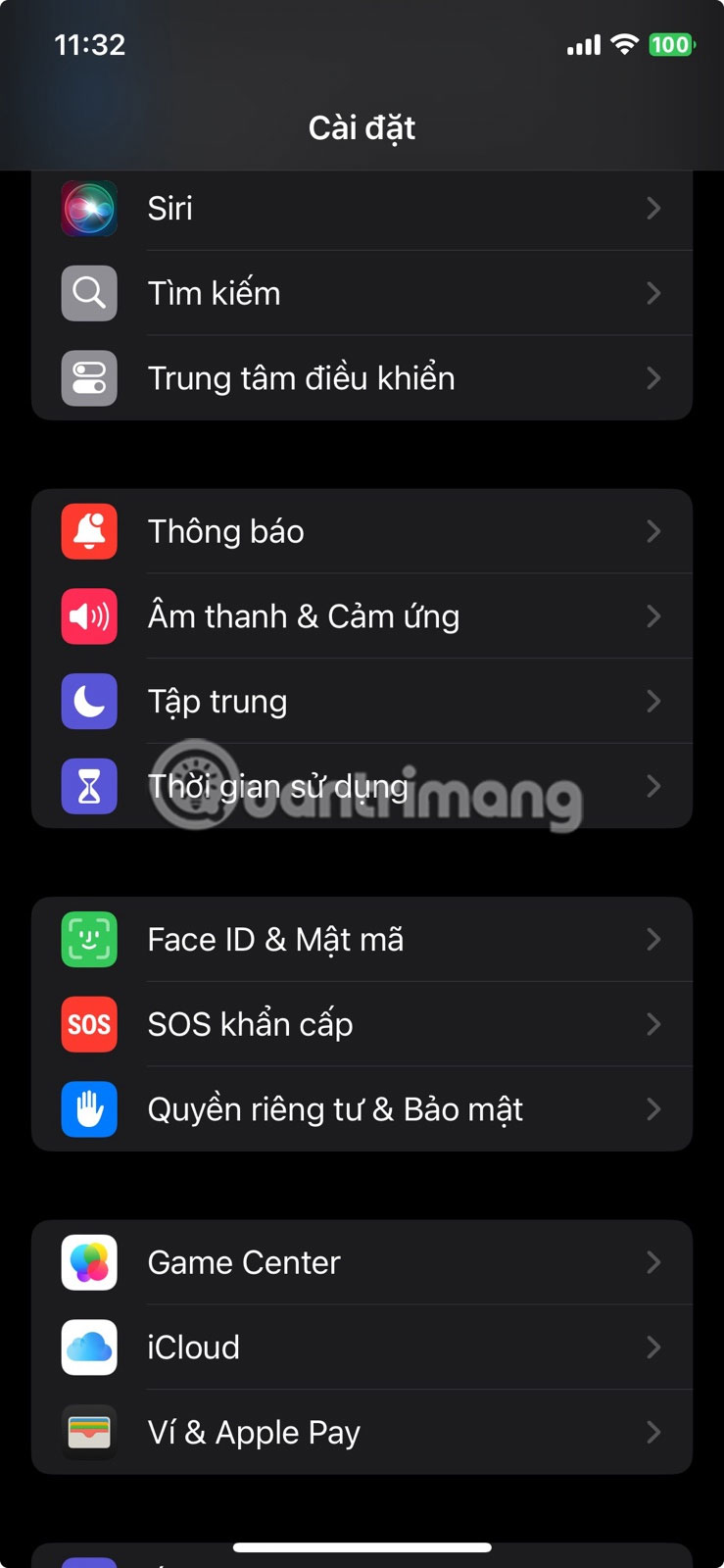


To complete this step, open the Settings app, go to Privacy & Security > Location Services and review the list of apps that have location access. For apps that don't need location access, tap them and change the setting to No .
If you're using a new iPhone, you probably won't notice much of a difference. But on older iPhones with degraded batteries, the impact will be much bigger.
- Instructions to enable Dark Mode on iPhone
- How to reduce iPhone screen brightness
- How to adjust iPhone screen off time
Final Thoughts
Overall, Change These iPhone Settings for All-Day Battery Life! is best understood by considering the main facts, practical context, and limitations together. Use the details above as a clear starting point and confirm time-sensitive information when necessary.
FAQ
What does this article explain about Change These iPhone Settings for All-Day Battery Life!?
Your iPhone battery never seems to last as long as you'd like. But with a few smart tweaks, you can dramatically extend your battery life without changing the way you use your phone.
What should you know about 5. Always use Dark Mode?
Turning on Dark Mode can extend your iPhone's battery life because it reduces the amount of power the screen needs to stay bright. This is thanks to the OLED displays on modern iPhones.
Should time-sensitive details be verified?
Yes. Software features, game codes, product specifications, prices, and research findings can change. Confirm important details with an official or primary source when accuracy affects your decision.
Related Articles
 Tips to Increase Battery Life for iPhone 58 minutes read
 iPhone Air Is Disappointing in Terms of Battery4 minutes read
 8 Ways to Save iPhone Battery, Increase Battery Life When Using9 minutes read
 How to Improve iPhone Battery Life?4 minutes read
 Don't, and Exactly, Never Leave Your Phone Down to 0% Battery!4 minutes read
 Check iOS 17.1 Battery Life on iPhone XS, XR, 11 Models: Complete Overview6 minutes read
Reader Comments 0
Sign in with email or Google to join the discussion.