Table of Contents
Start Kiran's Typing Tutor with Typing Lessons, move to Typing Practice, and use Typing Tests to check progress. Set the keyboard layout and course before beginning so the exercises match the keys you actually use.
The program's screens and available modules can vary by version. This walkthrough follows the interface shown below. Use the publisher's getting-started guide when a label differs.
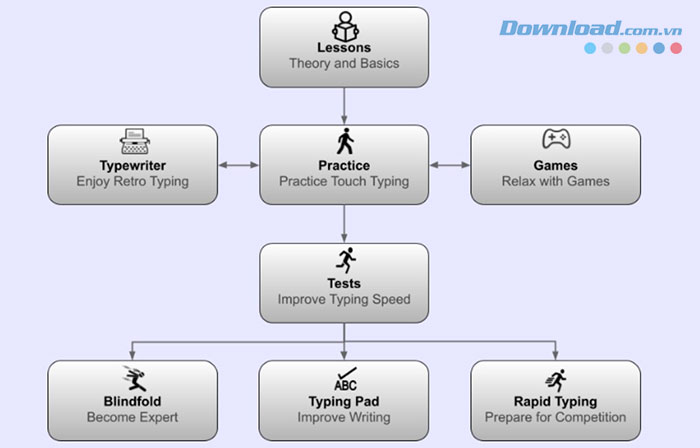
Find the module you need
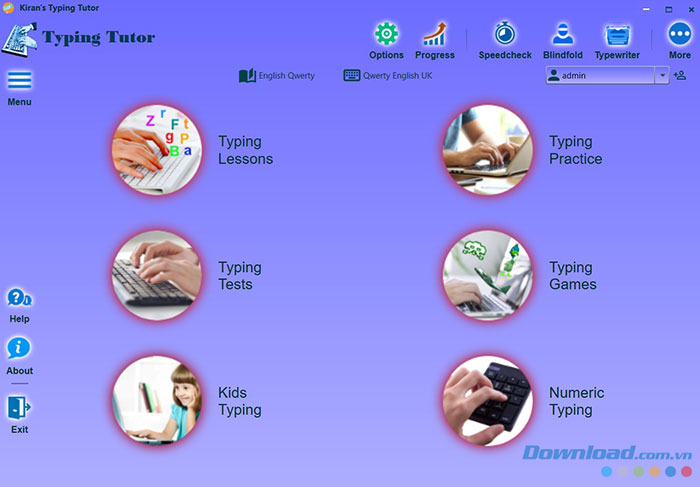
The main window is the starting point for lessons, practice, tests, and additional tools. You do not need to use every module as a beginner.
| Main course content | Additional learning content | Design tools | Tools |
| Typing Lessons Typing Practice Typing Tests |
Typing Games Kids Typing Numeric Typing Speed Checker Typewriter Blindfold Certification Rapid Typing Virtual Keyboard TypingPad Tutorials |
Keyboard Designer Course Designer Exam Designer |
Options Progress Compare Typed to Text Help |
The extra modules are optional. Choose Numeric Typing for number-entry practice, games for variety, and progress tools to review recorded performance rather than starting a different activity after every short session.
1. Check Options first
Open Options from the main window. Confirm the keyboard, course, application language, and input language. Check the selected voice if you plan to use spoken guidance.
Review audio and visual help separately. The illustrated options include No Audio Help and Show Finger Preview. Keep finger guidance while learning positions, then reduce it when you can type comfortably without relying on the preview. The Options reference explains the settings.
2. Learn finger placement in Typing Lessons
- Open Typing Lessons.
- Read the selected lesson and follow its finger-placement instructions.
- Use the lesson selector to choose an exercise appropriate to your current level.
- Use Previous and Next to move between lessons.
- Close the module window to return to the main menu.
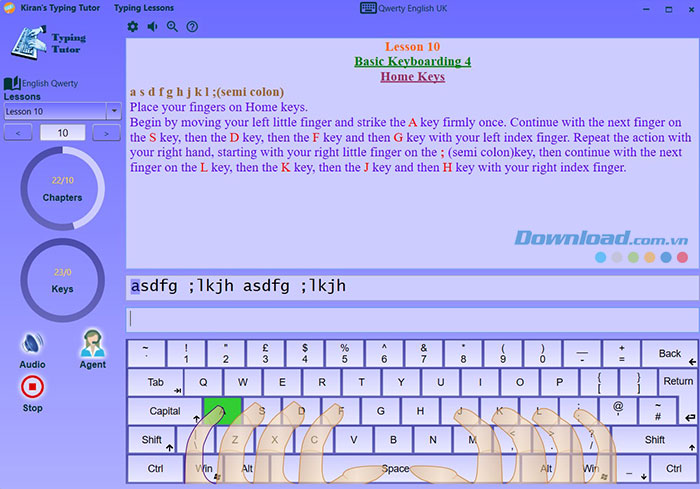
Use a comfortable posture and relaxed hands. Work slowly enough to use the intended fingers. If you repeatedly look down, repeat a shorter key exercise before attempting a speed test.
3. Build consistency in Typing Practice
Open Typing Practice and choose a lesson from its dropdown. Follow the text using touch typing and review the displayed speed and error information after the exercise.
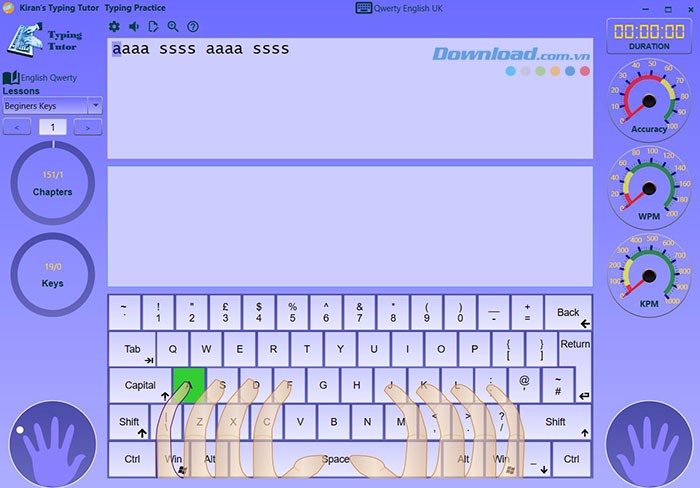
Compare like with like: use the same layout, similar text, and similar exercise length. A higher WPM score on an easier passage does not necessarily show improvement. Revisit the letters or combinations that produce repeated mistakes.
4. Measure progress with Typing Tests
Once the basic key positions are familiar, use Typing Tests with longer text. Review both accuracy and speed rather than chasing WPM alone. If the installed version accepts text files, choose material similar to the documents you normally type.
A simple routine is to review a difficult key pattern, complete a practice lesson, and finish with one comparable test. Stop when fatigue makes errors increase, then return later rather than repeatedly racing through inaccurate attempts.
5. Use games for variety
Open Typing Games, choose a game, and use Start, Pause, or Stop. Adjust the level to a pace at which you can still use the correct fingers.
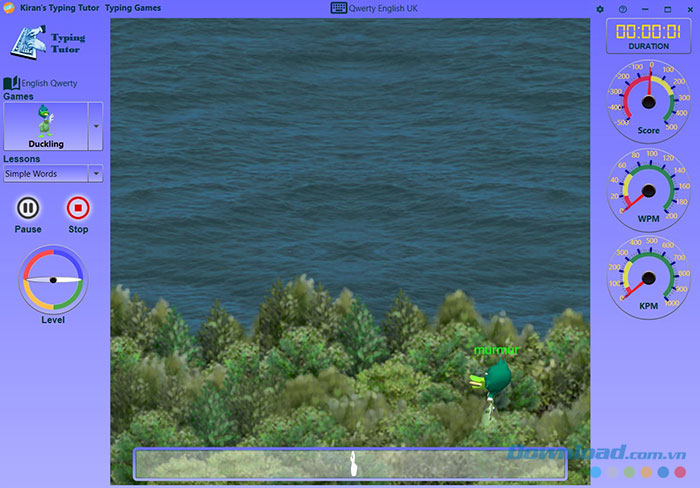
Game scores reward their particular rules and should not be treated as interchangeable with a prose typing test. Use them as additional practice.
6. Help a child use Kids Typing
Open Kids Typing and choose an appropriate introductory activity. Visual and audio cues can help a child learn the keyboard; adjust them to the learner's needs instead of assuming every aid must always remain enabled.
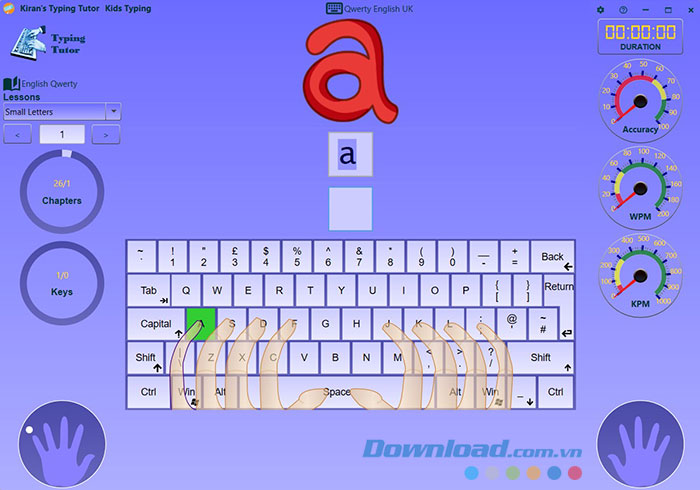
Keep sessions manageable and encourage accurate finger placement. If keys appear to produce the wrong characters, check the selected Windows input layout and the tutor's layout before repeating the lesson.
Choose the next practice step
Stay with structured lessons until basic positions are familiar, then alternate practice with comparable tests. For other formats, see typing games and tutors or browser-based touch-typing lessons. Use the same accuracy-first approach whichever tool you choose.


Reader Comments 0
Sign in with email or Google to join the discussion.