Table of Contents
To make vocabulary flashcards in Wayground, formerly Quizizz, use its Flashcards creator and put a prompt on the front and the answer on the back. You can create cards manually or generate a draft from learning material, then review the deck before sharing it.
The platform changed its name from Quizizz to Wayground. Older links and screenshots may still use Quizizz branding. Feature availability and limits can depend on your account, so check the options shown rather than assuming every AI or sharing feature is free.
Create a vocabulary deck in the current editor
- Sign in and select Create > Flashcards.
- Choose Create from scratch.
- Add the prompt and answer to the front and back. Include suitable media if helpful.
- Save the card and add the remaining vocabulary.
- Review the set, then publish when it is ready.
Wayground also offers AI generation from pasted text, documents, a topic, or an article. In the Flashcards creator, choose the relevant source, set the available preferences, and generate a draft. Check every card before publishing. The official creation guide explains the current controls.
Design each card around one recall task
For a beginner English deck, use an image or short definition as the prompt and the target word as the answer. For more advanced practice, ask for the word in a sentence or include a short context that distinguishes similar meanings.
| Front | Back |
|---|---|
| A picture of an umbrella | umbrella |
| Complete: “She borrowed an ___ because it was raining.” | umbrella |
| “Borrow” or “lend”: “Can you ___ me a pen?” | lend |
Keep answers short enough to check quickly. Avoid a single card that asks learners to recall several unrelated definitions. Use example sentences when an image alone could suggest more than one word.
Older Quizizz quiz-to-flashcards workflow
The original screenshots show an older route through a quiz resource. They are retained to help identify existing material, rather than as an exact description of the current editor.
In that interface, the teacher created a quiz, entered its title and subject, and added vocabulary questions. An image in the question could prompt the learner to recall the word.
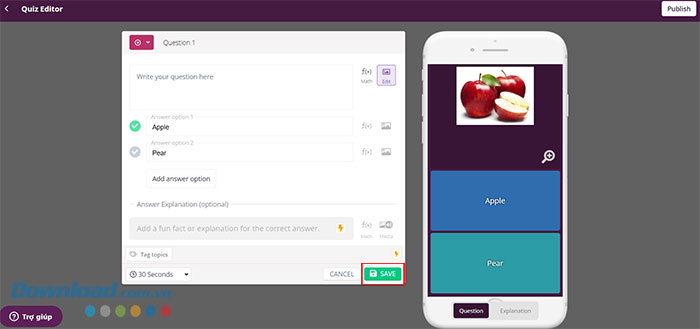
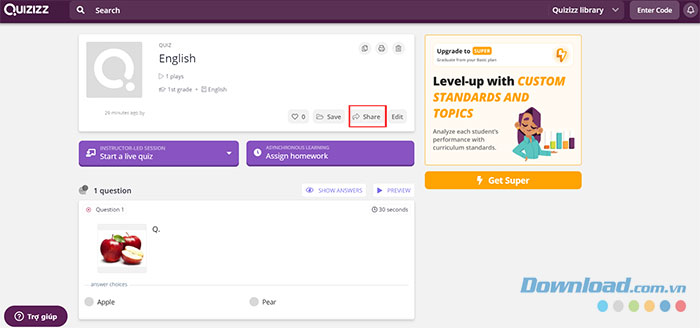
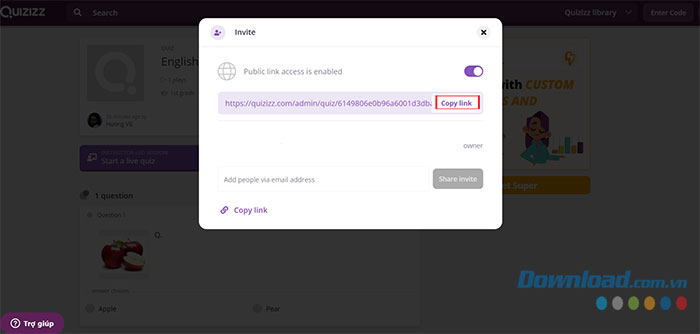
After saving the questions, the older Share control provided a resource link. Before distributing any link, check what students can access and whether the resource contains only the material intended for them.
The older learner view offered a Flashcards option. A card could be flipped to reveal its answer, then learners could return to a quiz activity for a different kind of practice.
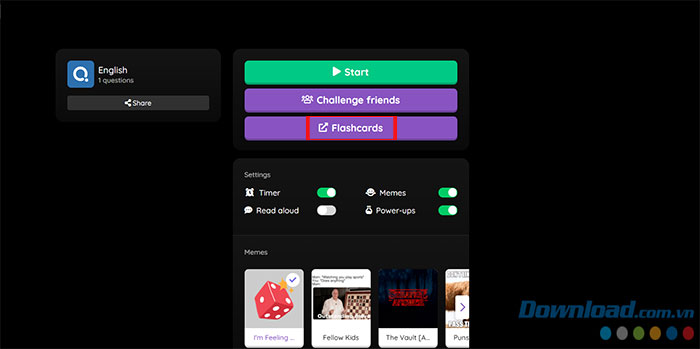
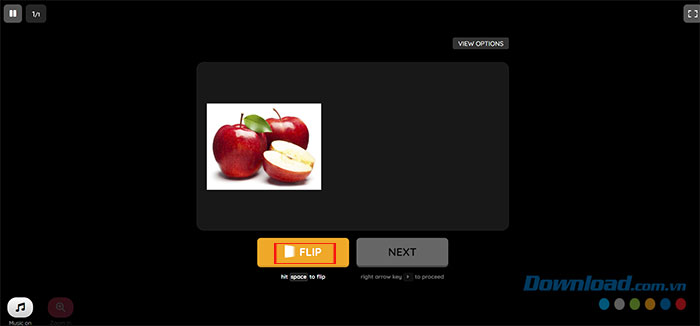
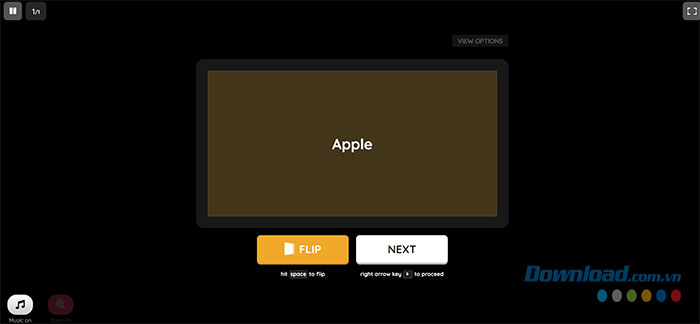
If those buttons are absent, use the current Flashcards creator or the resource conversion option available in your account. Do not assume that every quiz question type becomes an equally useful vocabulary card.
Review AI-generated vocabulary before sharing
- Check spelling, meaning, and the intended language.
- Remove duplicate cards and material outside the lesson.
- Make sure each prompt has an answer learners can reasonably infer.
- Check that the image actually represents the answer.
- Use a separate context for words with several meanings.
Upload only learning materials you are permitted to use and avoid unnecessary student information. The Wayground AI quiz guide offers a related review workflow for assessment questions.
Use the cards before the quiz
Ask learners to attempt an answer before flipping. Put uncertain words back into practice and revisit them later with a sentence or a different prompt. A recognition question and recalling a word without options are different tasks; use both when they support the lesson objective.
Preview the published resource in the intended learner view before class. Confirm that images are readable, answers are correct, and students can open the assigned activity.


Reader Comments 0
Sign in with email or Google to join the discussion.