Table of Contents
Photoshop's AI features can shorten common editing tasks, but they work best when you make a clear selection, keep generated results on separate layers, and inspect edges and details at full size. These five tools cover useful beginner workflows rather than AI for its own sake.
1. Generate Image: create a new starting point
Generate Image creates a composition from a text prompt and optional reference. Open it from the contextual task bar, the Edit menu, or the current generative workspace, then describe the subject, setting, lighting, composition, and style.
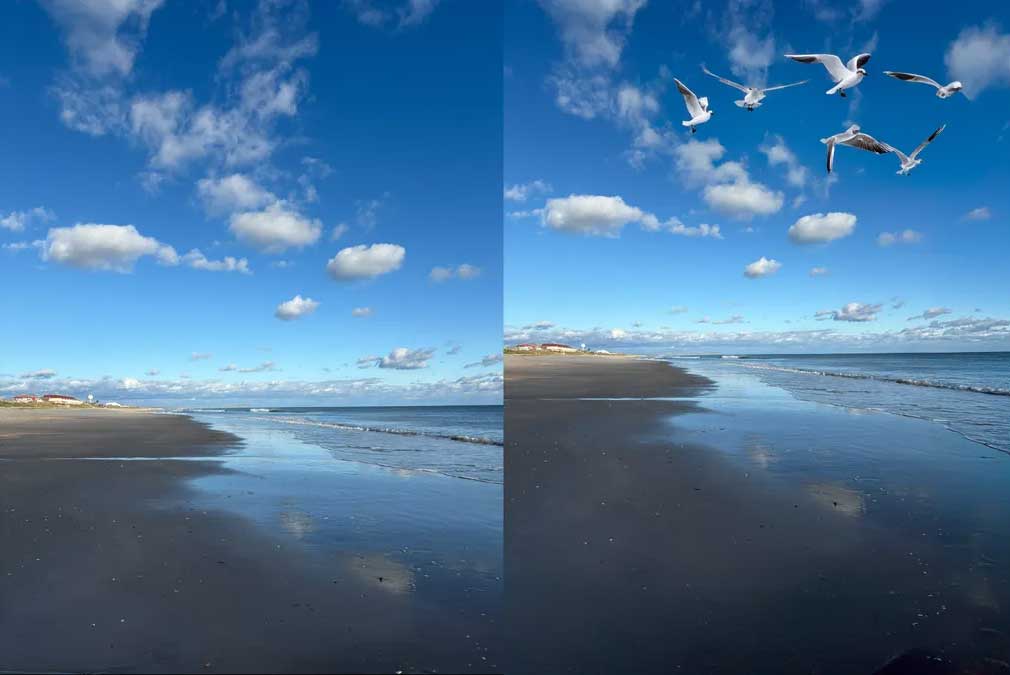
Put the most important subject first and avoid contradictory directions. Generate a few variations, then open the strongest one for normal layer, mask, color, and retouching work. If repeated edits to the prompt drift away from the goal, rewrite it from a clean description.
2. Generative Fill: add or replace selected content
- Use a selection tool to define the exact area you want to change.
- Select Generative Fill from the contextual task bar.
- Enter a prompt for new content, or leave the prompt blank when you want Photoshop to fill from the surrounding image.
- Choose a variation in the Properties panel and refine the generated layer mask.
Include some surrounding pixels in the selection when lighting and texture need to blend. Check shadows, reflections, repeating patterns, hands, text, and object boundaries before accepting a result.
3. Generative Expand: change the aspect ratio
Choose the Crop tool, drag the canvas beyond the original image, and select Generative Expand. Leave the prompt blank for a context-based continuation, or describe what should appear in the new space.
This is useful for turning a landscape image into a banner or adding room for a headline. It does not recover content outside the original photograph; it invents new pixels, so do not use the expansion as factual evidence of what was beyond the frame.
4. Remove Tool: clear distractions
Paint over a wire, blemish, sign, or unwanted person with the Remove Tool. Work on a new layer with sampling options enabled when possible, and use several small strokes instead of one oversized mark.
Generative Fill can also remove a selected object when the prompt is left blank. Use the method that produces the cleanest edges, then repair repeating texture with masks, Healing, or Clone Stamp if needed.
5. Generate Background: place a subject in a new setting
Remove the existing background, select Generate Background, and describe a setting that matches the subject's camera angle and lighting.
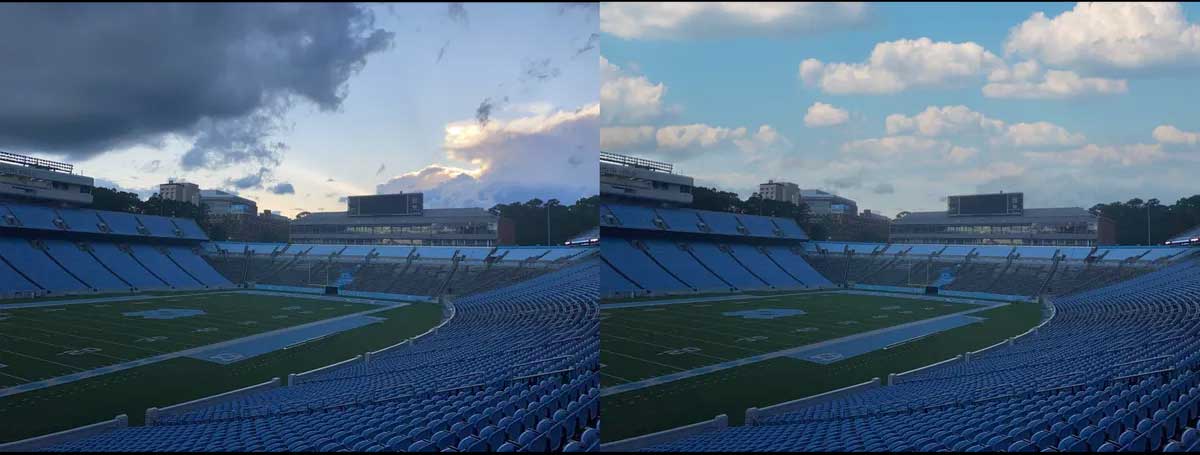
Simple studio surfaces, gradients, and restrained environments are easier to integrate than crowded scenes. Check contact shadows, color temperature, edge contamination, scale, and perspective so the subject does not look pasted in.
Two useful non-generative companions
Sky Replacement uses a dedicated workflow at Edit > Sky Replacement, with controls for edge, brightness, temperature, scale, foreground lighting, and output layers. Remove Background creates a starting mask that you should refine around hair, transparent objects, and soft edges.
A beginner-friendly workflow
- Duplicate the document or save a PSD before major changes.
- Keep generated edits on separate layers and name them by purpose.
- Generate at the final aspect ratio when possible.
- Zoom to 100% and inspect anatomy, text, logos, patterns, edges, shadows, and reflections.
- Compare the edit with the original and keep only changes that support the image's purpose.
Generative features may use credits and available models can change. Adobe's current Generative Fill guide lists the active desktop workflow and model picker.
Related Articles
 minutes read
 How to Use Photoshop CS5 - Part 1: Toolbox12 minutes read
 10 Photoshop Beginner Skills Need to Know16 minutes read
 How to Use Photoshop from Az for Beginners6 minutes read
 How to Reset Tools in Photoshop to Default Settings3 minutes read
 49 Smart Photoshop Tips You Need to Know (Part 3)15 minutes read
Reader Comments 0
Sign in with email or Google to join the discussion.