Table of Contents
GeoGebra shortcuts depend on which app you use, the operating system, and the view that currently has focus. Desktop GeoGebra Classic supports commands that may be unavailable or intercepted by the browser in web apps. Use the tables as a reference, then confirm the command in your installed app.
On a Mac, Command is commonly used for menu actions and Option is the Alt key. Symbol shortcuts and browser shortcuts do not always follow a simple Ctrl-to-Command replacement.
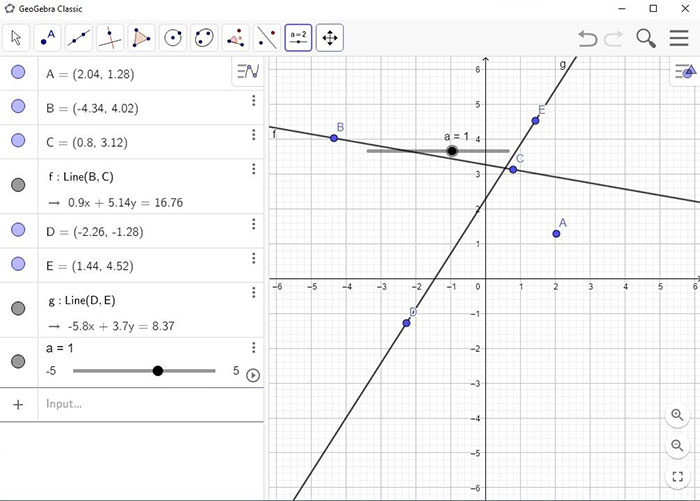
Files, editing, objects, and views
Select the relevant objects before object actions. “Ancestors” are objects used to construct the selection; “descendants” depend on it. Hide/show commands change visibility and are different from deleting objects.
| Windows shortcut | Mac desktop reference | Action and scope |
|---|---|---|
| Ctrl + A | Cmd + A | Select all |
| Ctrl + Shift + A | Cmd + Shift + A | View/Hide Algebra Window |
| Alt + A | Option + A | Insert alpha α; Shift selects uppercase Α where supported. |
| Alt + B | Option + B | Insert beta β; Shift selects uppercase Β where supported. |
| Ctrl + Shift + B | Cmd + Shift + B | Output the ggbBase64 string to the clipboard. |
| Ctrl + C | Cmd + C | Copy |
| Ctrl + Alt + C | Cmd + Option + C | Copy values (spreadsheet) |
| Ctrl + Shift + C | Cmd + Shift + C | Copy Graphics View to clipboard |
| Ctrl + D | Cmd + D | Toggle the displayed value, definition, or command. |
| Ctrl + Shift + D | Cmd + Shift + D | Toggle Selection Allowed for applicable free objects. |
| Alt + D | Option + D | delta δ (Press Shift to capitalize: Δ) |
| Ctrl + E | Cmd + E | Open Object Properties View |
| Ctrl + Shift + E | Cmd + Shift + E | Open/Close Object Properties View |
| Alt + E | Option + E | Euler ℯ |
| Ctrl + F | Cmd + F | Refresh Views |
| Alt + F | Option + F | Insert phi φ; Shift selects uppercase Φ where supported. |
| Ctrl + G | Cmd + G | Show or hide selected objects. |
| Ctrl + Shift + G | Cmd + Shift + G | Show or hide labels of selected objects. |
| Alt + G | Option + G | Insert gamma γ; Shift selects uppercase Γ where supported. |
| Alt + I | Option + I | Insert the imaginary unit. |
| Ctrl + J | Cmd + J | Select ancestor objects. |
| Ctrl + Shift + J | Cmd + Shift + J | Select descendant objects. |
| Ctrl + Shift + K | Cmd + Shift + K | Show or hide CAS View. |
| Alt + L | Option + L | Insert lambda λ; Shift selects uppercase Λ where supported. |
| Ctrl + Shift + L | Cmd + Shift + L | Show or hide Construction Protocol. |
| Ctrl + Shift + M | Cmd + Shift + M | Export an HTML code string to the clipboard. |
| Alt + M | Option + M | Insert mu μ; Shift selects uppercase Μ where supported. |
| Ctrl + N | Cmd + N | Open a new window in the desktop application. |
| Ctrl + Shift + N | Cmd + Shift + N | Open the next window or next GGB file in the folder, where supported. |
| Ctrl + Shift + Alt + N | Cmd + Shift + Option + N | Open the previous window, where supported. |
| Ctrl + O | Cmd + O | Open a file. |
| Alt + O | Option + O | Insert the degree symbol °. |
| Ctrl + P | Cmd + P | Open Print Preview on desktop or the available print menu. |
| Ctrl + Shift + P | Cmd + Shift + P | Open Probability Calculator where available. |
| Alt + P | Option + P | Insert pi π; Shift selects uppercase Π where supported. |
| — | Cmd + Q | Quit the Mac application. |
| Ctrl + R | Cmd + R | Recompute objects, including random values. |
| Alt + R | Option + R | Insert the square-root symbol √. |
| Ctrl + S | Cmd + S | Save. |
| Ctrl + Shift + S | Cmd + Shift + S | Show Spreadsheet View. |
| Alt + S | Option + S | Insert sigma σ; Shift selects uppercase Σ where supported. |
| Ctrl + Shift + T | Cmd + Shift + T | Export as PSTricks in supported desktop versions. |
| Alt + T | Option + T | Insert theta θ; Shift selects uppercase Θ where supported. |
| Alt + U | Option + , (Mac desktop) | Insert infinity ∞; the Mac desktop shortcut differs. |
| Ctrl + Shift + U | Cmd + Shift + U | Open Table View in newer apps; older versions assigned a different action. |
| Ctrl + V | Cmd + V | Paste. |
| — | Cmd + W | Close the application window according to the Mac version. |
| Ctrl + Shift + W | Cmd + Shift + W | Export a dynamic worksheet in supported desktop versions. |
| Alt + W | Option + W | Insert omega ω; Shift selects uppercase Ω where supported. |
| Ctrl + Y | Cmd + Y | Redo. |
| Ctrl + Z | Cmd + Z | Undo. |
| Ctrl + Shift + Z | Cmd + Shift + Z | Redo. |
Important distinctions: Ctrl + R recomputes the construction and can change random values; it is not Redo. Ctrl + Shift + M exports HTML rather than the Base64 action assigned to Ctrl + Shift + B. Ctrl + Shift + U has changed across apps, so verify its current menu action.
Symbols, display, and zoom
Type symbol shortcuts while an appropriate input field is active. Keyboard layouts and web browsers can intercept Alt/Option combinations. If a shortcut does not work, use GeoGebra's symbol controls instead of changing system-wide keyboard settings blindly.
| Windows shortcut | Mac desktop reference | Action and scope |
|---|---|---|
| Alt + 0 | Option + 0 | Insert superscript 0. |
| Ctrl + 1 | — | Use standard font, line, and point sizes in older desktop versions. |
| Alt + 1 | Option + 1 | Insert superscript 1. |
| Ctrl + Shift + 1 | Cmd + Shift + 1 | Show or hide Graphics View 1 where supported. |
| Ctrl + 2 | — | Increase font, line, and point sizes in older desktop versions. |
| Alt + 2 | Option + 2 | Insert superscript 2. |
| Ctrl + Shift + 2 | Cmd + Shift + 2 | Show or hide Graphics View 2 where supported. |
| Ctrl + 3 | — | Use black-and-white display in older desktop versions. |
| Alt + 3 | Option + 3 | Insert superscript 3. |
| Alt + 4 | Option + 4 | Insert superscript 4. |
| Alt + 5 | Option + 5 | Insert superscript 5. |
| Alt + 6 | Option + 6 | Insert superscript 6. |
| Alt + 7 | Option + 7 | Insert superscript 7. |
| Alt + 8 | Option + 8 | Insert superscript 8. |
| Alt + 9 | Option + 9 | Insert superscript 9. |
| - | - | Decrease a selected number/slider or move a selected constrained point backward along its path. |
| Ctrl + - | Cmd + - | Zoom out. |
| Alt + - | Option + - | Insert a superscript minus. |
| + | + | Increase a selected number/slider or move a selected constrained point along its path. |
| Ctrl + + | Cmd + + | Zoom in. |
| Alt + + | Option + + | Insert plus-or-minus ±. |
| = | = | Increase a selected number/slider or move a selected constrained point along its path. |
| Ctrl + = | Cmd + = | Zoom in. |
| Alt + = | Option + = | Insert not-equal ≠. |
| Alt + < | Option + < | Insert less-than-or-equal ≤. |
| Alt + , | Option + , | Insert less-than-or-equal ≤. |
| Alt + > | Option + > | Insert greater-than-or-equal ≥. |
| Alt + . | Option + . | Insert greater-than-or-equal ≥. |
Older display-size and black-and-white shortcuts are identified as legacy desktop actions. They are not promised for every calculator app. A symbol inserted in a text field is also different from entering a complete mathematical expression.
Function keys, navigation, and mouse actions
Use these with the appropriate view focused. A laptop may require Fn for function keys, and macOS may reserve a combination for the system. In particular, Command + Tab is macOS app switching, not a universal GeoGebra view-navigation command.
| Windows shortcut | Mac desktop reference | Action and scope |
|---|---|---|
| F1 | F1 | Open Help in supported desktop versions. |
| F2 | F2 | Edit the selected object. |
| F3 | F3 | Copy the selected object’s definition to the Input Bar. |
| F4 | F4 | Copy the selected object’s value to the Input Bar. |
| Alt + F4 | — | Close GeoGebra on Windows. |
| F5 | F5 | Copy the selected object’s name to the Input Bar. |
| F9 | F9 | Recompute objects, including random values. |
| Enter | Enter | Move input focus between Graphics View and the Input Bar where supported. |
| Ctrl + Tab | Not the same as macOS Cmd + Tab | Cycle focus through open views in the Windows desktop app. |
| Left click | Check the app and operating system | Use the current tool. |
| Alt + left click | Check the app and operating system | Copy a definition to the Input Bar in supported desktop versions. |
| Alt + left drag | Check the app and operating system | Create a list of selected objects in the Input Bar where supported. |
| Right click in Graphics View | Check the app and operating system | Open a context menu or use the applicable drag behavior; depends on where you click and the app. |
| Shift + right drag | Check the app and operating system | Zoom without preserving aspect ratio where supported. |
| Mouse wheel | Check the app and operating system | Zoom in or out. |
| Shift + mouse wheel | Check the app and operating system | Zoom in or out in applicable embedded versions. |
| Alt + mouse wheel | Check the app and operating system | Accelerate zooming. |
| Backspace | Backspace | Delete the current selection when the drawing view has focus. |
| ↑ | ↑ | Move a selected point upward or increase a selected number; in the Input Bar, recall older input. |
| Ctrl + ↑ | — | Modify movement increment; in Spreadsheet View, move toward the top of the current block. |
| Shift + ↑ | Shift + ↑ | Use a smaller movement increment, or adjust the y-axis scale when the view is active. |
| Alt + ↑ | Option + ↑ | Use a larger movement increment where supported. |
| → | → | Move a selected point right or increase a selected number, depending on focus. |
| Ctrl + → | — | Modify movement increment; in Spreadsheet View, move toward the right edge of the current block. |
| Shift + → | Shift + → | Use a smaller movement increment, or adjust the x-axis scale when the view is active. |
| Alt + → | Option + → | Use a larger movement increment where supported. |
| ← | ← | Move a selected point left or decrease a selected number, depending on focus. |
When a shortcut does not work
- Confirm whether you are using Classic desktop, a web app, or another GeoGebra calculator.
- Click the intended Graphics, Algebra, Spreadsheet, or Input view first.
- Check that the needed object is selected and the command is available.
- Look for a browser or operating-system action using the same keys.
- Use the application's menu or toolbar when the shortcut is not supported.
The official shortcut matrix distinguishes desktop and web availability. The View menu reference explains the main view controls.
Start with Undo, Redo, Save, object visibility, and the views you use most. For a worked construction example, see the GeoGebra graphing walkthrough, allowing for differences in language and app version.
Related Articles
 Instructions for using GeoGebra basic
 Windows Keyboard Shortcuts: A Practical Windows 11 and 10 Cheat Sheet
 Keyboard shortcuts in Illustrator are often used, keyboard shortcuts are commonly used in AI
 Pubg keyboard shortcuts - All the Pubg keyboard shortcuts you need to know
 Useful keyboard shortcuts in Microsoft Word (Part 2)
 Summary of 60+ latest keyboard shortcuts on Windows computers
Reader Comments 0
Sign in with email or Google to join the discussion.