Table of Contents
You probably tap the search bar on your phone dozens of times a day, but if you only do it to find and open apps, you're missing out on a lot. If you have a Samsung phone, the search bar in the app drawer can do a lot more than just launch apps.
9. Search contacts
Find, message, and call people faster
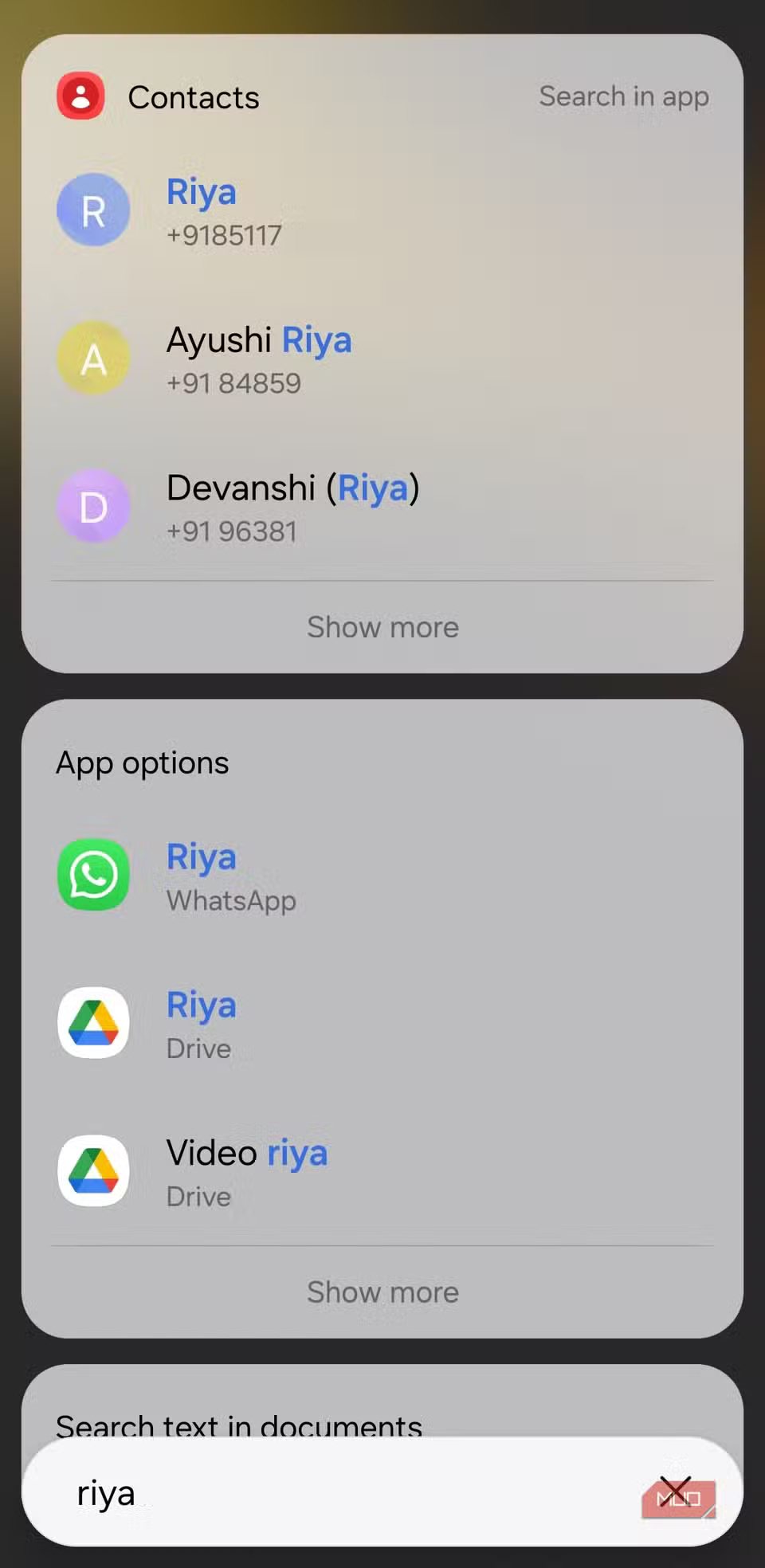
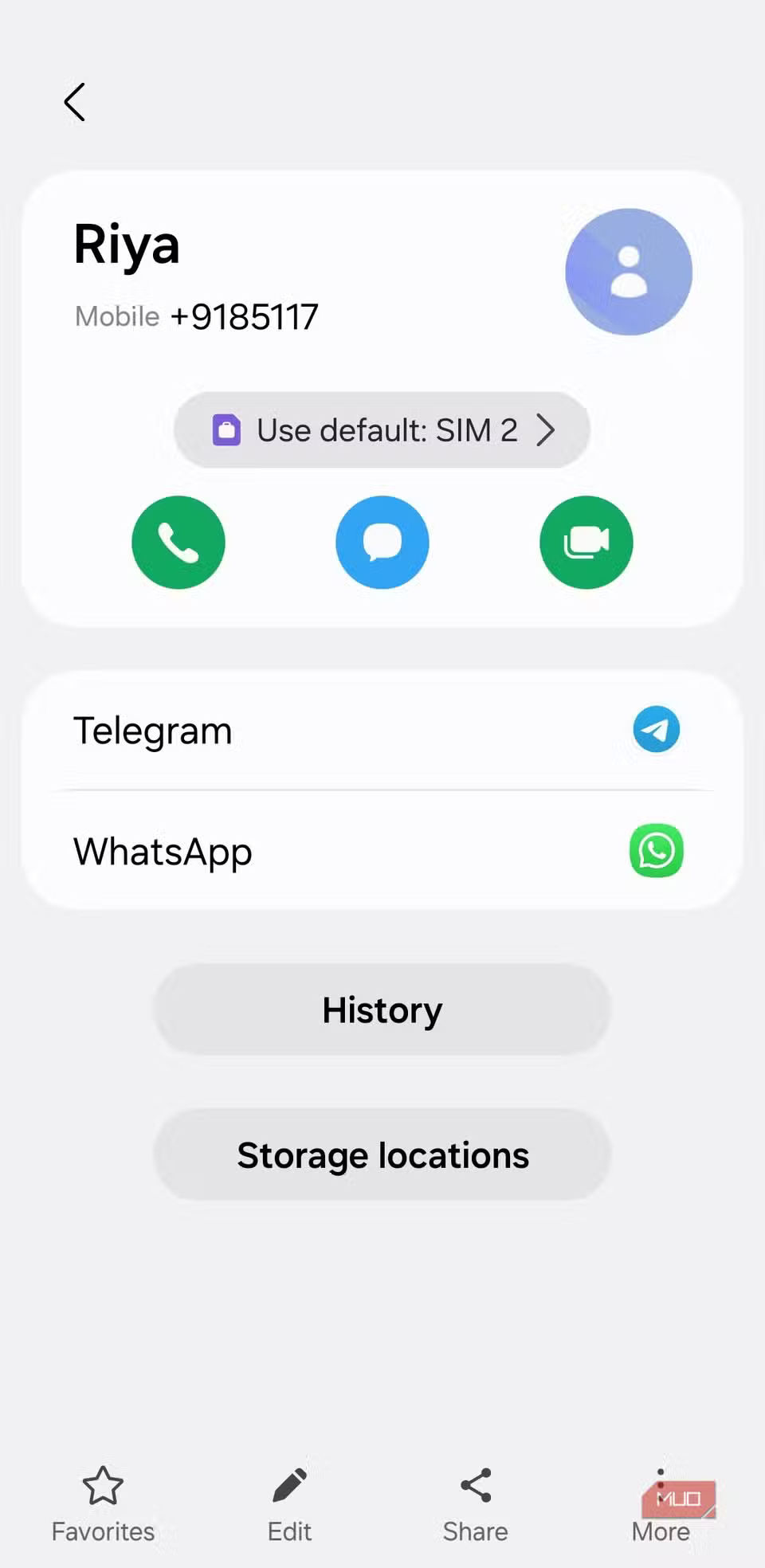
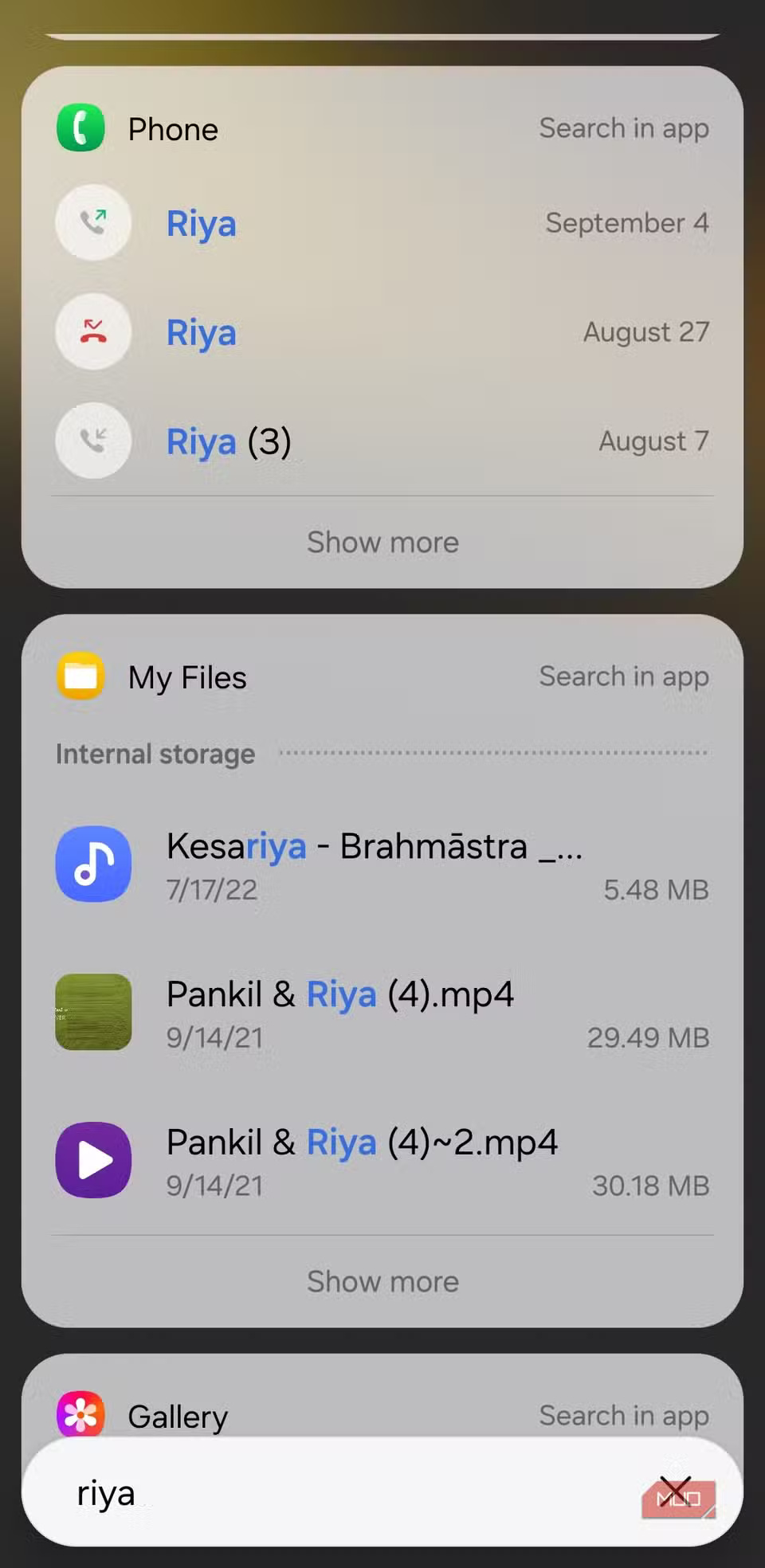
Type a name into the search bar in the app drawer, and the contact will appear right in the results. Tap it, and you'll be taken straight to the Contacts app. In the App options section of the search results, you'll see the WhatsApp option, so you can jump right into the conversation. If you scroll a little further, the Phone section neatly shows your call history with that particular contact.
8. Search YouTube, Maps, and Play Store
Skip launching the app and go straight to the content
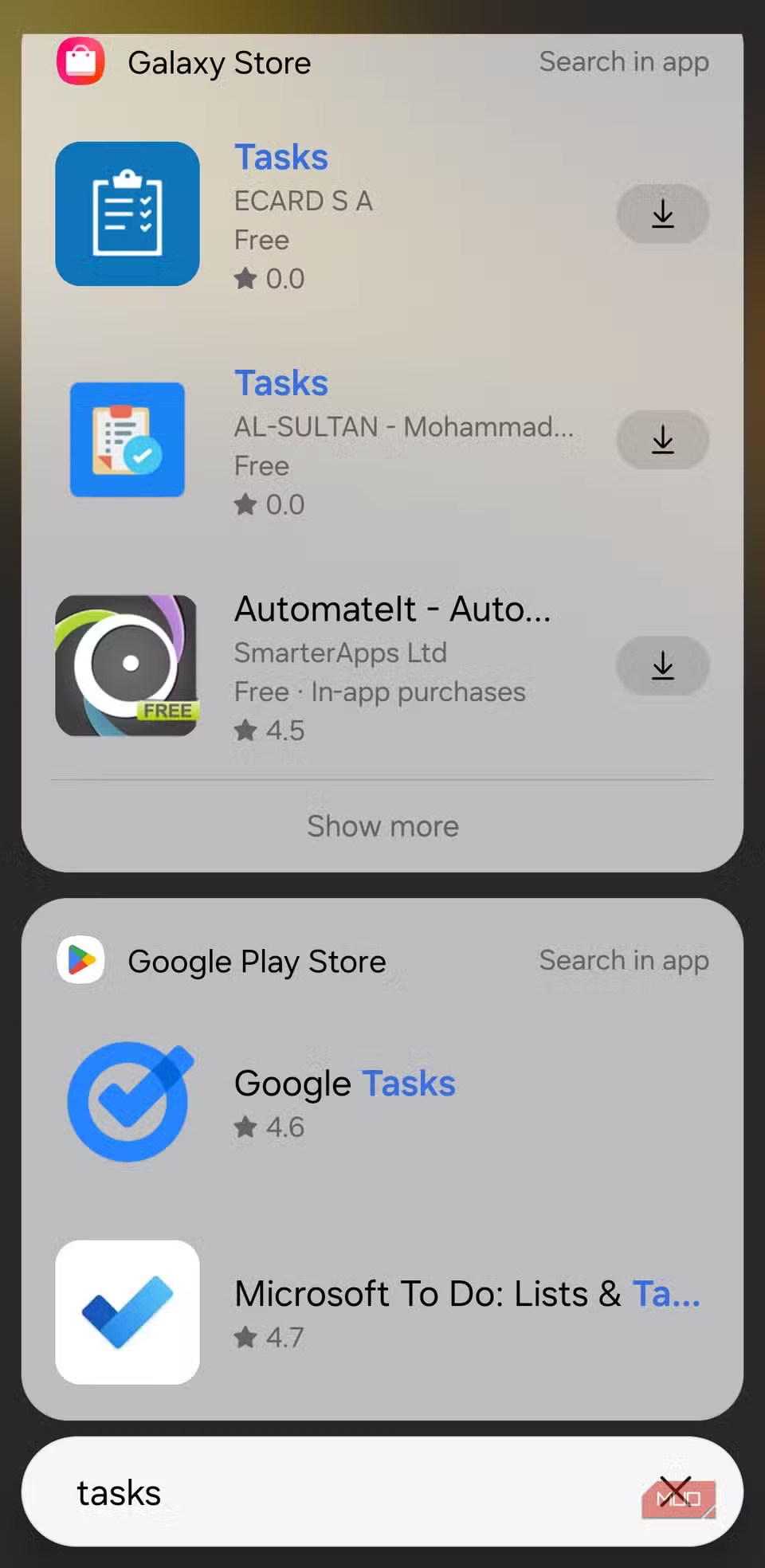
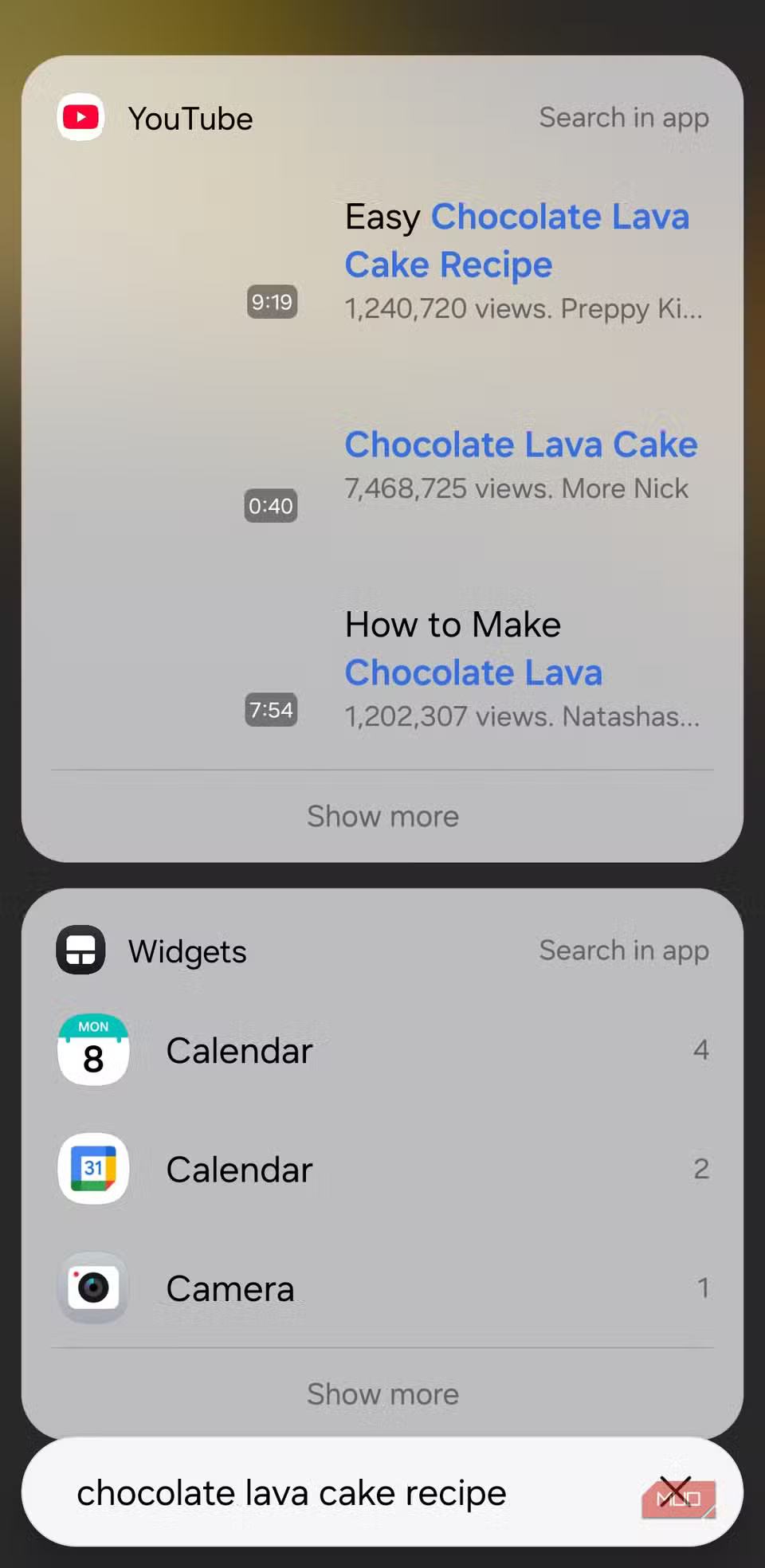
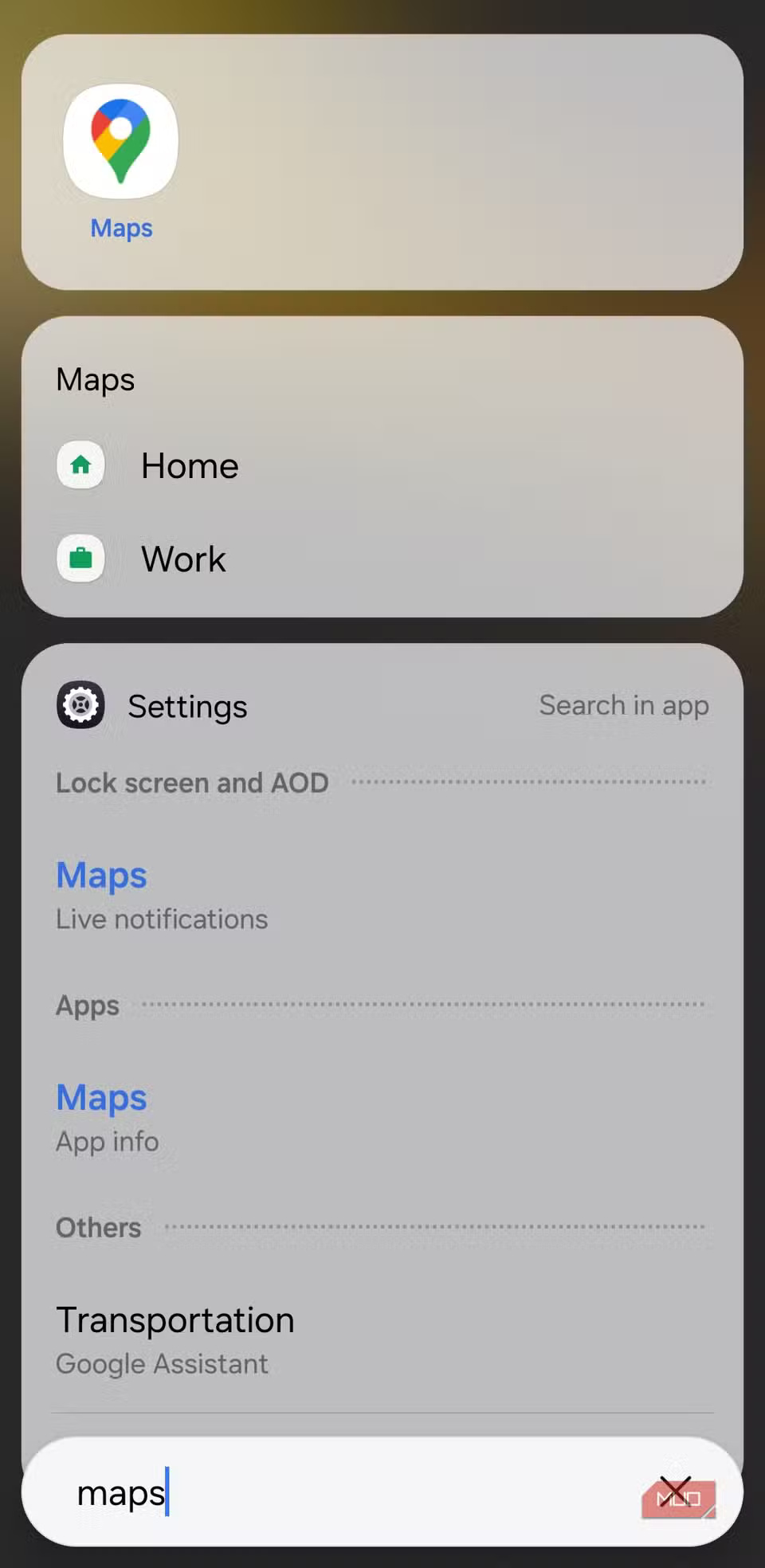
The search bar on your phone is also a shortcut to Google 's biggest apps. Instead of opening YouTube, Maps, or the Play Store separately, you can just type what you're looking for into the search bar and go straight to it.
Same goes for apps and locations. If you want to download a specific app from the Play Store or Galaxy Store, type in the app name and the search bar will take you directly to that app's page. Similarly, you can also search for directions or start navigating to saved locations right away.
7. Set alarms and timers instantly
Speed up timers and alarms
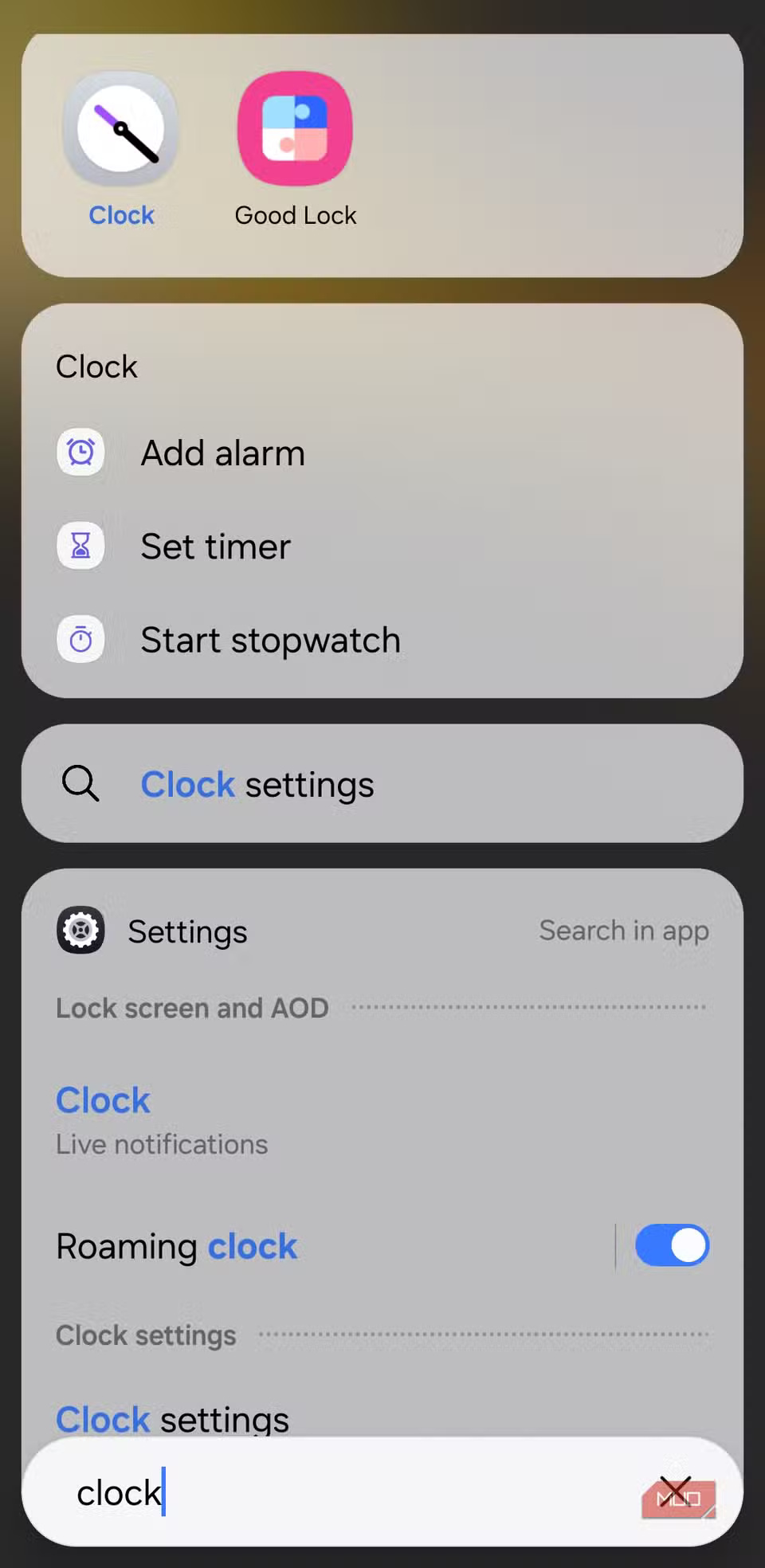
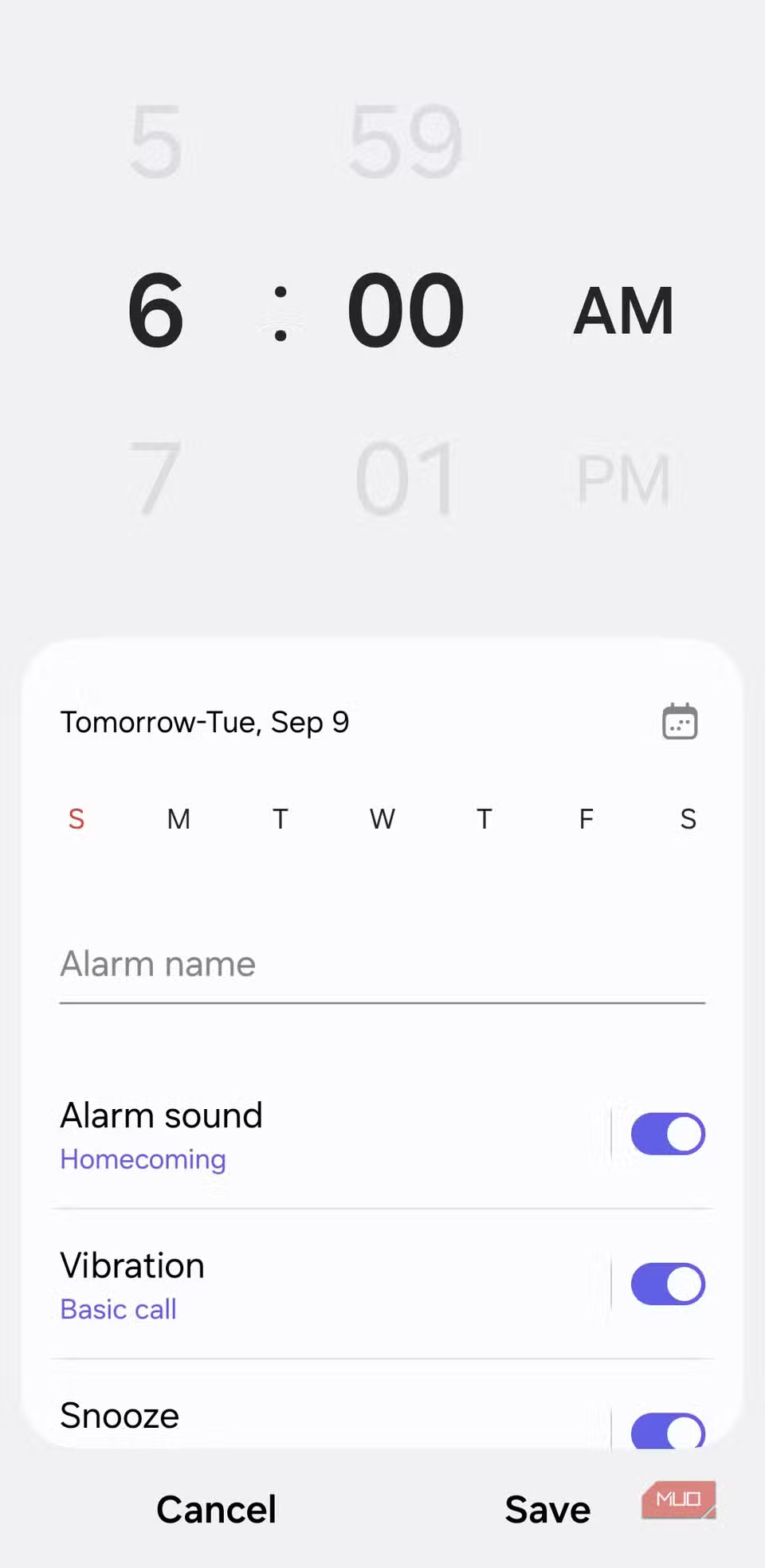
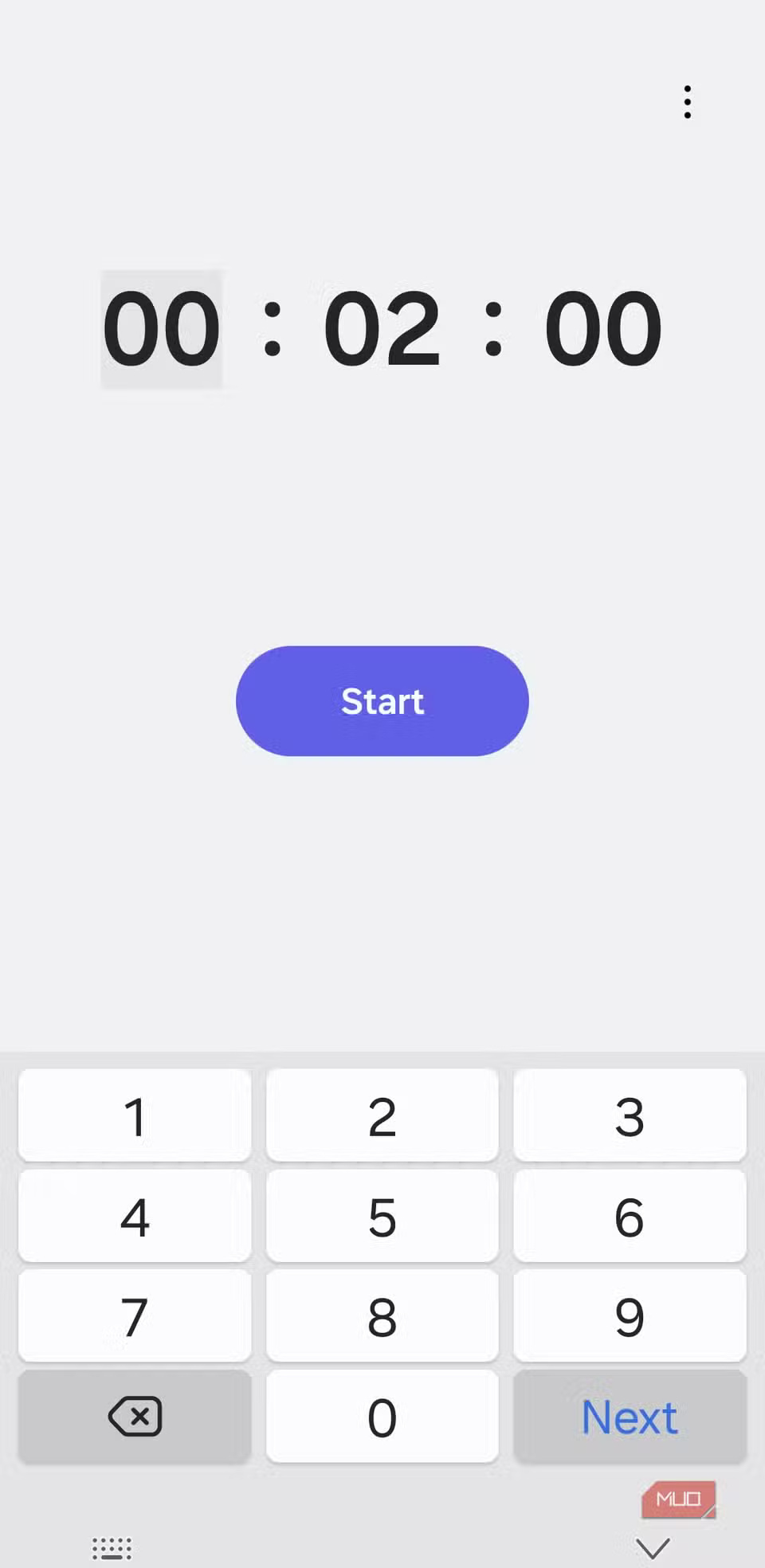
When you search for an app in the app drawer, Samsung phones also show useful shortcuts. For example, if you type Clock , you'll see handy shortcuts like Set Timer , Add Alarm , or even Start Stopwatch .
6. Search for important documents
Locate files and PDFs in seconds
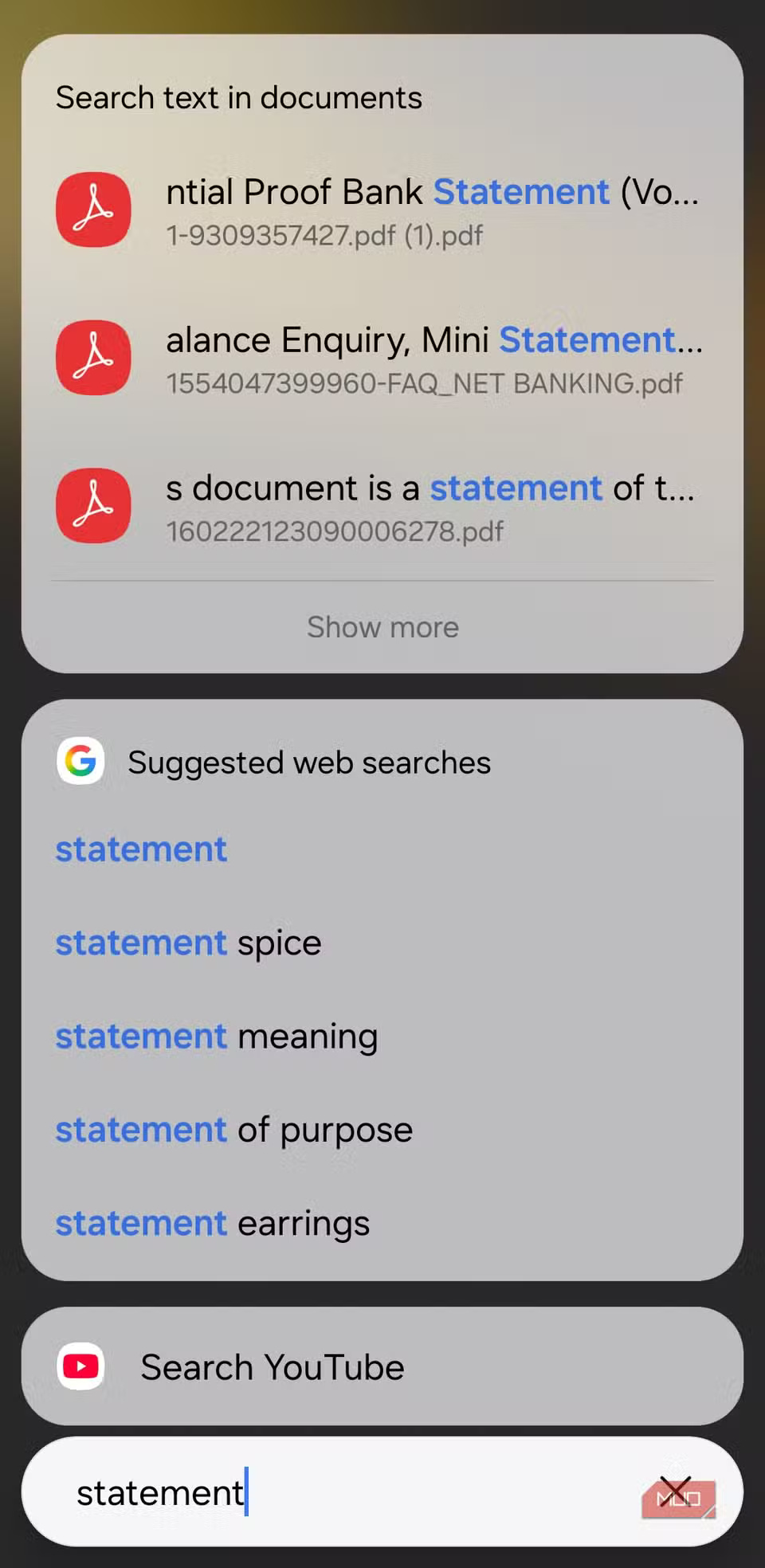
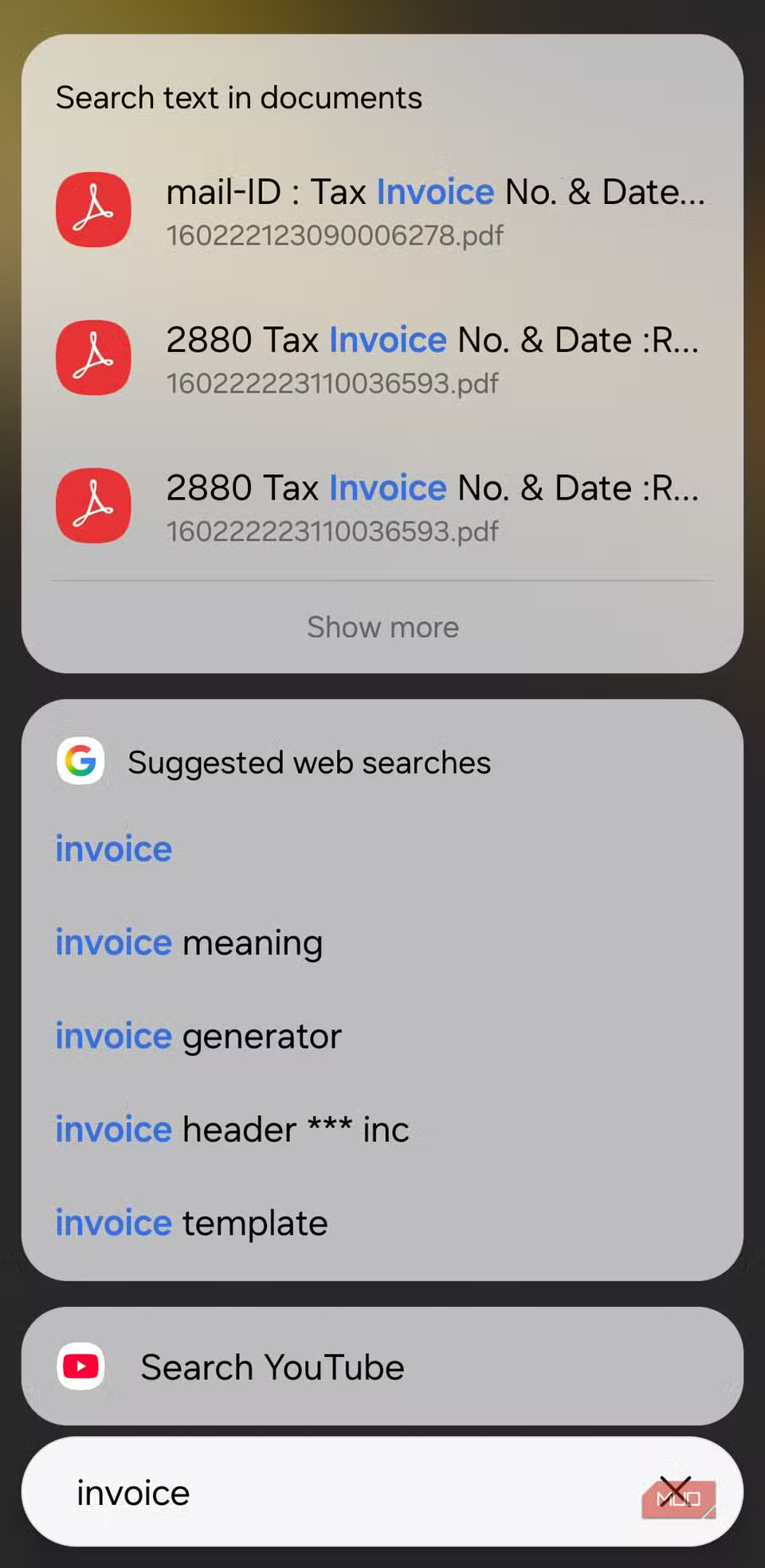
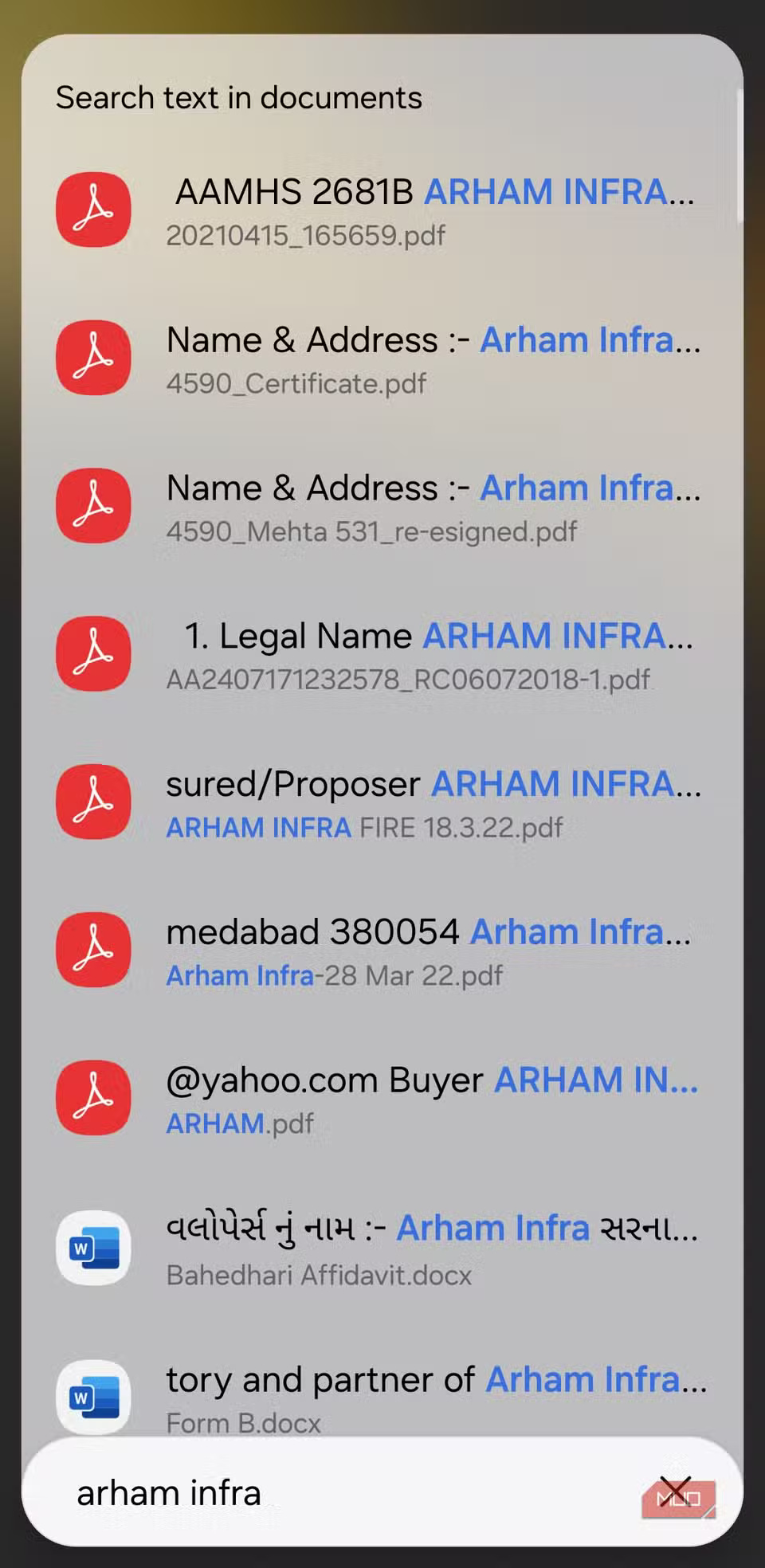
Type in the name of the file you need and it will appear in the results without you having to open another app. Even better, if you don't remember the exact file name, you can still find it by searching for text within the document itself.
Whether it's a PDF or Word document, the search bar on your phone can help you find it in seconds.
5. Go to specific settings
No need to search in menus
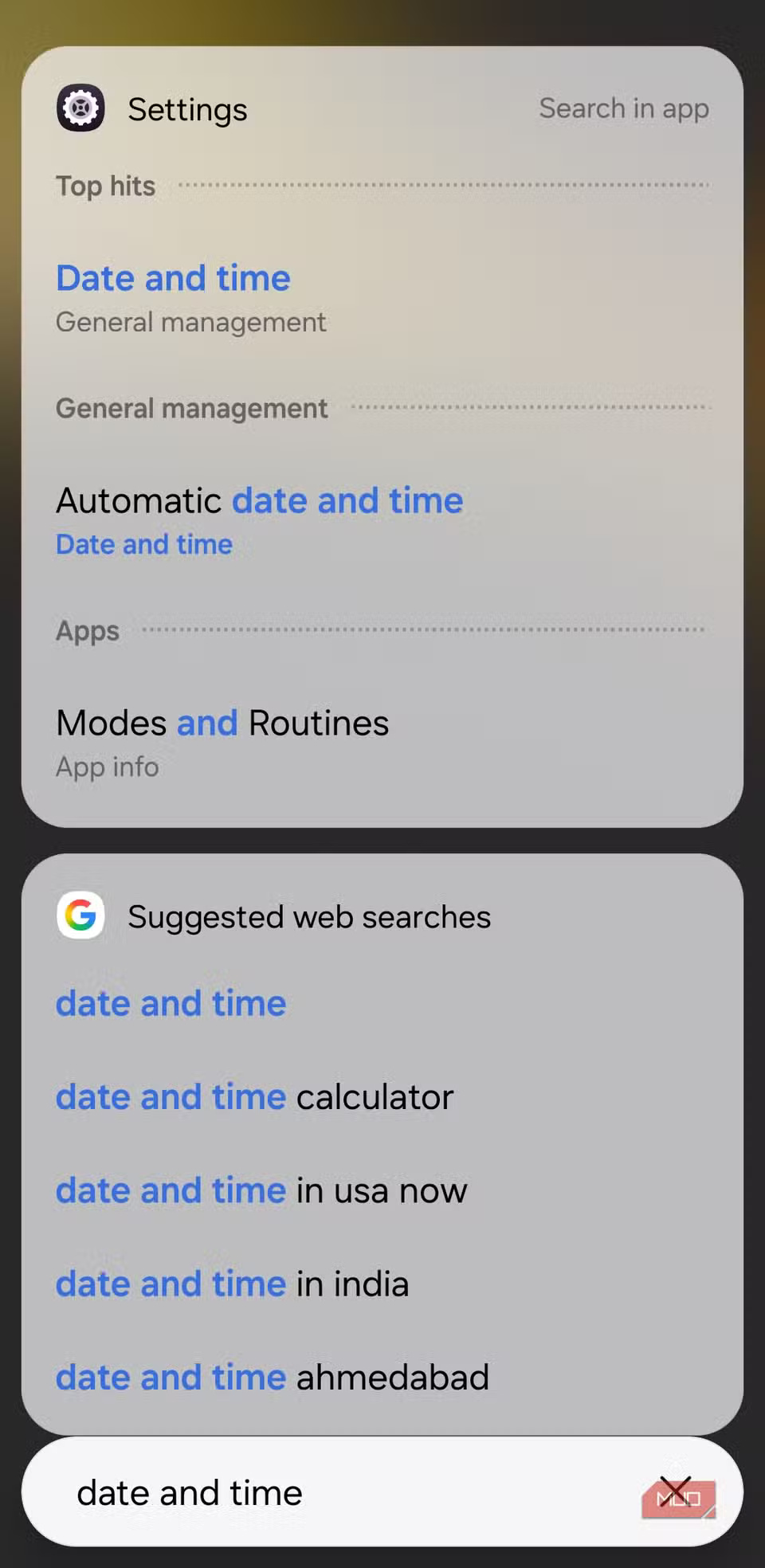
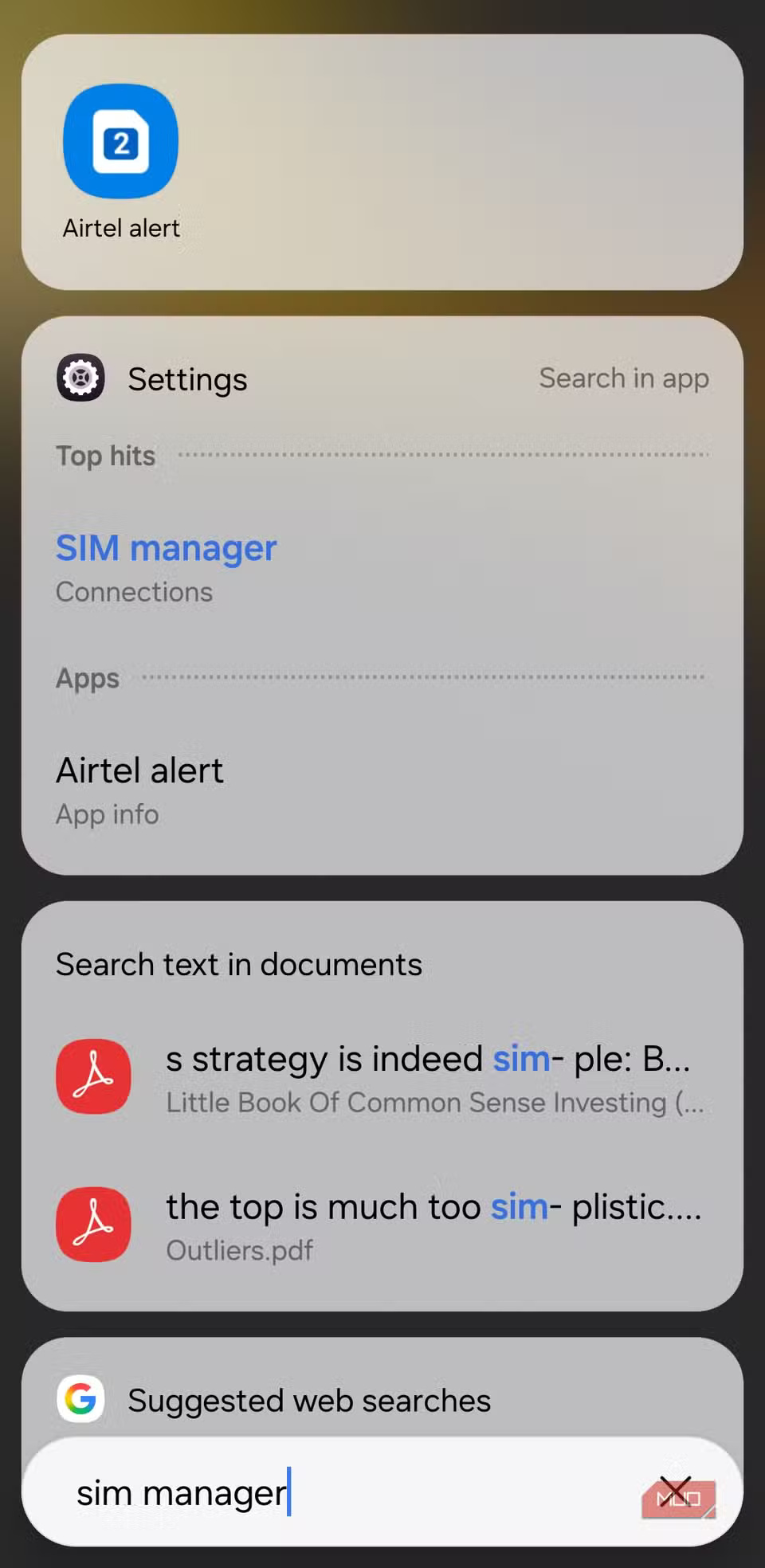
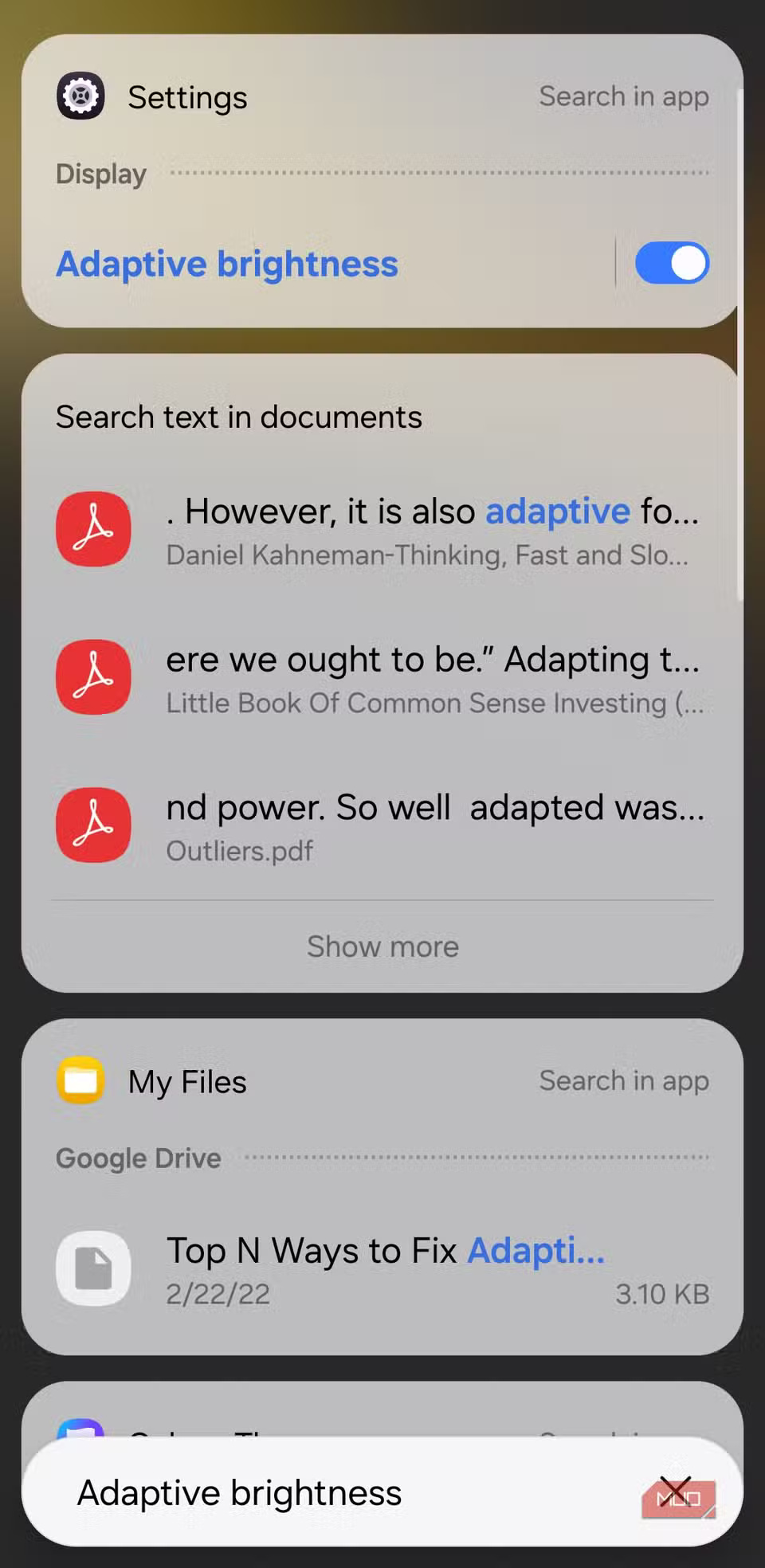
Scrolling through endless menus just to adjust one option in your phone's settings can be tiring. A better way is to search for the setting directly from the app drawer. Type SIM Manager , Date and Time , or even the name of a helpful accessibility setting and you'll be taken straight to the page you're looking for.
4. Quick access to downloads and screenshots
One-touch shortcut to recent files
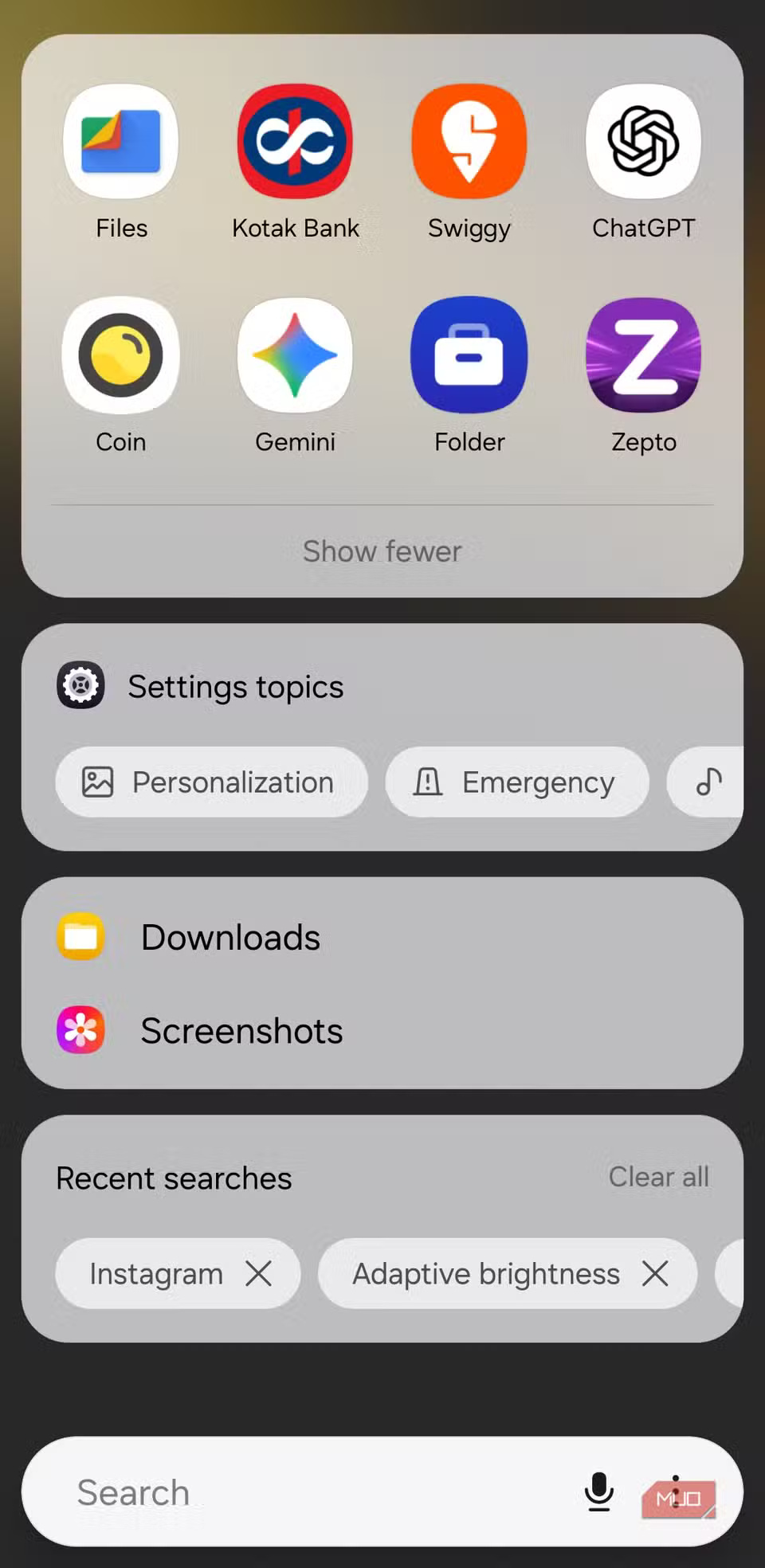
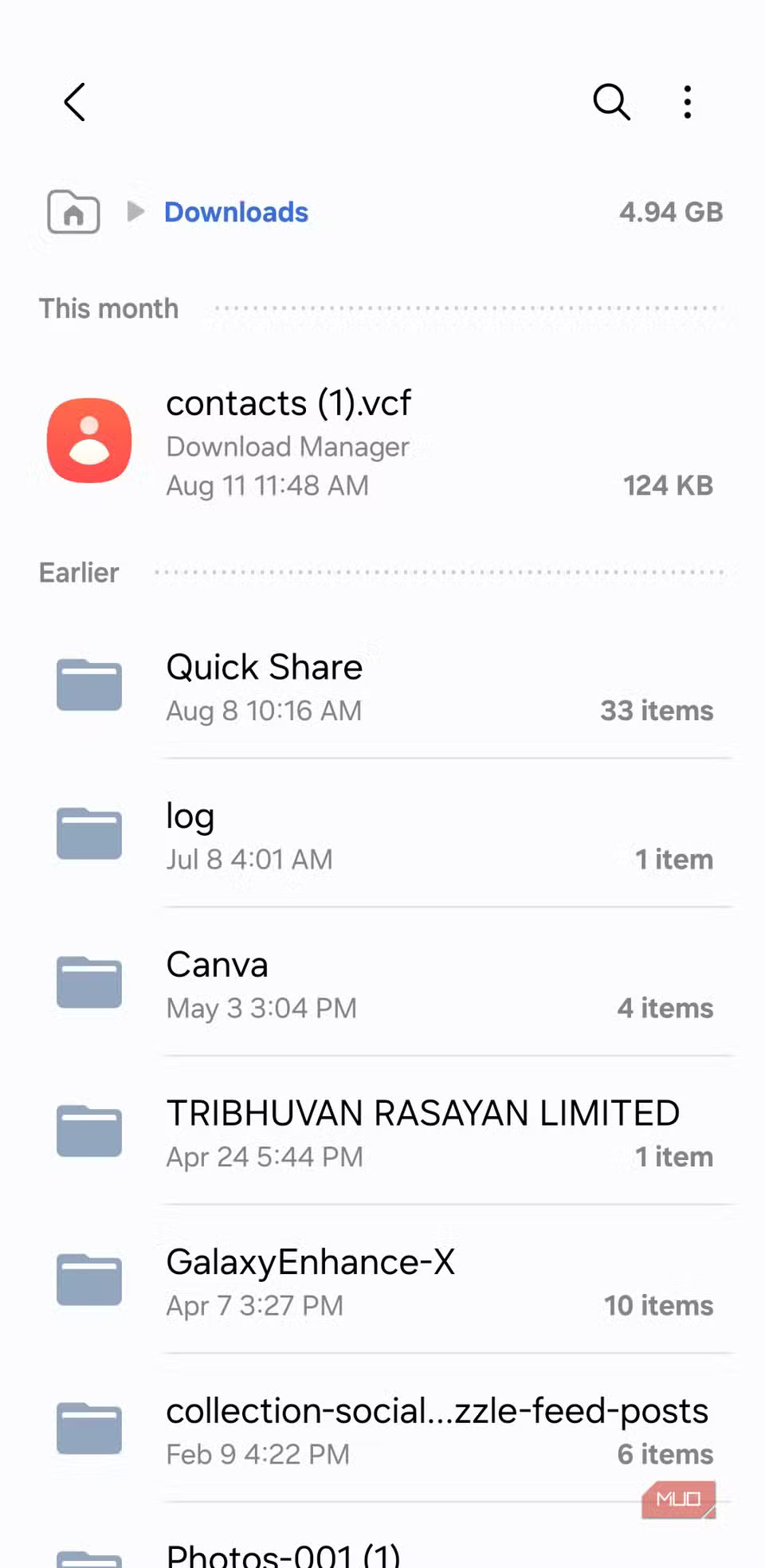
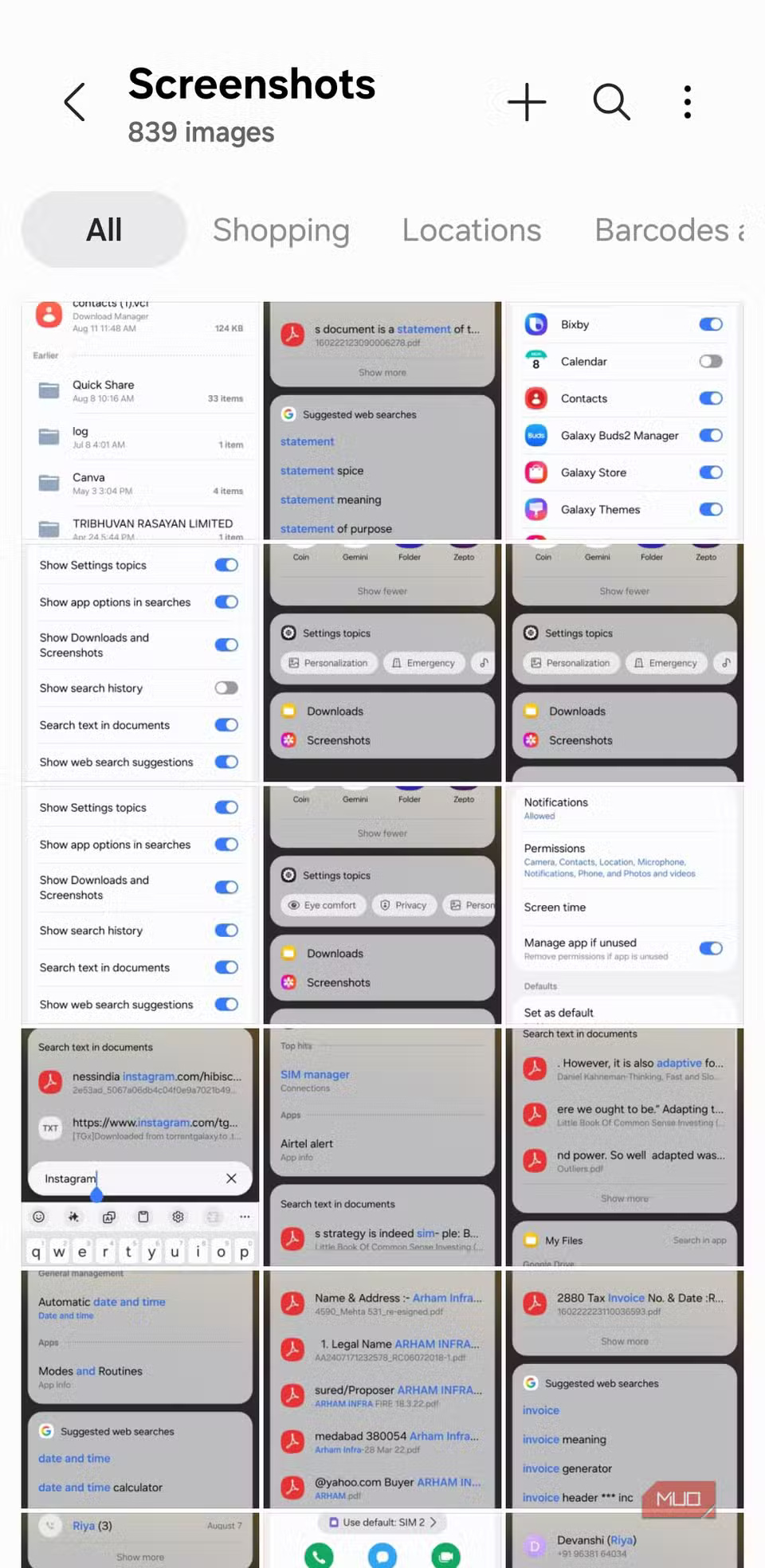
If there's one thing you find yourself constantly searching for on your phone, it's your downloads. Normally, that means opening the Files app and browsing through folders. But the search bar on Samsung phones makes it much simpler.
Tap the search bar and you'll see the Downloads shortcut. Tap that and you'll be taken straight to the Downloads folder inside the Files app.
3. Open hidden apps
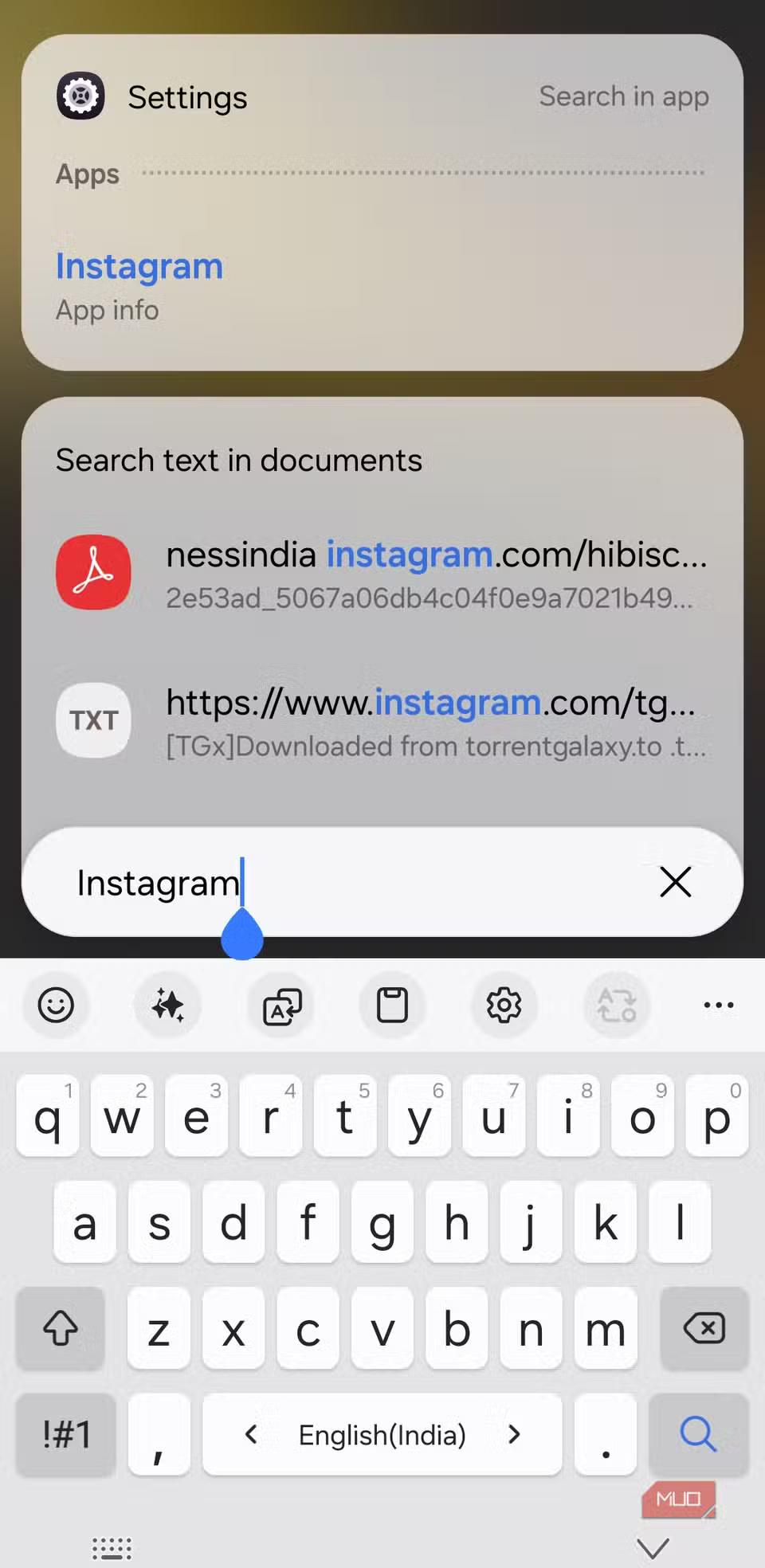
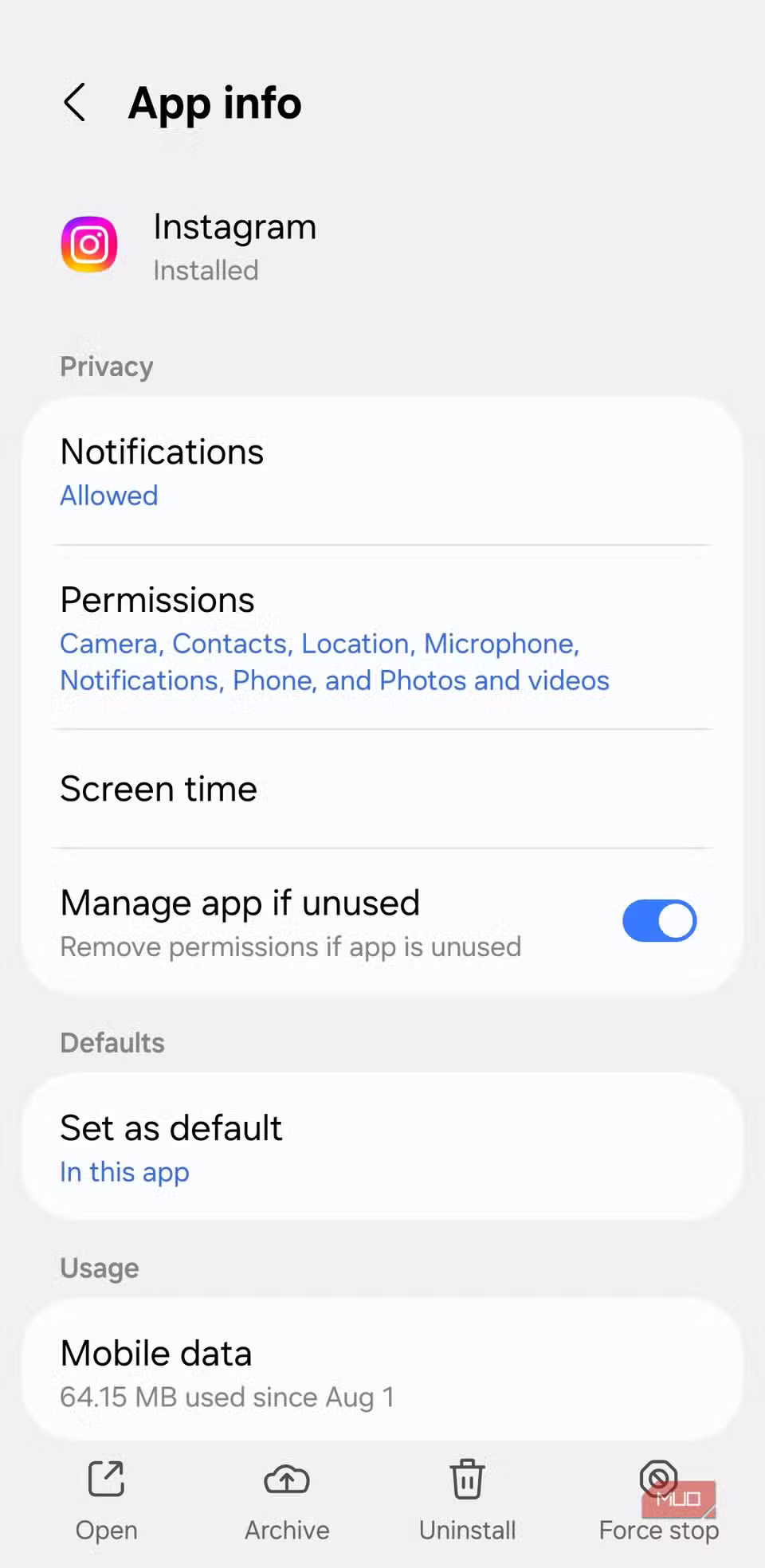
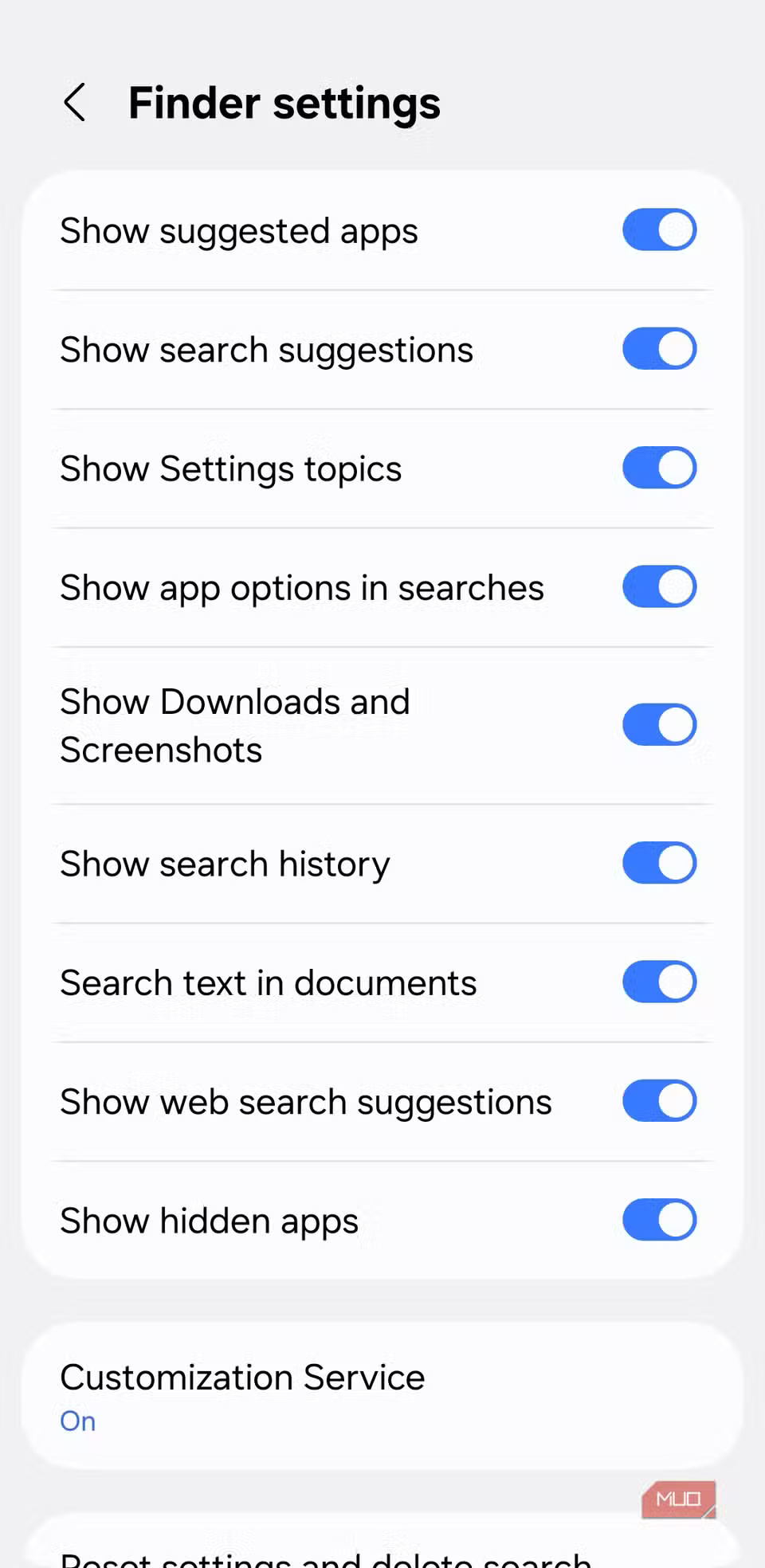
Samsung phones let you hide apps from the app drawer, which is great for keeping some apps private or simply cleaning up your home screen. But hiding them doesn't mean you have to bother bringing them back up every time you want to use them.
Searching the app drawer can help you do that. Just type the name of the hidden app into the search bar. You won't see a regular app shortcut, but the app will appear in the App info section. Tap it and it will take you to the app's info page in Settings.
2. Delete or hide search history
Keep your searches private and tidy
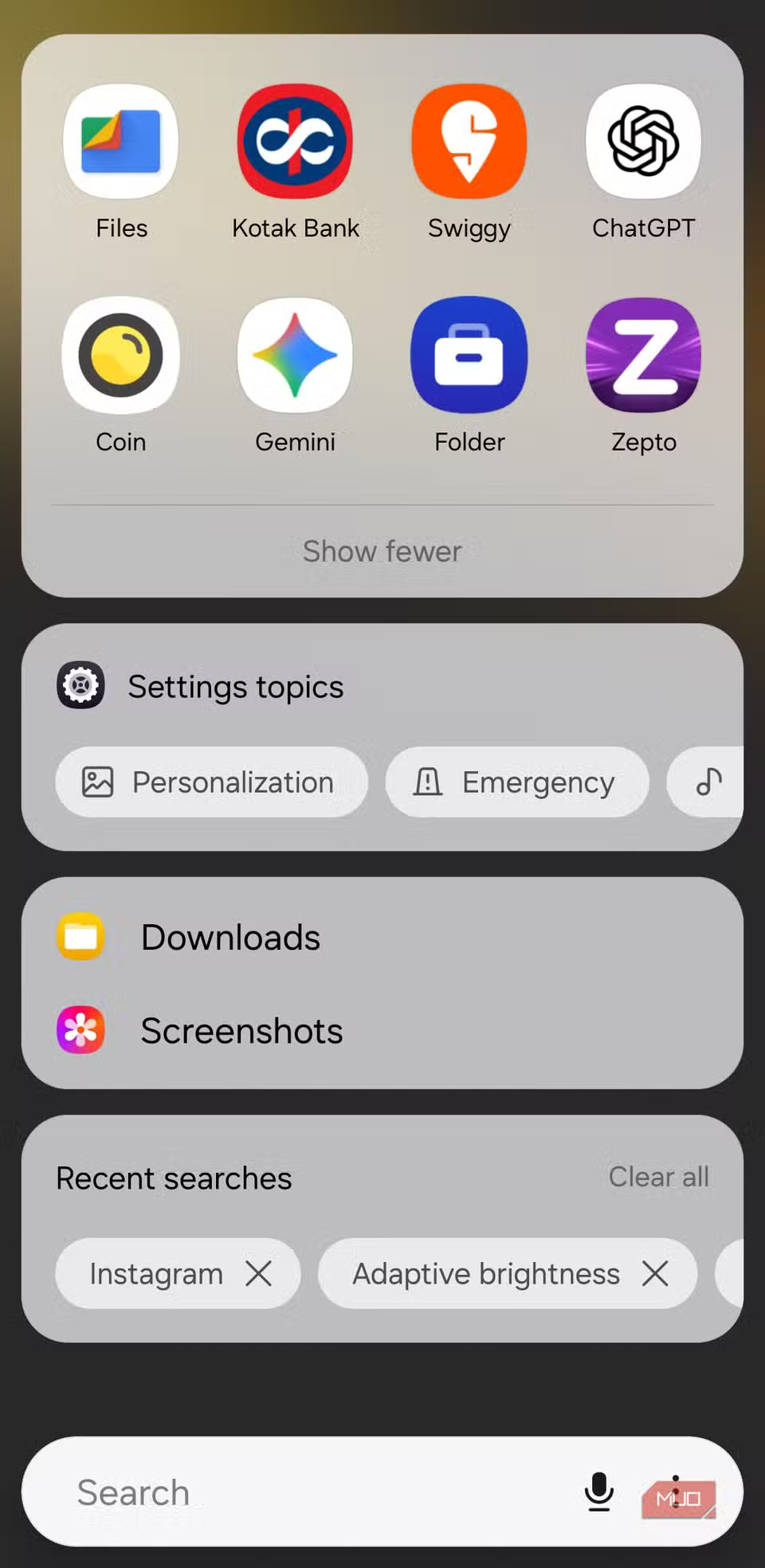
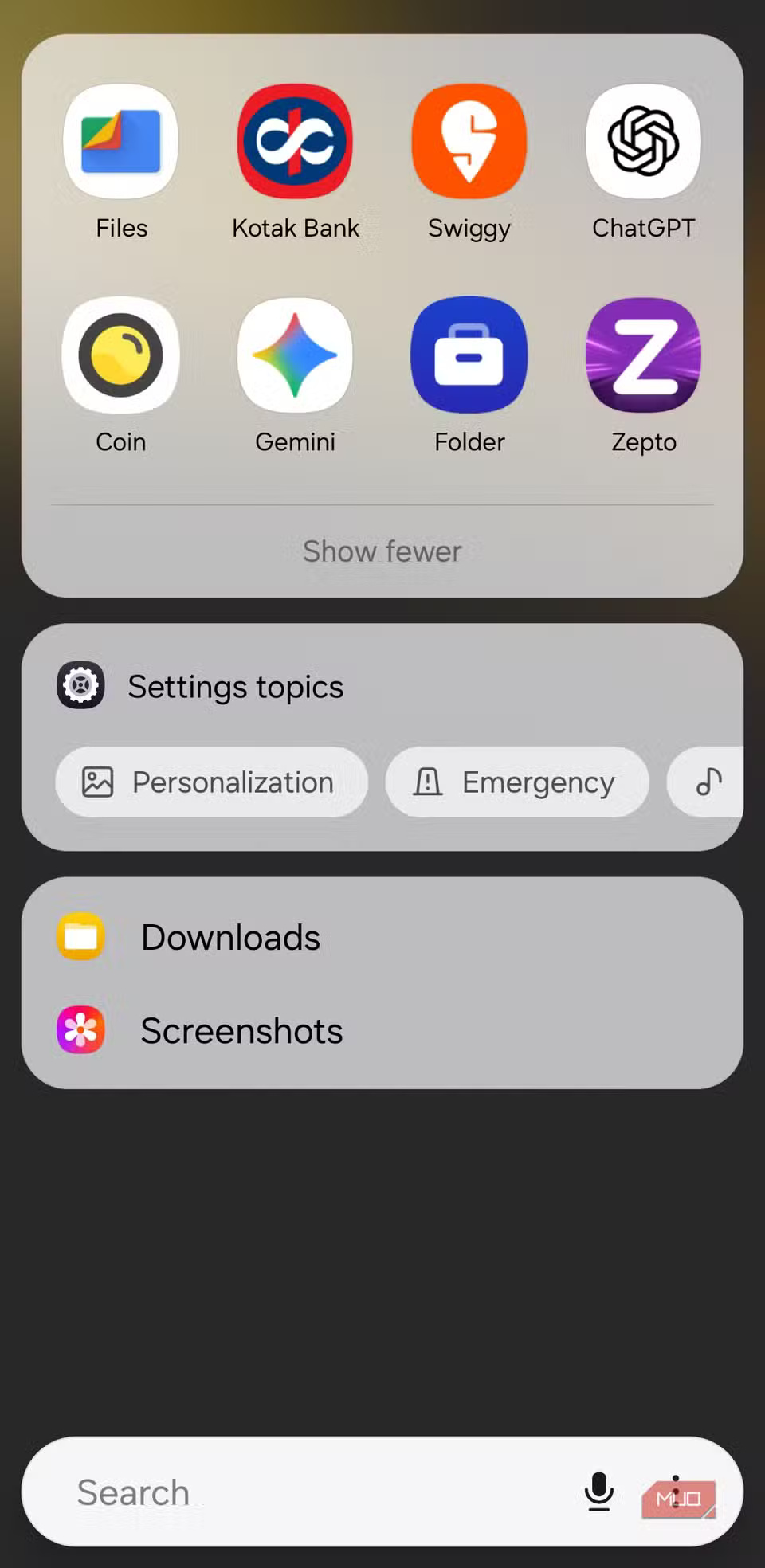
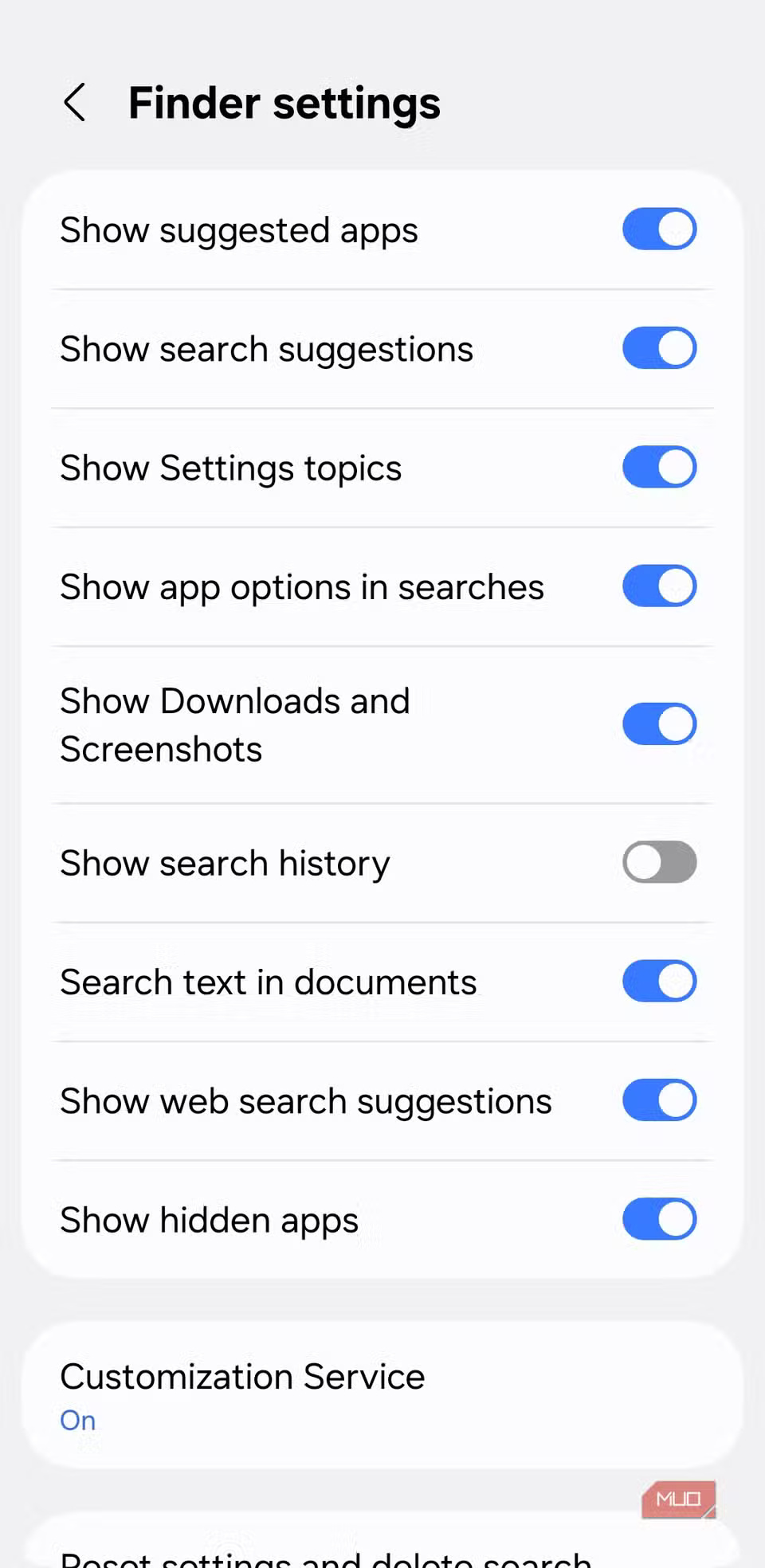
To clean up, tap the search bar and find Recent searches . From here, you can delete individual entries by tapping the X next to each one. If you want to start over, tap Clear all to delete your entire search history at once.
1. Exclude specific apps from search
Enjoy a faster, cleaner search experience
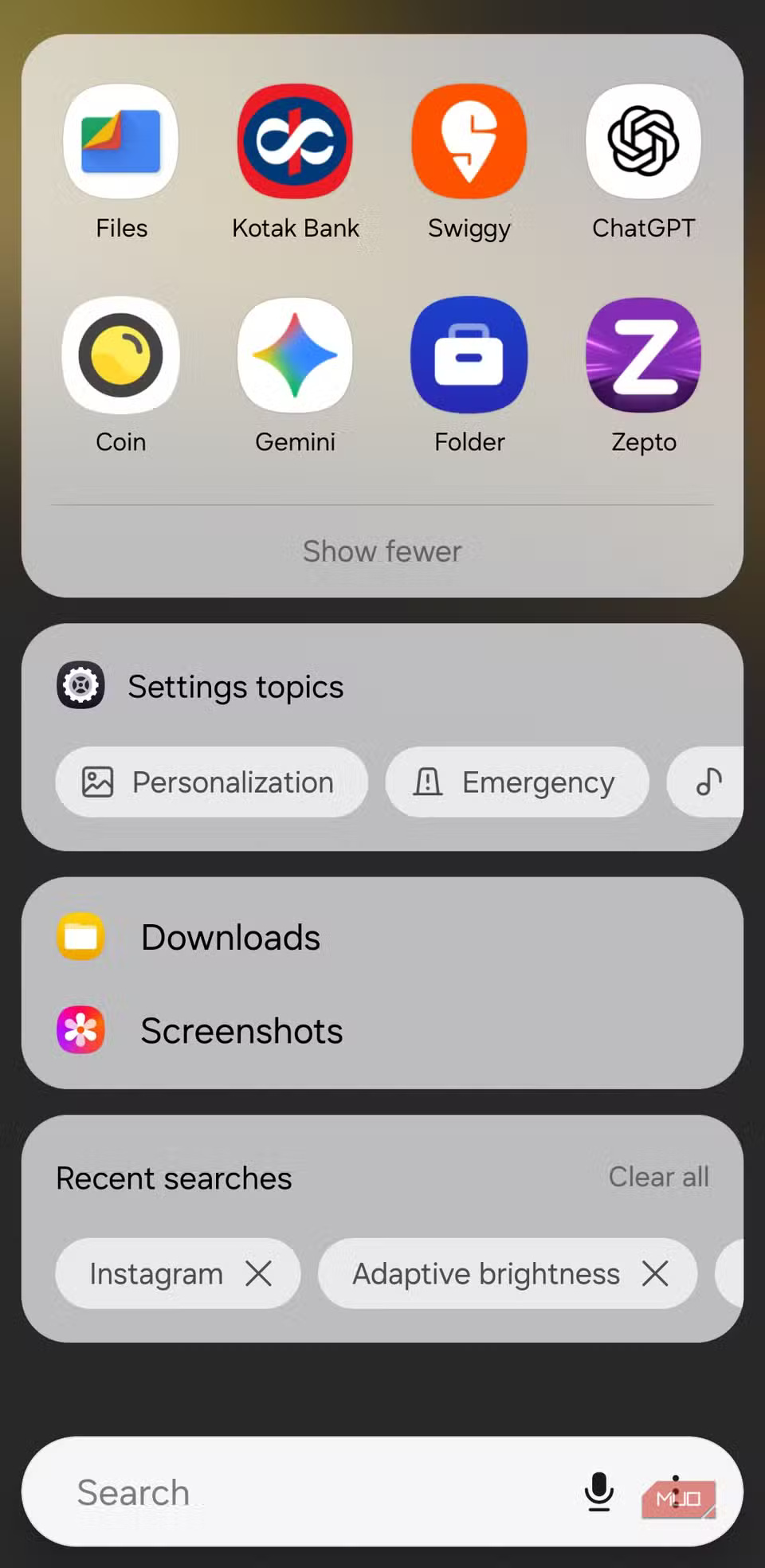
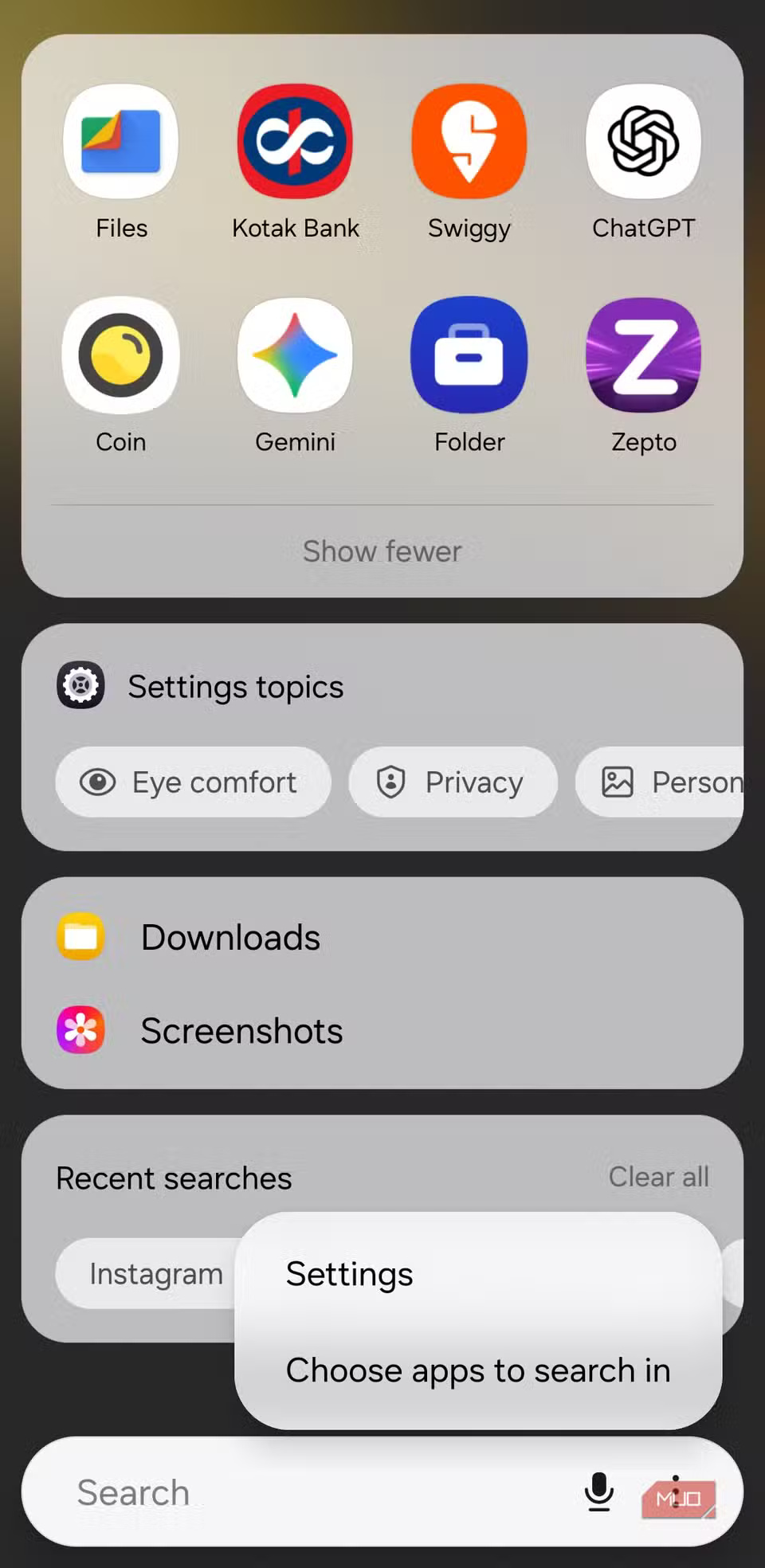
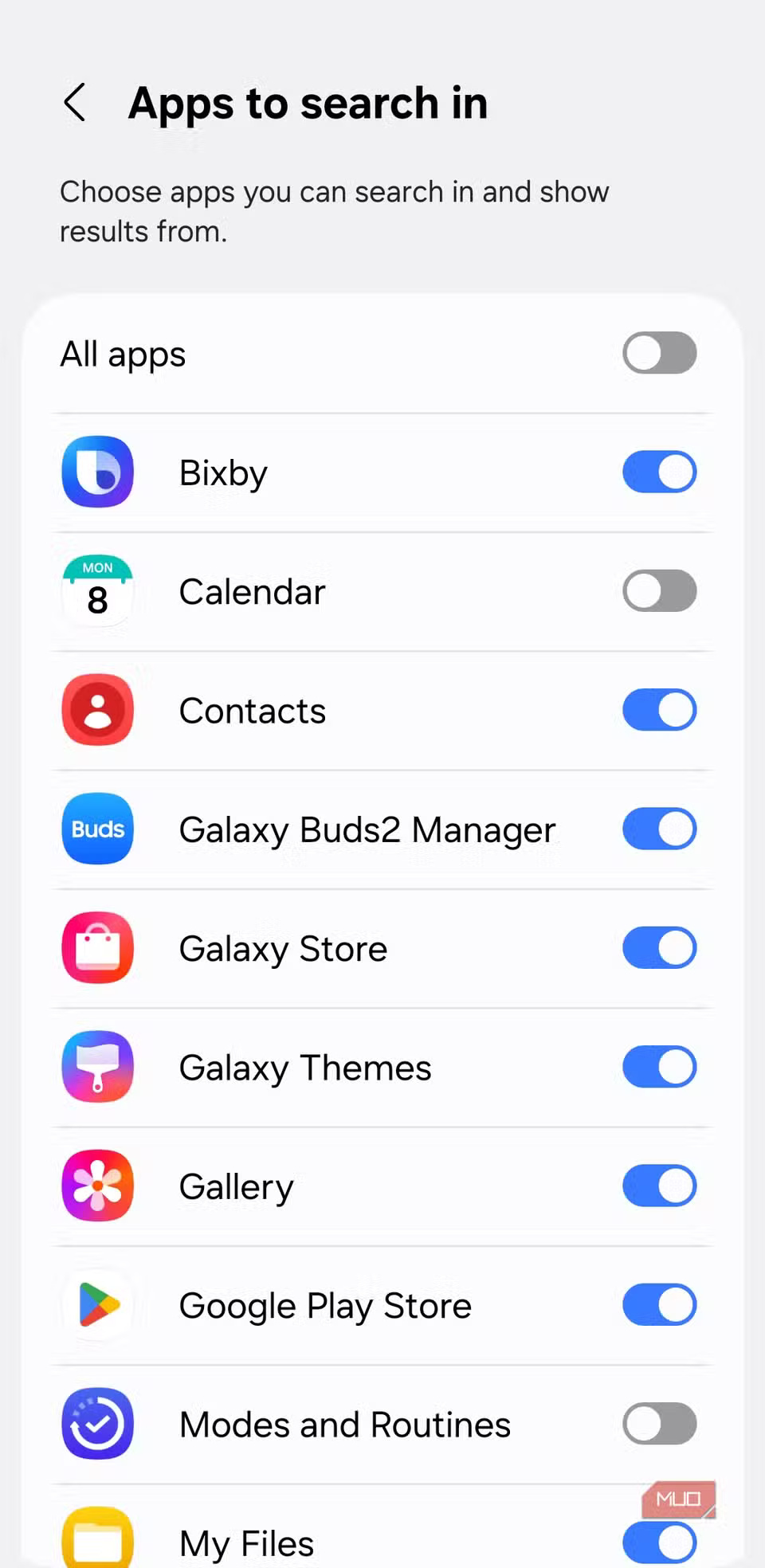
By default, searching in the app drawer shows relevant suggestions from all compatible apps on your phone. But not every app has to appear in those results — maybe you don't want suggestions from Samsung Music or Netflix every time you type.
Samsung makes it easy to control which apps appear. Open the search bar, tap the three-dot menu, and select Choose apps to search in . You'll see a list of all your apps, and you can turn off the toggles next to any apps you don't want to appear in search results.
This simple step keeps your search results cleaner and more focused, helping you find what you need faster without distraction.
Final Thoughts
Overall, 9 Hidden Search Tips to Make Using Your Samsung Phone Faster is best understood by considering the main facts, practical context, and limitations together. Use the details above as a clear starting point and confirm time-sensitive information when necessary.
FAQ
What does this article explain about 9 Hidden Search Tips to Make Using Your Samsung Phone Faster?
You probably tap the search bar on your phone dozens of times a day, but if you only do it to find and open apps, you're missing out on a lot. If you have a Samsung phone, the search bar in the app drawer can do a lot more than just launch apps.
What should you know about Find, message, and call people faster?
Type a name into the search bar in the app drawer, and the contact will appear right in the results. Tap it, and you'll be taken straight to the Contacts app.
Should time-sensitive details be verified?
Yes. Software features, game codes, product specifications, prices, and research findings can change. Confirm important details with an official or primary source when accuracy affects your decision.
Related Articles
 8 Settings to Make Your Samsung Phone Run Faster9 minutes read
 3 Gestures to Make Using Samsung Phones Smoother: Practical Guide5 minutes read
 These Settings Make Switching to Samsung So Much Better6 minutes read
 7 Simple Ways to Make Your Samsung Phone Look Less Boring8 minutes read
 Tips to Make the Buttons on Your Samsung Phone Much More Useful8 minutes read
 9 Samsung Apps That May Run in the Background8 minutes read
Reader Comments 0
Sign in with email or Google to join the discussion.