Table of Contents
Explore 8 tips to make vlc the best open-source media player, including the key concepts, practical examples, important considerations, and useful guidance.
Beyond simply playing videos and music, VLC can also edit clips, convert files to different formats, stream online content, and even listen to radio and podcasts. You can customize the interface, apply unique themes, easily manage subtitles, and much more.
8. Easily edit videos within VLC
Cut, splice, and join videos
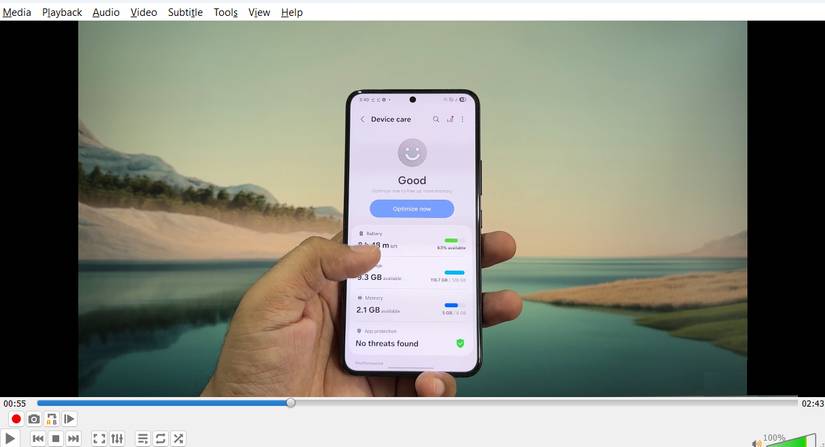
Most people only use VLC as a media player, but it can also serve as a surprisingly handy video editor. The Trim feature lets you precisely cut out unnecessary sections, while the Crop tool helps remove unwanted edges or black bars. You can even merge multiple clips into a single seamless video.
VLC also makes adjusting the sound simple, so you can delete the original soundtracks or replace them with a different audio file.
7. Convert any video to any format
Free file conversion
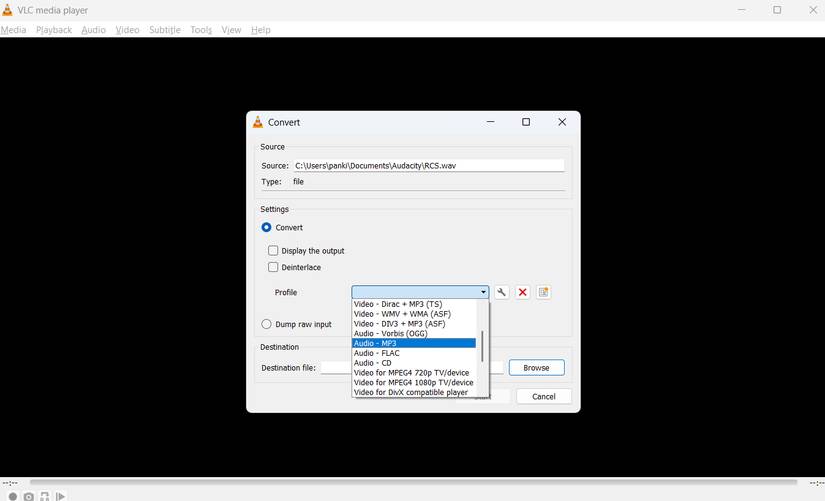
VLC is well-known for its ability to handle most media formats, but it can also convert audio and video files to various other formats. This means you can convert videos to MP3 or convert them to MP4, AVI, MOV, or other widely used formats. The process is simple and straightforward.
To do this, go to Media > Convert/Save. In the Open Media window, click Add and select the file you want to convert. Next, click Convert and use the Profile drop-down menu to choose your desired format. Finally, click Browse next to the destination file to specify where you want to save the converted file and press Start . VLC will handle the rest and save the converted file in the specified format.
6. Stream video online
Watch YouTube and other streams directly in VLC
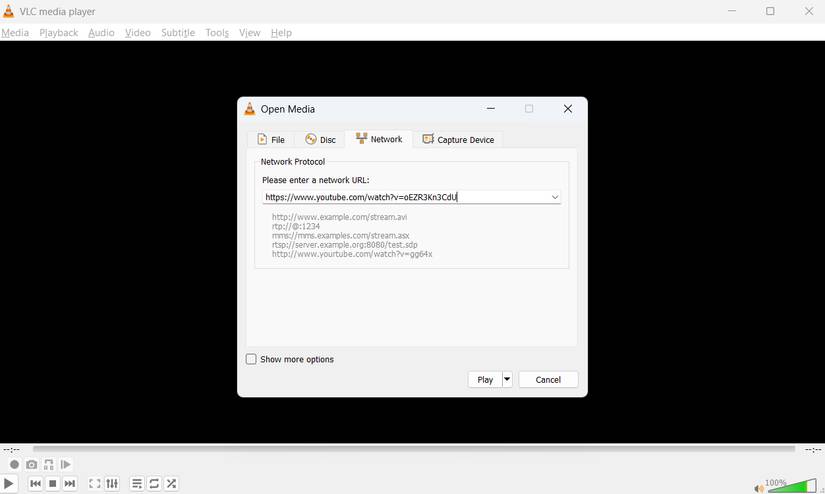
You've probably used VLC to play local media files, but it can also stream content directly from the web. This allows you to watch YouTube videos, live broadcasts, or other online streams without opening a browser. All you need is the URL of the video or stream you want to watch.
Once you have the URL, go to the Media menu and select Open Network Stream . Paste the video URL into the provided field and click Play . VLC will start streaming the content immediately, just like any local file.
5. Listen to radio and podcasts directly in VLC
No need to switch between applications
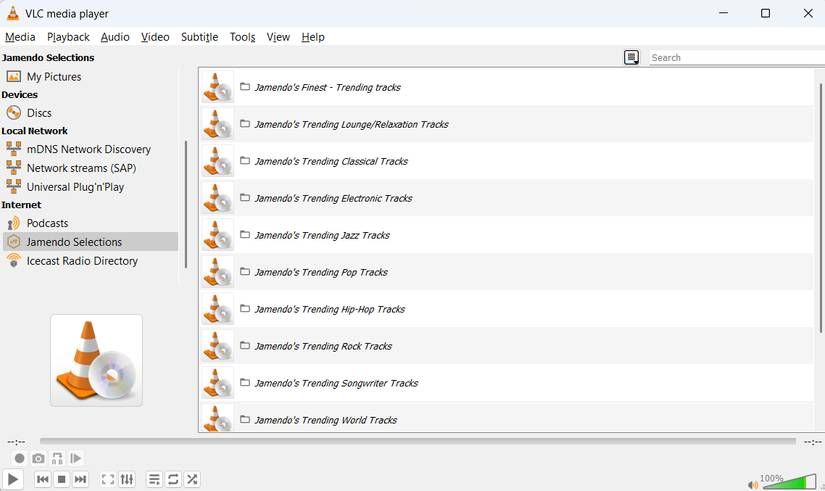
Open VLC and go to View > Playlist . In the Internet section, you can browse two radio servers - Jamendo and Icecast - and select a station by clicking on it. If your favorite station isn't in the list, simply get its URL from the web and paste it into Media > Open Network Stream .
For podcasts, select Podcasts in the Internet section and click the plus sign. Paste the RSS feed URL of your chosen podcast and click OK . Episodes will appear in the sidebar, and you can even create playlists for multiple stations or episodes.
4. Download subtitles with just one click
Synchronize and adjust subtitles easily
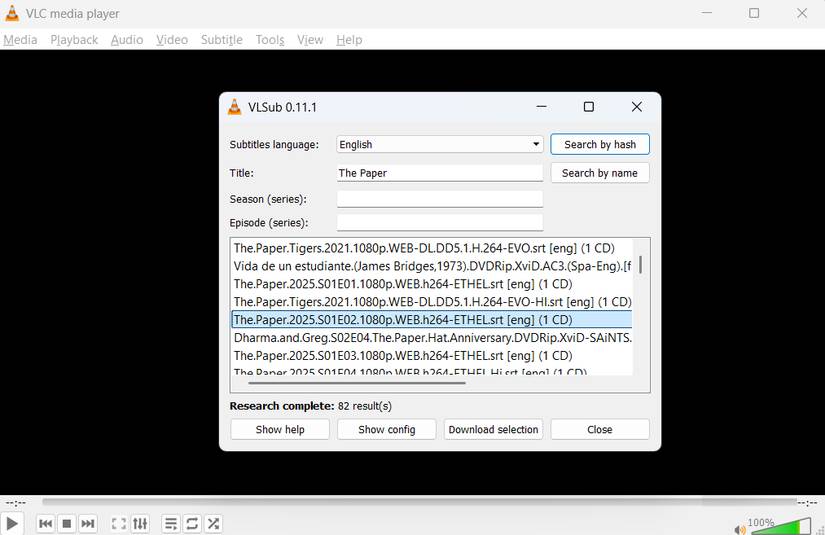
Watching a TV show or movie without subtitles can sometimes be difficult, especially if it's in a foreign language. With VLC, you don't need to search the web for the right subtitle file. Just go to View and select VLsub . Enter the name of your episode or movie in the Title field, then click Search by name . VLC will show you the available subtitle files. Download the file that matches your video, and it's ready to use.
3. Customize the toolbar
Rearrange the buttons for faster access
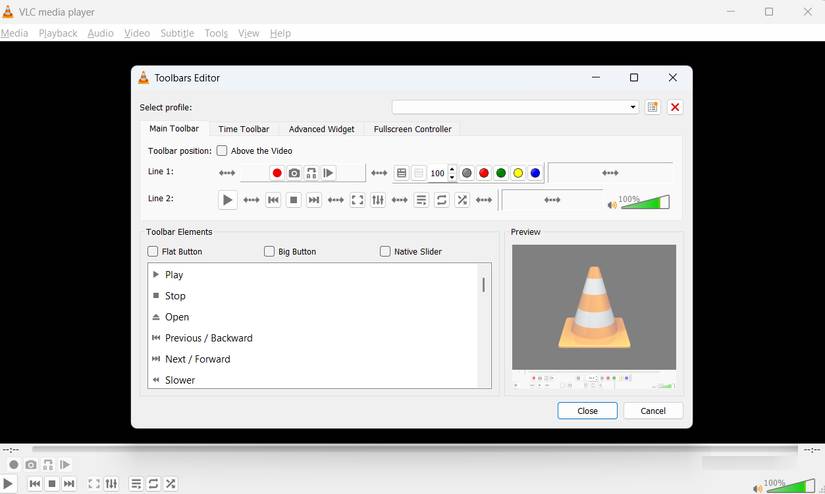
In VLC, go to Tools > Customize Interface . You'll see the visual layout of the VLC toolbar with all the available buttons. Simply drag and drop icons to add, remove, or reposition them to suit your workflow. You can even create new toolbars for specific tasks, such as video editing or streaming, so everything you need is always at your fingertips.
Once you're happy with the settings, click Save to apply the changes. The ability to customize the toolbar not only speeds up interaction but also makes VLC more personalized and intuitive.
2. Refresh VLC with custom interfaces
Download and apply unique themes
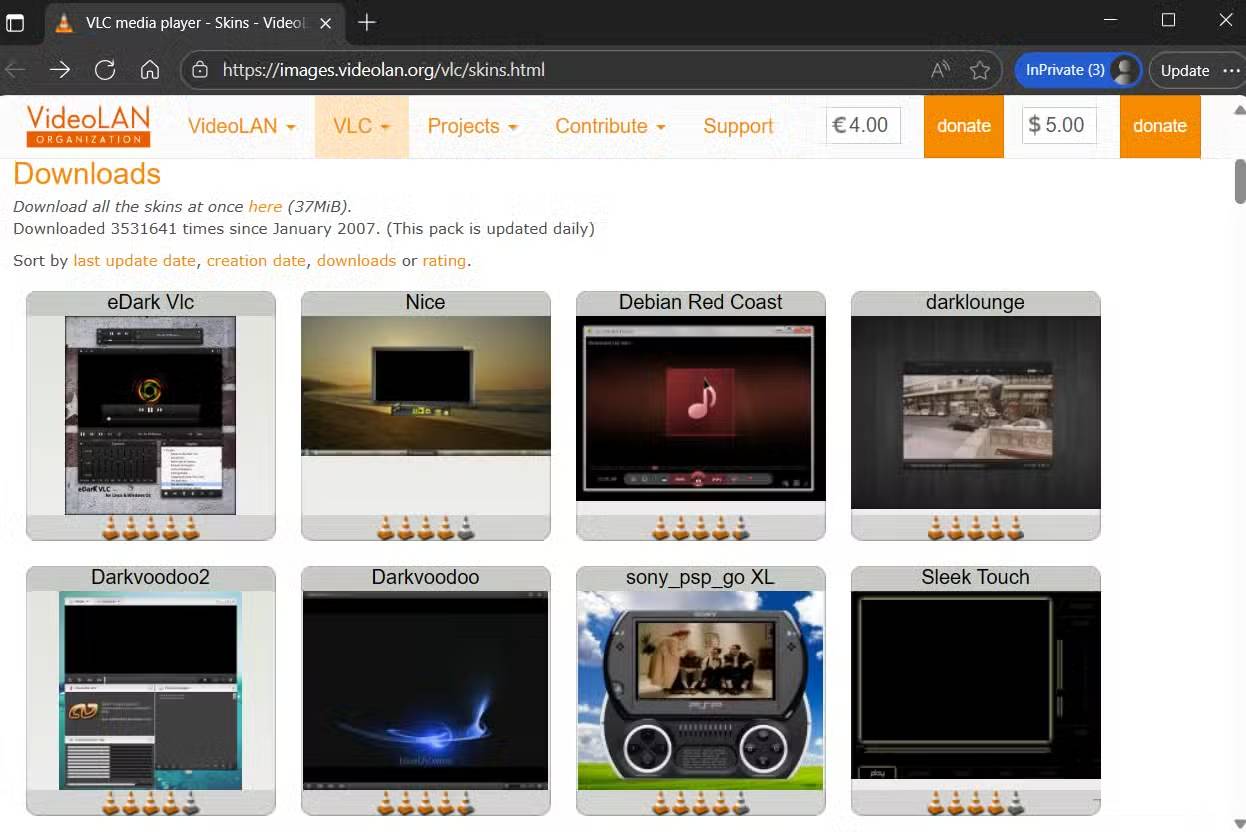
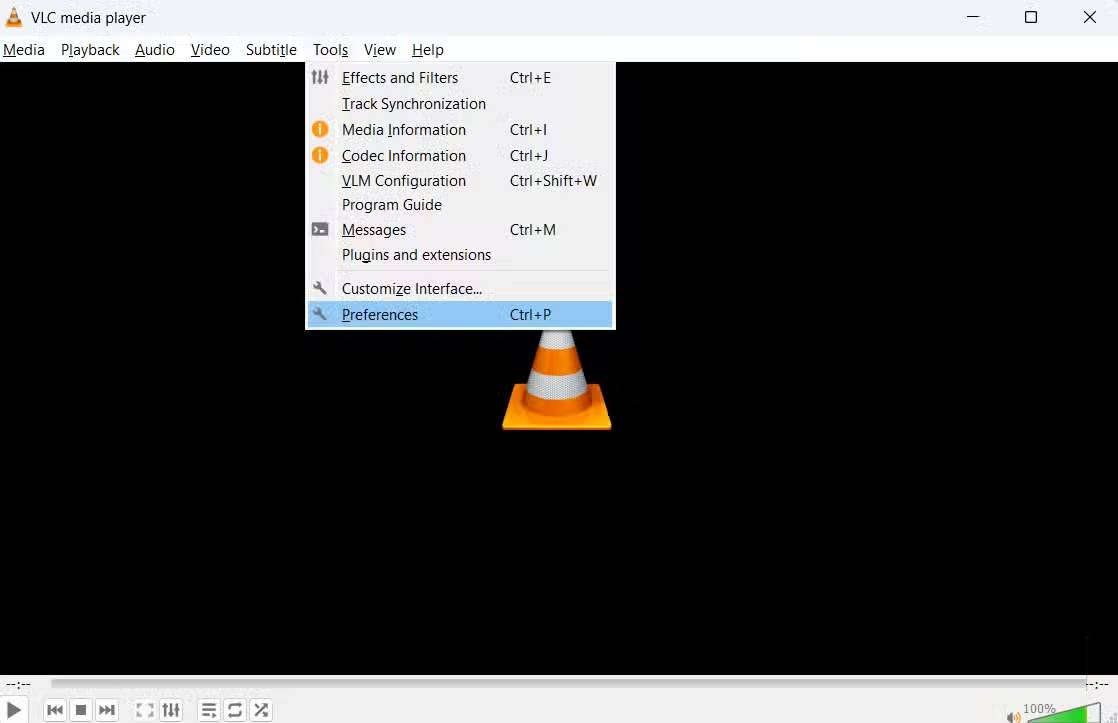
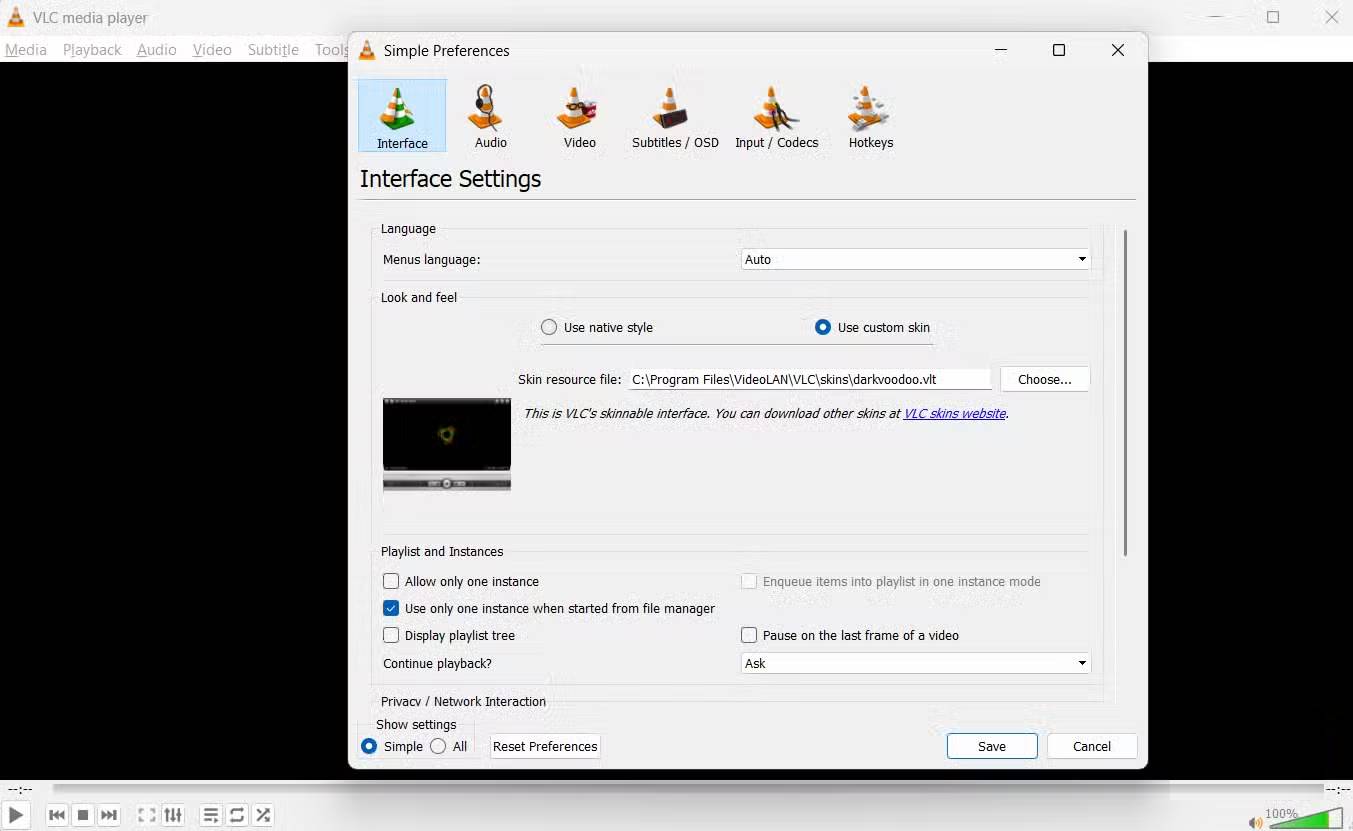
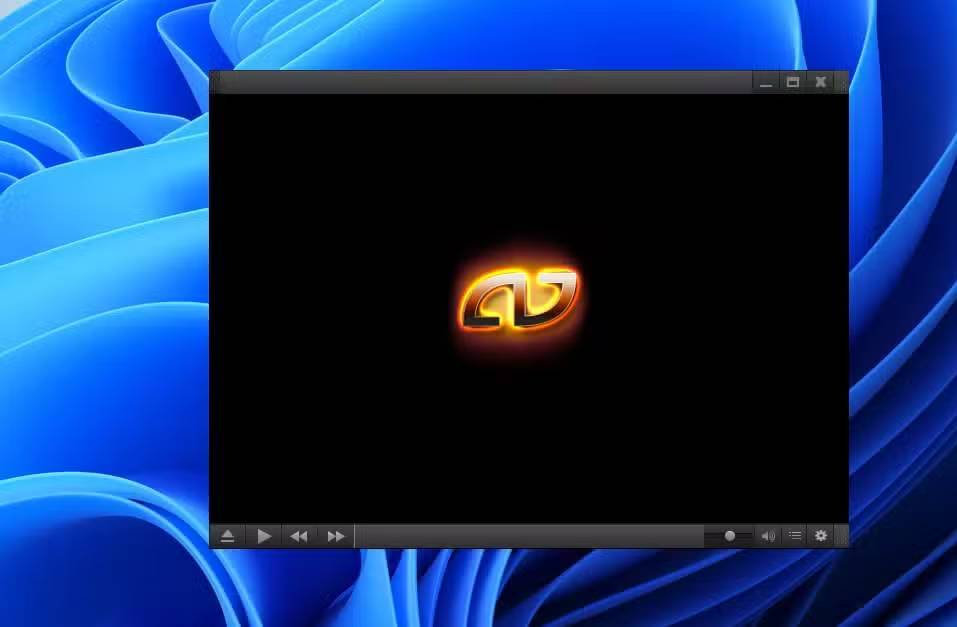
If customizing the toolbar seems a bit basic, VLC lets you go a step further with custom themes, completely changing the look and feel of the player. Visit the official VideoLAN website to see the available themes and download the one you like. You'll find everything from minimalist, elegant designs to bold, colorful layouts, although many themes have a more classic look than a modern aesthetic.
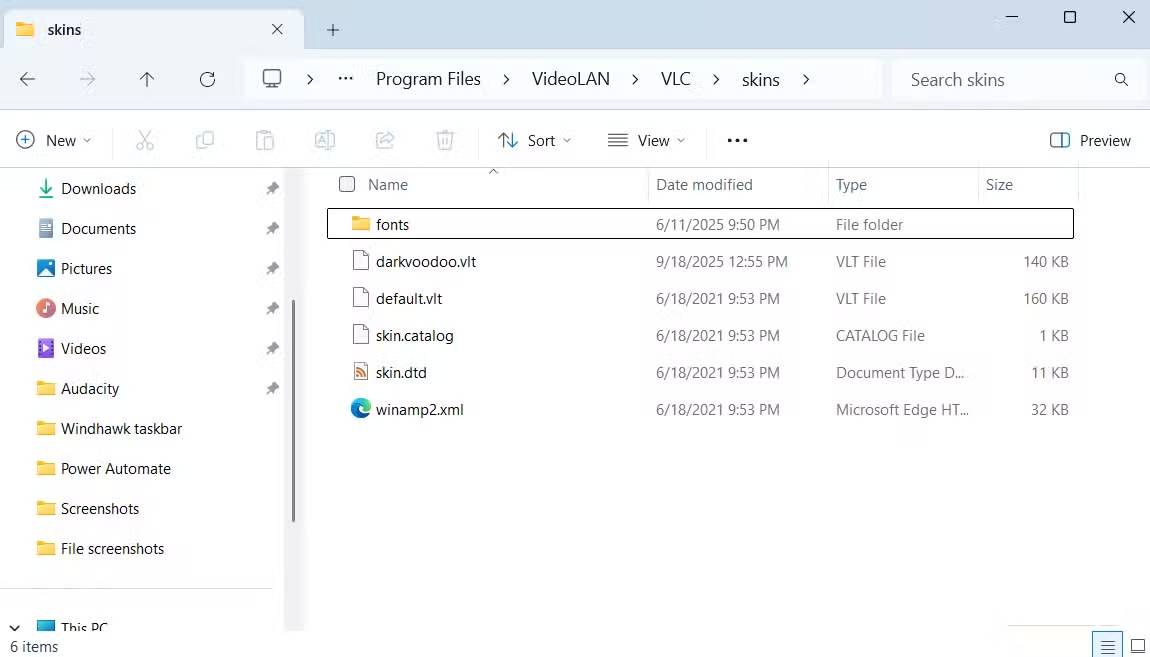
After downloading, move the interface file to VLC's interface folder. The location may vary depending on your operating system and VLC version, but it's usually at C: Program FilesVideoLANVLCskins. Then, open VLC and go to Tools > Preferences > Interface .
1. Master VLC's hidden keyboard shortcuts
Navigate faster with convenient keyboard shortcuts
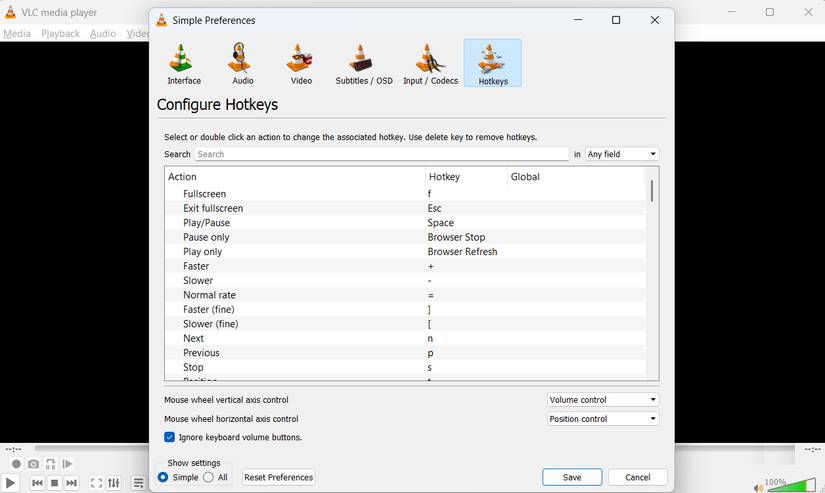
VLC is packed with features, and mastering its keyboard shortcuts can help you use the player significantly faster. You're probably already familiar with common shortcuts, such as the spacebar to pause or play, but VLC also has many lesser-known shortcuts that make navigation and control smoother.
For example, you can use the F key to toggle full-screen mode, the T key to display the current and remaining playback time, and the G or H key to instantly fine-tune subtitle timing. Quickly adjust the volume with Ctrl + Up/Down , while Shift + Left/Right allows you to fast-forward or rewind in larger increments. You can even quickly close the VLC player with Ctrl + Q.
To see the full list, go to Tools > Preferences > Hotkeys . The best part is that VLC lets you customize these shortcuts from here, which is very convenient for those who like to use keyboard shortcuts.
See more:
- 10 interesting hidden features of VLC Media Player
- Set VLC Media Player as the default media player on Windows 10.
- Instructions on how to view 360-degree videos and images on VLC Player
Final Thoughts
Understanding 8 tips to make vlc the best open-source media player makes it easier to evaluate the information and apply the most relevant recommendations. Focus on the key points above and verify details that may change over time.
FAQ
What is 8 tips to make vlc the best open-source media player?
Explore 8 tips to make vlc the best open-source media player, including the key concepts, practical examples, important considerations, and useful guidance.
What key points does this article cover?
The article focuses on 8. Easily edit videos within VLC, Cut, splice, and join videos, 7. Convert any video to any format, with practical explanations and examples.
How can you use this information in practice?
Use the explanations to compare options, verify important details, and make a more informed decision. Apply the recommendations that best match your goals and situation.
Related Articles
 Advanced Tricks Use VLC Media Player15 minutes read
 Set Up VLC Media Player as the Default Multimedia Player on4 minutes read
 Media Player Classic Was Officially Killed4 minutes read
 22 Shortcuts to VLC for Windows and Mac8 minutes read
 Clapper: Features and Overview5 minutes read
 Instructions for Rotating Videos Are Inverted and Inclined by VLC4 minutes read
Reader Comments 0
Sign in with email or Google to join the discussion.