Table of Contents
ChatGPT scheduled tasks can send recurring prompts, reminders, or prepared updates without you starting a new conversation each time. The most useful tasks have a clear schedule, a small output, and enough context to run without guessing.
Set up one task and check it works
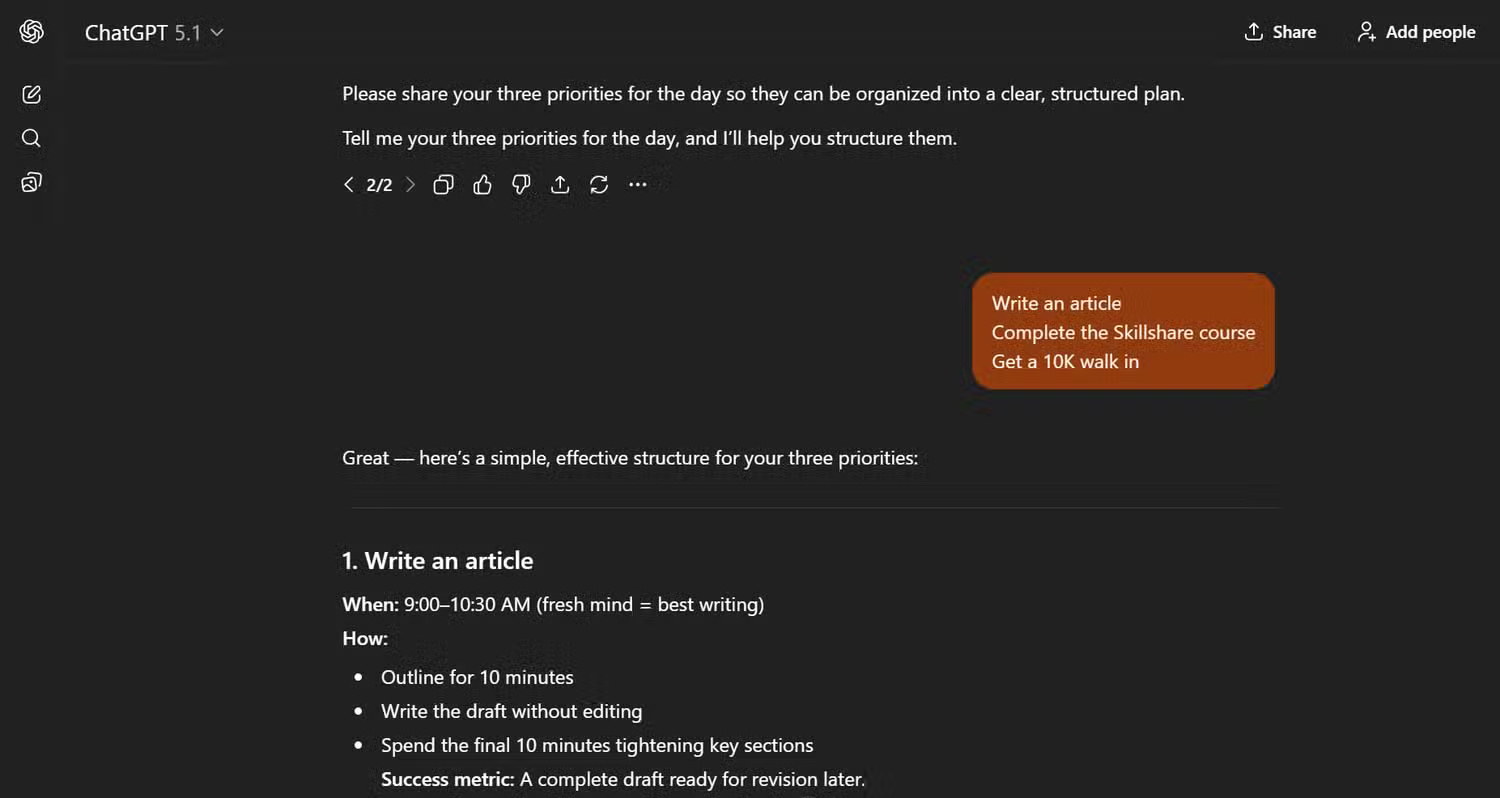
Ask ChatGPT to create a task, describing both the action and when it should run. Include your time zone. Review the saved schedule and first result in Scheduled rather than assuming a sentence mentioning a time created the task.
Availability and limits depend on your account, plan, and workspace. On the web, check Settings > Notifications for the channels available to you. Test a simple reminder before relying on it for an important deadline. The source screenshots show an earlier interface.
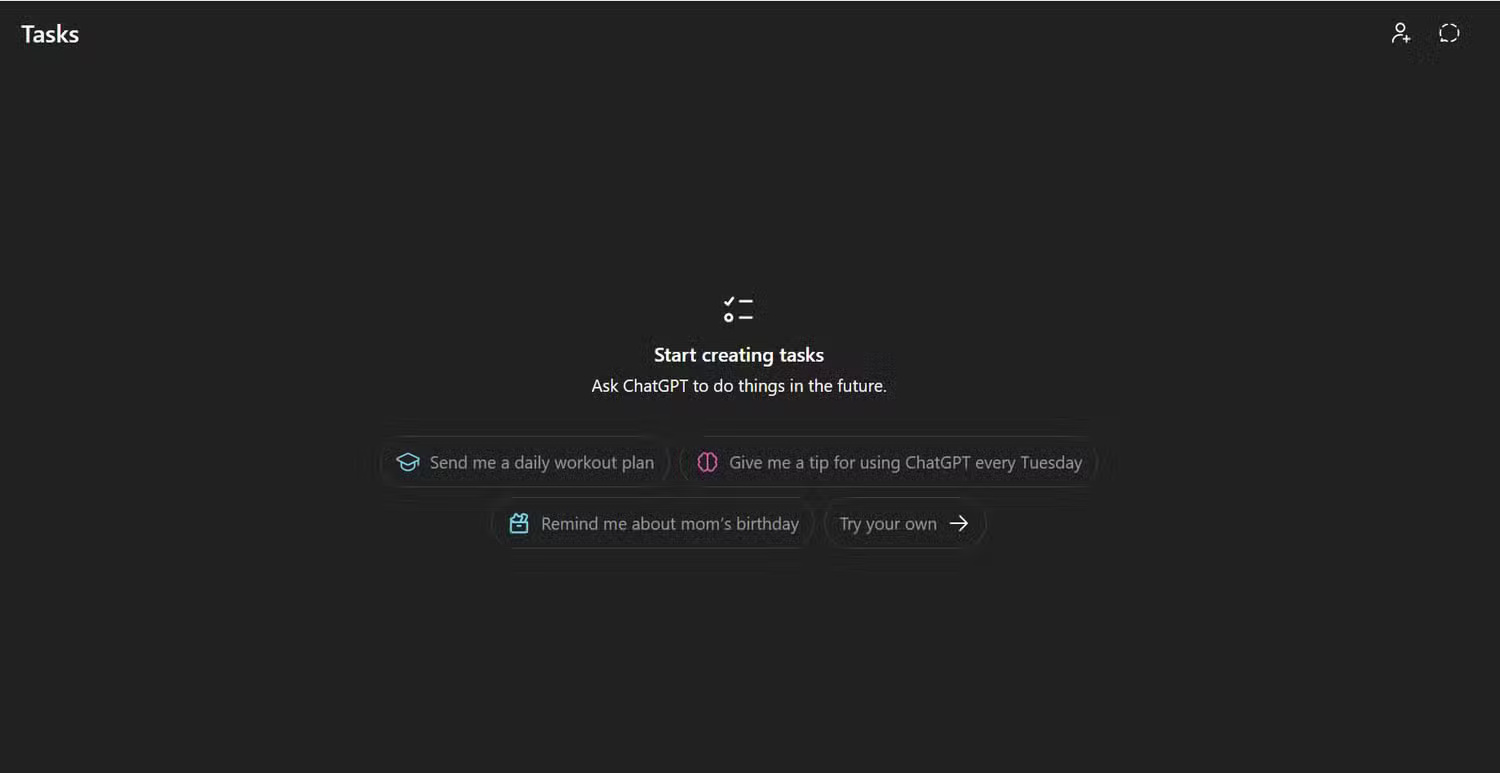
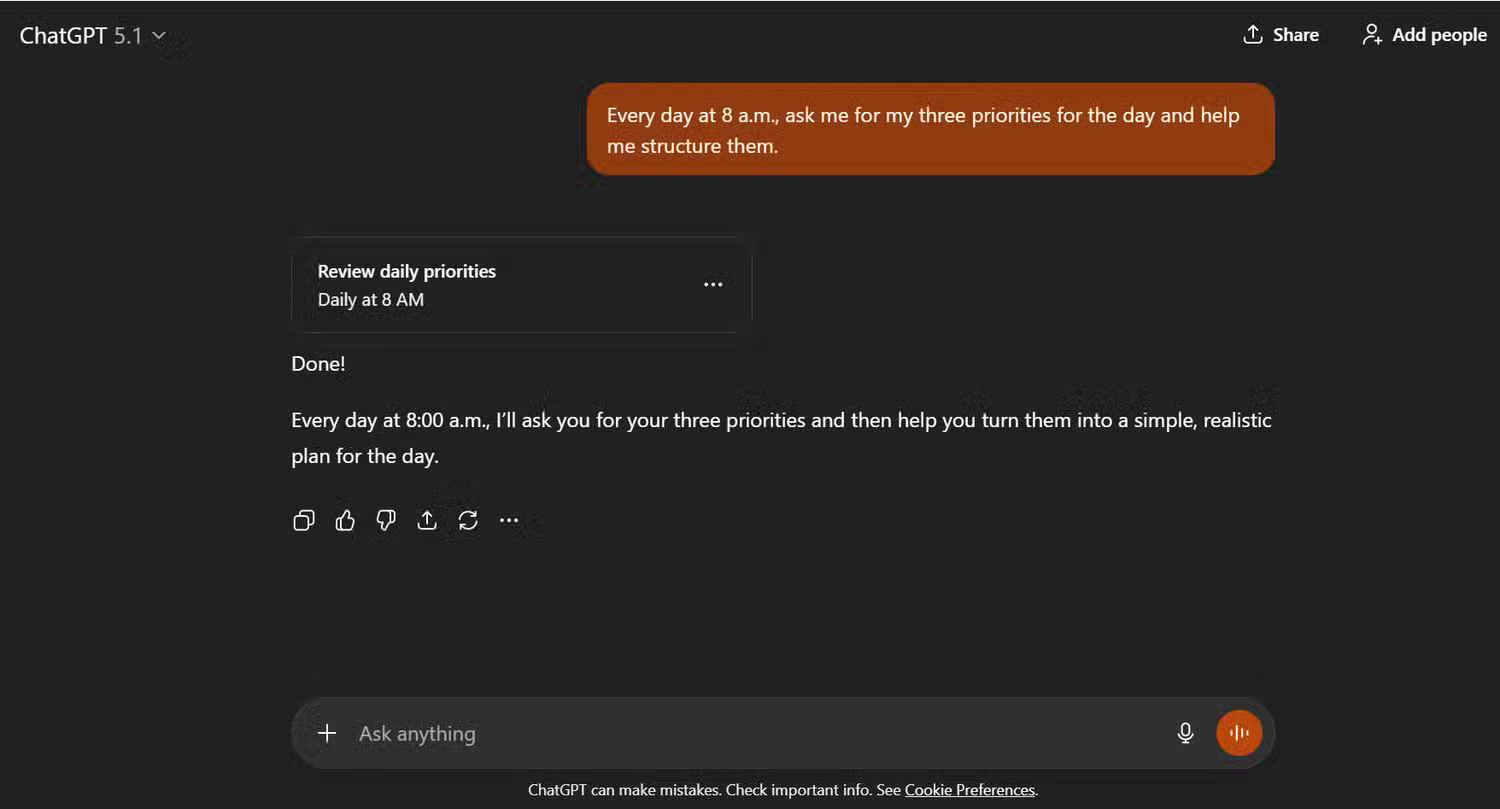
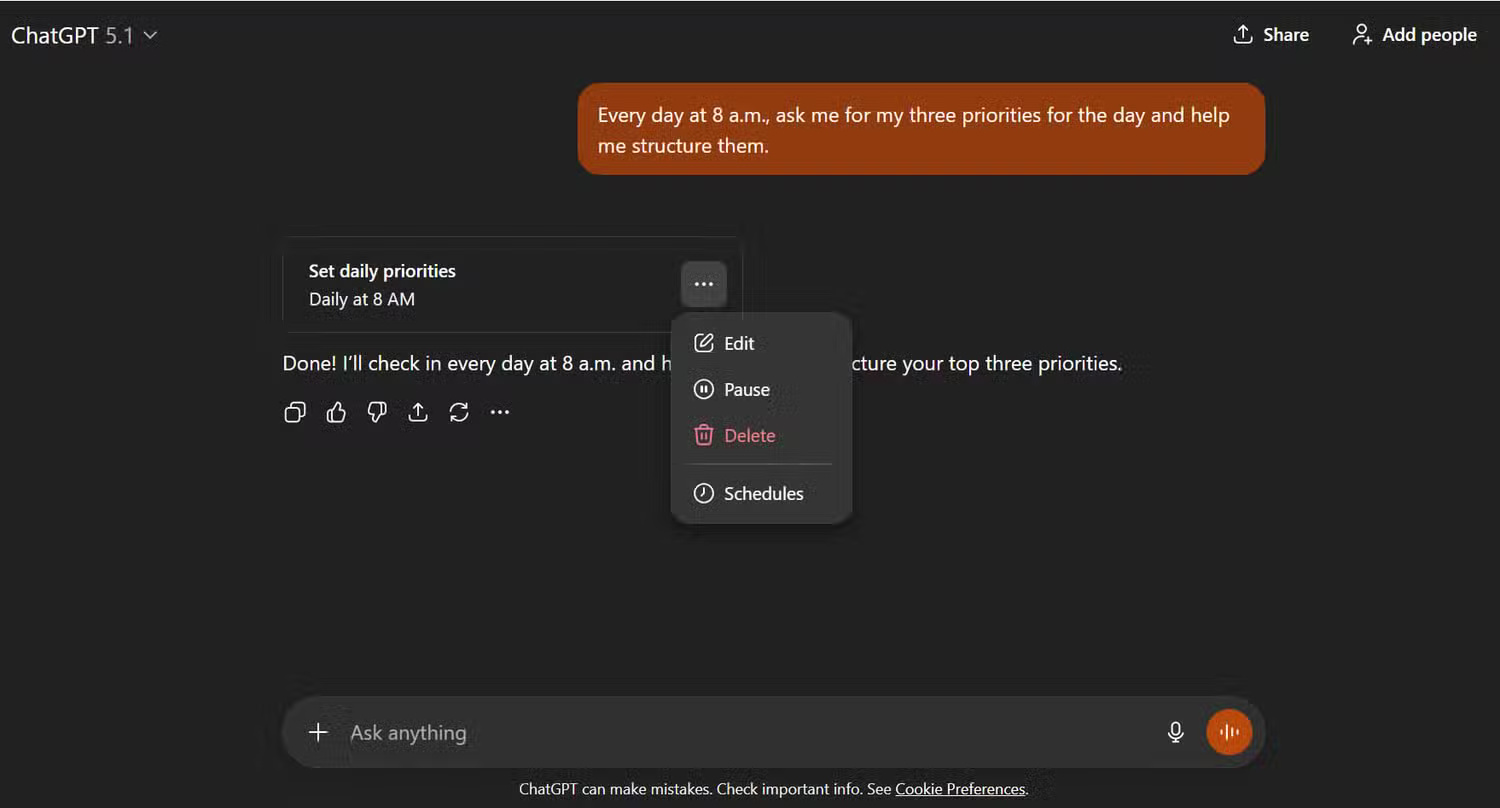
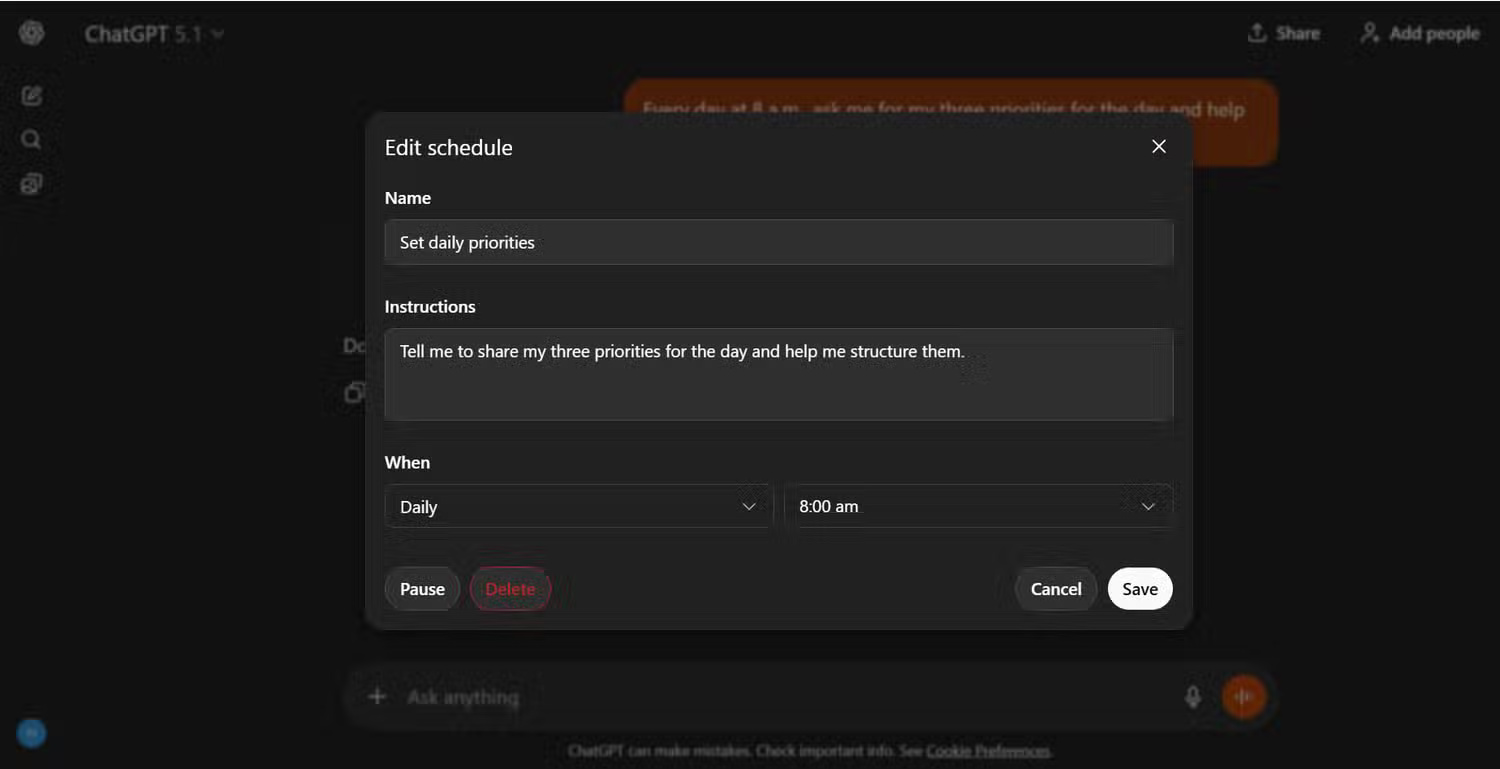
OpenAI's scheduled-task documentation explains setup and management. TipsMake also has a task and reminder walkthrough, but its older model names and availability statements may differ from your current account.
1. Choose three morning priorities
A short check-in can help you decide what deserves attention. It can ask questions on schedule, but it cannot rank today's private workload unless you provide it.
Every weekday at 8 a.m. in [time zone], ask me to list three priorities for today. Give me a brief framework for choosing the most important one. Keep the message under 100 words.
2. Get a weekly creative prompt
Specify the audience and format so ideas are usable. Ask for a small batch and review it before publication.
Every Monday at 9 a.m. in [time zone], suggest five newsletter ideas for [audience] about [topic]. Give each a short headline and one sentence explaining its value. Avoid claims that need evidence unless you identify the source needed.
3. Receive a focused news briefing

A briefing requires access to current sources; a reminder alone does not establish that news was searched. Ask for dated links and an honest statement when current information cannot be retrieved.
Every weekday at 7:30 a.m. in [time zone], summarize up to three important updates from the last 24 hours about [topic]. Use current sources if available, include publication dates and links, and distinguish reports from speculation. If current sources are unavailable, say so.
4. Check in on a personal habit
Use a reminder for a habit you have chosen, such as taking a break or following your own hydration plan. A universal water quantity or step target is unnecessary; individual needs differ.
Every day at 4 p.m. in [time zone], remind me to pause, check whether I have followed my usual hydration plan, and decide whether a short break fits my day.
5. Review subscriptions and expenses
Provide a manually maintained list of service names and renewal dates. This task can remind you to review them; it does not automatically detect charges, cancel subscriptions, or monitor an account that has not been connected and authorized.
On the first day of each month at 6 p.m. in [time zone], show this subscription list: [names and renewal dates]. Ask which services I still use and remind me to check their cancellation terms before the next renewal.
Avoid including card numbers or bank credentials. You can pair the review with the separate steps to cancel an iPhone app trial or subscription when applicable.
6. Practice a skill in one minute
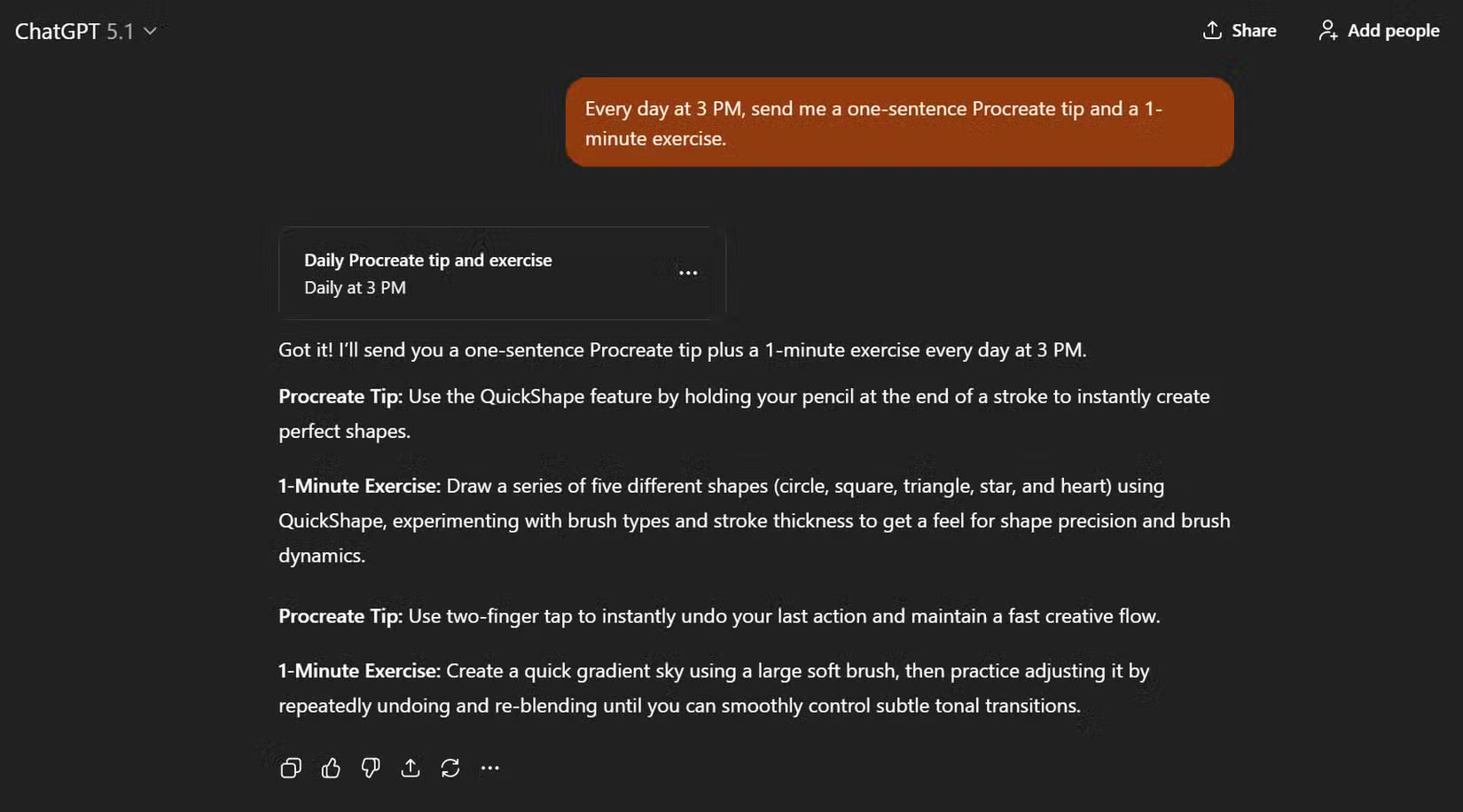
Choose an exercise you can complete without a long setup. State your level and whether you want the answer immediately or after trying.
Every weekday at 2 p.m. in [time zone], send one beginner Procreate tip and a one-minute practice exercise. Keep it specific to a single tool. Do not repeat the same exercise within the week when prior results are available.
7. Prepare a Sunday household checklist
Give a room, time limit, and realistic scope. If chores rotate, put the rotation rule in the saved prompt rather than expecting a recurring task to invent a consistent history.
Every Sunday at 9 a.m. in [time zone], create a 30-minute kitchen and living-room checklist. Include three tasks under five minutes and one larger task. On the first Sunday of the month, include [monthly chore].
8. Try something new
A novelty prompt works better with interests, budget, and accessibility preferences. Choose a useful daytime delivery rather than a midnight alert.
Every day at noon in [time zone], suggest one optional activity based on [interests]. It should take under 20 minutes and cost nothing. Include an indoor alternative and avoid assuming my location.
Keep the schedule manageable
Start with one or two tasks and inspect their first runs. Pause prompts you ignore, update instructions when your routine changes, and check their saved time zone. A scheduled reminder invites you to act; it does not complete a purchase, cancellation, or personal decision on its own.
Related Articles
 How to Use the OpenAI API: Keys, Python, Models, and Costs
 Does ChatGPT Really Make Us 'Lazier' and 'Less Intelligent'?
 8 Useful ChatGPT Prompts for Following the World Cup
 What is GPT-4o? Capabilities, limits, and current availability
 What is ChatGPT Pro? Is it worth it in 2026?
 8 ChatGPT Prompts for Better Brainstorming
Reader Comments 0
Sign in with email or Google to join the discussion.