Table of Contents
If you think Google Photos is just an app for viewing and backing up your media, you're probably not exploring the full potential of what it has to offer. It's packed with features that make finding, editing, and sharing your photos and videos more fun.
8. Share albums in seconds with QR code
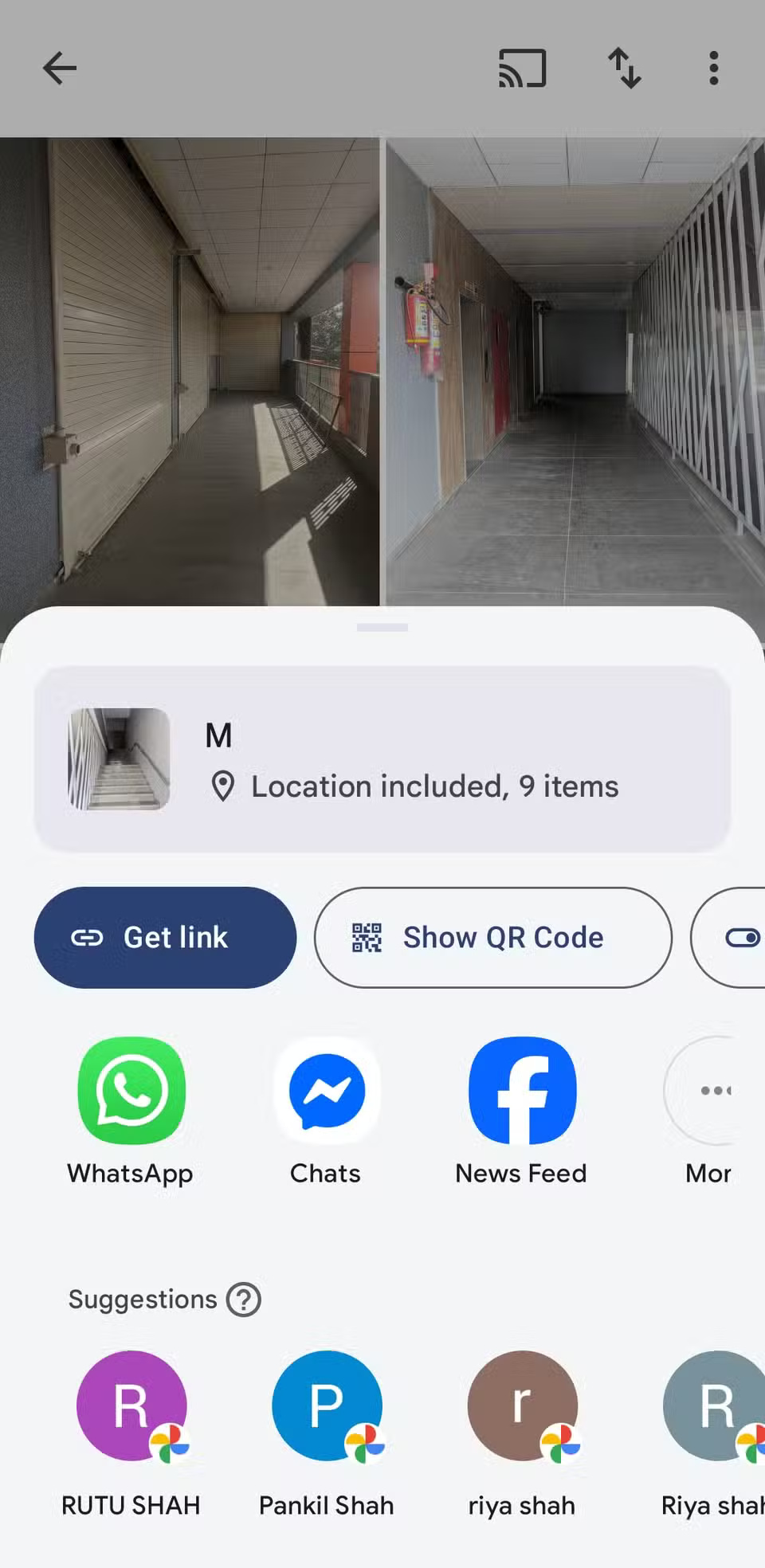
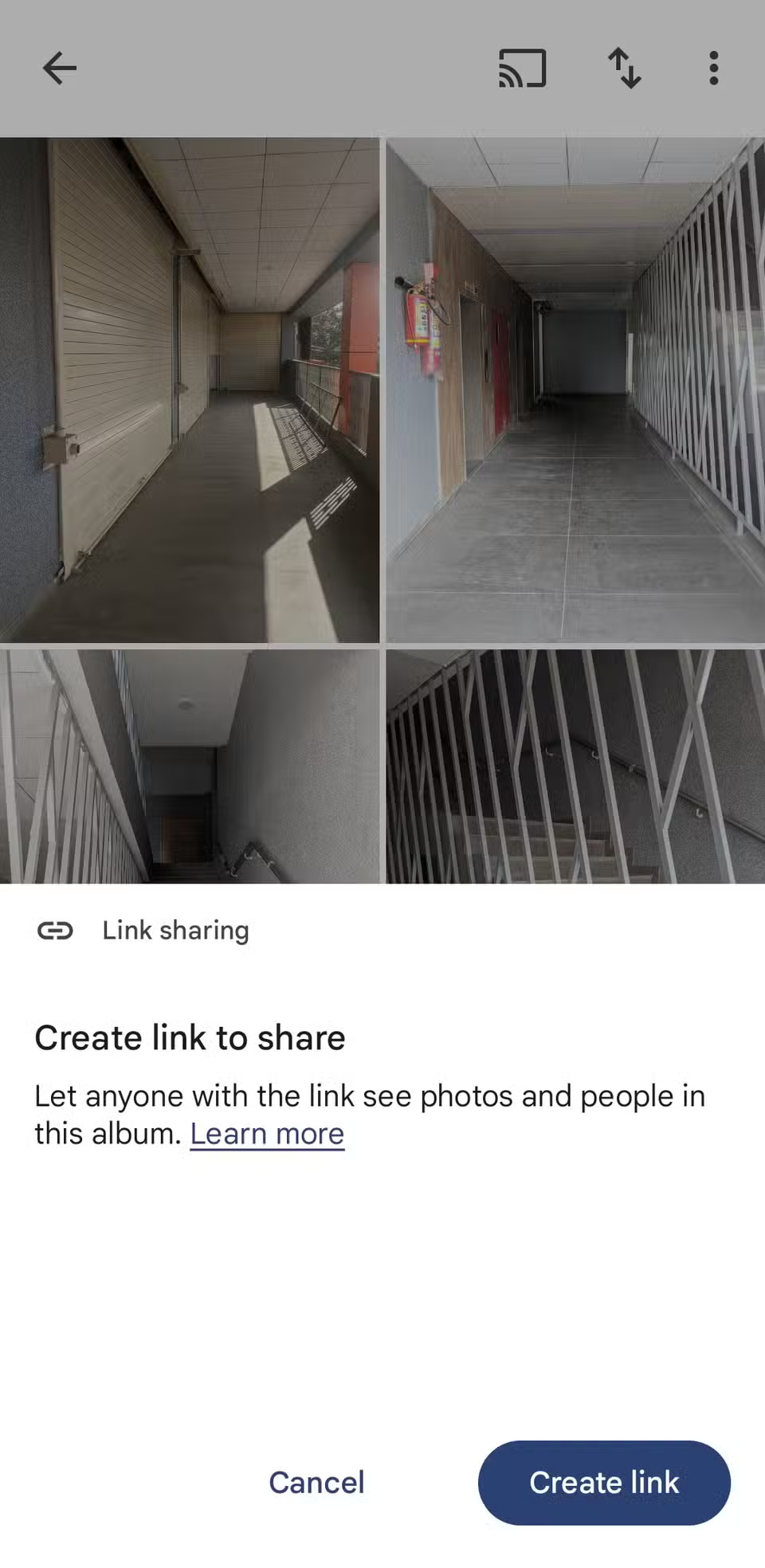
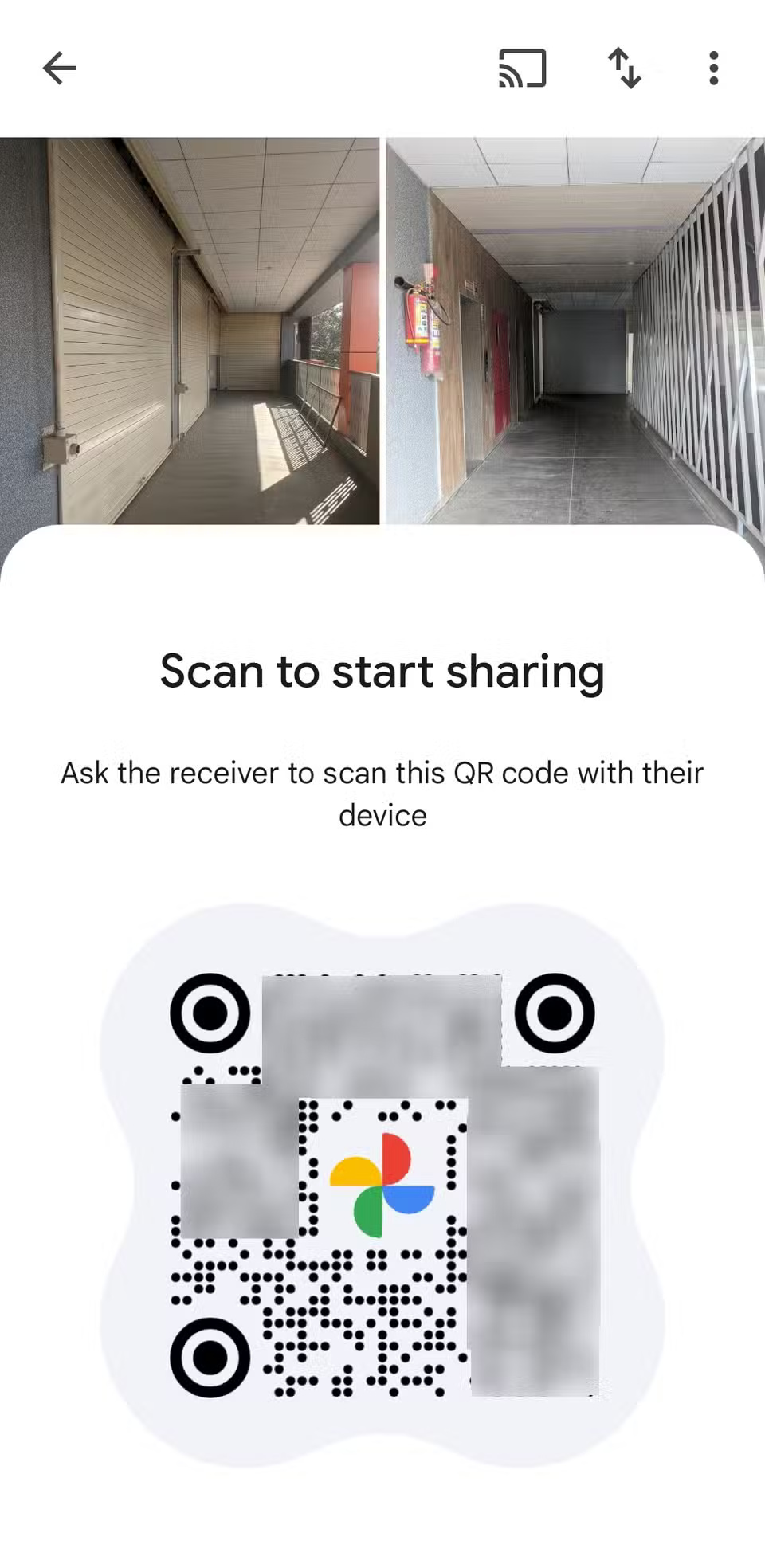
Google Photos lets you create a QR code for any album. All you have to do is create the album, hit the share button, and select Show QR button > Create link . Anyone with a phone can scan the code and view the album. You can even take a screenshot of the QR code and share it in a group chat, text message, or social media message.
7. Quickly find photos by face, location or keyword
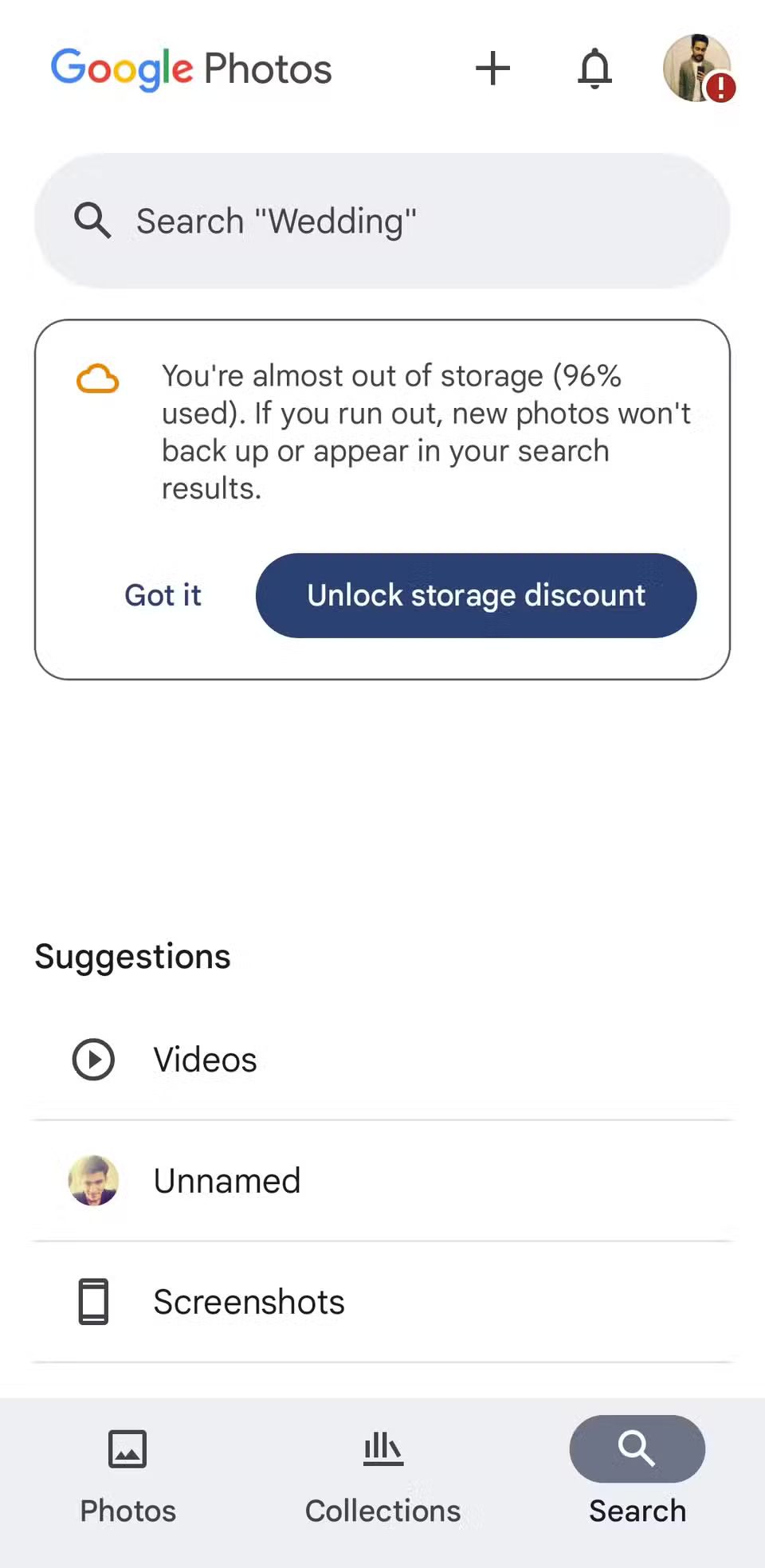
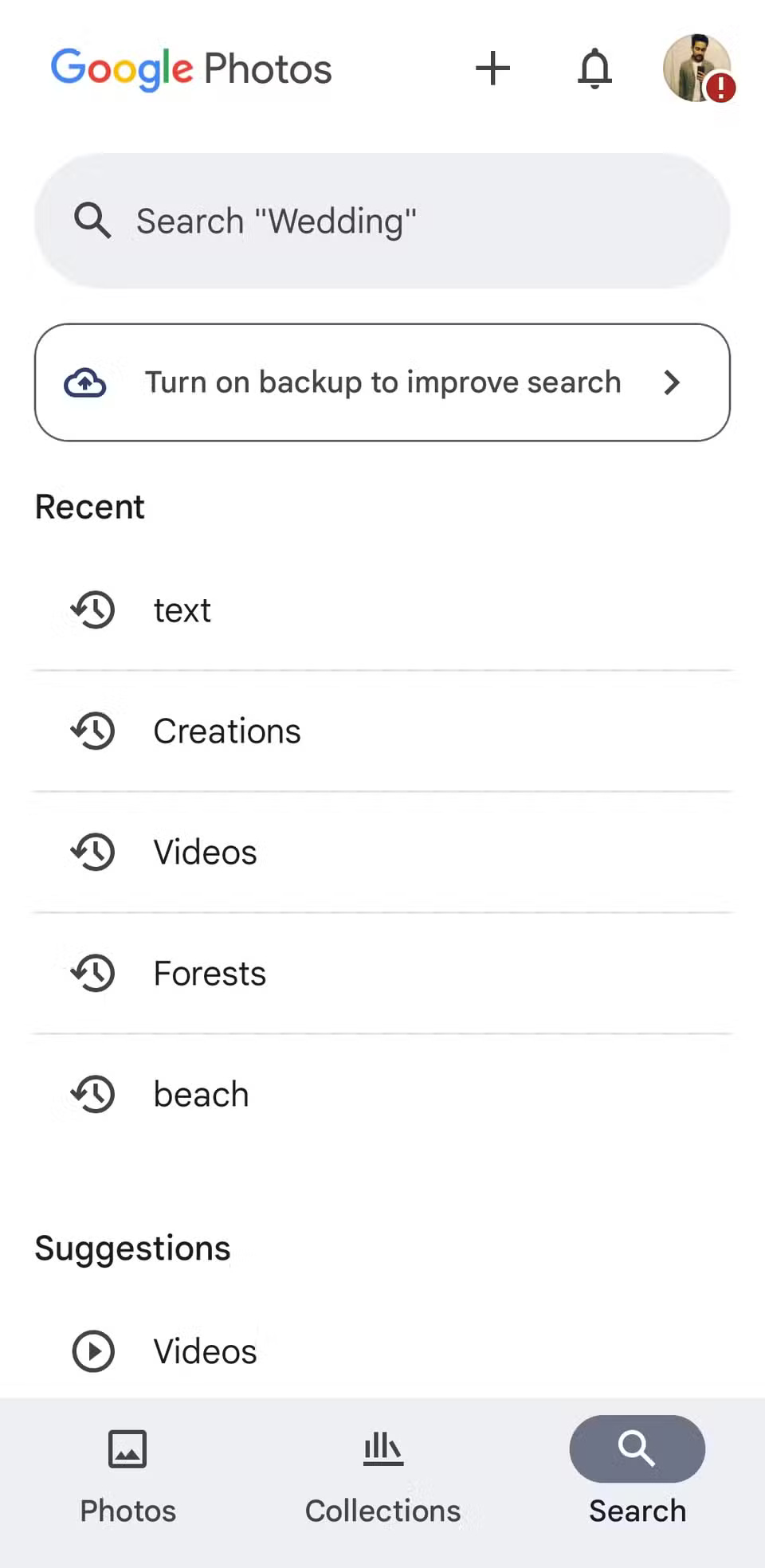
Go to the search tab and type in what you remember. You can search for the city where the photo was taken, like New York or London. If you don't remember the location, use descriptive words like beach, mountain, or forest and let Google Photos pull up images that match. You can even get more specific with keywords like birthday cake, dog, or laptop to find exactly what you're looking for.
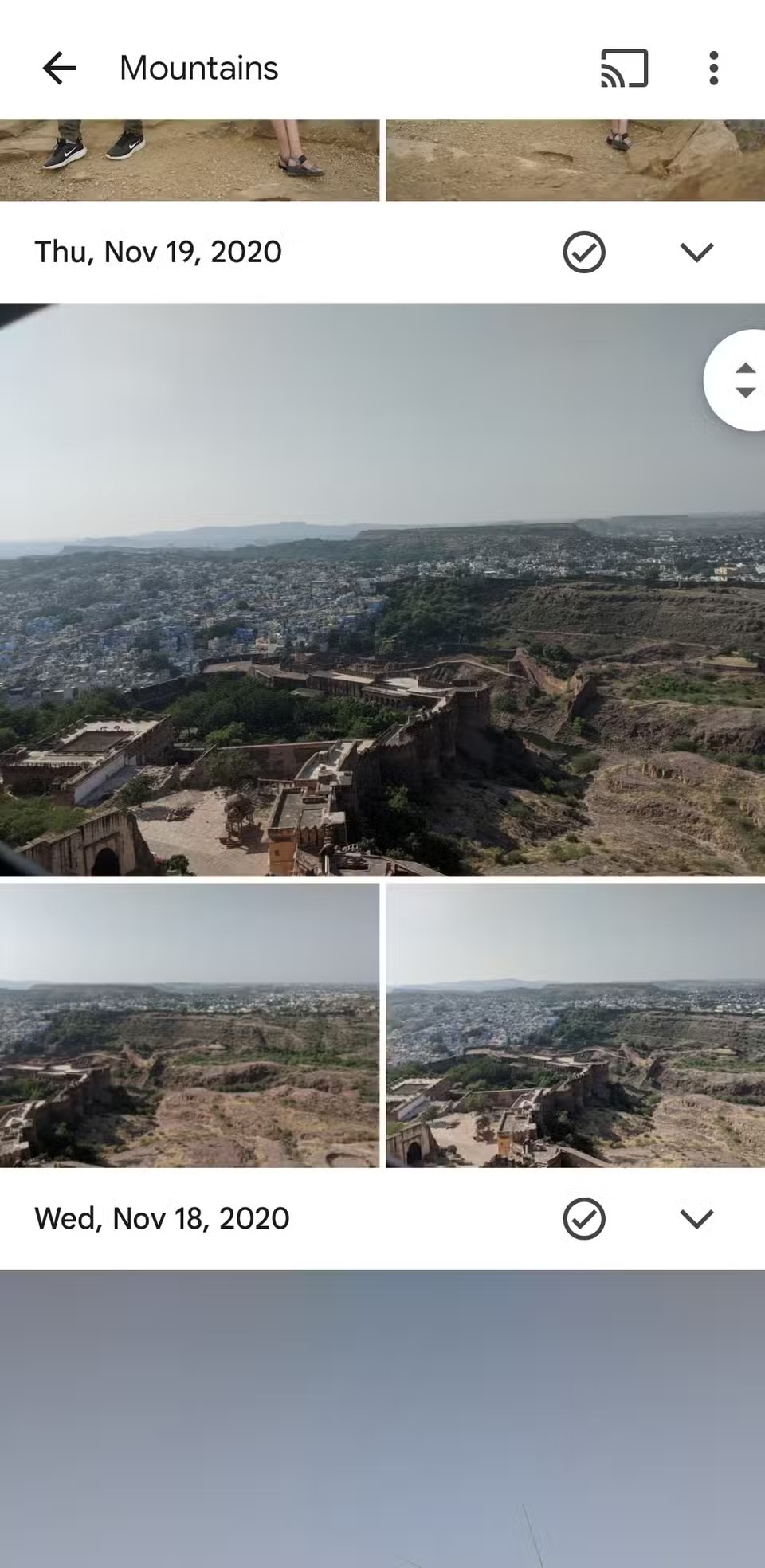
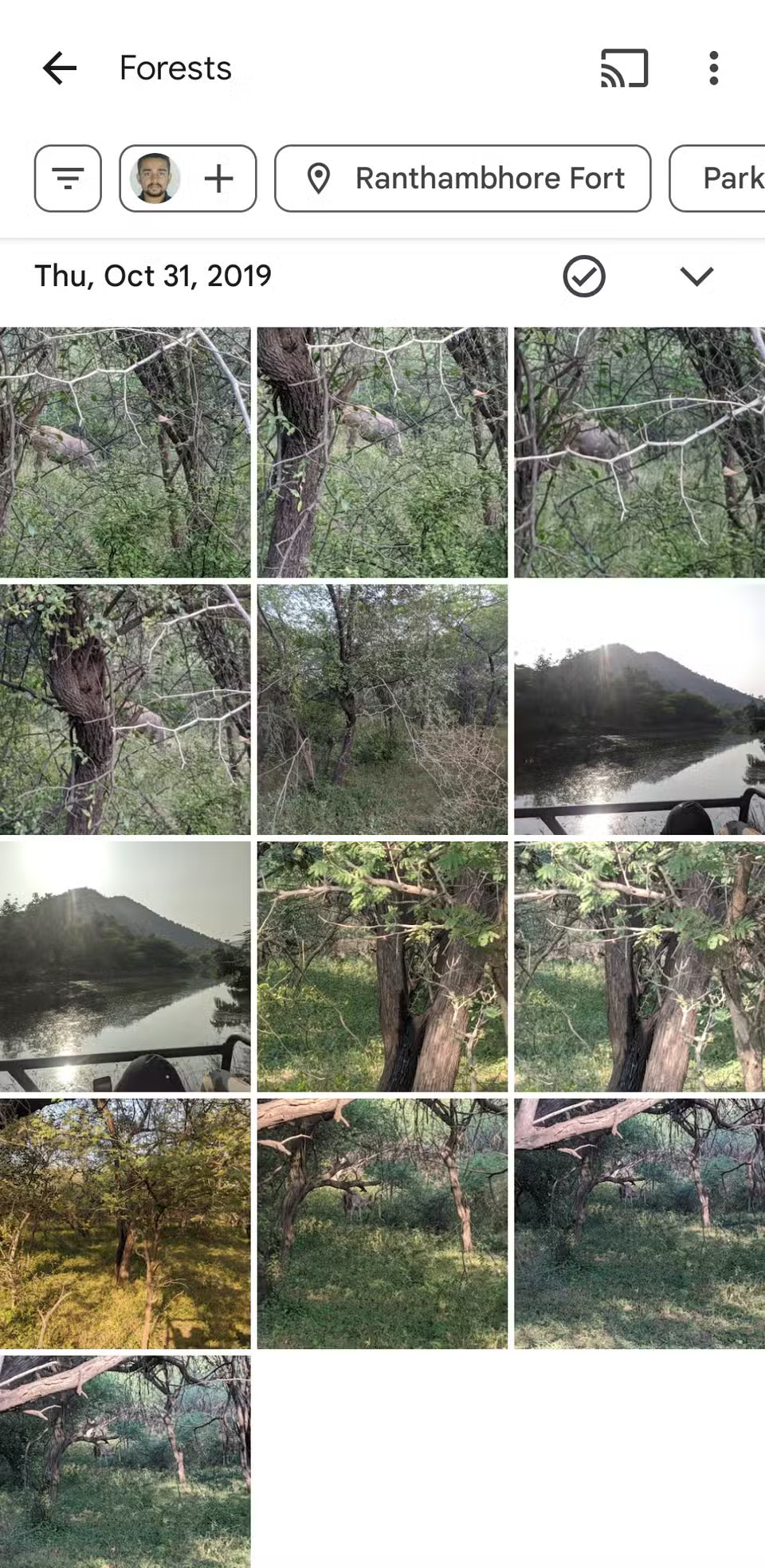
One of the most useful features is searching by face. Go to Collections > People , and you'll see your friends, family, and pets neatly organized. Tap a face, and Google Photos will show you all the photos and videos that include them.
6. Review memories on the map
Go to Collections > Places , and you'll see a list of the cities you've visited, along with how many photos and videos you took in each city. Select a city, and every memory from that trip will appear. At the top, a map even highlights the exact locations where those photos were taken.
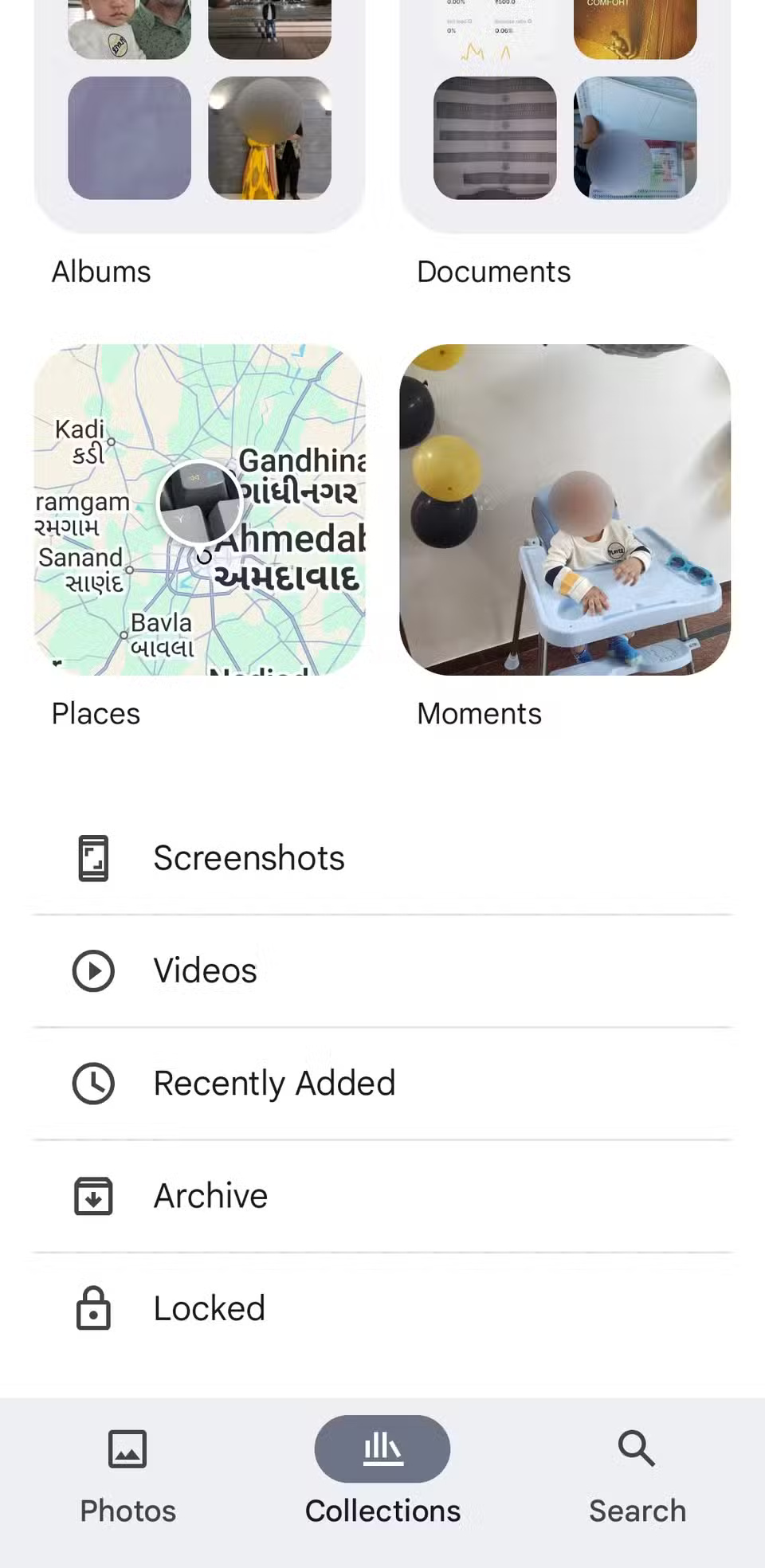
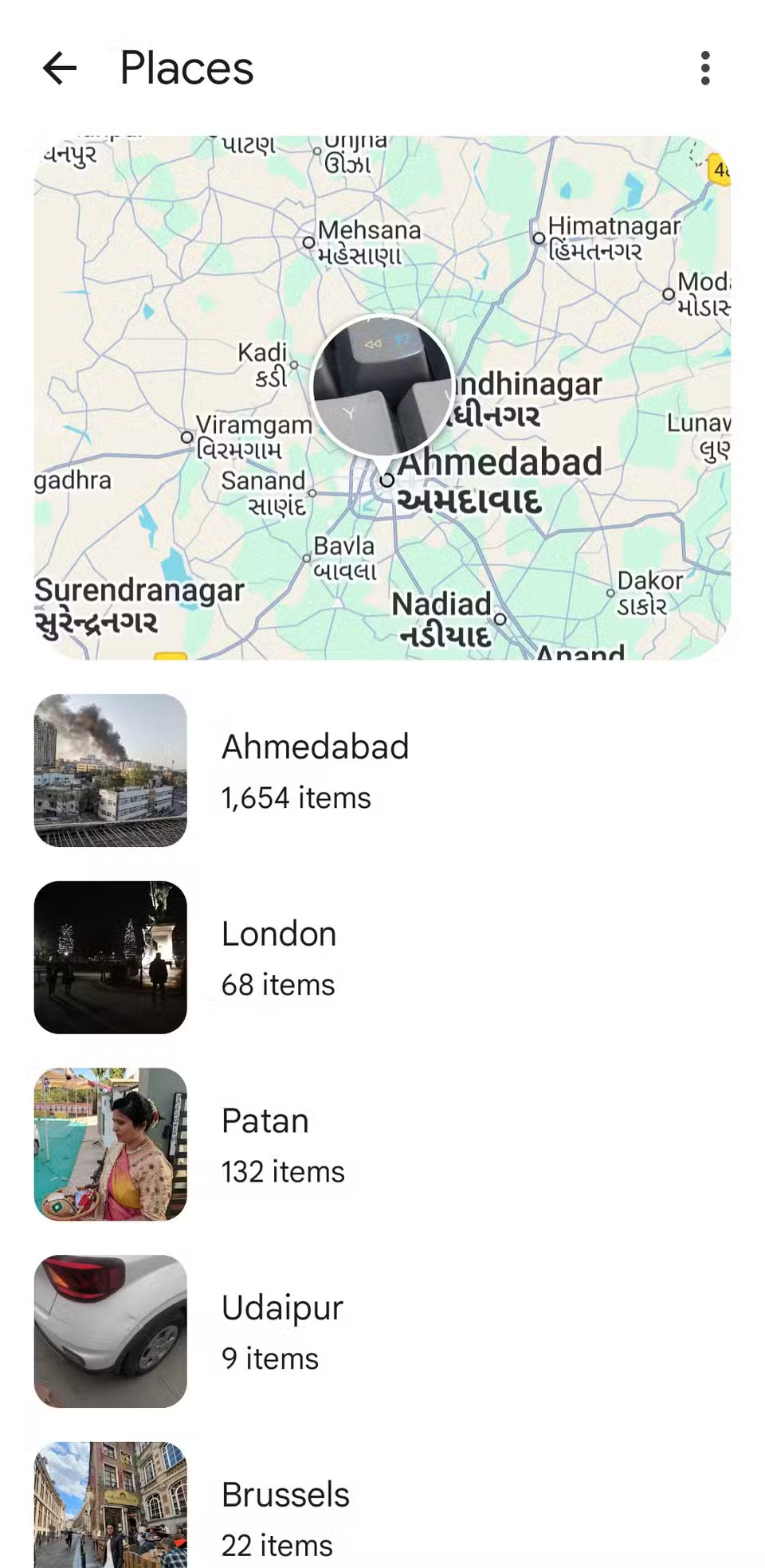
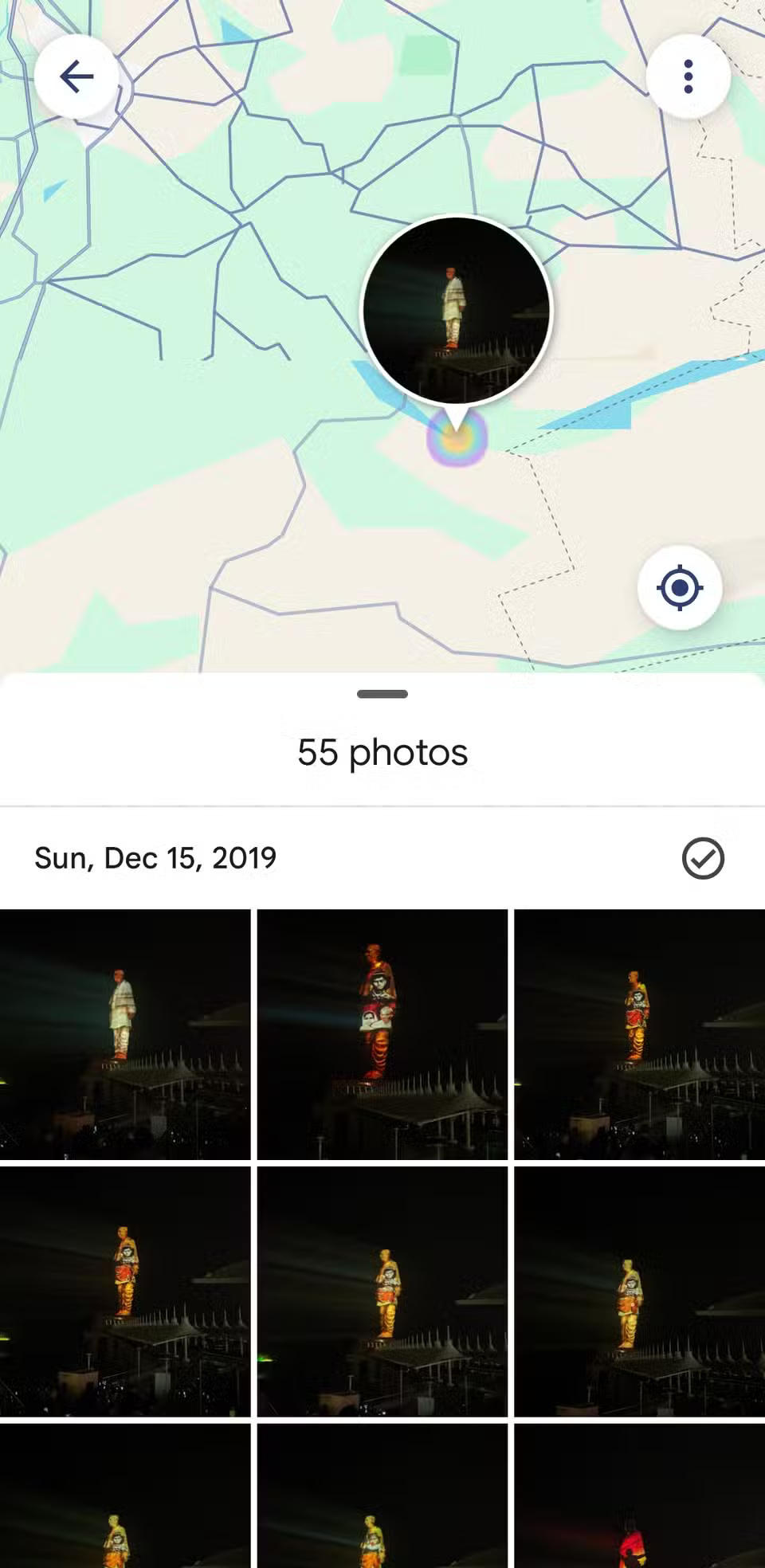
As you scroll through the photos, the location points move in sync on the map.
5. Find out detailed information about photos using Google Lens
Open any photo and tap the Lens icon at the bottom. Google Lens will analyze the photo and give you useful insights in seconds. It can recognize landmarks, identify plants and animals, and even extract text for you to copy or search.
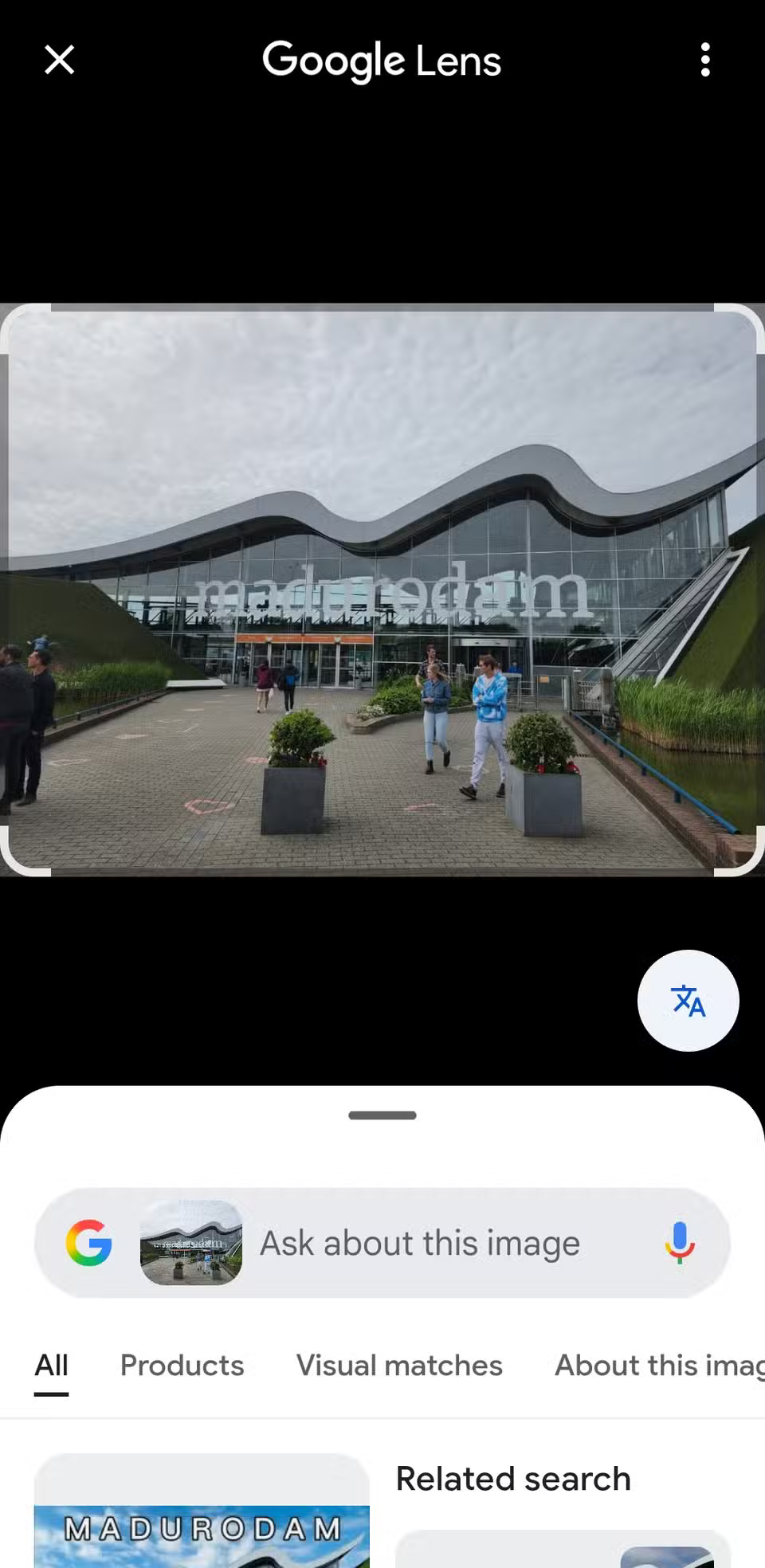
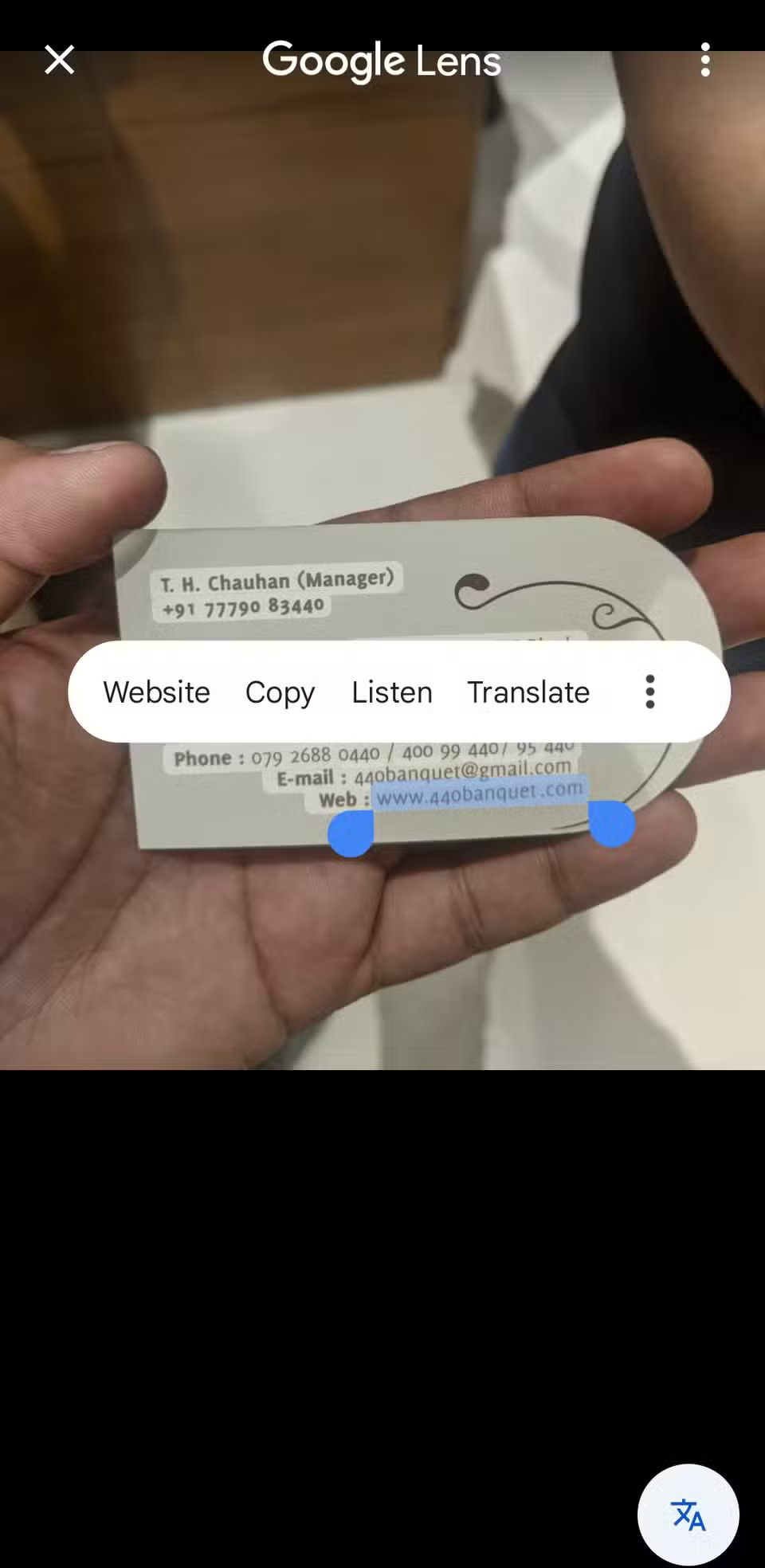
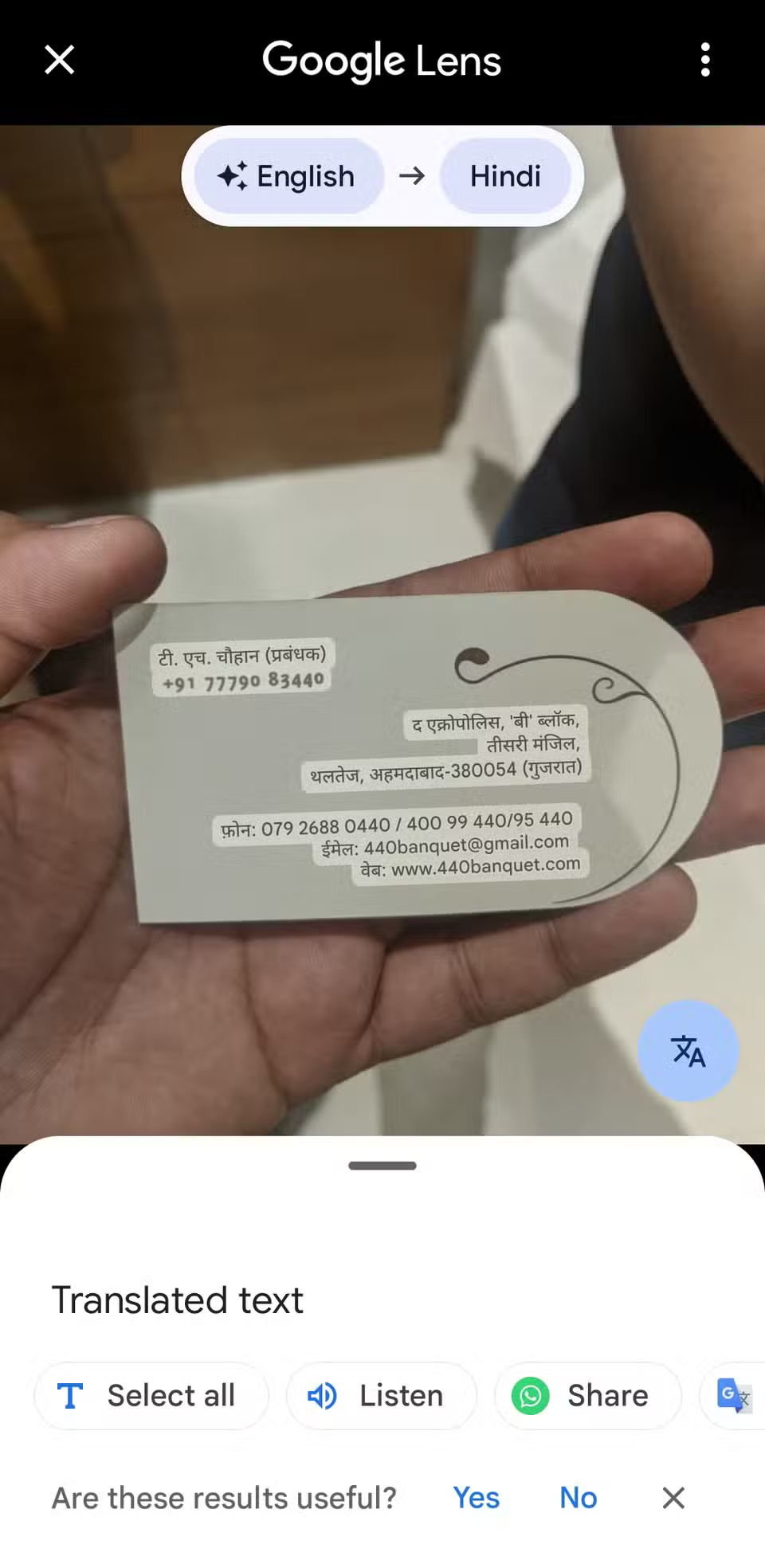
The best part is that you don't have to leave the Photos app or upload the photo elsewhere. With just a tap, you can get more context and sometimes even some great shopping suggestions.
4. Add custom music to video
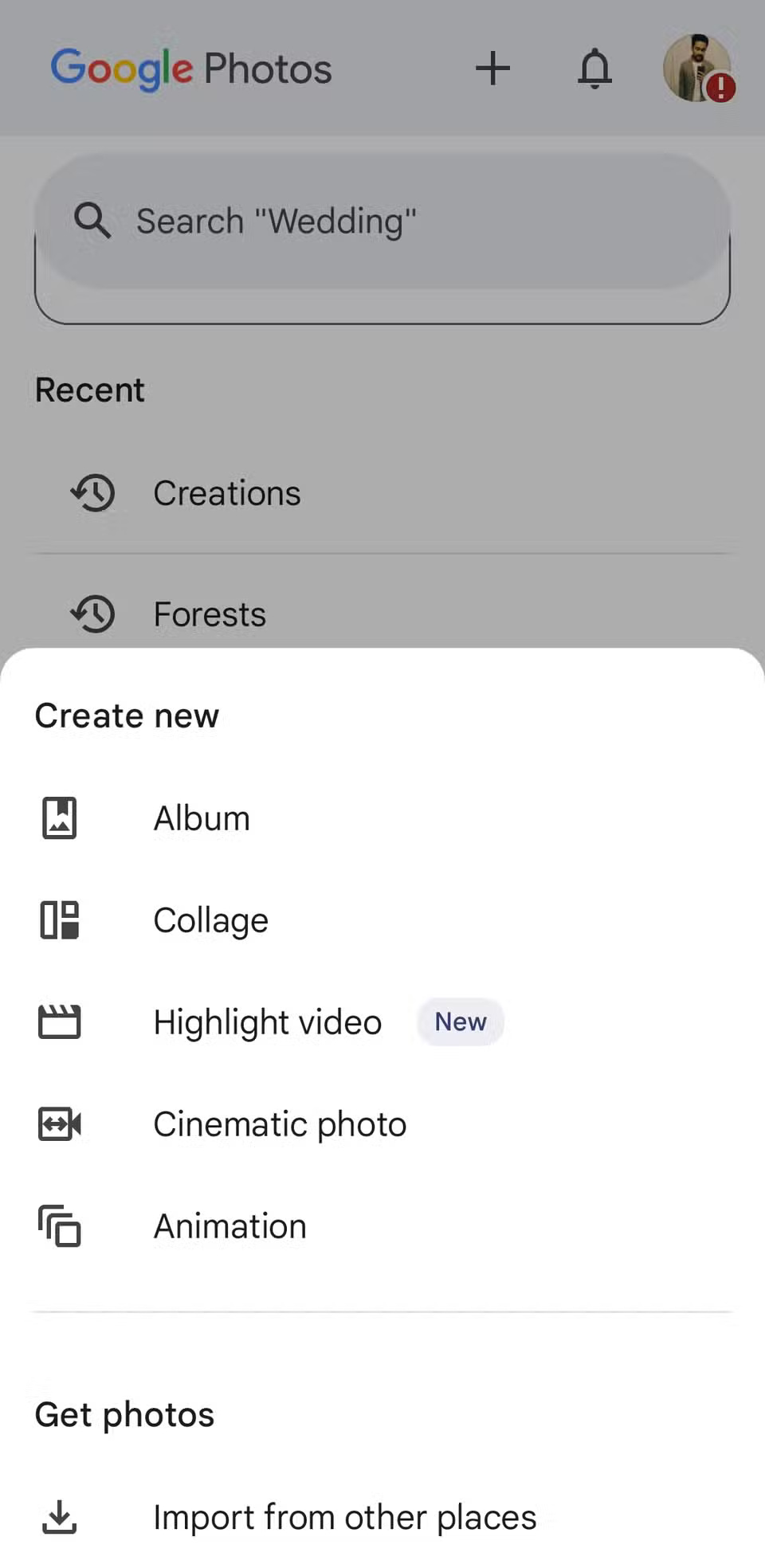
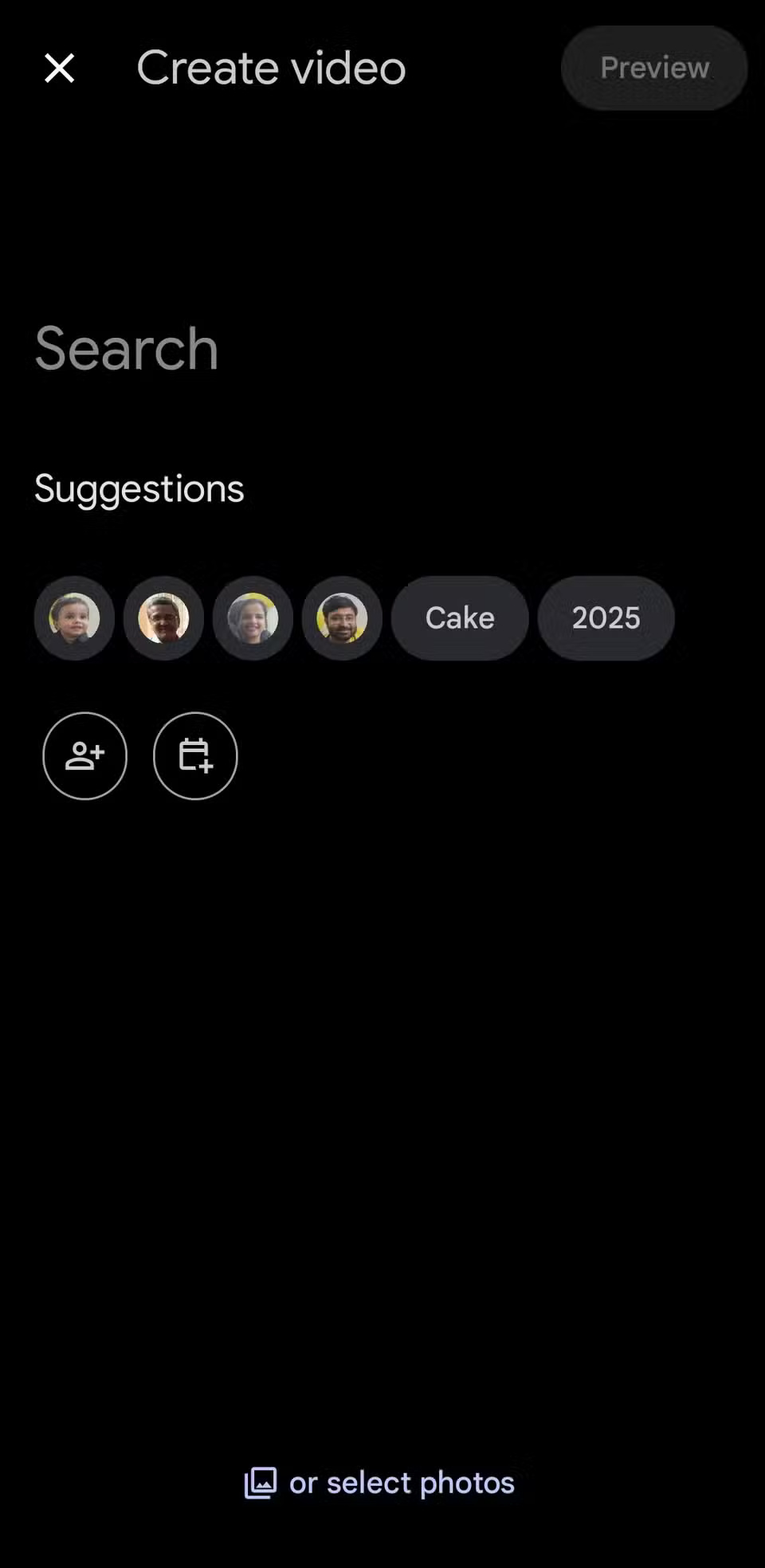
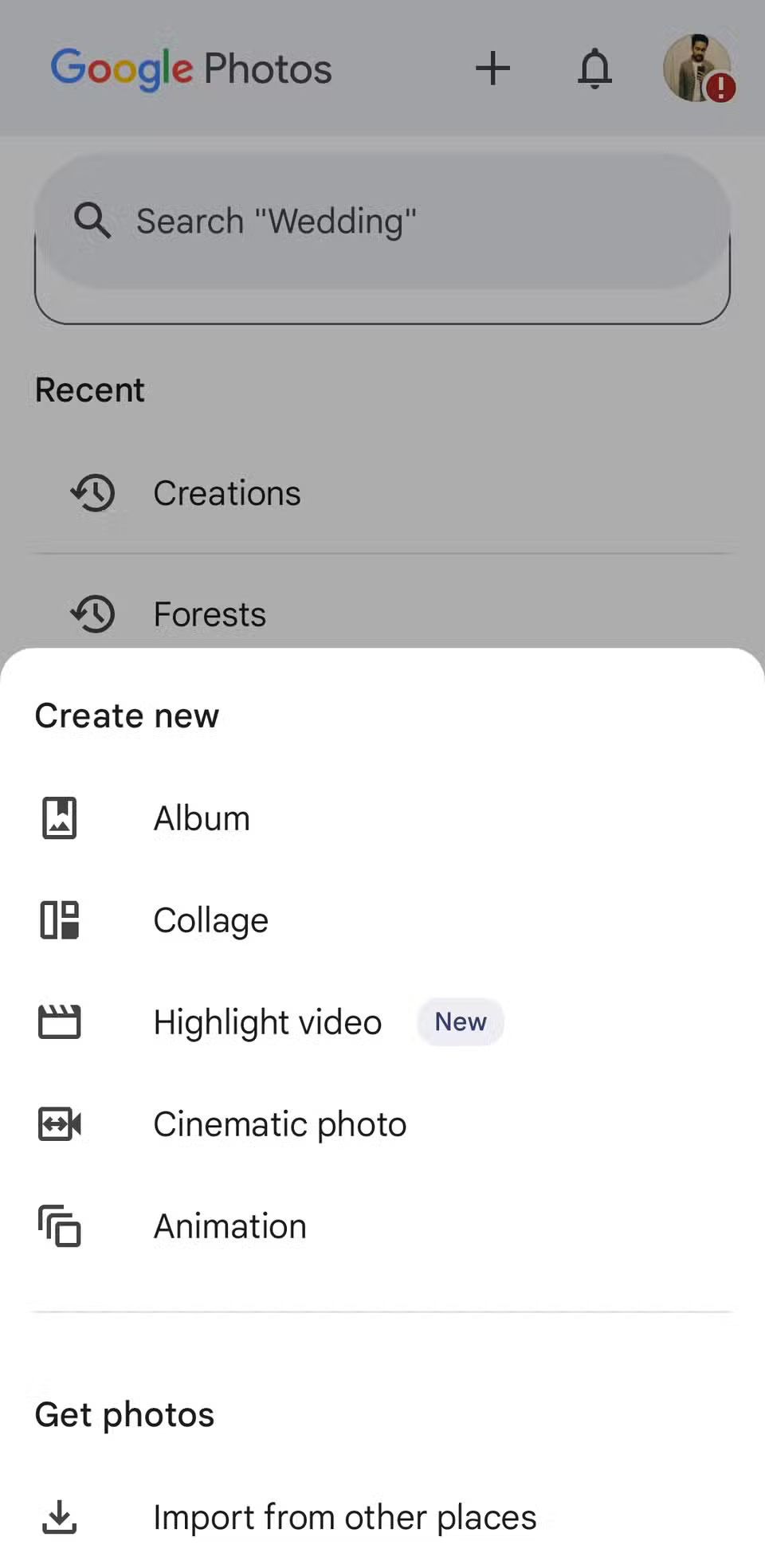
In the Google Photos app, tap the plus icon at the top and select Highlight video . Then tap Select photos and choose the video you want to edit. You can also select multiple clips if you want. Then tap Create in the upper right corner. If the video isn't backed up yet, Google Photos will ask you to upload it first.
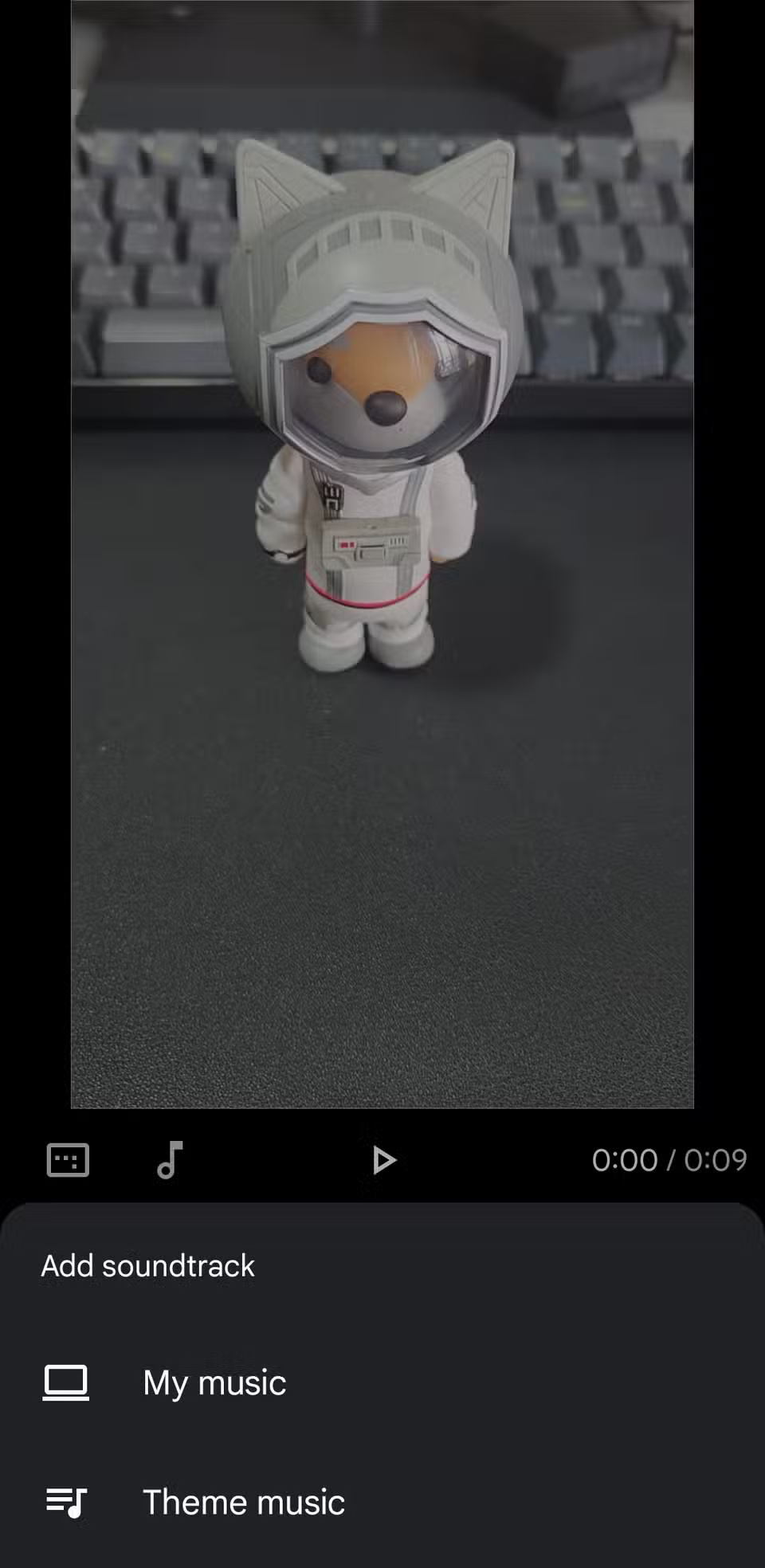
Once in the editor, look for the Music icon. From there, you can add one of Google's theme tracks or select any song from your local storage. Once you've set the perfect soundtrack, tap Save and your new video will be ready.
3. Create collages and GIFs
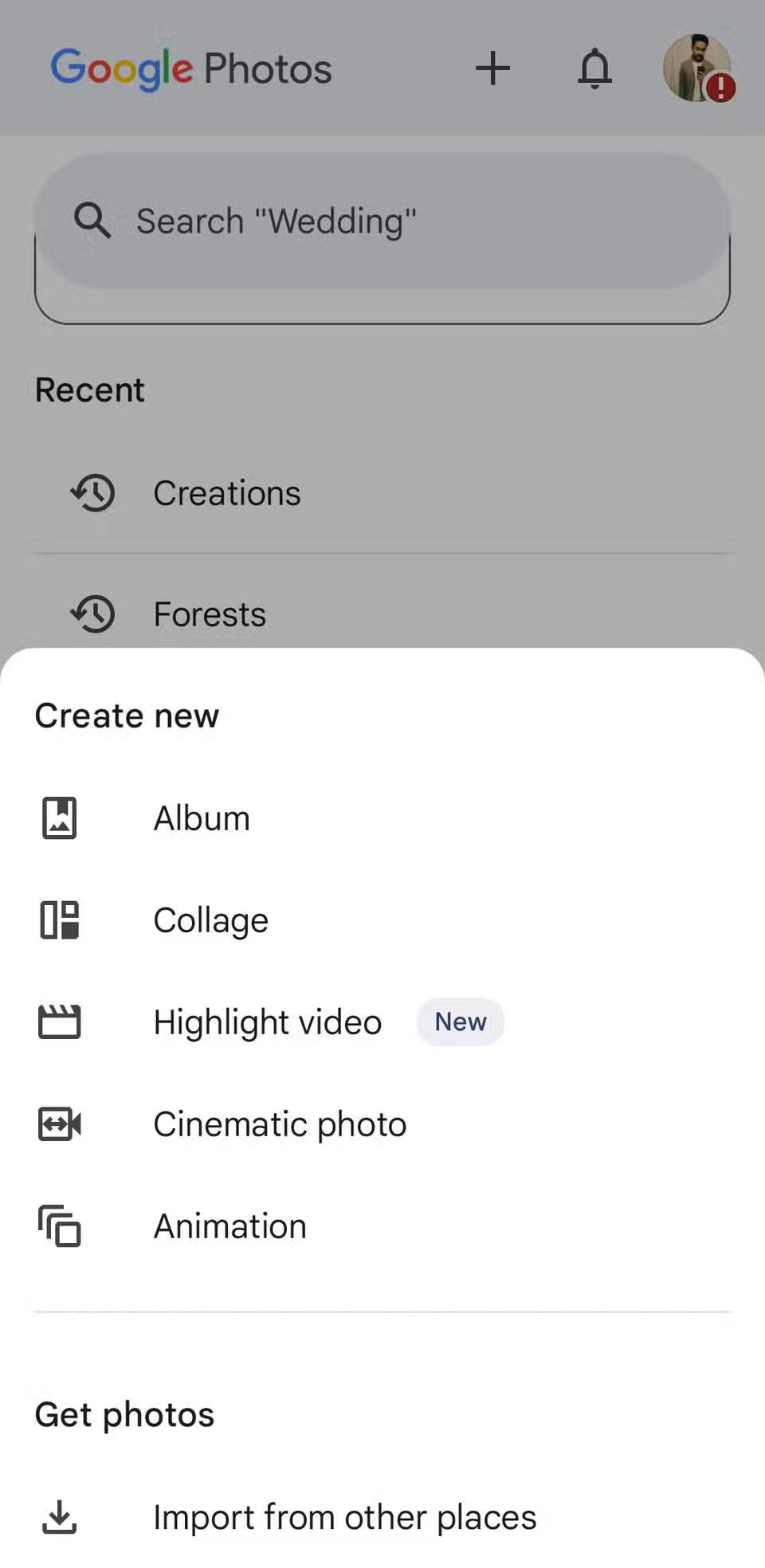
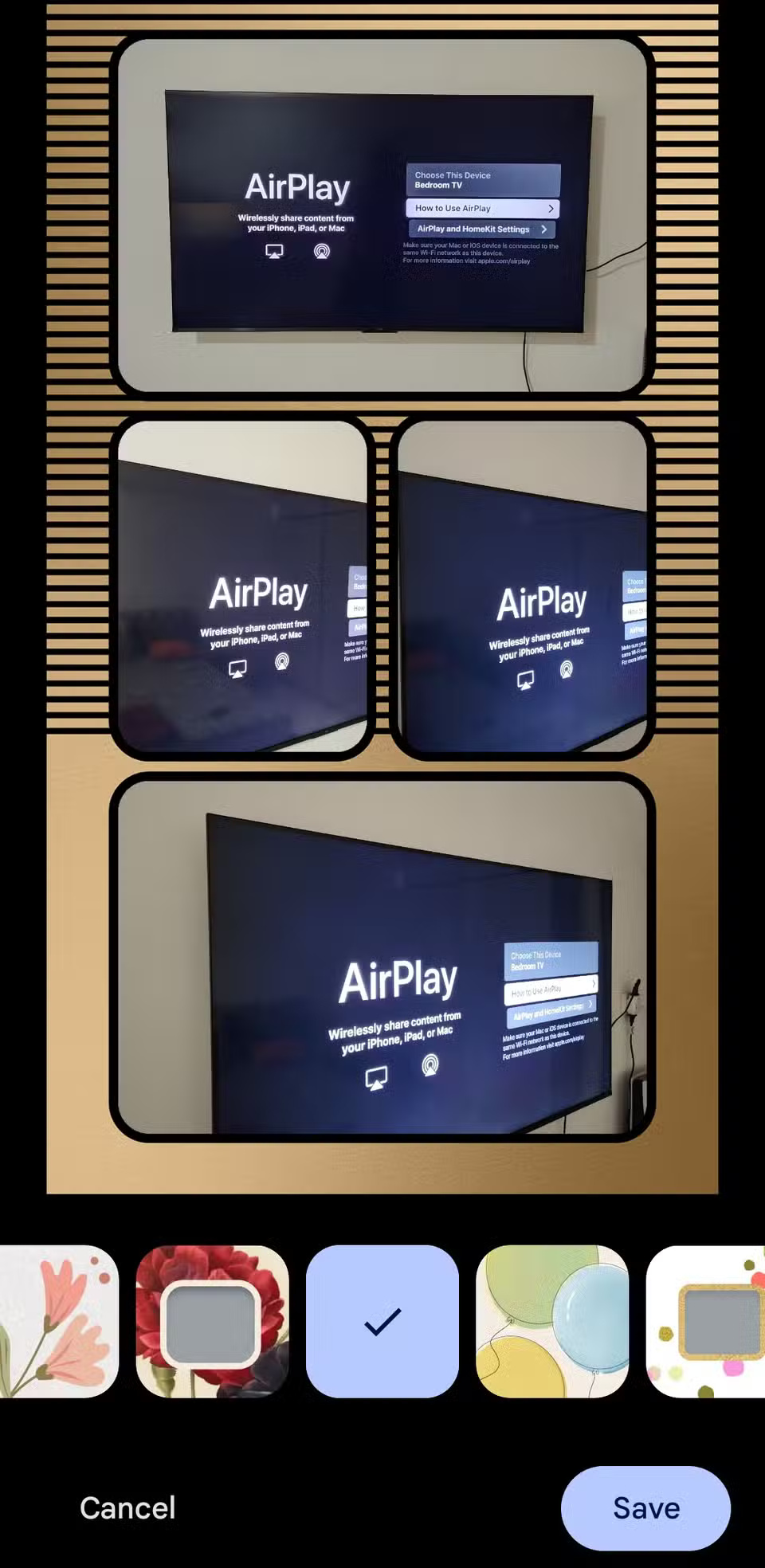
To get started, open the app and tap the plus icon at the top. From there, you'll see Collage and Animation options. Select Collage if you want to combine multiple photos into one frame. If you want your photos to have more movement, select Animation .
Next, select the photos you want to include and tap Create . For collages, you can choose from a variety of layouts and themes, each with its own background image. For animated photos, Google Photos will take the photos you've selected and turn them into a GIF.

2. Add magical cinematic effects to regular photos
This feature uses Machine Learning to predict the depth of a photo and build a 3D image of the scene. It then animates a virtual camera over the photo to create a smooth, cinematic panning effect.
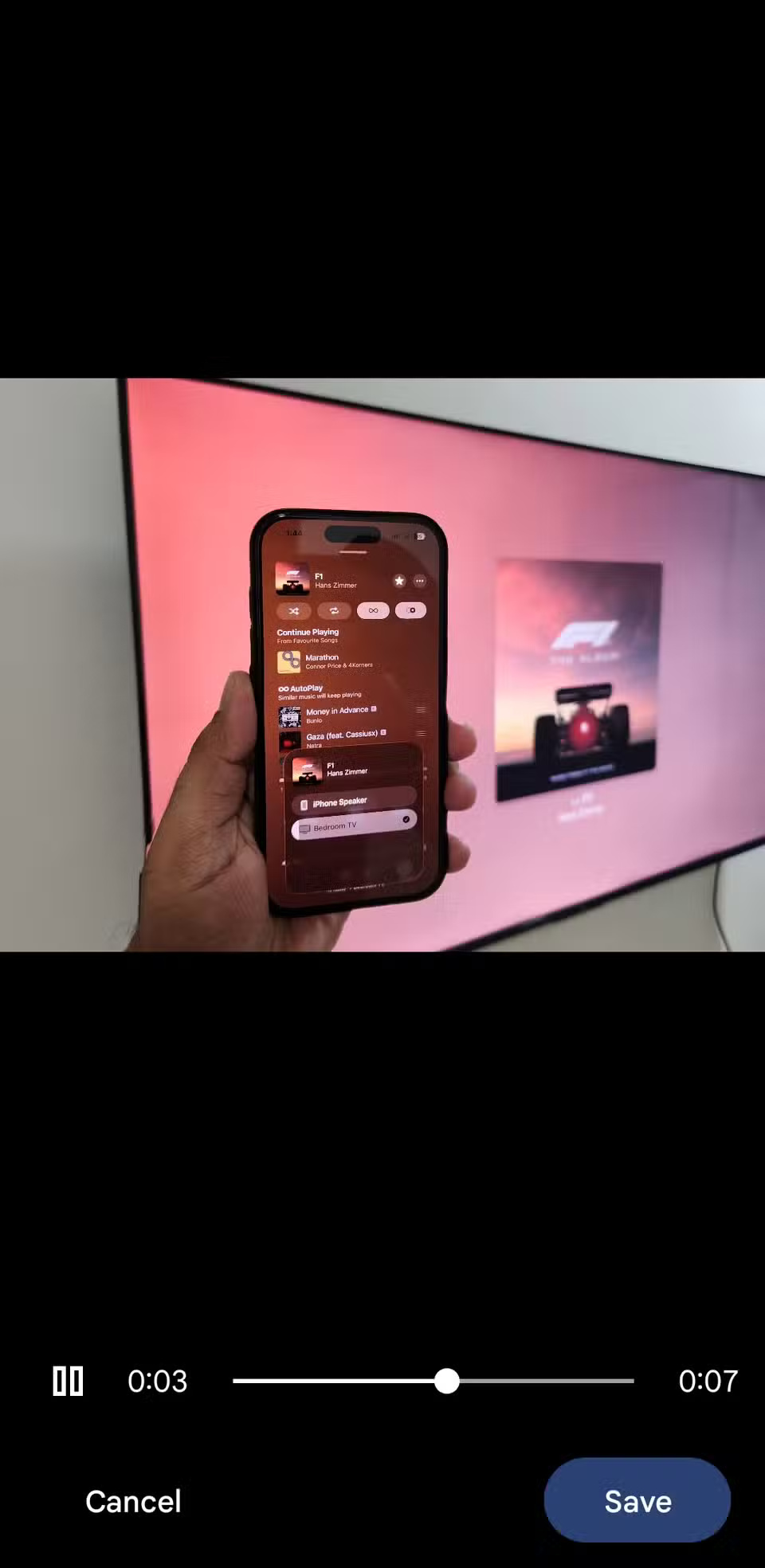
Even if your photo is already beautiful, adding a cinematic effect can make it come to life. To try it, tap the plus icon at the top, select Cinematic photo , and select your photo. In just a few seconds, you'll have a stunning new perspective on an ordinary photo.
1. Free up phone storage with just one tap
Taking photos and videos on your phone can quickly eat up storage space. But if you back them up to Google Photos, you don't need to keep them locally on your device.
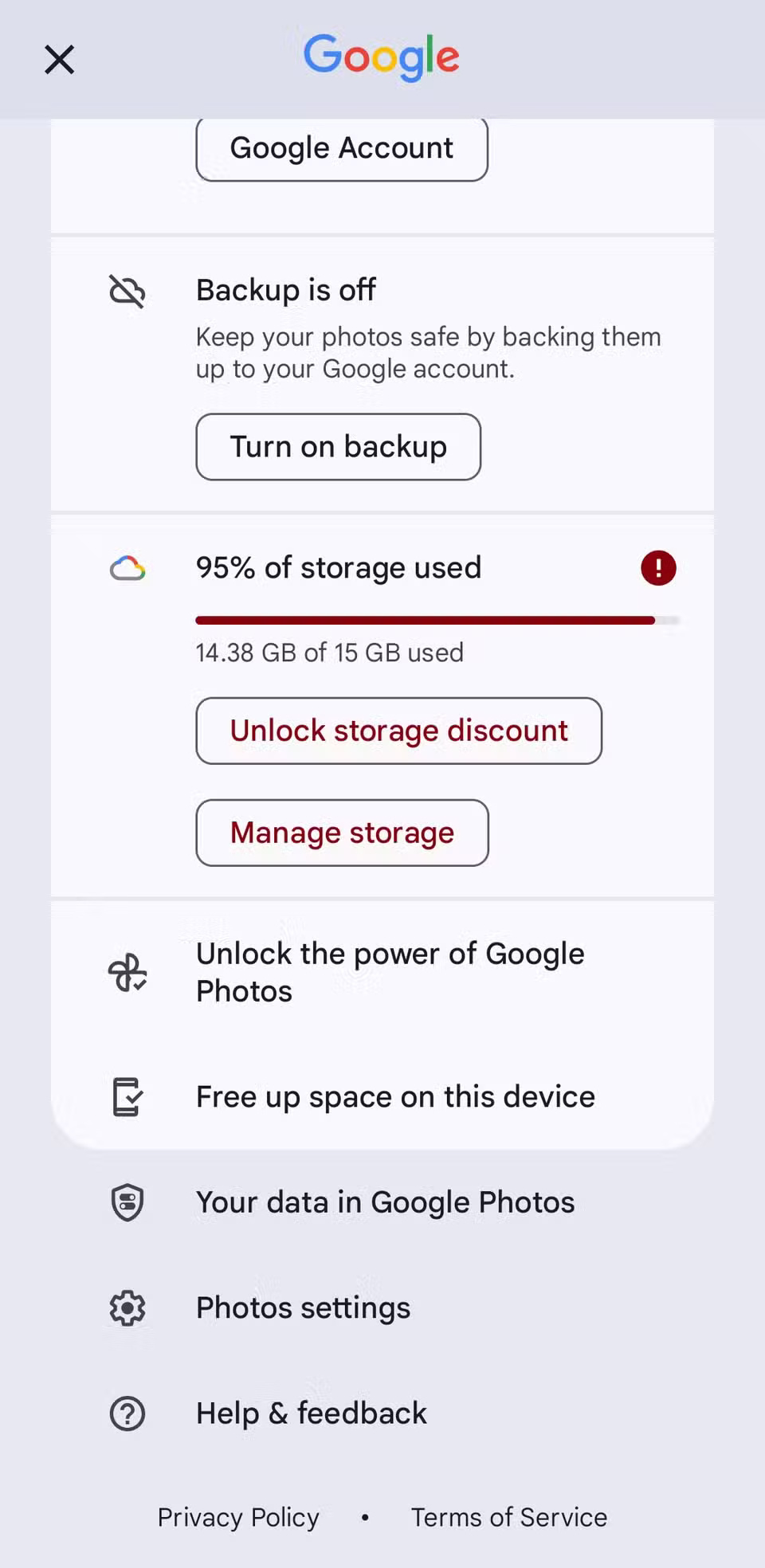
Google Photos makes it easy to delete those photos and videos. Tap your profile icon in the top right corner and select Free up space on this device . The app will show you all the photos and videos that are safely backed up to the cloud, which can be deleted from your local storage. You can easily download them from Google Photos later if you want.
Final Thoughts
Overall, 8 Google Photos Features You're Missing is best understood by considering the main facts, practical context, and limitations together. Use the details above as a clear starting point and confirm time-sensitive information when necessary.
FAQ
What does this article explain about 8 Google Photos Features You're Missing?
If you think Google Photos is just an app for viewing and backing up your media, you're probably not exploring the full potential of what it has to offer. It's packed with features that make finding, editing, and sharing your photos and videos more fun.
What should you know about 8. Share albums in seconds with QR code?
Google Photos lets you create a QR code for any album. All you have to do is create the album, hit the share button, and select Show QR button > Create link. Anyone with a phone can scan the code and view the album.
Should time-sensitive details be verified?
Yes. Software features, game codes, product specifications, prices, and research findings can change. Confirm important details with an official or primary source when accuracy affects your decision.
Related Articles
 What Are the 6 New AI Features in Google Photos: Clear Explanation5 minutes read
 5 Annoying Features on Google Photos You Should Turn Off Immediately6 minutes read
 5 Settings That Make Using Google Photos Easier: Explained8 minutes read
 What Can Google Photos Assistant Do for You?6 minutes read
 6 Annoying Google Photos Features You Should Turn Off5 minutes read
 Top 10 Missing Features from Google Plus8 minutes read
Reader Comments 0
Sign in with email or Google to join the discussion.