Table of Contents
To delay Windows 11 updates temporarily, open Settings > Windows Update and use Pause updates. This is the simplest option for avoiding an interruption while you finish important work. Pausing does not permanently disable updates, and delaying security fixes for too long leaves the PC exposed to known problems.
If an update has already caused a specific fault, record the update number and investigate that problem. Stopping all future updates is not a repair for an existing installation issue.
1. Pause updates in Settings
- Press Windows + I to open Settings.
- Select Windows Update.
- Under Pause updates, choose the available duration or end date. Older interfaces show Pause for 1 week; newer versions may offer a date picker.
- Note the displayed resume date. Select Resume updates when you are ready.
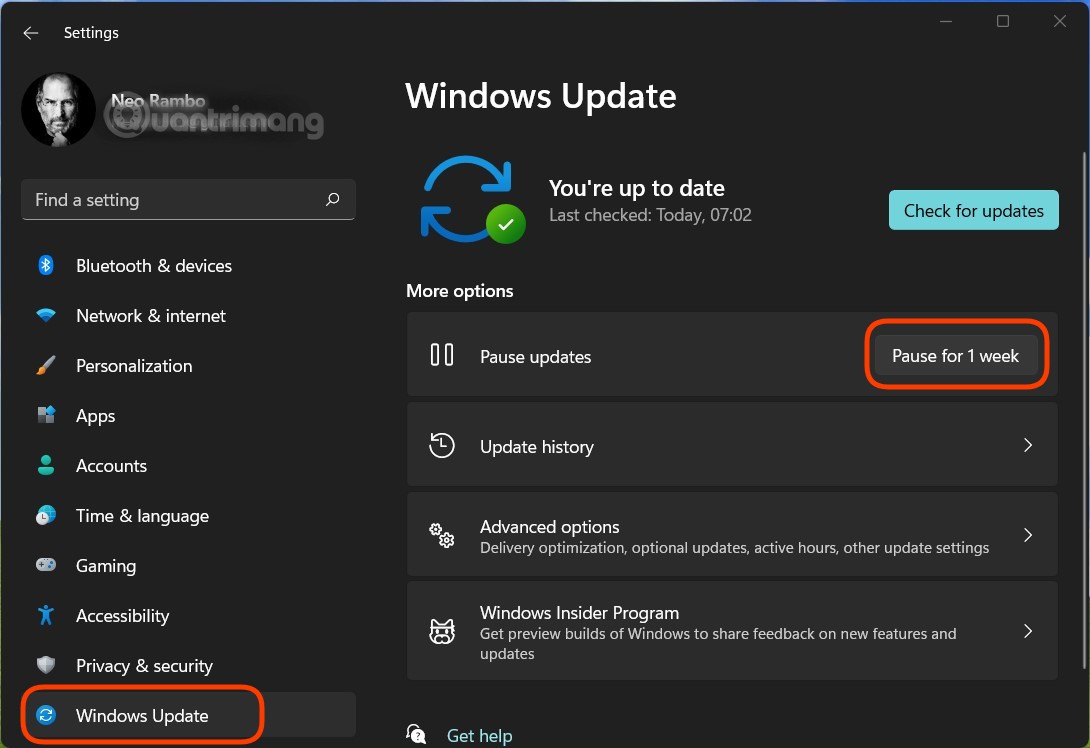
Available pause options vary with the Windows build and organization policies. Microsoft's pause-update instructions describe the current controls. If your concern is restart timing, use Windows Update > Advanced options > Active hours or schedule the pending restart instead.
2. Understand the Windows Update service method
The service can be inspected through Windows + R > services.msc. Open Windows Update > Properties to see its status and startup type.
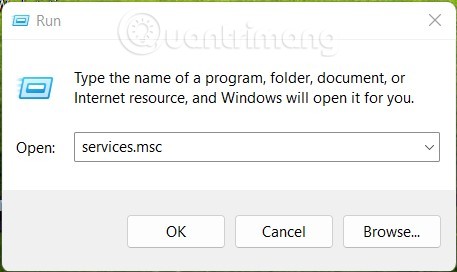
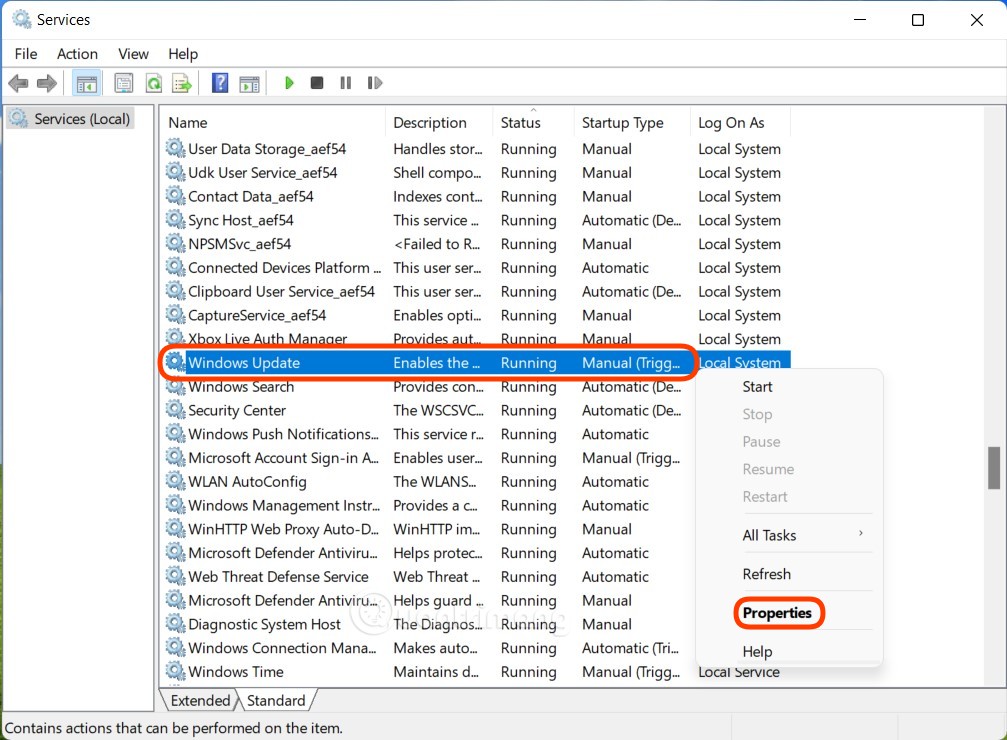
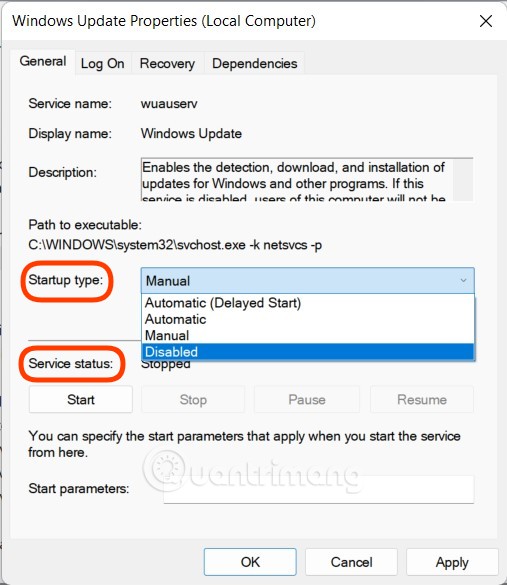
Older instructions stop this service and change its startup type to Disabled. That affects one service and can interfere with update operations; it is not a dependable permanent block because other Windows components or policies can affect updating. Prefer the supported pause control for an ordinary delay.
If you previously changed the service, record its current setting before troubleshooting and restore the appropriate configuration for your PC. On a managed device, contact the administrator rather than overriding policy.
3. Configure automatic updates through Group Policy
Supported Windows editions such as Pro and Enterprise include Local Group Policy Editor; Windows 11 Home does not normally include it. Administrative rights are required.
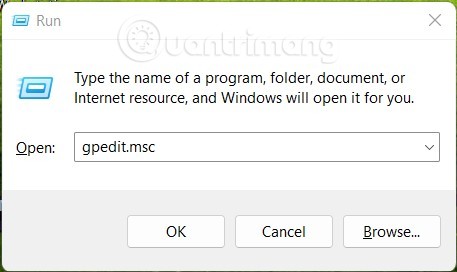
- Press Windows + R, enter
gpedit.msc, and press Enter. - Open Computer Configuration > Administrative Templates > Windows Components > Windows Update.
- Locate Configure Automatic Updates. Depending on your templates, it may be inside Manage end user experience.
- Read the policy description and select the behavior required for your device. Disabling this policy controls automatic updating; it does not remove Windows Update or guarantee that every update mechanism is blocked.
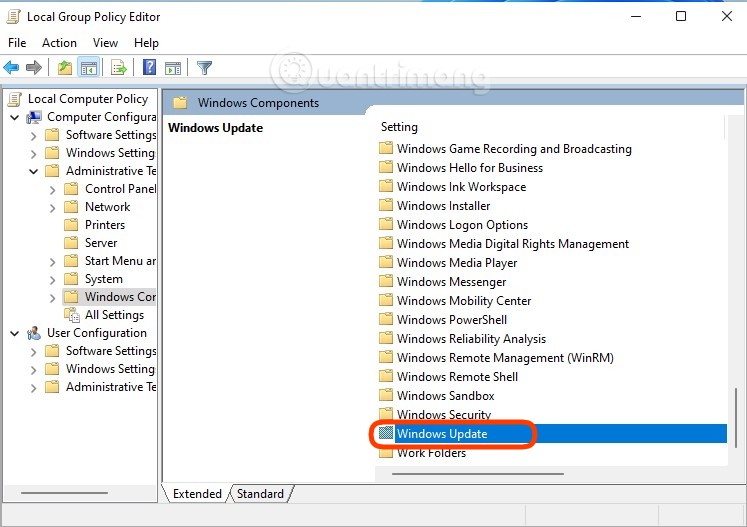
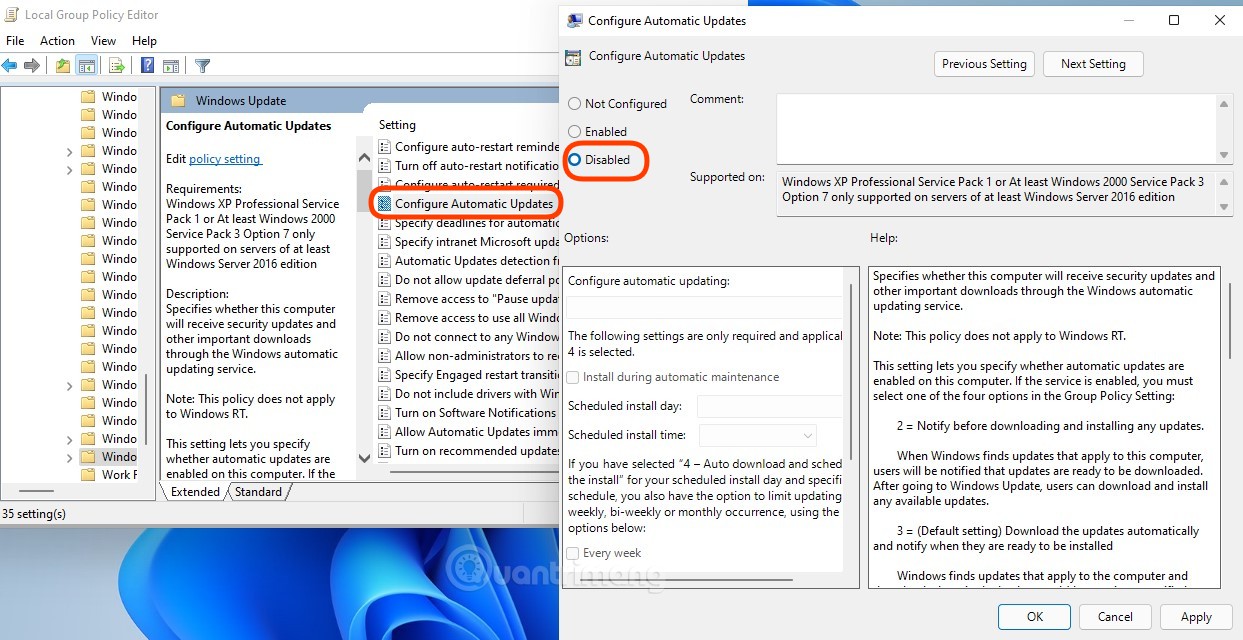
Record the original policy setting. To undo a local override, return the policy to its previous state, commonly Not Configured, then check Windows Update. Domain or device-management policies may take precedence.
4. Registry configuration is an advanced alternative
Microsoft documents the automatic-update policy location below. Back up the relevant key before editing, and do not create or change unrelated entries.
HKEY_LOCAL_MACHINESOFTWAREPoliciesMicrosoftWindowsWindowsUpdateAUThe NoAutoUpdate DWORD policy value uses 1 to disable automatic updates and 0 to enable them. Applicability depends on the Windows edition and management configuration. See Microsoft's Windows Update policy documentation before using it.
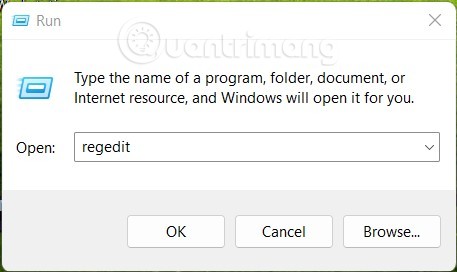
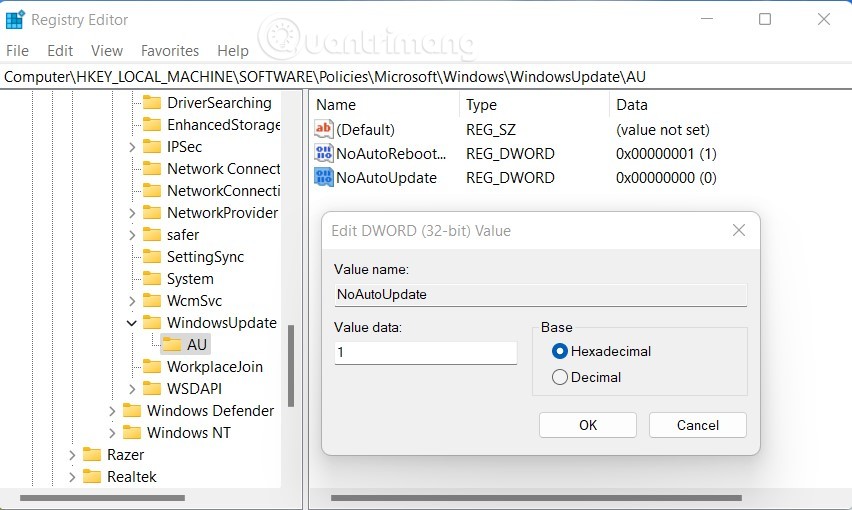
This is not a universal Home-edition workaround or a promise that updates are permanently stopped. If you are reversing your own change, restore the recorded value or remove only the value you added. Do not delete the whole WindowsUpdate policy branch.
5. Be cautious with third-party update blockers
Some utilities, including older versions of EaseUS CleanGenius shown below, expose a switch for automatic updates. An “Off” switch or a stopped service does not prove that all update paths are blocked. Current availability and behavior may differ from these screenshots.
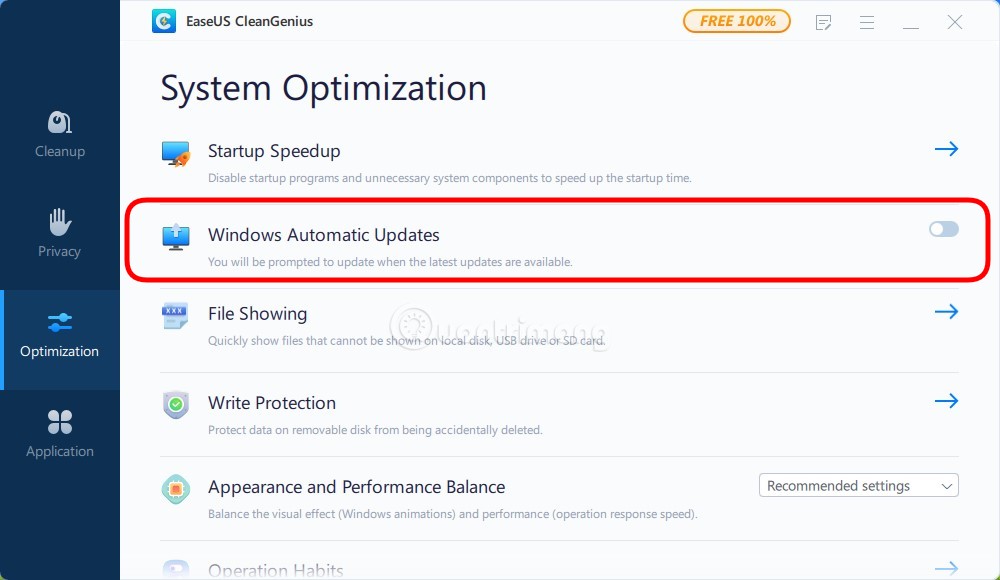
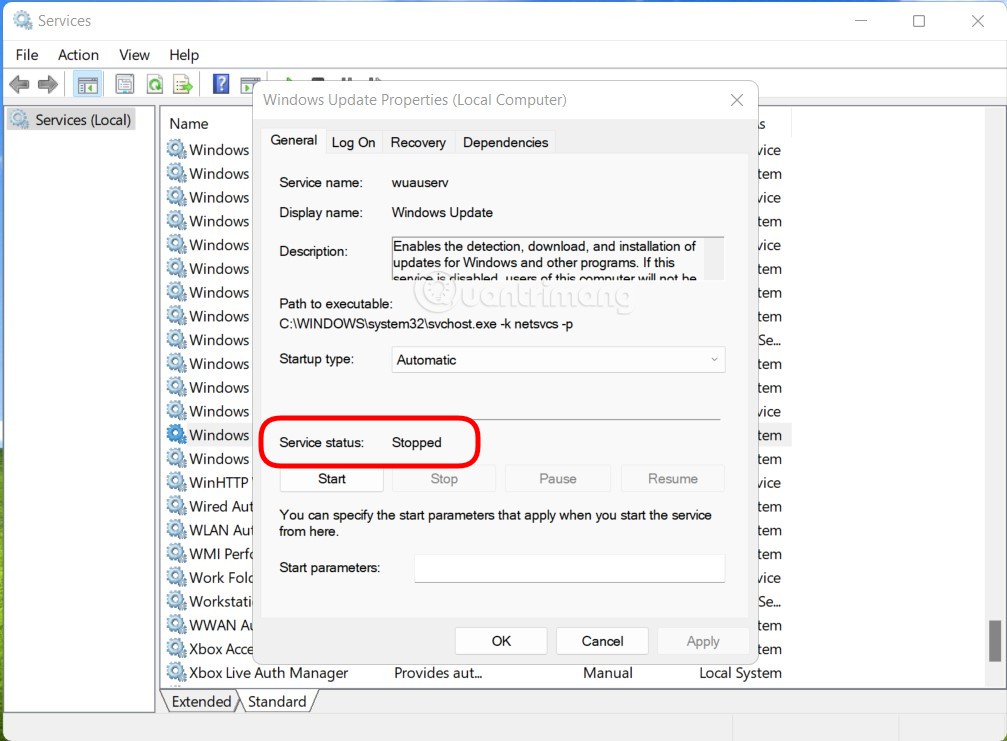
A separate utility is unnecessary for a temporary pause. If you already used one, use its documented reversal process and check the resulting Windows settings. Do not assume uninstalling it restores every change.
6. Limit downloads on a metered connection
This option is intended to reduce data use, not stop every update.
- Open Settings > Network & internet.
- For Wi-Fi, select the connected network; for Ethernet, open its network settings.
- Turn on Metered connection.
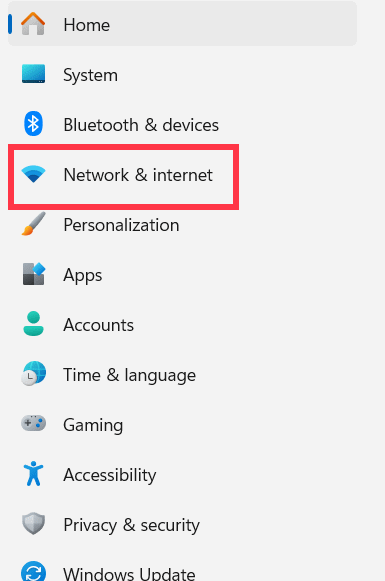
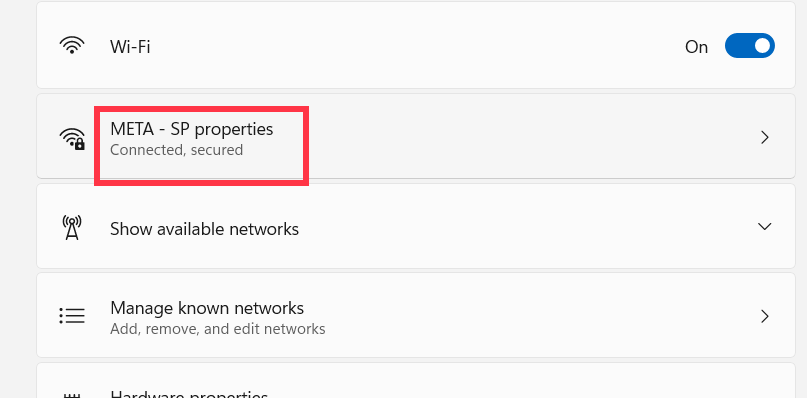
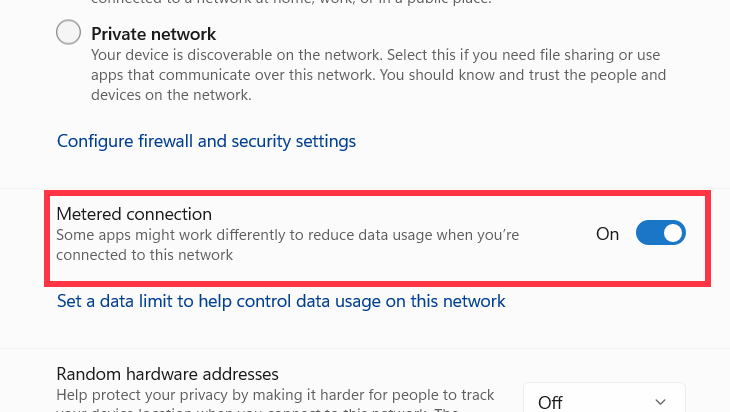
Then open Settings > Windows Update > Advanced options and check whether Download updates over metered connections is enabled. Turn it off if you want the normal metered-download restriction.
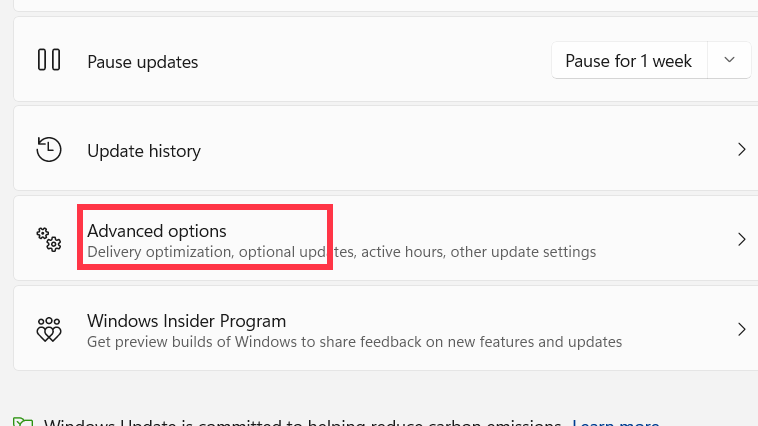
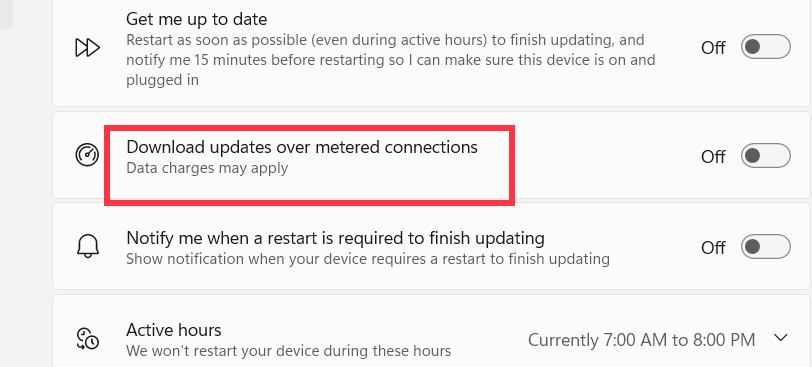
Priority updates may still download, and other apps may limit background activity. Turn the metered setting off when it no longer matches the connection's data constraints.
7. Task Scheduler changes affect individual tasks
Older guides open taskschd.msc and inspect Task Scheduler Library > Microsoft > Windows > WindowsUpdate, including a task named Scheduled Start.
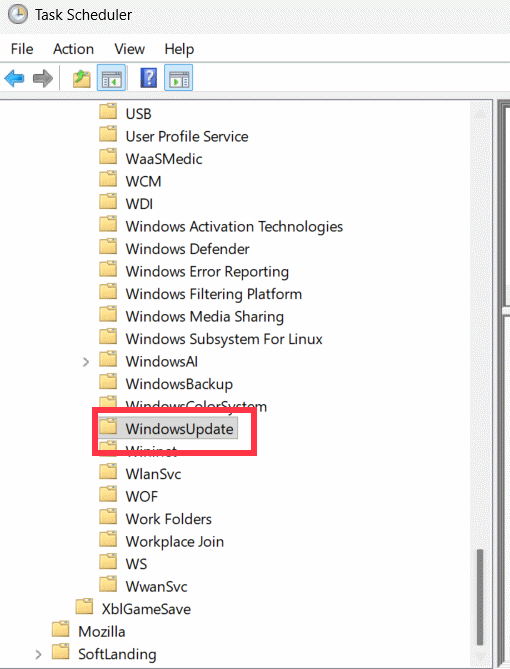
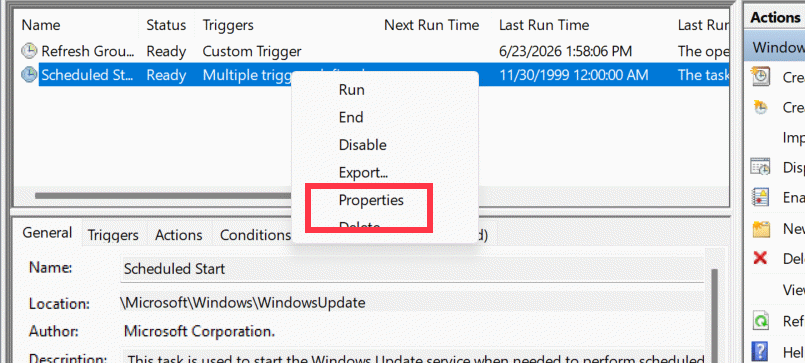
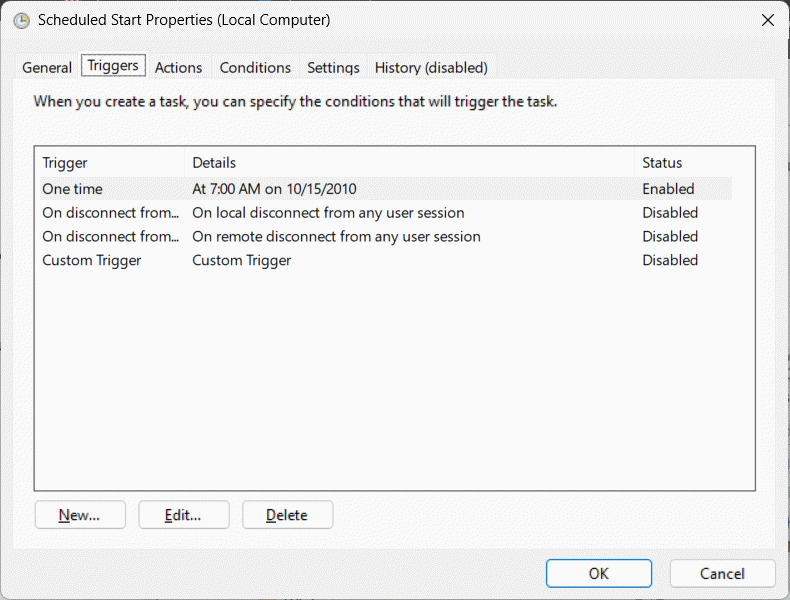
These tasks and their permissions vary by Windows build. Disabling a trigger affects that task only; it does not shut down the entire update system. Do not disable multiple unfamiliar tasks or take ownership of protected tasks just to suppress updates.
After the delay
Restore changes you recorded, open Settings > Windows Update, resume updating, and check the displayed status. Allow a restart when required. If an installed update causes trouble, see uninstalling a problematic Windows update. If Windows cannot start, Windows Recovery Environment offers separate repair tools; prepare your backup and recovery credentials before using them.
Related Articles
 How to Pause Windows Updates and Control Restart Timing
 How to Pause and Control Windows 10 Updates Safely
 Trick to enable / disable Windows Updates on Windows 10 quickly and easily
 How to Exclude Driver Updates from Windows Update
 On Windows 10 you should disable these features
 Summary of some simple ways to disable USB ports on Windows computers
Reader Comments 0
Sign in with email or Google to join the discussion.