Table of Contents
The operating system creates some of these files to ensure normal operation. That’s why it’s dangerous to delete everything indiscriminately. To free up storage space with no risk to your important data, figure out exactly what’s taking up space and which files you truly no longer need.
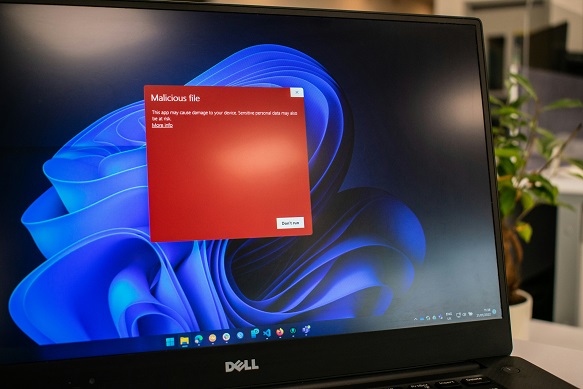
Disk Space Usage. How to Check
Before you delete any files, review how your storage is allocated by category.
In Wіndows 11, open Settings → then System → Storage.
On a Mac running macOS Ventura or later, go to System Settings → then General → Storage.
These sections help you see how much space your docs, or apps, or photos, and system data take up. How to check system storage? The operating system’s built-in settings are the most convenient place to start. On a Mac, the System Data is sometimes unexpectedly large. It may contain caches, app logs, local Time Machine backups, and files that remain after apps are deleted. When you have a problem with system data taking up space, don’t hesitate to find the right solutions, which may include checking old backups, accumulated caches, and leftover app files. Meanwhile, not all data in this category is unnecessary. Some is required for macOS to function. So the size of System Data alone doesn’t determine how much space you could safely free up.
Largest files and folders. How to find them
General statistics show categories, however, they don’t always explain which specific files take up the most space.
In Windows, you can view installed apps by size.
In File Explorer, you can sort folder contents by the corresponding parameter.
On a Mac, the Documents section in Storage Settings helps you find large files, if this feature is available in your installed version of macOS.
When you check a disk space usage, pay special attention to the Downloads and Videos folders, as well as old work projects. Video recordings, archives, and installation packages may take up tens of gigabytes, even if you haven’t used them in a long time.
Which System Files You Can Delete
Windows and macOS store:
- System libraries,
- Drivers,
- Update components,
- Service files.
Deleting them manually may result in:
- Program errors,
- Problems with updates,
- Issues with the computer booting up.
Be especially careful with the Windows, System32, System, and Library folders. Even if a single file looks outdated, the operating system’s services may still use it. To clean up system components, please use the mechanisms specified by the manufacturer.
Temporary data. Unnecessary copies
Temporary files are created during installation of software, or updates, and everyday use. Some are deleted automatically. Others remain on the disk. Browser cache also accumulates. Although clearing it may appear as slower primary times for loading the pages you’ve already visited.
Check the following separately:
- Old installers,
- Duplicate downloads,
- Device backups.
Before deleting the latter, verify that they aren’t the only way to recover critical details.
Free Up Disk Space. Practical Methods
- Built-in cleanup features.
In Wіndows 11, open Settings → then System → Storage → Cleanup recommendations. And the system will suggest reviewing:
- Temporary files,
- Large documents,
- Unused apps.
The Storage Sense allows you to automate part of the cleanup process. In particular, it deletes temporary data with Recycle Bin contents according to configured rules. Based on Microsoft’s official documentation, Storage Sense doesn't automatically delete files from the Downloads by default. To do this, you need to configure the corresponding feature separately. Such control helps to avoid sudden deletion of necessary downloads.
On a Mac, you may:
- Follow the recommendations in the Storage section,
- Review large documents,
- Uninstall unnecessary apps.
After reviewing the contents of the Trash, you should also empty it.
- Moving Files. Uninstalling Apps.
To free up disk space with no loose of important data, you can move large video archives and completed projects to an external SSD or cloud storage. Before deleting local copies, verify that the files have been successfully transferred and can be opened.
Another way to manage system storage is to uninstall progs you don’t use anymore. Don’t just delete folders containing program files; use the standard uninstallation procedure instead.
How to maintain sufficient free space
Regular computer storage cleanup doesn’t require daily intervention.
It’s enough to:
- Periodically check storage usage,
- Then review the Downloads,
- Delete unnecessary installers.
It’s also helpful to do this before major operating system updates, which may need extra space.
If your drive fills up quickly again, identify the cause. Namely, check for automatic downloads, backups, and programs that generate huge amounts of data.
Summary
Managing system storage begins with the fact you understand its contents. Checking large files, safely clearing temporary data, and uninstalling programs which are unused may help to free up space with minimal impact on critical system components. The point is to delete only those files whose purpose you are sure of, and to leave enough free space for your computer’s daily use and updates.
Related Articles
 How to reduce the 'System' storage on iPhone or iPad
 How to Check Laptop Storage on Windows and Mac
 How to View and Delete Saved Memories in Perplexity
 How to check the remaining storage space in Google account
 How to create and manage Storage Spaces right in Settings in Windows 10
 How to check the Reserved Storage capacity in Windows 10
Reader Comments 0
Sign in with email or Google to join the discussion.