Table of Contents
Review your Screenshots album for credentials, IDs, tickets and private records. A screenshot can end up in cloud sync, a shared album or an app with photo access. Move anything you need to keep to a suitable place and remove unnecessary copies.
1. Passwords and recovery codes
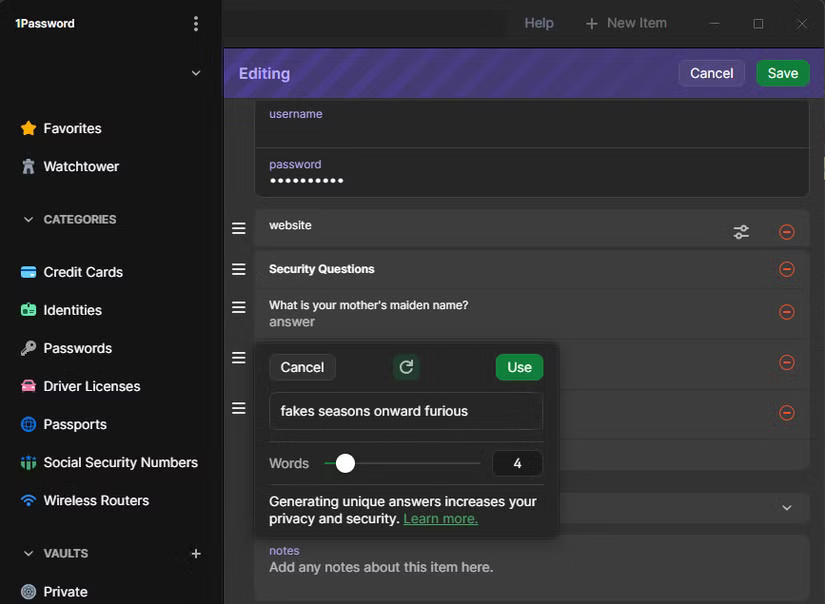
Store passwords in a trusted password manager, and keep recovery codes in a secure place you can reach if you lose the phone. If a password or recovery code was exposed, change the password or regenerate the codes where possible. See how to set up a password manager.
2. Bank balances and transaction details
Use the bank’s app or official statements to retrieve amounts when needed. A screenshot can include account details or recent activity. If you need a record for your own files, export it from the bank and restrict access to the saved copy.

3. Passports, licenses and travel documents
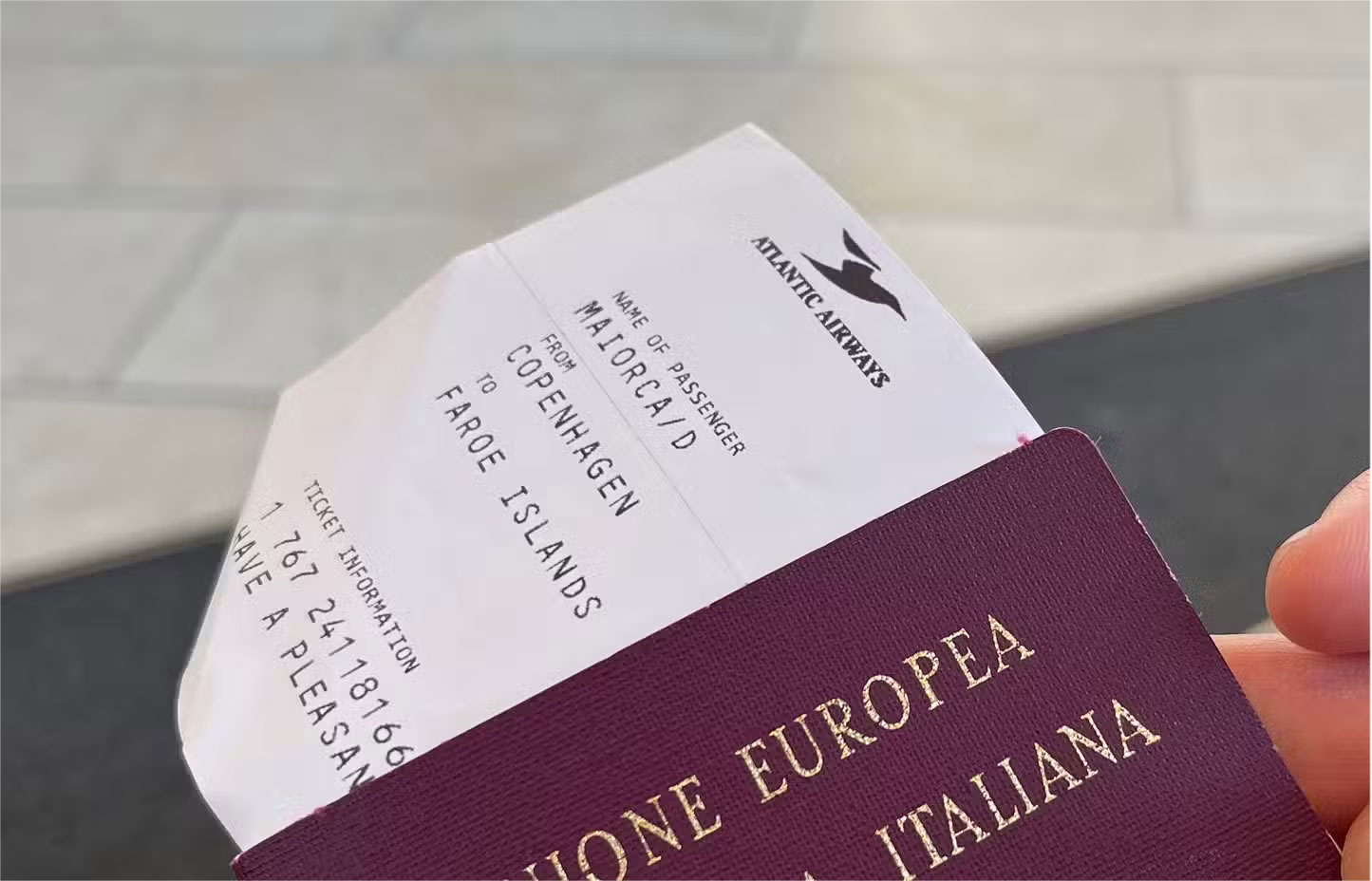
Keep only the copies you actually need. Use encrypted storage or an official document wallet where appropriate, and confirm you can still reach what you need when traveling offline.
4. Private chats and emails
Save the minimum information needed in a secure note or approved archive. Before sharing a screenshot, crop out irrelevant parts or redact identifying details and check the exported copy.
5. Health records and prescriptions
Use your provider’s official portal when you can. If you need an offline copy, keep it in protected storage and share it through the designated channel for the recipient.
6. Tickets, QR codes and order confirmations
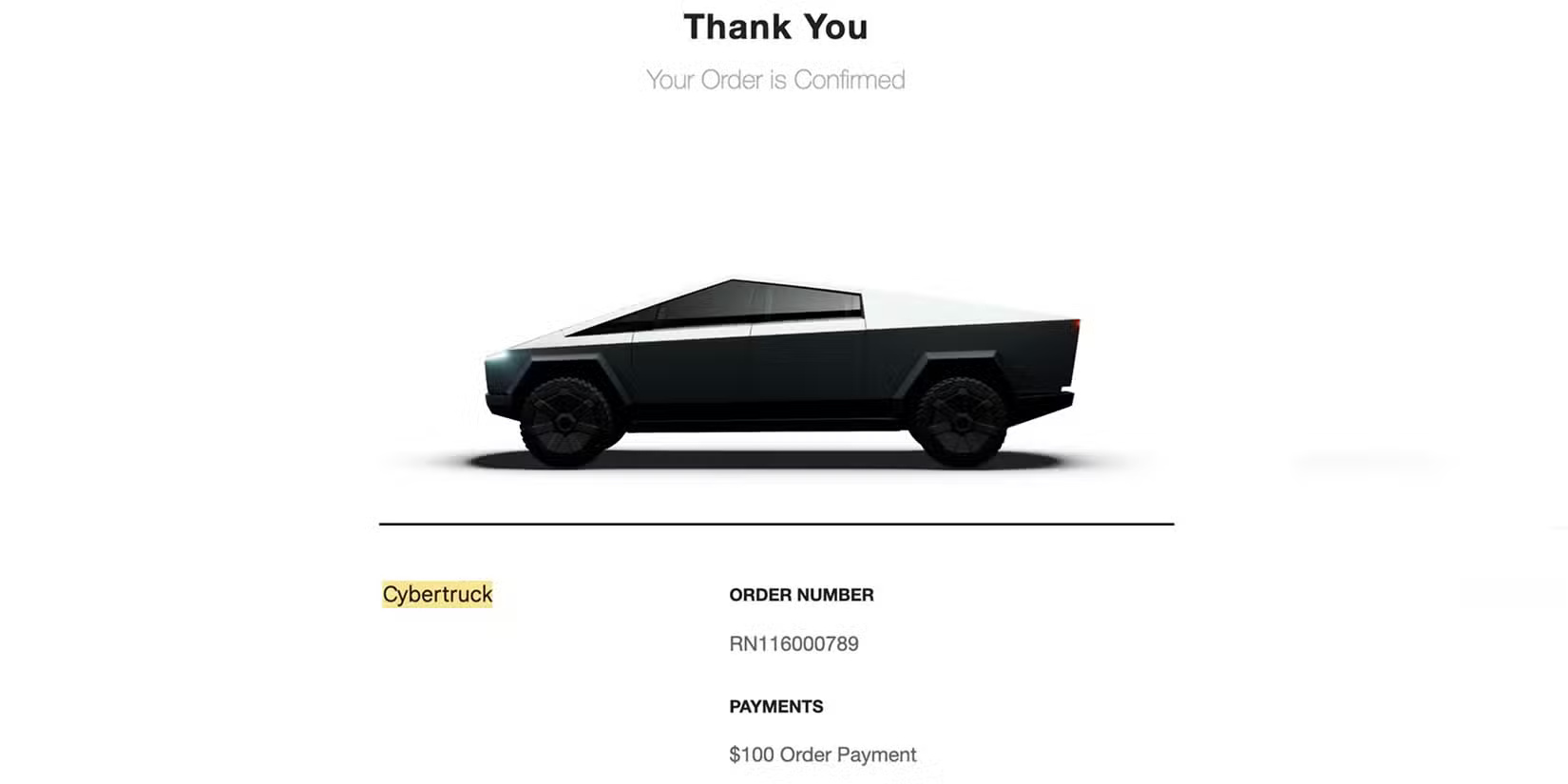
Use the official ticket app or wallet, especially if the barcode changes. Share a ticket through the issuer’s transfer feature when available. Store everyday receipts separately and avoid posting barcodes or confirmation numbers.
7. Work documents and customer information
Keep work records in approved storage. If a screenshot ended up in your personal gallery, follow your employer’s reporting and retention rules before deleting or moving it.
Check cloud copies and shared albums
After removing unnecessary images, check Recently Deleted or Trash, shared albums and any copies sent in messages. Make sure you know how deletion syncs before permanently erasing a copy you still need. See how sync differs from backup, and follow the Google Photos deletion guide if you use that service.






Reader Comments 0
Sign in with email or Google to join the discussion.