Table of Contents
File Explorer is one of those tools you use every day. At first glance, it seems simple — you just click, drag, and maybe clean out your Downloads folder every now and then.
File Explorer is one of those tools you use every day. At first glance, it seems simple—you just click, drag, and maybe clean out your Downloads folder every now and then. But there are many useful features that can really speed up your workflow and make file management a lot easier.
6. Use filters and save searches
Find what you need in seconds
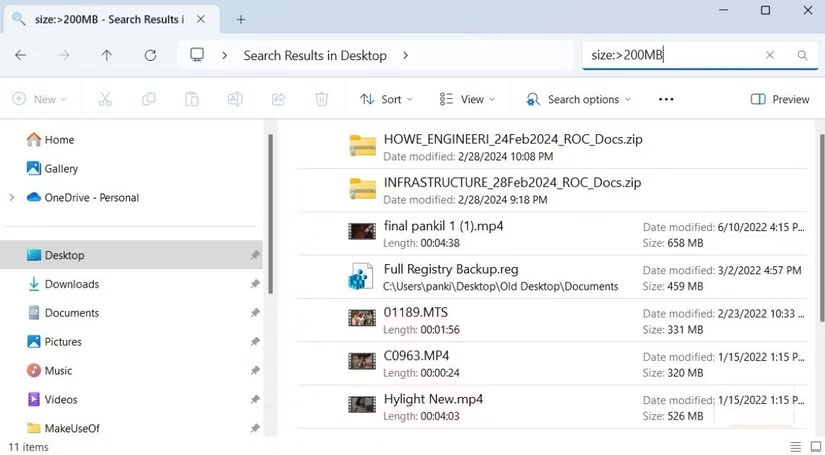
If you've ever typed a file name into File Explorer and been overwhelmed by dozens of results, chances are you're not using the search tool to its full potential. File Explorer offers options to help narrow results by file type, size, date modified, or even text within the file. This makes it easy to find exactly what you're looking for in seconds.
But it gets even better. If you find yourself searching for the same type of file over and over again, you can save your searches. Next time you need all your receipts from 2024 or every image you edited last month, you won't have to set up your filters again. Just a few clicks and you're ready to go.
5. Make the most of recent tabs and favorites
Instant access to most used files
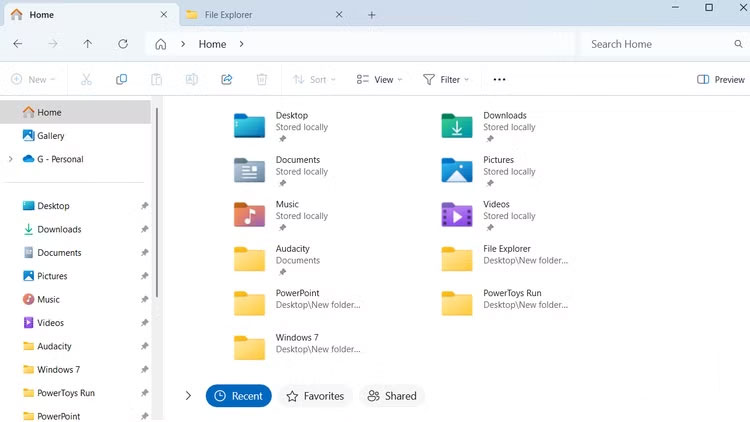
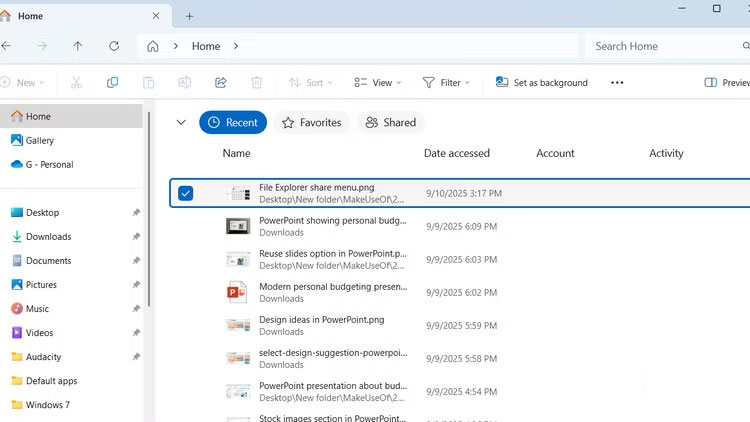
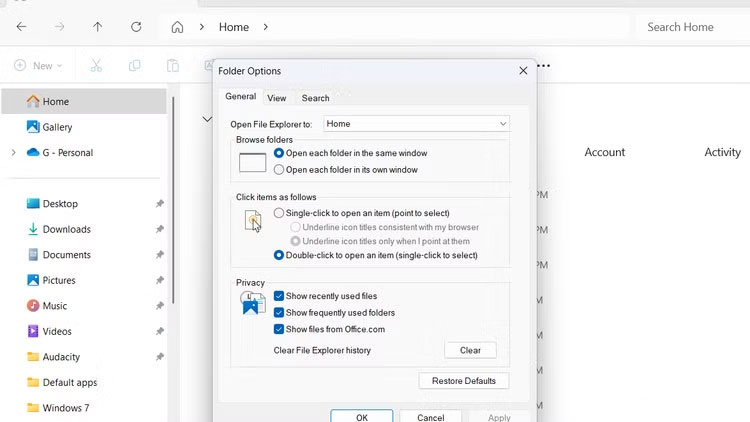
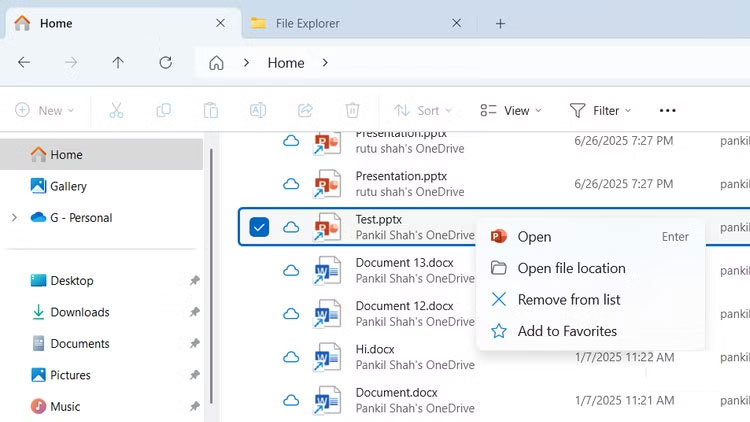
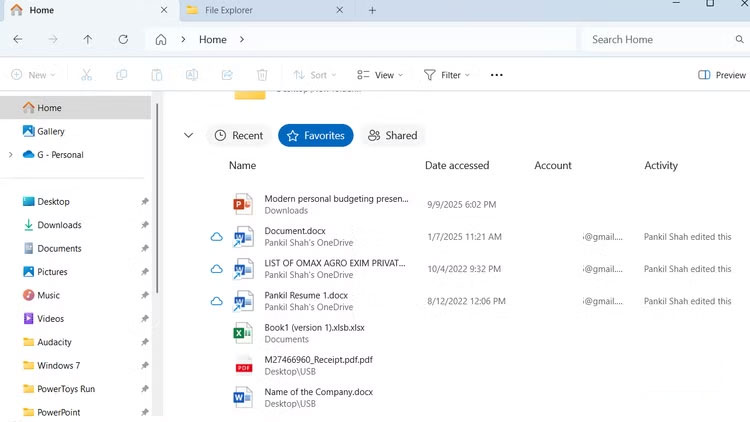
You don't always have to dig through folders to find the file you need. Sure, you can pin items to Quick Access or scatter shortcuts around your desktop, but that just clutters up your screen. A better option is to use Recent and Favorites in File Explorer.
The Recent Tab in the Home Section shows your 20 most recently accessed files. Favorites Works Similarly but gives you more control. You can right-click any file on your PC and select Add to Favorites .
4. Integrate File Explorer with Google Drive
Manage cloud files along with local folders
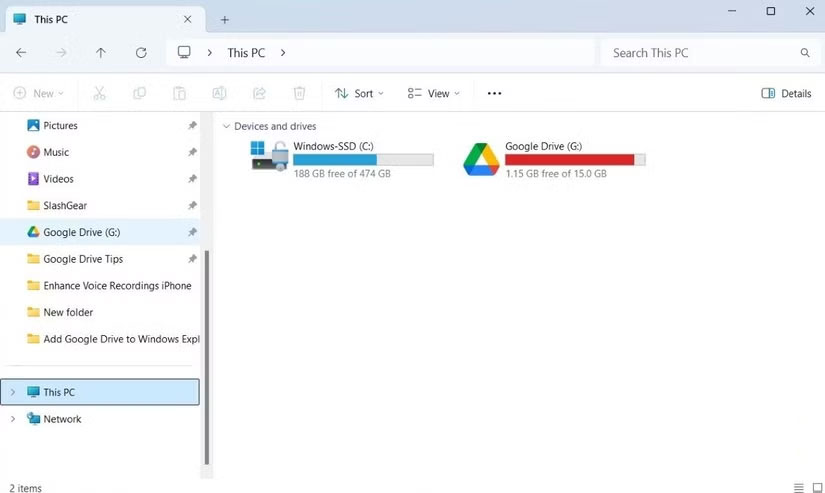
File Explorer isn't just for local files. It can also act as a cloud storage hub, helping you manage everything in one place. OneDrive is built in, but you can also add Google Drive or Dropbox to File Explorer by installing their apps and following the setup instructions.
This is great for people who like to use Google services. You can drag and drop files, organize folders, and even search Google Drive without opening a browser. With this setup, working on files in the cloud is just as seamless as working on local files.
3. Make the most of the share menu
Send files instantly without opening multiple applications
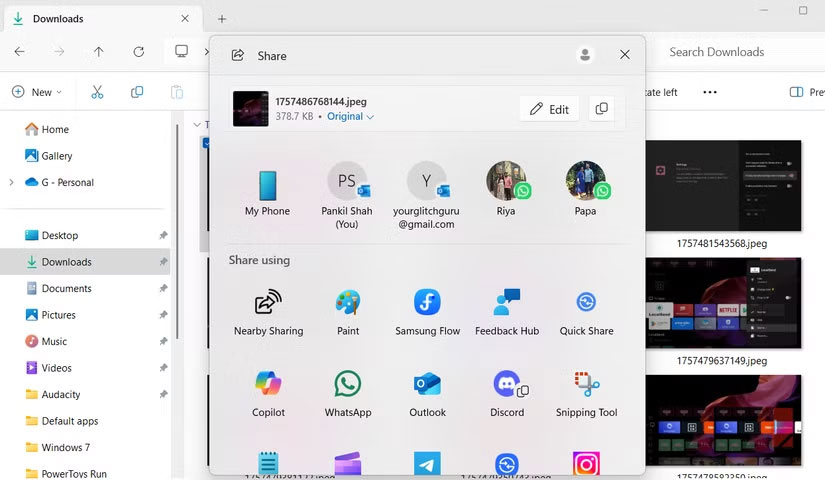
File Explorer's share menu is a lot more powerful than most people realize. It's easy to overlook, but this little tab can save you many time when sending files or moving files between apps. Instead of having to open your email, messaging app, or cloud service and browse for the file you want to send, you can do it all right from File Explorer.
Just right-click on the file and select Share . A menu will immediately appear with options like Phone Link, Email, WhatsApp, and Quick Share, allowing you to send the file to the right place without leaving your workflow.
2. Master keyboard shortcuts for faster navigation
Navigate like a pro
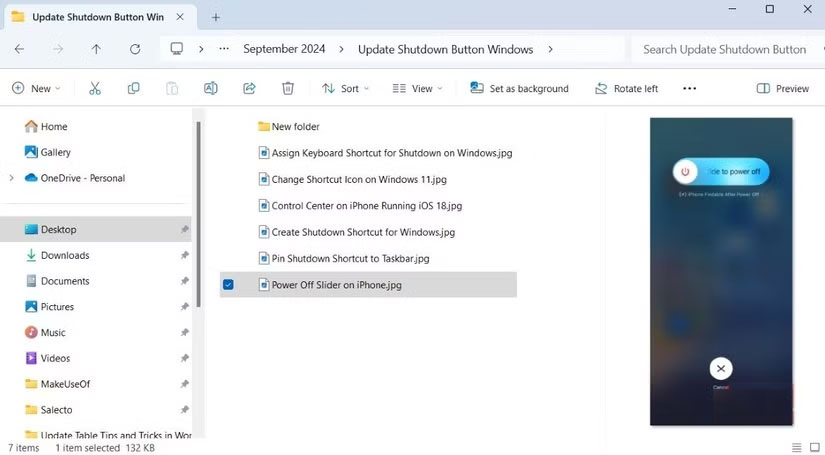
File Explorer becomes much more powerful when you master a few keyboard shortcuts. Instead of using your mouse for every click, these shortcuts let you navigate folders, open tabs, and manage files at lightning speed.
You probably already know the basics, like Ctrl + A To select all files or Delete To move items to the Recycle Bin. But there are tons of keyboard shortcuts that can save you many time. Once you start using them every day, you'll never forget them again.
1. Increase productivity with useful add-ons
Upgrade File Explorer with tools you never knew you needed
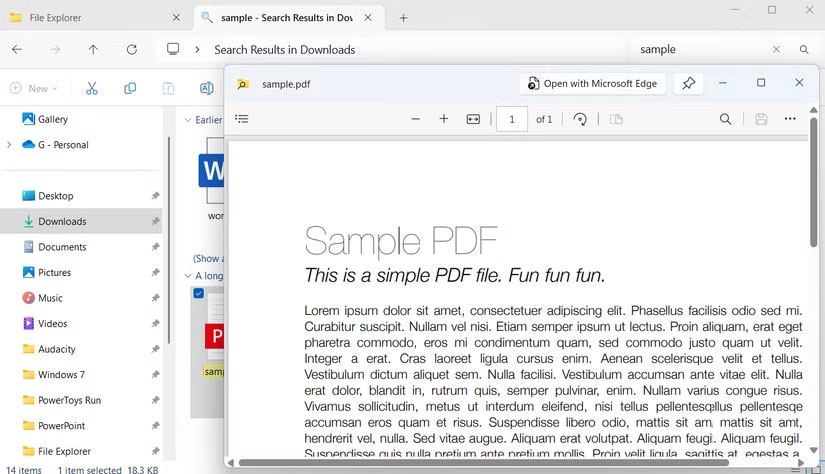
File Explorer is powerful, but you can take it to the next level with a few smart add-ons. These lightweight tools integrate seamlessly and make everyday tasks easier.
Take Quick Look, for example. Inspired by a macOS feature, this free utility lets you preview almost any file by pressing the spacebar and close it with the Esc Key. You don't have to wait for apps like Photos, Adobe Acrobat, or Media Player to load before you open a file.
Another standout app is DropIt, a file automation tool that makes it easy to organize your downloads. Instead of letting your Downloads folder turn into a messy junk drawer, DropIt automatically sorts everything into its proper place.
FAQ
What should you know about the options in this guide?
In practical terms, file Explorer is one of those tools you use every day. At first glance, it seems simple — you just click, drag, and maybe clean out your Downloads folder every now and then.
Which option is the best choice?
The best choice depends on your priorities, compatibility, budget, and the specific features discussed in the comparison.
What should you compare before deciding?
Compare core features, limitations, ease of use, compatibility, and long-term value before making a decision.
Related Articles
 10 Indispensable Features of File Explorer9 minutes read
 How to Fix File Explorer Lag on Windows 11: Step-by-Step Guide8 minutes read
 6 Windows File Explorer Add-ons That Make Life Easier7 minutes read
 9 Outstanding Features of Solid Explorer You May Not Know10 minutes read
 Files Is a Windows File Explorer Alternative That Meets All User Needs6 minutes read
 7 Notable Changes in File Explorer Windows 117 minutes read
Reader Comments 0
Sign in with email or Google to join the discussion.