Table of Contents
Google Search’s AI Mode is useful for a question with several constraints or when you need to ask follow-up questions. It generates an answer and gives you sources to explore. Open the sources before relying on important details.
1. Find AI Mode in Search
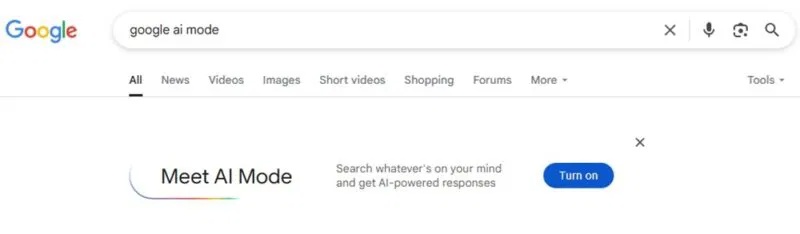
Look for AI Mode on Google Search or among the tabs on the results page. In the Google app, check the search interface. Availability depends on your region, account, and settings. See Google’s AI Mode help if you cannot find it.


2. Give text or voice queries useful constraints
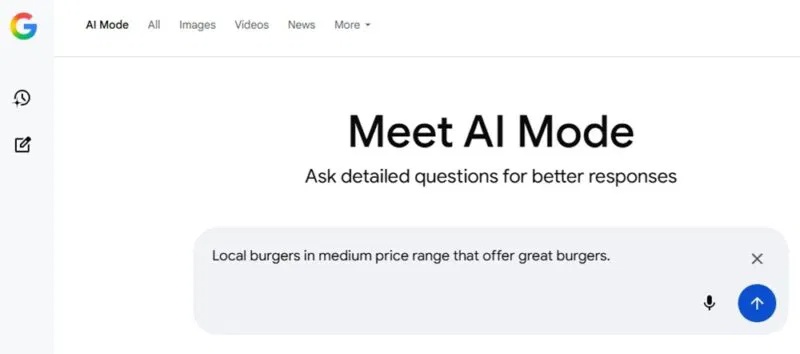
For a local search, specify your location, budget, and the time you plan to go. Use the microphone if it appears and you prefer to speak. Confirm business hours on the business’s own page.
3. Ask about a photo
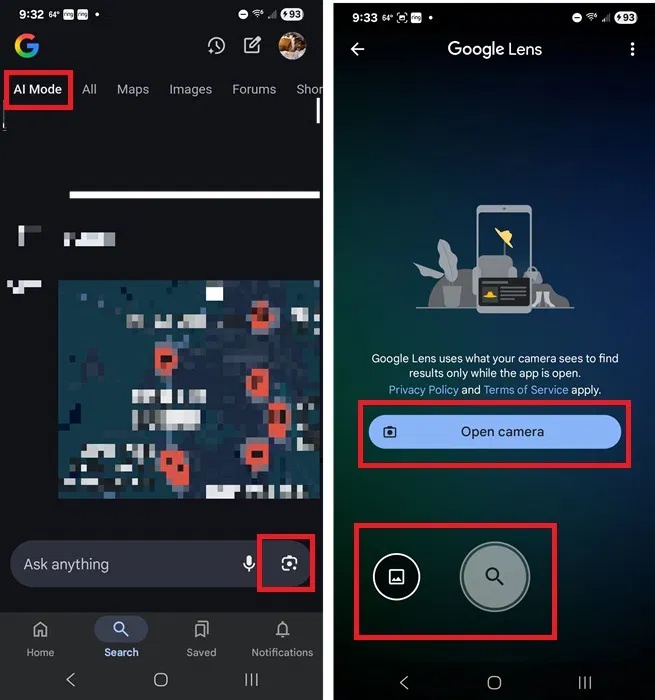
In the Google app, look for the camera or Lens control. Choose an image and add a question, such as “What kind of connector is this?” Crop out unrelated information where possible.
4. Review AI Mode history
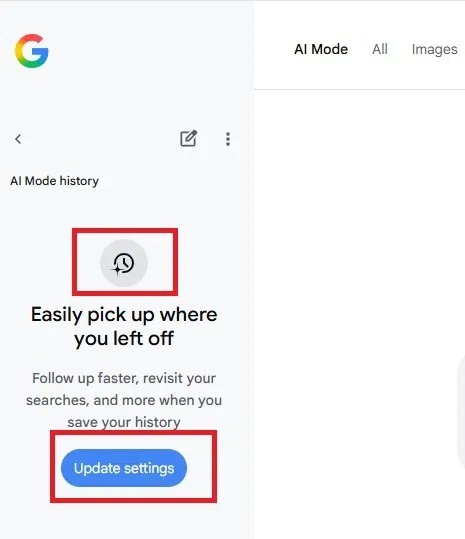
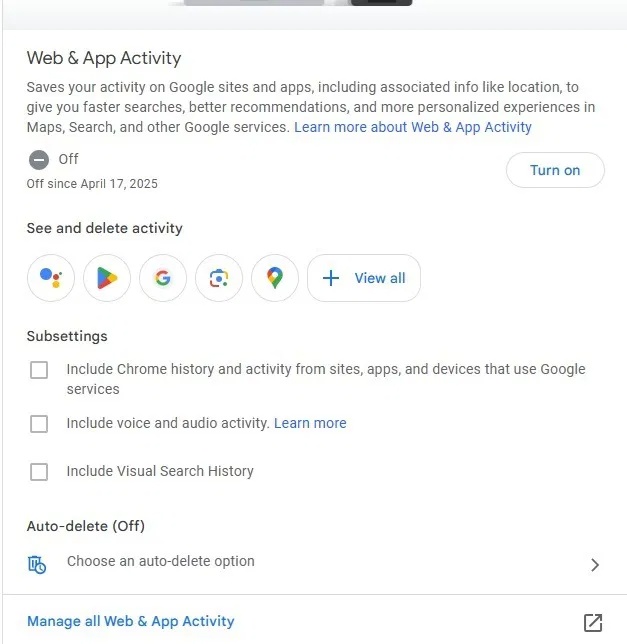
Open the history control if shown. Review Web & App Activity to see what can be saved to your Google Account. Turning off future activity and deleting existing entries are separate choices.
5. Use follow-up questions to narrow the answer
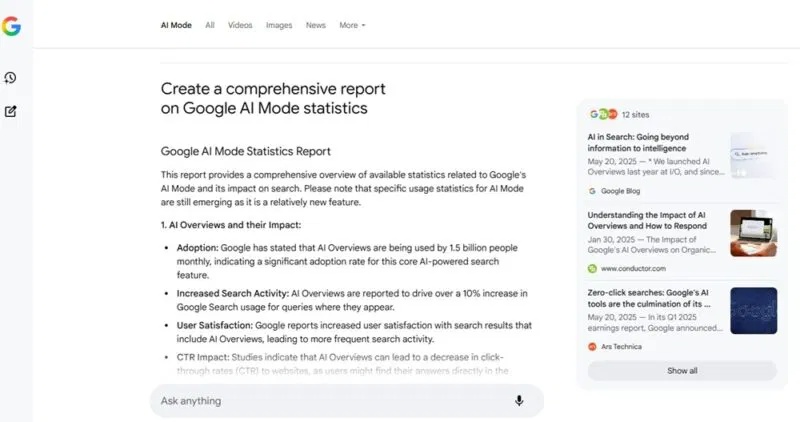
Ask what changed recently or request only official sources. If you ask for dates or prices, follow the links and check the original details. Try the TipsMake checklist for verifying AI claims.
6. Preview clothing if a product offers virtual try-on
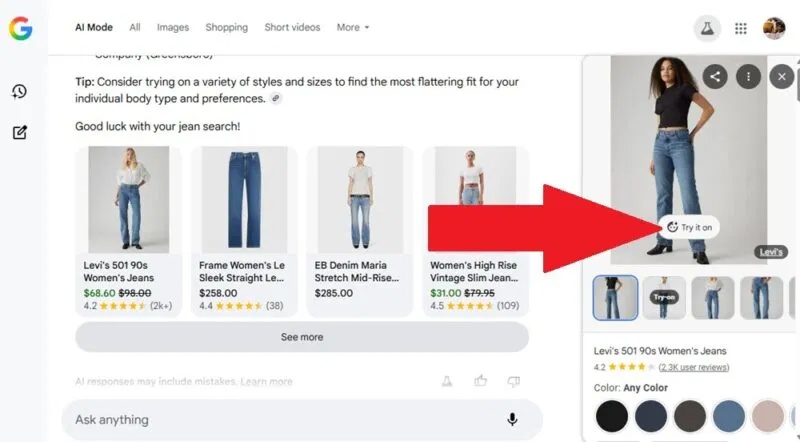
Look for Try it on on an eligible shopping result. A generated image can show how a style might look. Use the retailer’s measurements, sizing guide, and return policy to choose a size. Review Google’s try-on instructions before uploading a photo.
Related Articles
 How to enable AI mode in Google search
 The fast Google search tips you should know
 How to Use Canvas in Google Search AI Mode for Writing and Small Apps
 20 'tips' use Google Search effectively, not everyone knows (Part 1)
 Google is improving Overviews with AI Mode
 What is Google AI Mode? How does it work?
Reader Comments 0
Sign in with email or Google to join the discussion.