Table of Contents
Inkscape is a free, open-source vector graphics editor for Windows, macOS, and Linux. It’s a good fit for logos, icons, diagrams, and illustrations you need at several sizes. Its native format is SVG, which stores shapes and paths you can edit and scale.
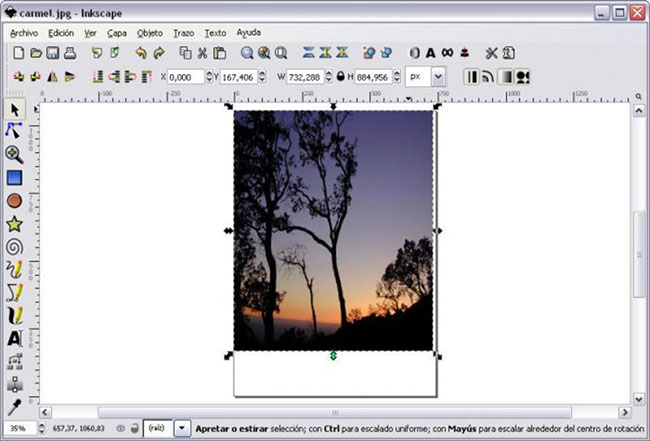
Make a simple graphic
- Draw a rectangle or ellipse with a shape tool. With the Selector, move, scale, or rotate the object.
- Open Fill and Stroke to set an exact color or add an outline. Try a gradient when you need a transition between colors.
- Draw a custom path with the Bézier tool. Use the Node tool to move individual points and adjust curve handles.
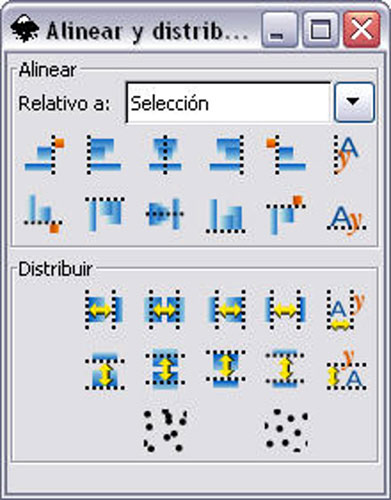
- Add text if needed, and use alignment tools to keep objects positioned consistently.
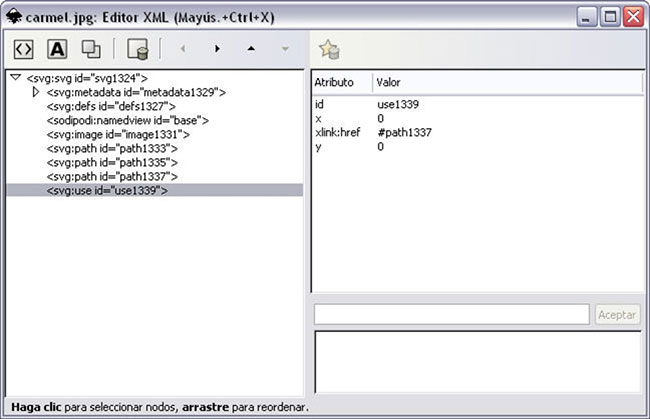
Save an editable file and export a copy
Save the working design as an Inkscape SVG. For an application that needs a raster image, open File > Export, choose the area to export, set the pixel dimensions, and save a PNG. If you include an imported photo, it remains raster unless you trace or redraw it. Enlarging the SVG won’t create extra detail in the photo.
Where Inkscape fits
Use Inkscape to make or edit vector artwork. For tasks such as removing camera noise or detailed photo retouching, use a photo editor. If another person will edit your SVG, check font availability and whether your file embeds or links any imported images. See the Inkscape installation guide for platform-specific steps.




Reader Comments 0
Sign in with email or Google to join the discussion.