Table of Contents
This guide answers "Did You Know Your Google Account Has a Built-in Privacy Dashboard?" with a clear explanation, practical context, and the details that matter most.
Is Google's Privacy Dashboard Any Good?
The Google privacy dashboard is located under Data and privacy in your Google account settings. It's a collection of privacy settings that help you control the data stored in your account, the ads you see, and the information you share with others, including third-party apps.
You have a surprising amount of control over your Google account. You can turn off some of Google's intrusive tracking features, remove third-party apps connected to your Google account, control the personalized ads you see, control how others see your information, get a summary of your services and data, and even delete a Google service you no longer use.
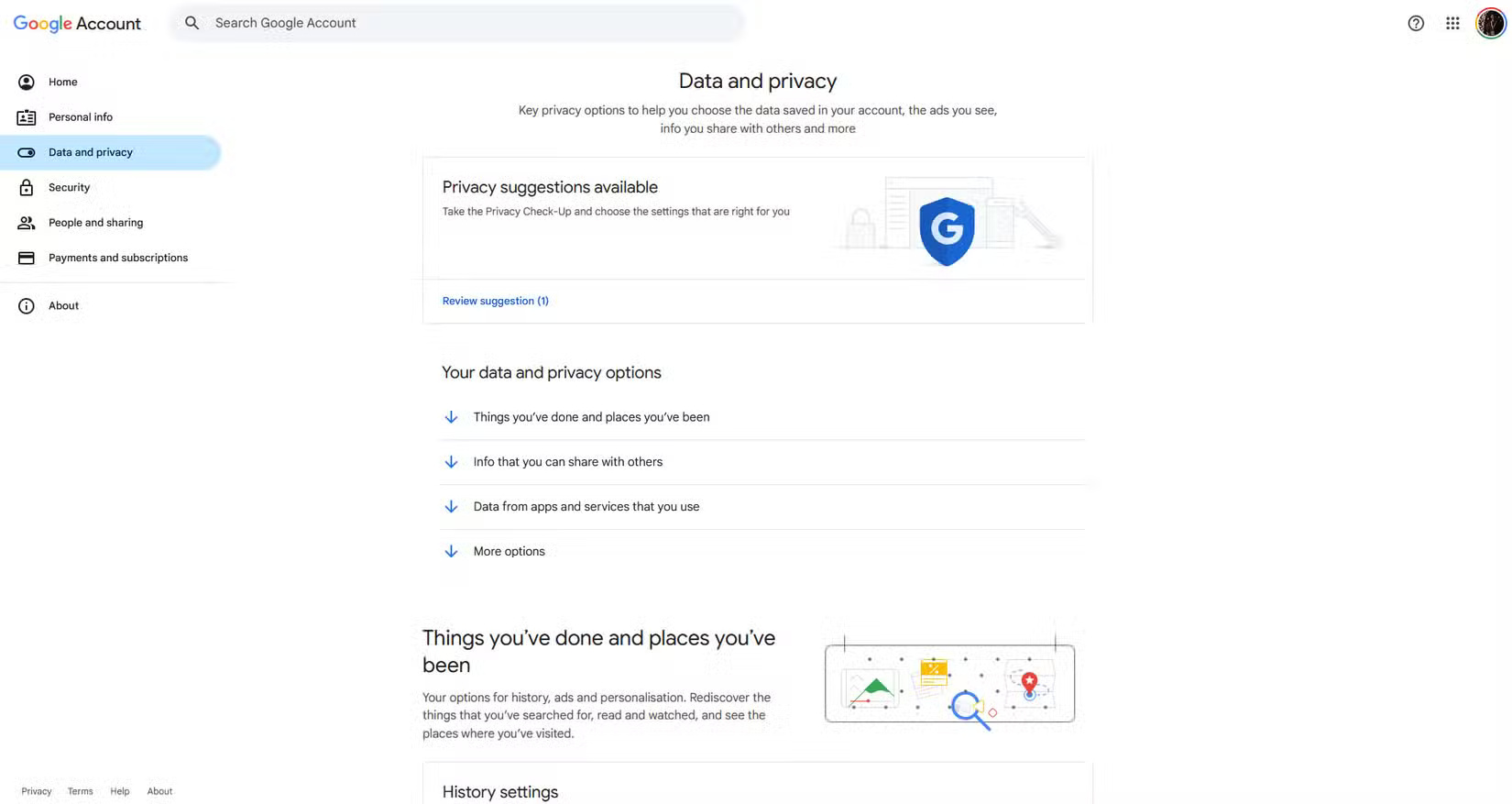
The user interface doesn't make it easy to set up your account quickly enough to prevent Google from tracking you. But it does have a clearly laid out dashboard with separate sections and easy-to-understand explanations of what each setting does. Your data and privacy options are divided into four categories:
- Things you've done and places you've been
- Information you may share with others
- Data from the apps and services you use
- More options
So, Google's privacy dashboard is pretty good in terms of the level of control you get. However, it's hidden behind a few clicks and not as obvious as you'd like, meaning that unless you dig deep into your Google account settings, you'll have a hard time finding it.
What data can be controlled from the Google privacy dashboard?
We're talking about Google, so the phrase "data control" should be taken with a grain of salt, but the dashboard also has some useful information and options you can toggle on/off.
Things you've done and places you've been
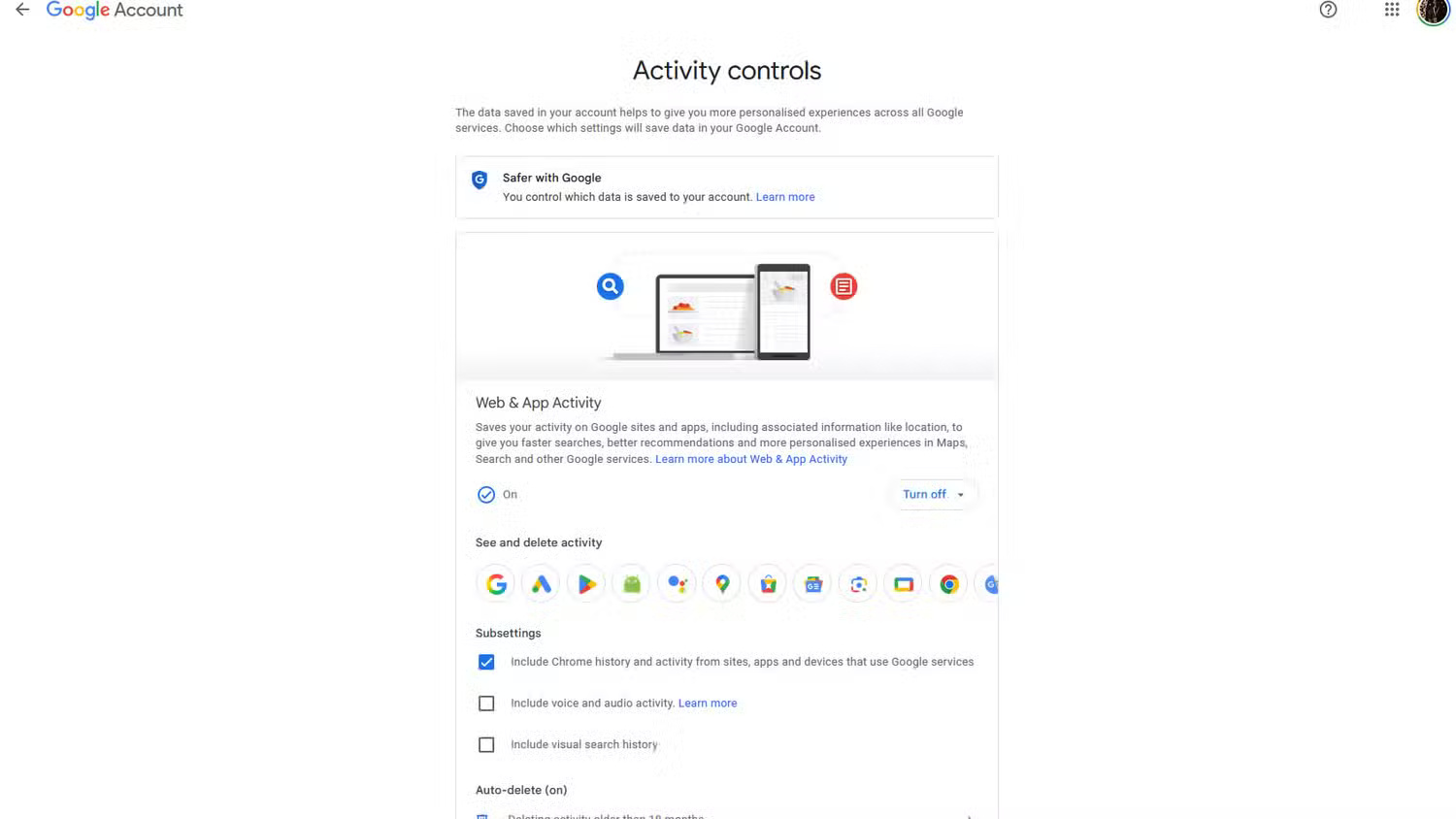
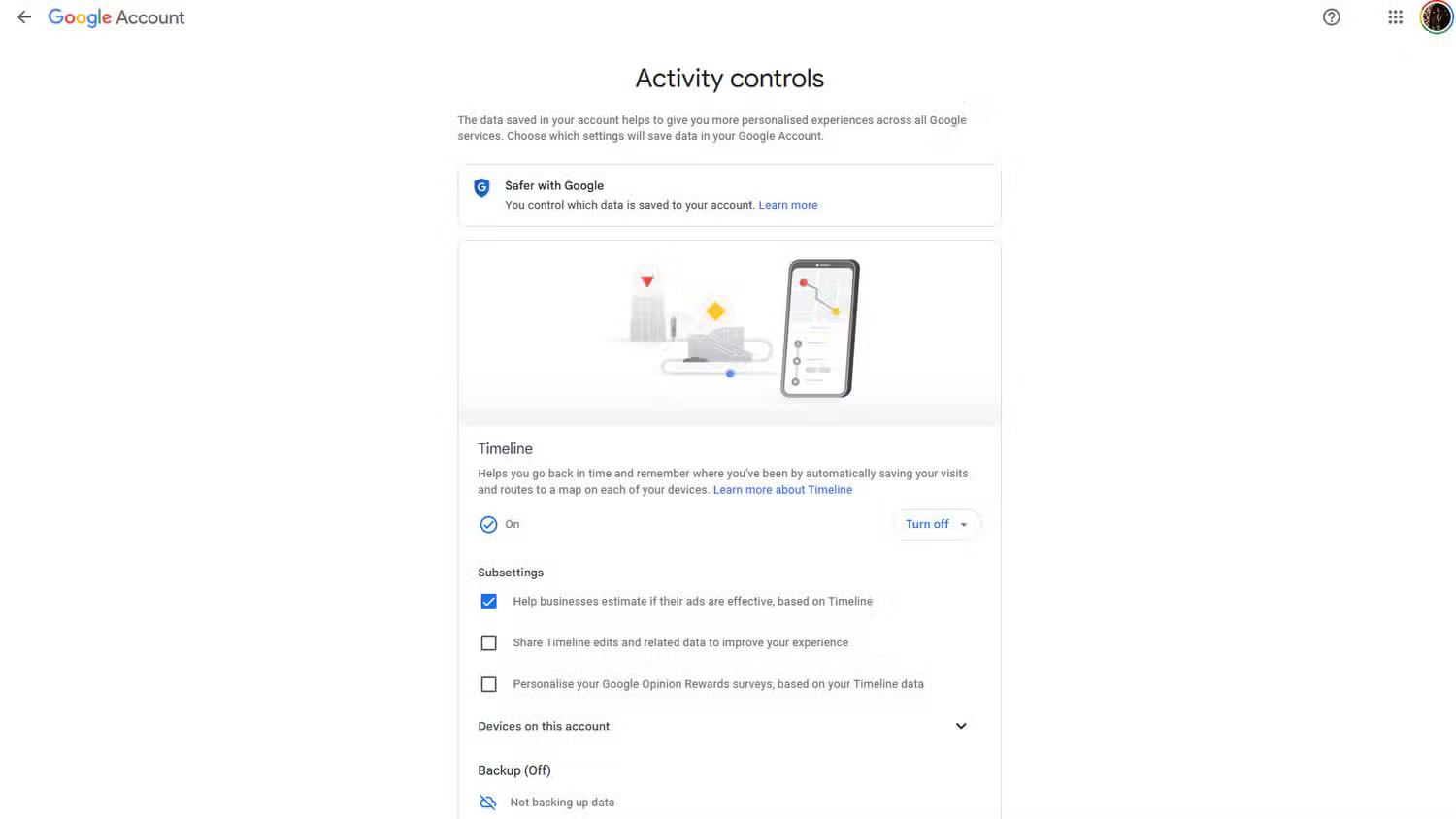
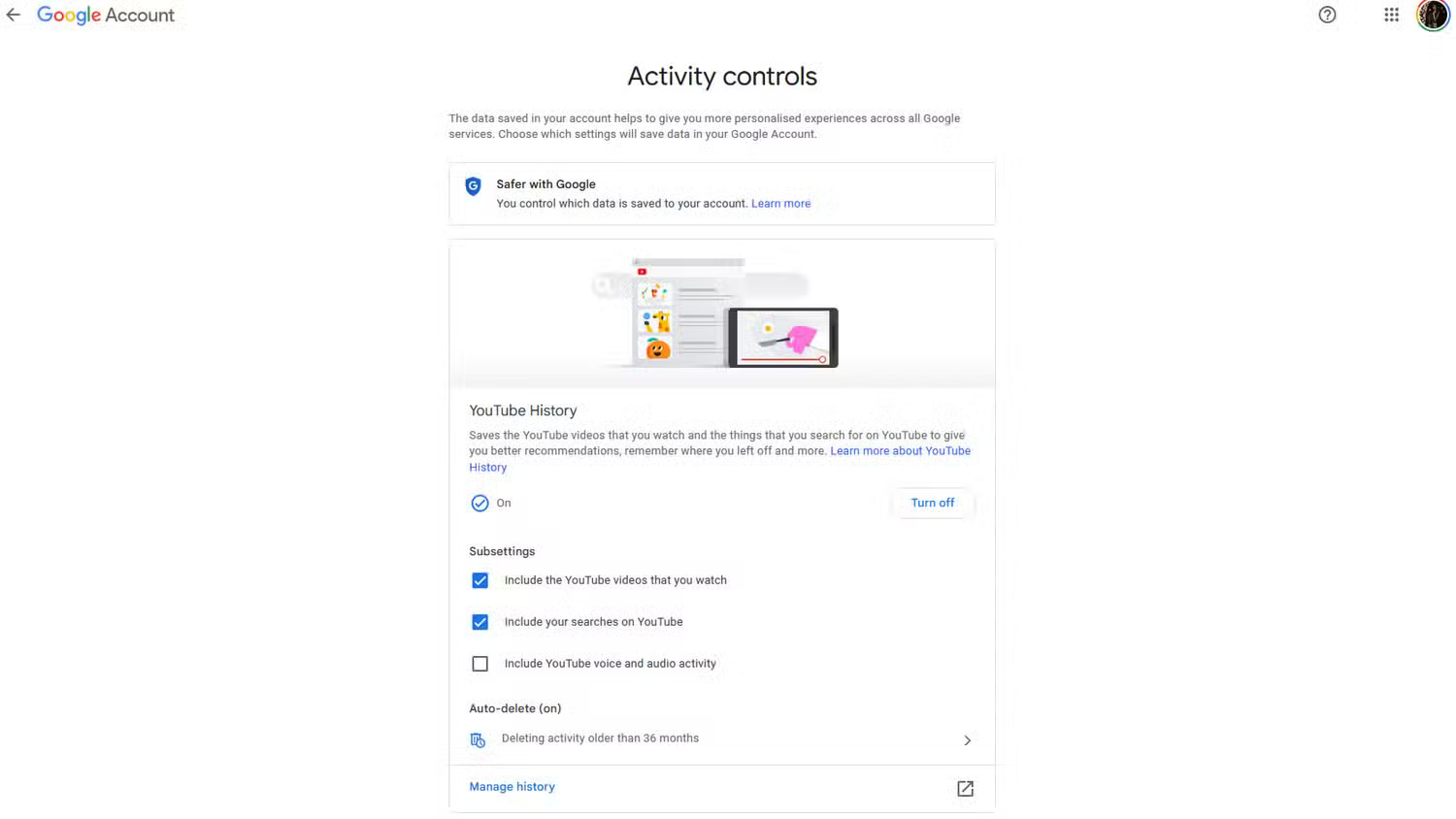
This section includes options for history, ads, and personalization. One of the most obvious items you'll see here is My Activity . This section provides a chronological record of almost everything you can do with your Google account. Some of the most impactful settings are under the History settings subsection. These include:
- Web & App Activity: Every Google search, YouTube video, Google Maps query, and other interactions with Google services are recorded here.
- Timeline : If enabled, Google will track your device's location history, including the places you've visited, the routes you took, and how long you spent at specific locations.
- YouTube History : All the videos you've watched and search queries you've made on YouTube are saved here.
Information you may share with others
There are two main settings here:
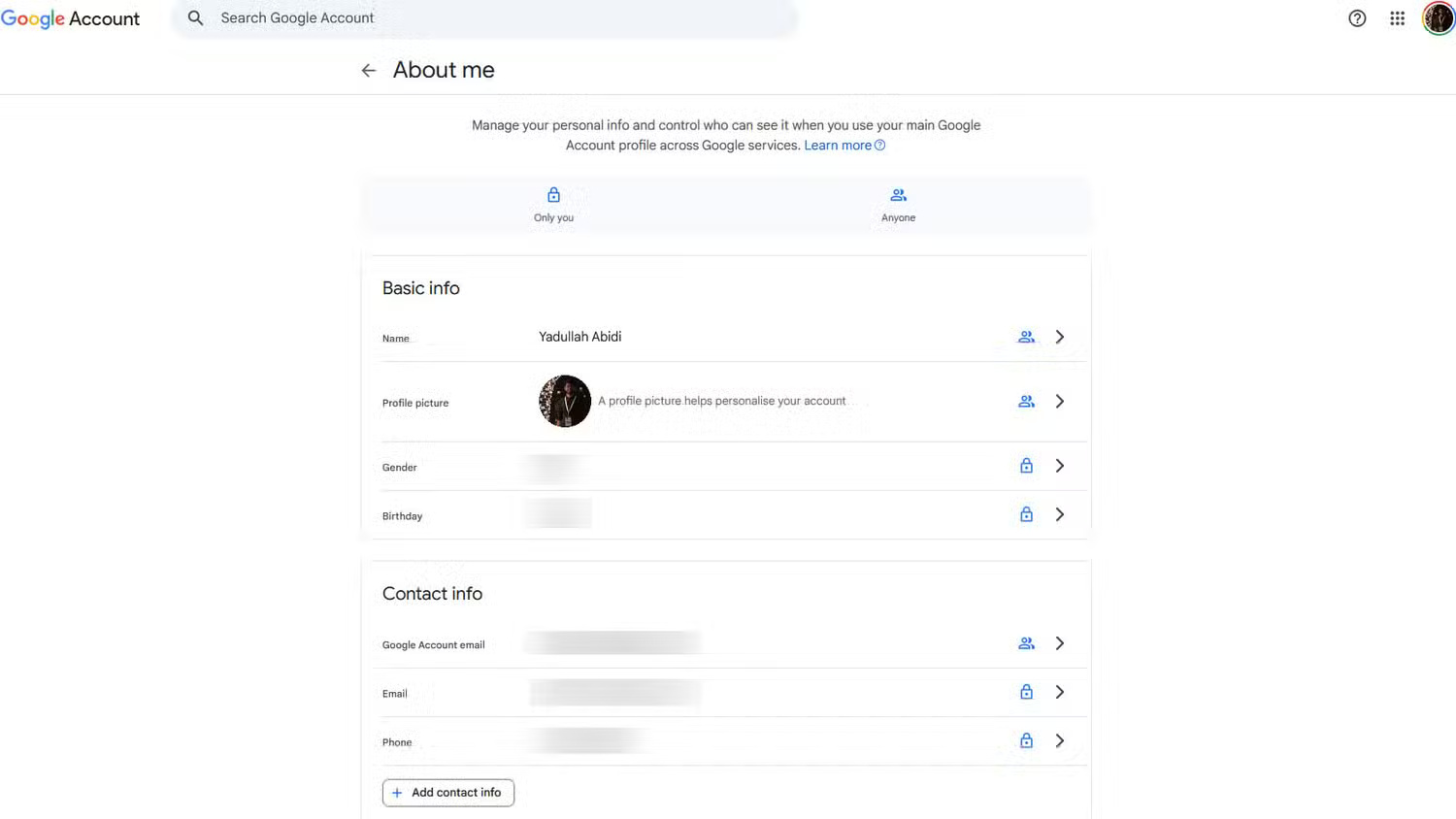
- Profile : Contains information such as your name, gender, date of birth, contact information, job and education, and other basic information about you. All data is clearly labeled to distinguish which information is public and which is private.
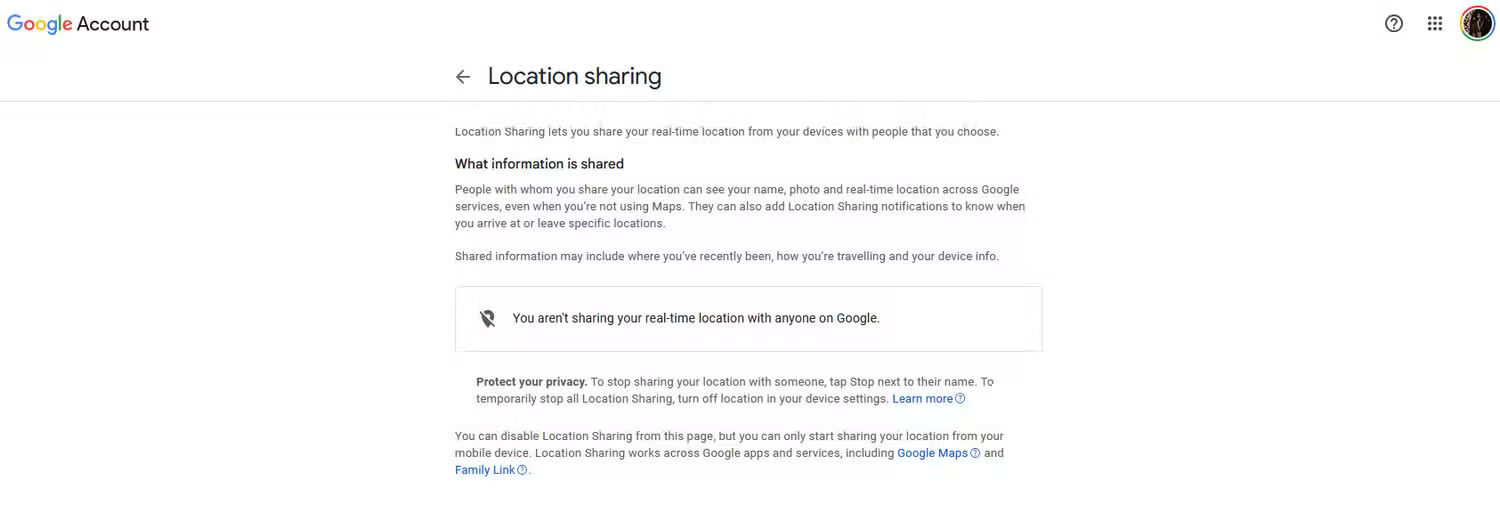
- Location Sharing : Allows you to share your device's real-time location with people you choose, even when you're not using Maps. You can turn off location sharing from this page, but this feature can only be turned on from your mobile device.
In addition to these settings, you will also see other relevant options like payment method, active subscriptions, devices connected to your Google account, and saved contacts.
Data from apps and services you use
This is another important section that tracks your content and preferences related to Google, as well as third-party apps and services you may be using. Key sections include:
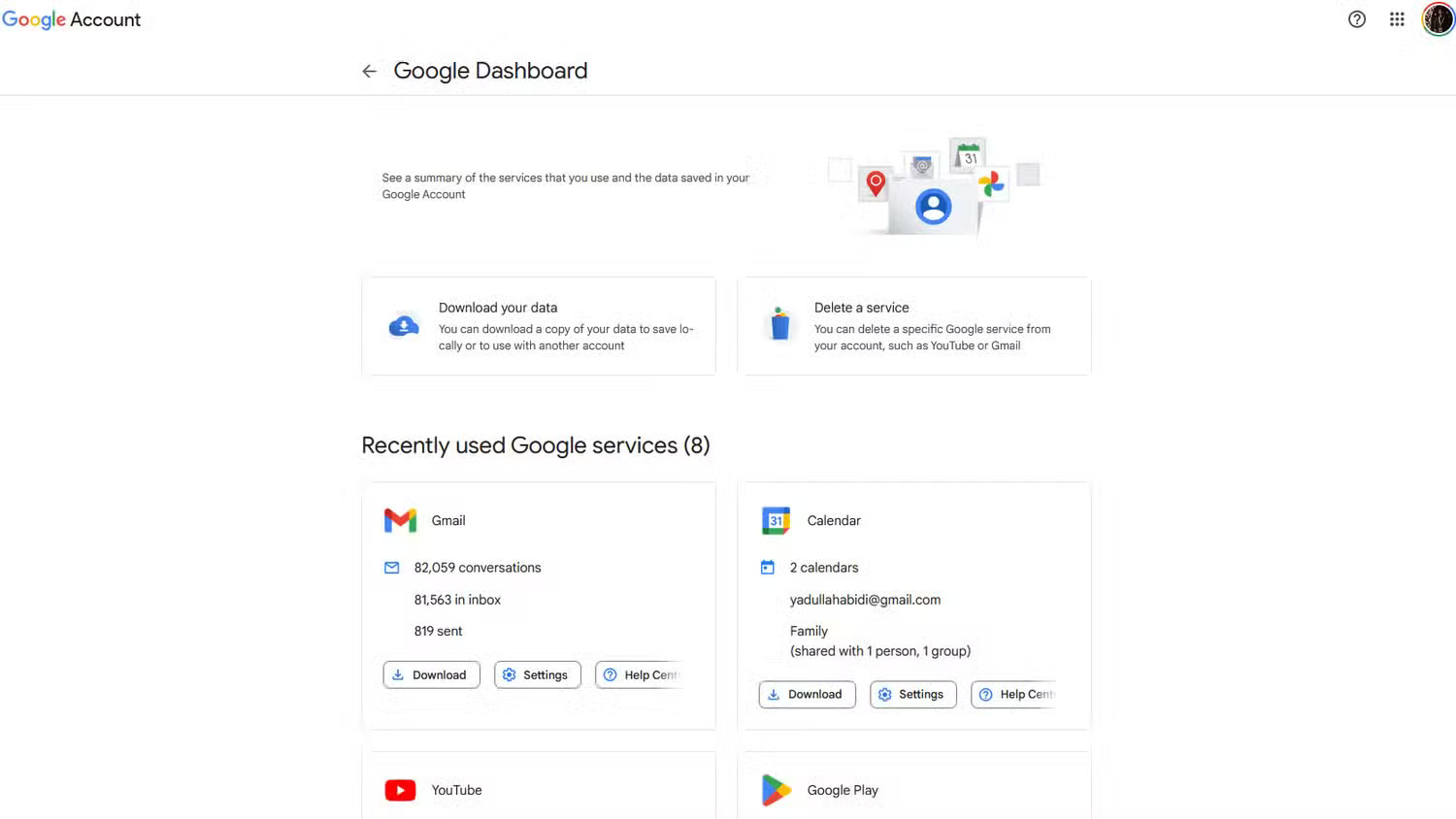
- Apps & Services : Provides a summary of the Google services you use and the data stored in them. You can download this data, adjust your settings, or remove a specific Google service from your account.
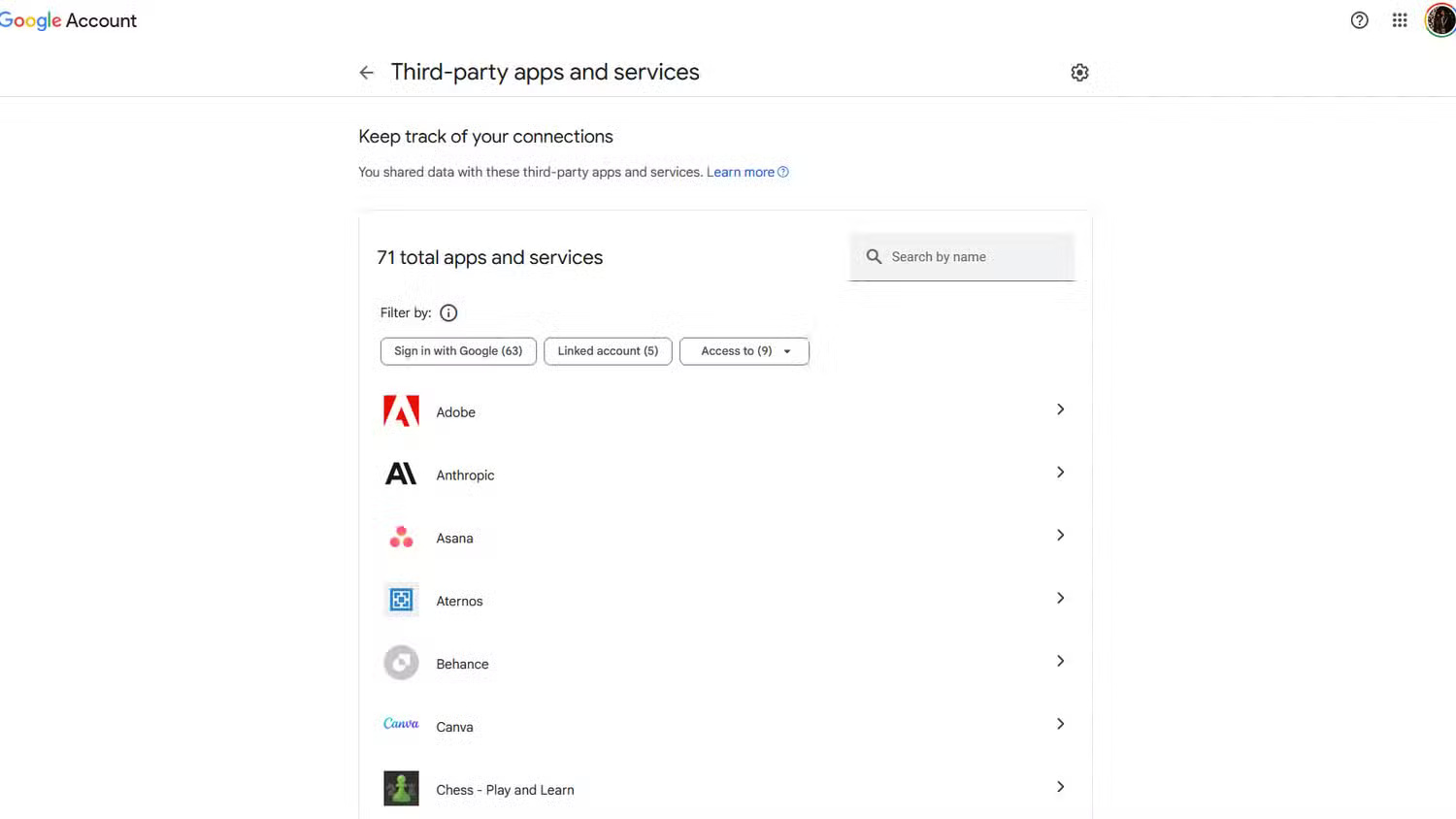
- Third-party apps and services : Keep track of all the third-party apps and services linked to your Google account. You can see what data these services have access to and revoke third-party connections to your Google account from unwanted websites if needed.
More options
The settings in this section include:
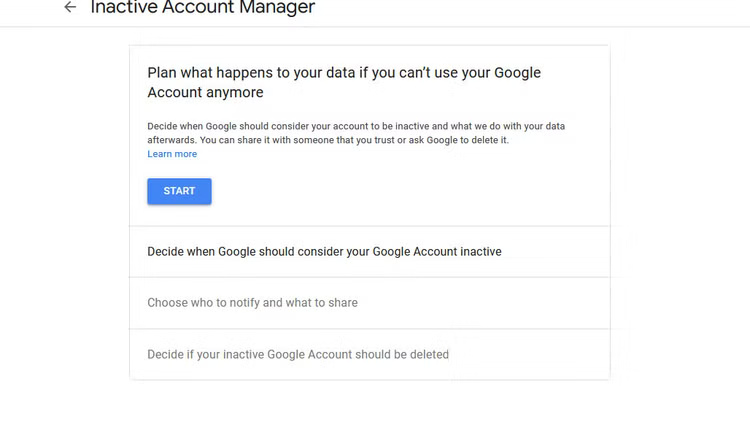
- Plan your digital legacy : Lets you control when Google considers your account inactive, how to contact you in the event of activity, who to notify about account inactivity and what data to share, and finally, how to decide whether to delete your inactive Google account.
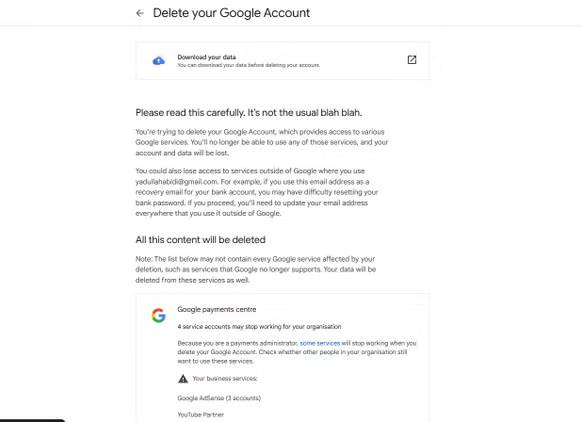
- Delete your Google account : You will get a complete summary of all Google account data that will be deleted, the consequences of deleting your Google account, and the option to download all data before deletion.
Either way, once you know where your ads are, finding and adjusting your settings becomes a lot easier. With full control over your Google account and all the data associated with it, you can now rest assured that you've got everything set up just right for you.
FAQ
Is Google's Privacy Dashboard Any Good?
The Google privacy dashboard is located under Data and privacy in your Google account settings. It's a collection of privacy settings that help you control the data stored in your account, the ads you see, and the information you share with others, including third-party apps.
What data can be controlled from the Google privacy dashboard?
We're talking about Google, so the phrase "data control" should be taken with a grain of salt, but the dashboard also has some useful information and options you can toggle on/off.
What should you know about things you've done and places you've been?
This section includes options for history, ads, and personalization. One of the most obvious items you'll see here is My Activity. This section provides a chronological record of almost everything you can do with your Google account. Some of the most impactful settings are under the History settings subsection. These include:
What should you know about information you may share with others?
Profile: Contains information such as your name, gender, date of birth, contact information, job and education, and other basic information about you. All data is clearly labeled to distinguish which information is public and which is private.
Related Articles
 What Is Privacy Dashboard on Android 12? Why Can It Be5 minutes read
 Google Dashboard - Everything Google Knows About You3 minutes read
 What Is Dashboard? What Is Dashboard? Dashboard Definition6 minutes read
 Google's New Dashboard Makes It Easy to Find Collected Google Information from Users3 minutes read
 How to Set up Google Chrome as a Productivity Dashboard: Step-by-Step Guide5 minutes read
 Instructions for Creating Dashboard on Excel11 minutes read
Reader Comments 0
Sign in with email or Google to join the discussion.