Table of Contents
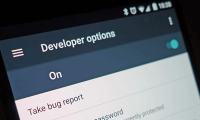
To reveal Android’s Developer options, find Build number in Settings and tap it seven times. On many phones it’s under About phone, sometimes within Software information. Confirm your screen lock if prompted. Once the menu is visible, change one setting at a time so you can undo it.
Display and touch settings
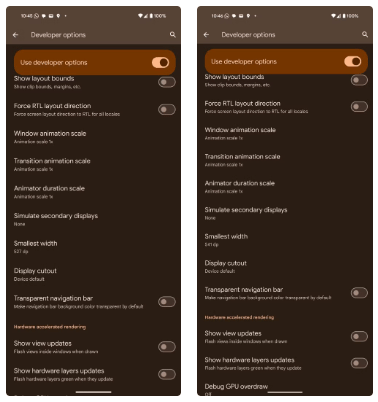
- Animation scales: Set Window animation, Transition animation and Animator duration to 0.5× for shorter transitions. This changes how transitions look, while actual app loading times depend on the app and hardware.
- Show refresh rate: Display the screen’s refresh rate while testing an app. The reading describes the display and can differ from the game’s frame rate. Forcing peak refresh can use more power.
- Force activities to be resizable: Test a layout in split screen if the toggle is available. Revert it if an app clips controls or misbehaves.
- Smallest width: Record the original value first. Increasing it usually makes interface elements smaller and shows more content. Start with the ordinary Display size setting if that is enough.
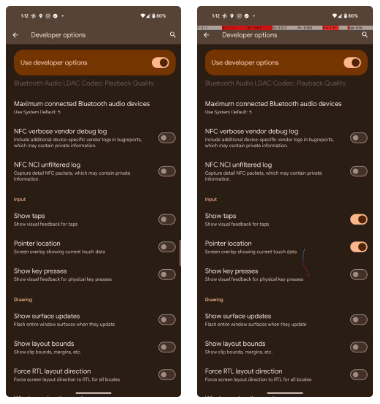
- Show taps or Pointer location: Use Show taps for dots in a screen recording. Pointer location adds detailed feedback for testing.


Network, Bluetooth and USB settings
- Mobile data always active: Android can keep a cellular data connection ready alongside Wi-Fi to make network changes quicker. Test handoffs if you change it.
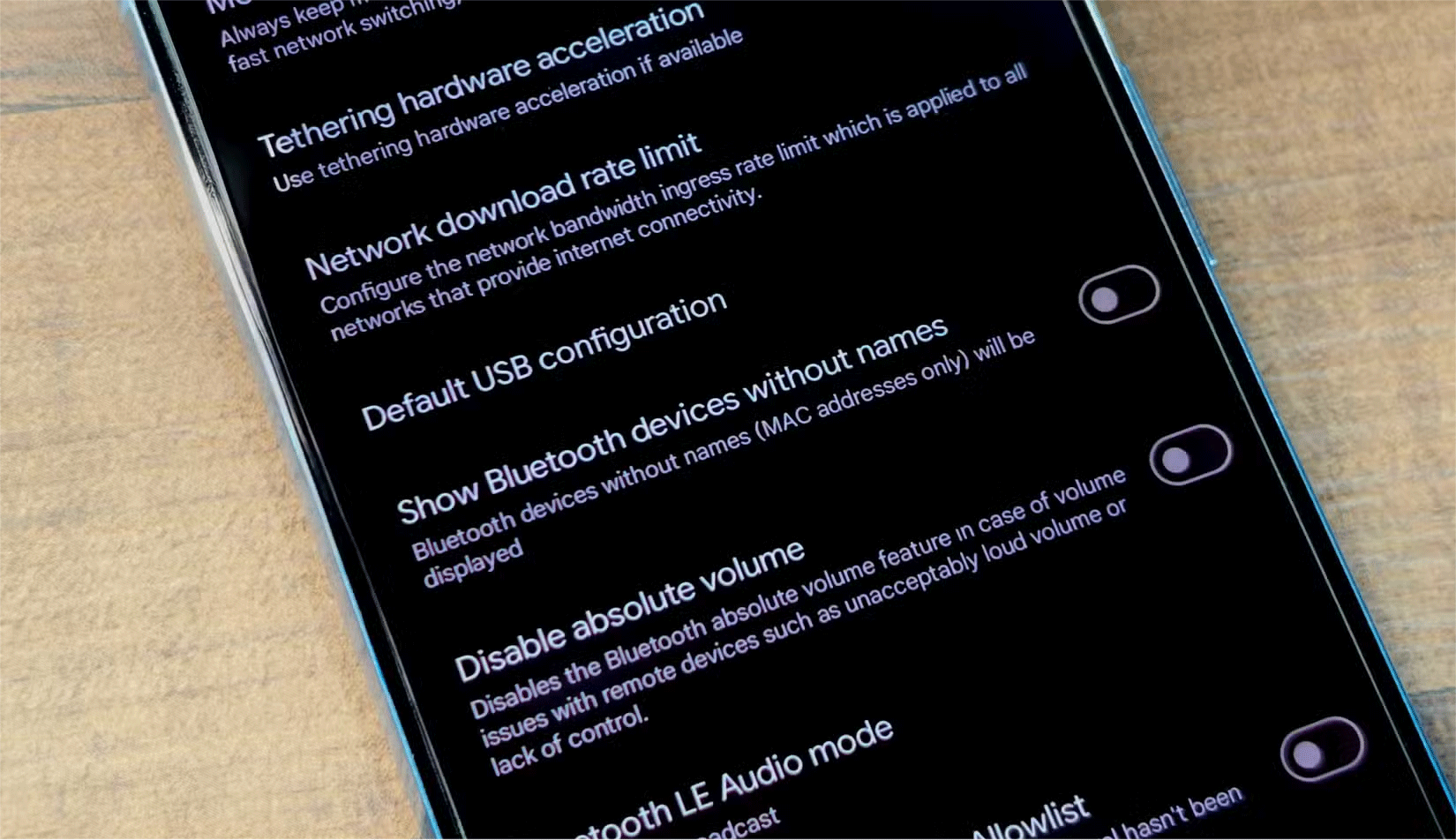
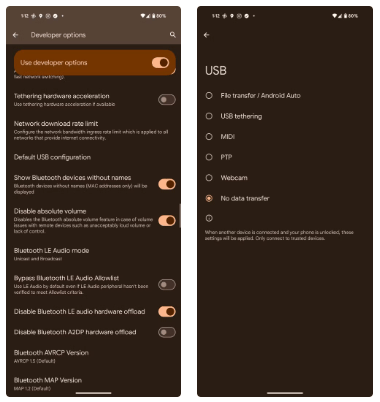
- Show Bluetooth devices without names: Use it when pairing a device you can identify from its address.
- Default USB configuration: Pick a mode for testing on a trusted computer. Charging only is a sensible everyday default when you use unfamiliar ports.
- Disable absolute volume: Try this if a Bluetooth accessory handles levels poorly. Lower both volumes first, then reconnect the accessory and test.
App debugging settings
- USB or wireless debugging: Turn it on for a specific development task, approve computers you trust and turn it off afterward. See Android’s Developer options documentation.
- Don’t keep activities: Android destroys an activity when you leave it, which helps you test whether the app restores state. Leave it off for normal use.

Keep screen-sharing protections enabled when using banking, payment or other sensitive apps. For remote help, describe the hidden screen or reproduce the problem with sample data in a shareable app.
Related Articles
 How to enable developer options and disable it on Android
 How to activate and remove developer options on Android devices
 Is it safe to enable Android Developer Options?
 How to become an Android application developer?
 What's the latest version - what's Google's standout Android O Developer Preview?
 How to install Android 11 Developer Preview on Pixel
Reader Comments 0
Sign in with email or Google to join the discussion.