Table of Contents
ChatGPT is more useful when you define the task, provide approved context, and review the result. Features also vary by plan, device, region, and workspace settings, so a button described here may not appear on every account.
These ten techniques improve everyday work without treating a fluent response as verified fact.
1. Branch a conversation to test another direction
On supported ChatGPT surfaces, Branch in new chat creates a separate conversation from a selected point while preserving the original thread. It is useful when you want to compare two strategies, rewrite for a different audience, or investigate a side question without mixing it into the main work.
- Find the message where the alternative should begin.
- Open its More actions menu.
- Select Branch in new chat.
- Rename the resulting conversations so their purpose remains clear.
Branching does not automatically reconcile later discoveries. If one branch reveals an important correction, add that correction deliberately to the branch you keep.
2. Specify the result instead of asking for “better”
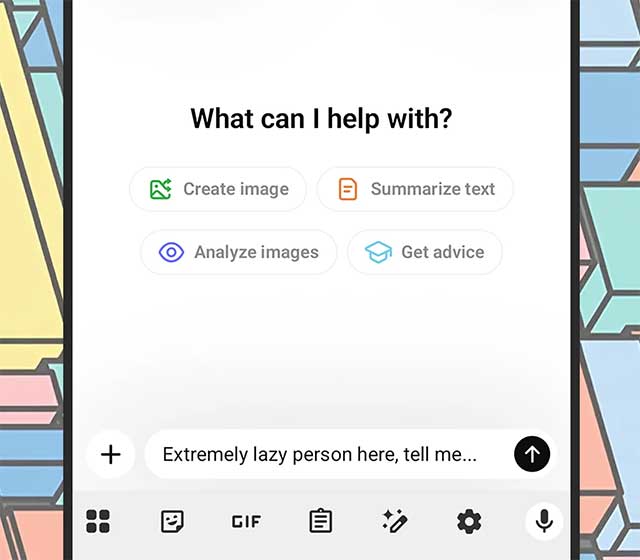
Short gimmick phrases are less reliable than a concrete output contract. State the audience, goal, length, format, source boundary, and what to exclude.
Explain this to a new Excel user.
Return:
- One sentence with the direct answer
- Five numbered steps
- One worked example
- Two common mistakes
Limit the answer to 350 words.
Use only the spreadsheet details I supplied.
If a required cell or Excel version is missing, ask before writing the formula.
If the first response is too long, identify what can be removed: background, alternatives, examples, or implementation detail. “Cut this to 150 words while preserving every warning and command” is clearer than asking it to be concise.
3. Ask ChatGPT to question your assumptions
Instead of requesting an immediate solution, use ChatGPT as an interviewer or reviewer:
I am planning [PROJECT].
Ask one question at a time until you understand the audience, goal, evidence, constraints, risks, owner, and success measure.
Do not propose a solution until the missing information is resolved.
When finished, summarize my answers and list any assumptions that remain.
This is useful for briefs, writing, product decisions, and learning plans. You remain responsible for deciding whether the questions are relevant and whether sensitive information is appropriate to share.
4. Use Voice or Dictation for rough capture
ChatGPT Voice can support brainstorming, language practice, and spoken follow-up. For a one-way recording that you want turned into editable text, use a dictation or recording feature available on your surface rather than assuming every Voice conversation is a permanent note.
After speaking, ask for:
- A summary separated from action items
- Decisions, open questions, and owners
- A cleaned transcript that preserves uncertainty
- Claims that need verification
- A draft you can review rather than an automatically sent message
Do not record other people without appropriate notice and permission. Voice content can include private information; check the account's data controls before using it for work, medical, legal, or personal records.
5. Control personalization and memory
Memory can help ChatGPT reuse relevant preferences or context across conversations when enabled. You can inspect, remove, or turn off memories in the Personalization settings. Deleting a chat does not necessarily remove a saved memory created from it, so manage both when you want information forgotten.
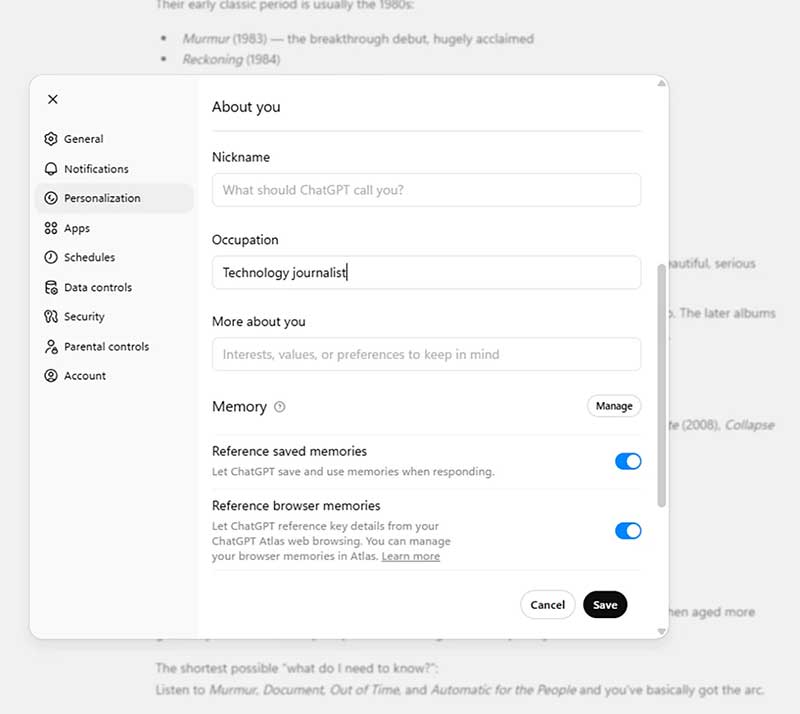
Use memory for stable, non-sensitive preferences such as response format or a learning goal. Keep project facts in a project brief or source file when they require exact version control. Review what ChatGPT remembers instead of assuming it retained every detail correctly.
6. Understand what Temporary Chat does
Temporary Chat is not identical to a browser's incognito mode. According to the current Temporary Chat guidance, a temporary chat starts non-personalized by default. Depending on current account controls, you may choose personalization when starting it, and you may be able to save it later.
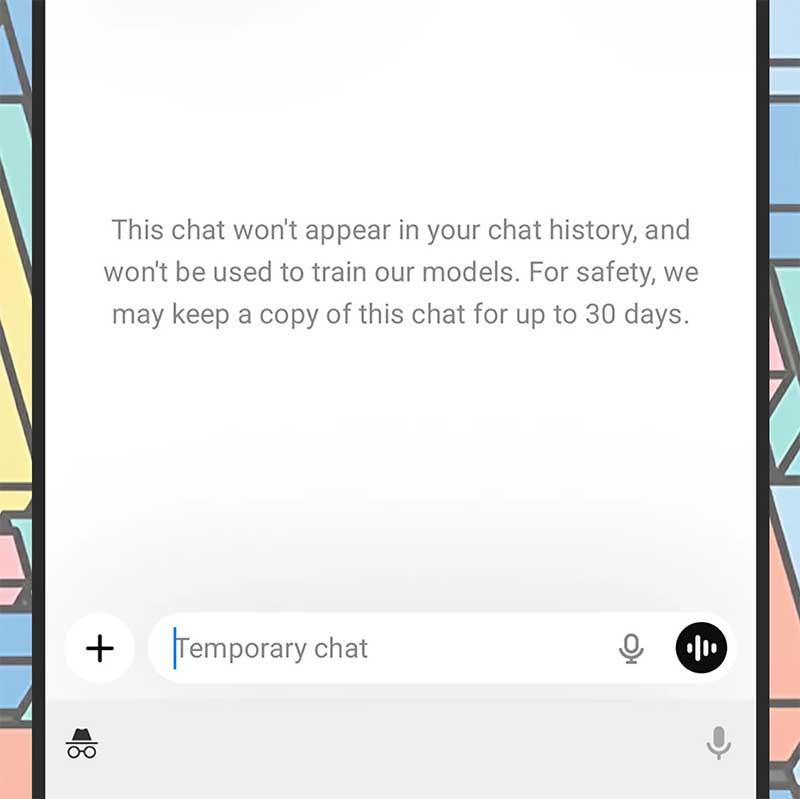
- An unsaved Temporary Chat does not appear in normal history.
- It does not create new memories while it remains temporary.
- A personalized Temporary Chat may use existing memories, custom instructions, or plugins without creating new memories.
- A non-personalized Temporary Chat does not use those personalization sources.
- OpenAI may retain a copy for a limited safety period; it is not a place to share secrets.
- Saving it converts the conversation to a regular chat governed by account settings.
Workspace restrictions and current account-level controls still apply.
7. Edit images with the appropriate ChatGPT tool
ChatGPT Images can create and edit images from instructions. Upload an image you have the right to use, describe the exact change, and state which details must remain unchanged.
Remove the small object on the table.
Keep the person's face, clothing, lighting, camera angle, background layout, aspect ratio, and all text unchanged.
Return one version and list any area where the edit could not preserve detail.
Inspect the complete result; an edit can affect pixels outside the intended area. Do not use generative editing to falsify evidence, impersonate someone, or remove required disclosures.
If a verified Adobe plugin is available to your account, it can add Adobe-specific workflows. Review the requested permissions and understand whether the operation uses ChatGPT Images, Adobe tools, or both rather than referring to every image edit as “Photoshop.”
8. Use image input or live camera as an aid, not proof
ChatGPT can analyze an uploaded image, and eligible mobile Voice experiences may offer live camera or screen sharing. Availability and limits differ. The camera can help read visible text, describe an object, discuss a layout, or translate a sign.
Important limitations remain:
- A blurry, cropped, dark, or angled image may omit the decisive detail.
- Object, plant, medication, hazard, and identity recognition can be wrong.
- Text, schedules, measurements, and fine visual differences require verification.
- Live video may not capture every frame or event.
- Faces, screens, addresses, documents, and surroundings can reveal private information.
Do not rely on camera analysis for medical diagnosis, safety-critical identification, legal evidence, or navigation without an authoritative independent check.
9. Ask for evidence and run a verification pass
For current or consequential information, ask ChatGPT to search approved sources and cite the exact page supporting each claim. Then open the source. A citation can be outdated, irrelevant, or interpreted incorrectly.
Separate your answer into:
1. Facts directly supported by the supplied sources
2. Reasonable inferences
3. Claims that remain unverified
Add a source beside each fact.
Do not use a source for a claim it does not directly support.
If sources disagree, show the disagreement rather than choosing silently.
For calculations or code, request test cases and reproduce them in the real environment. For a document, compare names, dates, quotations, and numbers with the source.
10. Turn studying into retrieval practice
Study features and education plugins may guide a learner with questions and step-by-step explanations when available. You can create the same active-learning pattern in an ordinary chat:
I am learning [TOPIC] at [LEVEL].
Goal: [ASSESSMENT OR SKILL]
Use only these notes or sources: [PASTE OR ATTACH].

First, ask five diagnostic questions without giving answers.
Then teach only the areas I missed, one concept at a time.
After each explanation, ask me to apply it to a new example.
Do not move on until I explain the reasoning in my own words.
End with a mixed quiz and a list of remaining weaknesses.
Ask for hints before solutions, attempt problems independently, and verify technical or factual material against the course source. Follow the school's rules on AI assistance and do not submit generated work as your own.
A short checklist before accepting an answer
- Did I define the audience, outcome, format, and constraints?
- Did I avoid sharing unnecessary personal or confidential information?
- Does the response distinguish evidence, inference, and uncertainty?
- Did I open the sources or run the proposed code, formula, or steps?
- Is a consequential action still waiting for my review?
- Should this context live in memory, a project file, a regular chat, or nowhere?
Using ChatGPT effectively is less about a secret prompt and more about a controlled workflow: give relevant context, ask for a defined result, inspect the evidence, and keep important decisions with the person responsible.
Related Articles
 5 ChatGPT Tips to Help You Get Better Results8 minutes read
 8 ChatGPT Prompts to Make Brainstorming More Effective: Explained10 minutes read
 Learn About ChatGPT-4o: Features, Benefits and How to Use It: Complete Guide7 minutes read
 What Is ChatGPT Pro? Is It Worth It in 2026?8 minutes read
 ChatGPT Has Many 'Personalities'; Here's How to Choose the Style That Best Suits Your Question7 minutes read
 How to Use ChatGPT to Improve Your Thinking and Find New Ideas6 minutes read
Reader Comments 0
Sign in with email or Google to join the discussion.