Table of Contents
A phone’s charging port can also connect to storage, displays and other peripherals. The plug shape only tells you what fits. Check your phone’s specs for USB host or OTG support, video output and any power requirements before buying an adapter. For an iPhone with USB-C, see Apple’s connector guide.
Storage, cameras and printing
1. Flash drive or external SSD
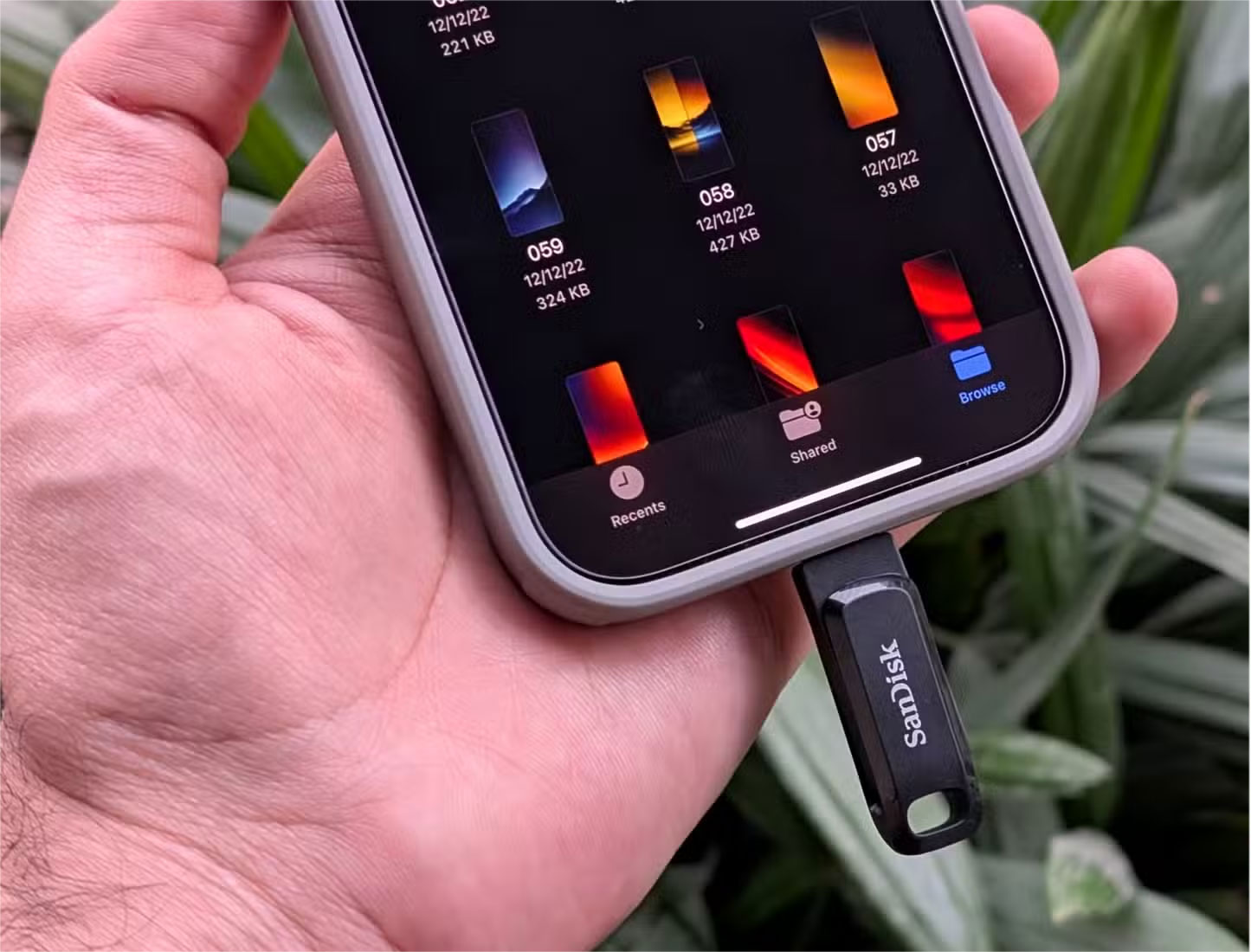
Use a compatible USB-C drive or a USB host adapter, then look for the drive in Files or your Android file manager. If it disconnects immediately, power or an unsupported drive format could be the cause. Try a powered hub if the drive needs more current. Verify the copied files open before erasing the originals. See the Android USB OTG setup guide.
2. Digital camera or card reader
Connect the camera in its USB transfer mode or plug in a card reader. Open the phone’s Photos or Files app and confirm it can import the formats your camera records, particularly RAW images and large video files.
3. Printer
USB printing depends on the printer, phone and printing app. Check the manufacturer for mobile USB support before buying an adapter. If wired printing is unavailable, use AirPrint or the printer’s supported Android printing service over Wi-Fi.
Controls and wired networking
4. Game controller
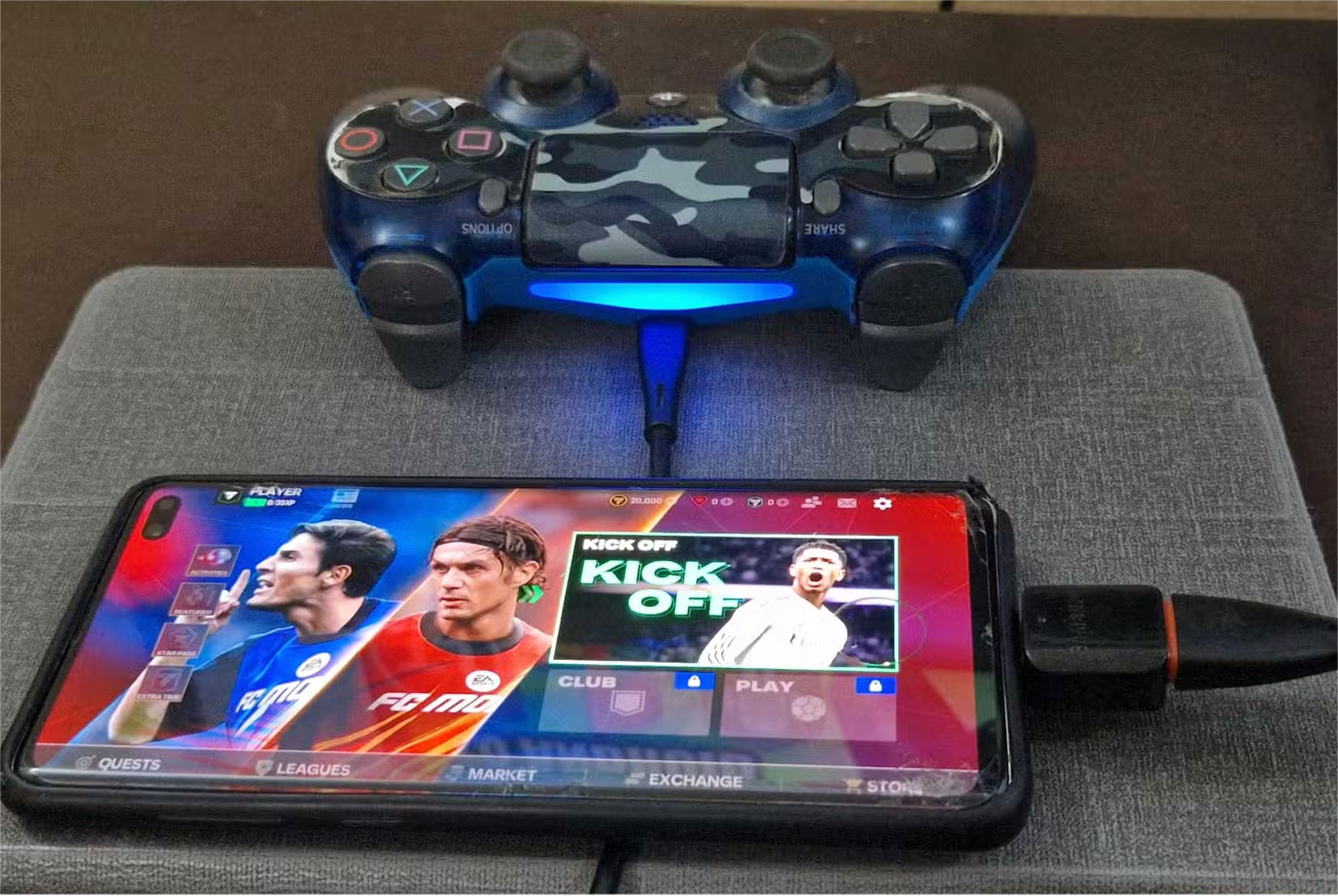
Choose a controller the phone and game support, then connect it with a data-capable cable or a clip-on controller designed for your port. Test it in the game’s input menu.
5. Keyboard and mouse
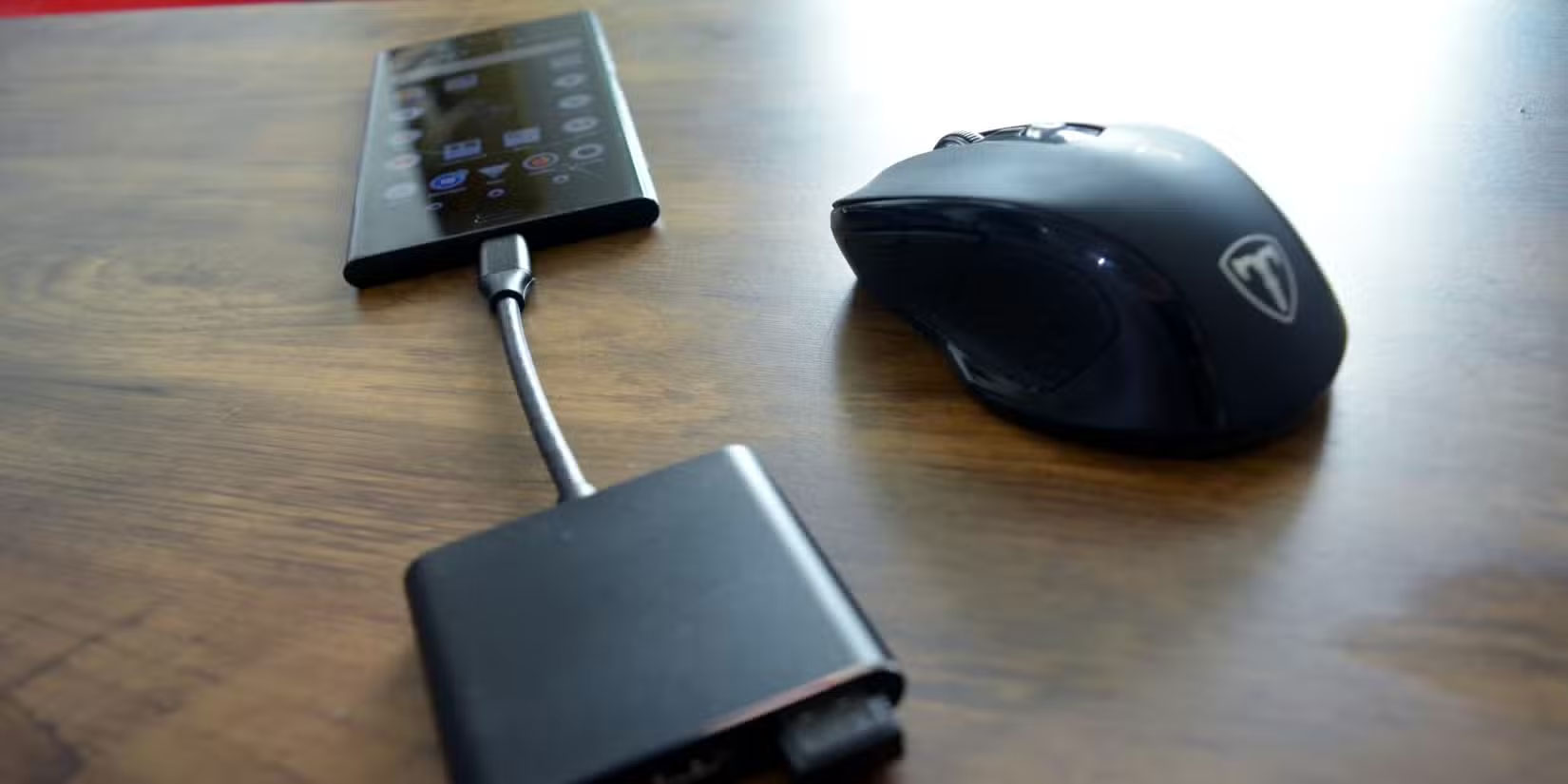
Try a USB host adapter or hub. Open a notes app to test the keyboard layout and check whether the phone shows a pointer when you connect the mouse.
6. Ethernet adapter
Use a compatible USB-to-Ethernet adapter. Look for a wired connection in settings, or turn off Wi-Fi temporarily to verify the wired link is carrying traffic.
Displays and audio gear
7. Projector
For a wired HDMI projector, check that the exact phone supports video output and use a compatible adapter. Many USB-C phones that charge and transfer files still lack DisplayPort Alt Mode. A Lightning iPhone uses a different adapter.
8. TV or monitor
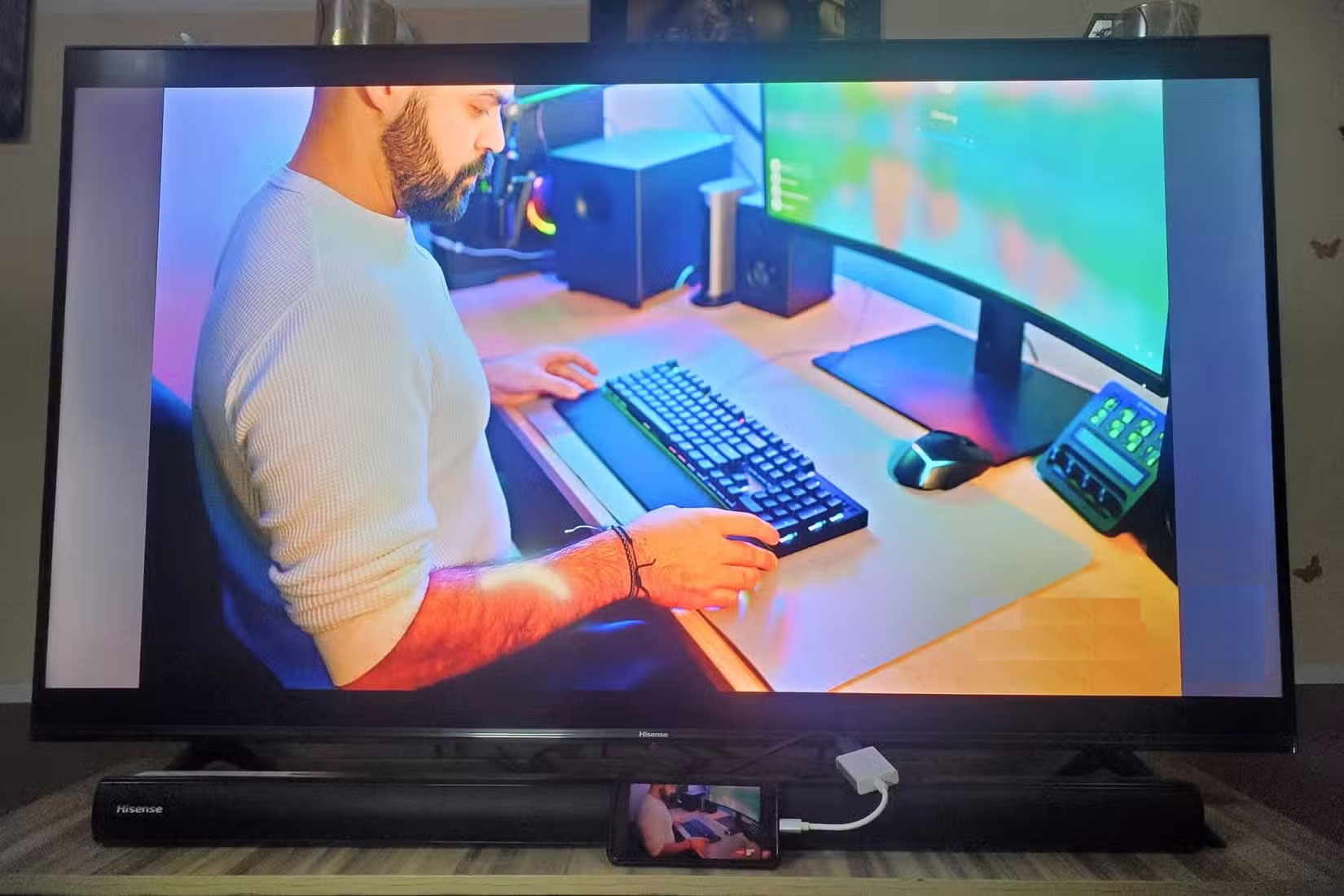
Use the same video support checks, then select the correct input on the display. Compatible Samsung phones can run DeX for a desktop-style workspace. See ways to use a phone as a desktop.
9. MIDI controller or USB audio interface
Check that your music app supports the device. Connect it, enable the input in the app and try a few notes or a short recording. Larger interfaces may require a powered hub.
10. External microphone
Choose a mic made for your phone’s port or a compatible USB audio interface. Test a short clip in the app you plan to use. Playback can confirm it picked up the external mic and help you spot clipping or poor levels.
Related Articles
 What is Type C charging port? Should I use it or not?
 How to use the public USB charging port safely?
 Guide to fixing the laptop battery error 'plugged in, not charging'
 How to Clean the Charging Port
 Never plug these 8 devices into your Smart TV's USB port!
 10 Devices You Can Plug into the HDMI Port on Your Smart TV
Reader Comments 0
Sign in with email or Google to join the discussion.