Table of Contents
Open Settings > Safety & emergency to review the emergency features on your Android phone. Menu names and availability vary by model, carrier and country. Check what each shortcut does on your phone before relying on it.
Add and verify emergency contacts
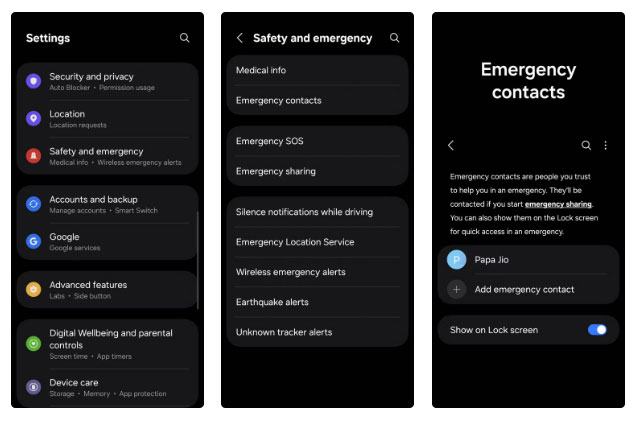
Open Emergency contacts, choose contacts and check their numbers. Ask them if they are comfortable being listed. If your phone offers lock-screen access, check what a person can see from the Emergency screen without placing a test call.
Add medical information you are comfortable displaying
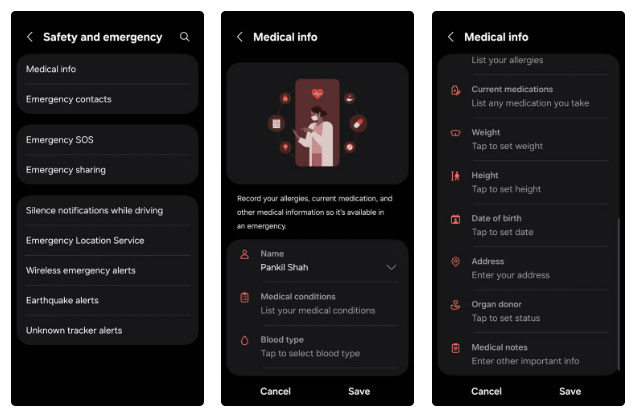
Open Medical information or Medical info. Add relevant information such as serious allergies or medications and keep it current. If you enable lock-screen display, anyone holding the phone may be able to see those details.
Check Emergency Location Service
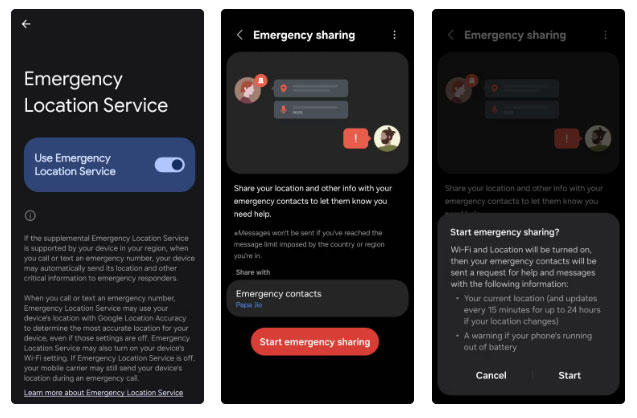
Look for Emergency Location Service and review its setting. In supported regions and networks, it can send location information when you call or text an emergency number. It is separate from sharing your location with personal contacts.
Review Emergency SOS without triggering a call
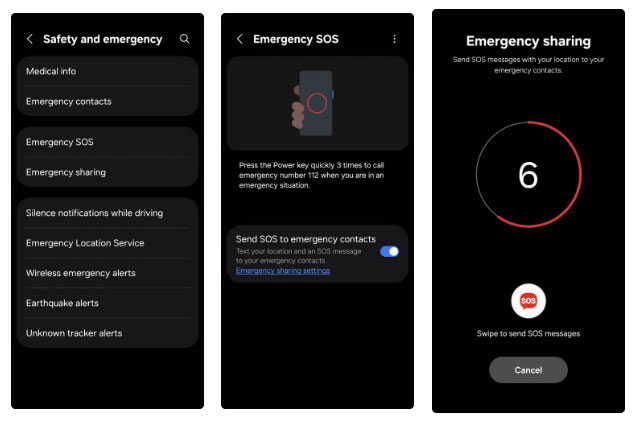
Open Emergency SOS and check which actions are enabled, including calling emergency services or notifying contacts. Google describes pressing the power button five times on supported phones, followed by a confirmation or countdown depending on setup. Review the settings or a built-in demo. Do not place a test call to an emergency number.
Check wireless alerts and earthquake alerts
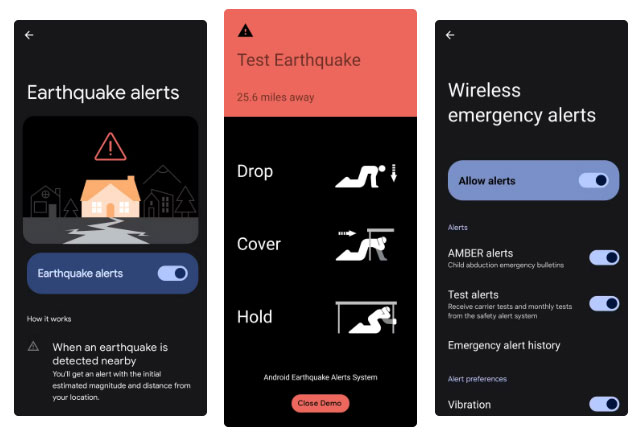
Search Settings for Wireless emergency alerts and review supported alert categories. Earthquake alerts may appear separately and are available only in supported areas. See Google’s Android emergency guide for regional limitations and setup. See how to share your location by text on Android or set emergency contacts on an iPhone or Apple Watch.
Related Articles
 Your Android phone can help you in an emergency. Here's how
 How to text send emergency location on Android
 Ignore Android lock screen with emergency call feature
 iPhone can save your life thanks to these 6 emergency features
 Check Android phone configuration
 How to activate the emergency call and send the location to the contact on iOS 11
Reader Comments 0
Sign in with email or Google to join the discussion.