Table of Contents
This guide provides a clear, practical overview of "Windows Tricks That Will Instantly Stop Any Frozen Application". It organizes the most useful details, explains important considerations, and highlights the steps or choices that matter most.
3. Use the "End Task" option
You may already use the taskbar to close apps, but here's a handy trick you may not know about. You can also use this option to force quit apps that have stopped responding. All you have to do is right-select the app icon and select the End Task option.
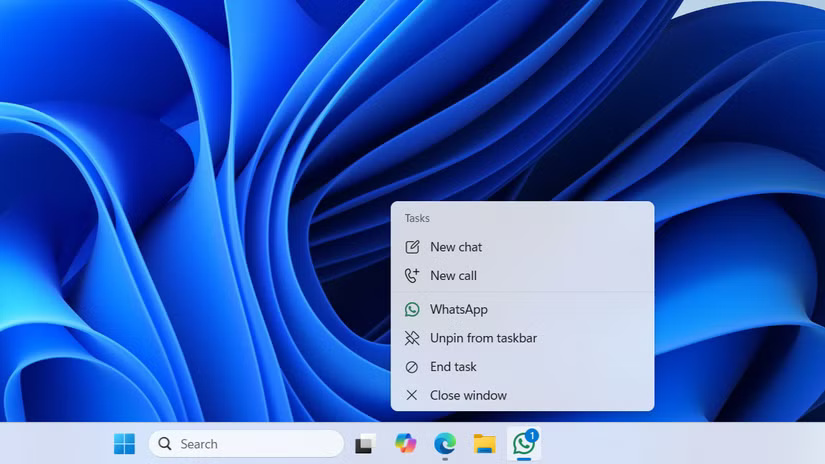
Since the taskbar is almost always there, this is one of the quickest ways to deal with frozen apps on Windows. However, the End Task option is not visible on the taskbar by default. This is a feature that Microsoft added in Windows 11 version 23H2.
Note : You can easily check what version your PC is running by going to Settings > System > About > Windows specifications .
If you're running that version or a newer version, you can enable this feature from the Settings app:
- Press Windows + I to open the Settings app.
- Go to the System tab and click For developers .
- Turn on the switch next to End Task .
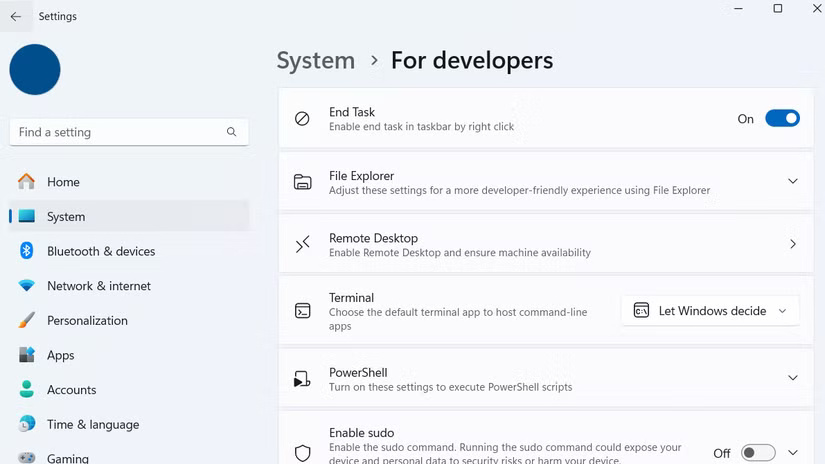
Now, when an application crashes, you can use the new End task option from the taskbar. The End task option is extremely useful when needed, but it's not something you should rely on as a method for closing a program. It forces the program to close immediately without any confirmation prompt, meaning you'll lose any unsaved work.
2. Use Task Manager
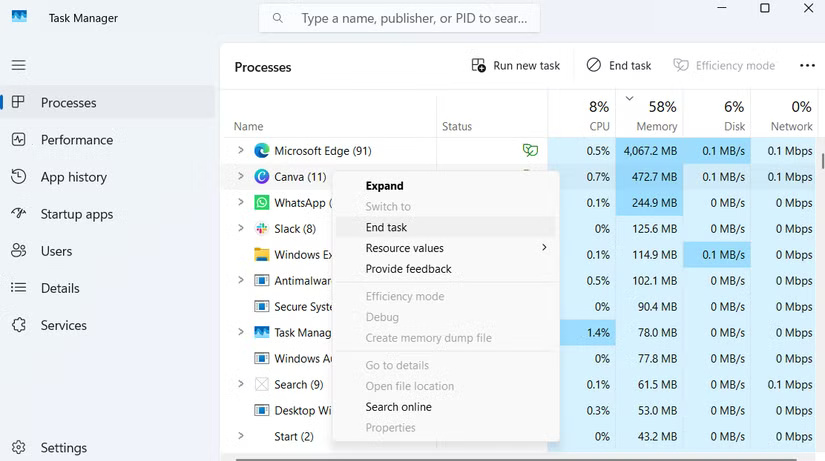
While force-quitting an application from the taskbar usually works, you may not be able to use that method if the taskbar itself becomes unresponsive or disappears completely. That's where Task Manager can come to the rescue.
Task Manager has been a part of Windows for decades. It's a great tool for monitoring system performance, managing startup applications, and forcing stubborn programs to quit when nothing else works.
When an application is frozen and unresponsive, press Ctrl + Shift + Esc on your keyboard to open Task Manager. You can also use the hidden Start menu ( Win + X ) to open Task Manager from there. Once opened, you'll see a list of all the applications and background processes currently running on your PC.
Locate the application that is causing you problems. Right-select it, then select End task . This will immediately close the frozen application and free up system resources.
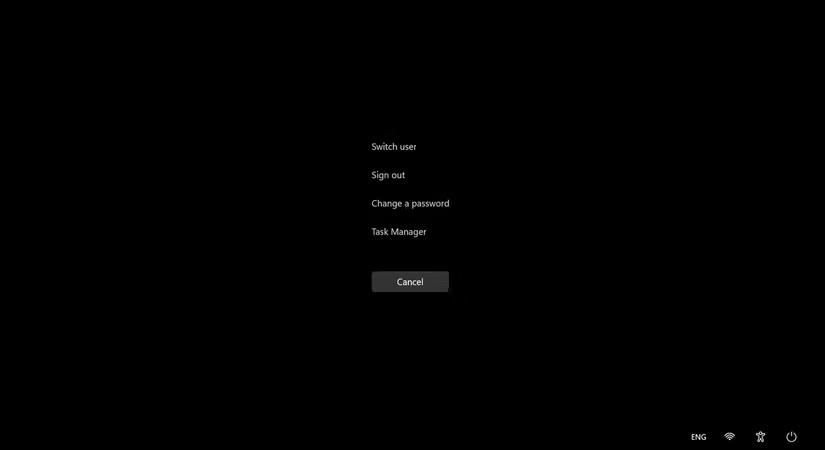
If Ctrl + Shift + Esc doesn't work and the frozen app has taken over your entire screen, try Ctrl + Alt + Delete instead. That will open the system menu, where you can open Task Manager manually. From there, just find the app and force it to close as usual.
One of the coolest aspects of Task Manager is that in addition to the apps you have open, it also lets you kill background apps and system processes that don't show up in the taskbar. It's also handy for checking which apps are using the most RAM or CPU.
1. Using SuperF4
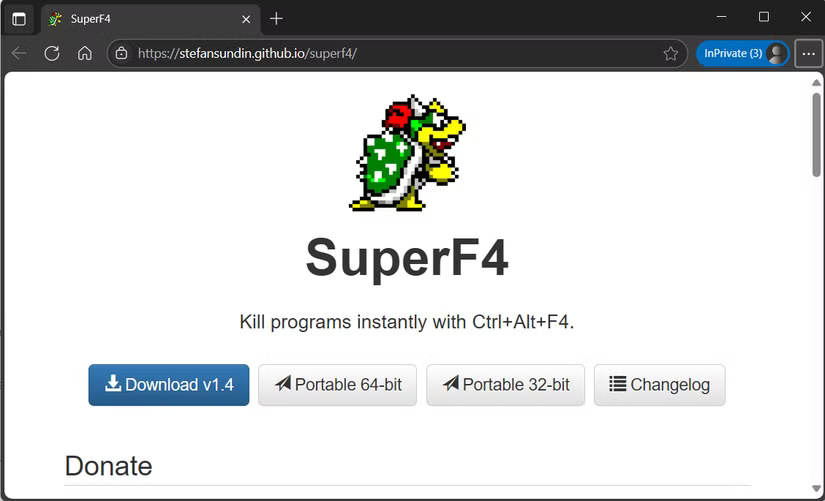
Most of the time, needing to force an app to close shouldn't go beyond the methods above. But if you're constantly dealing with stubborn apps that won't close, or you want something faster and more powerful than Task Manager, you might want to try a third-party tool like SuperF4. It only does one thing—force-quitting an app immediately—and it does it very well.
After installing SuperF4, press Ctrl + Alt + F4 to immediately close any application running in the background. This shortcut will send a low-level command to force-quit the selected program immediately. Unlike regular Alt + F4 , which tells the application to close, SuperF4 will directly close the application.
Warning : Force closing the application means you will lose any unsaved data.
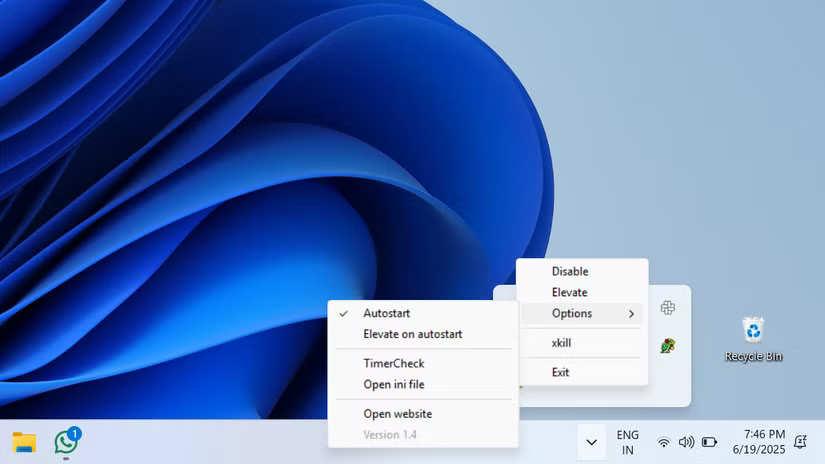
SuperF4 takes up virtually no space on your PC and uses barely any system resources. To make sure the app is always ready when you need it, right-click the SuperF4 icon in the system tray, go to Options and enable Autostart .
There's also a handy 'shut down mode' built in. Just press Win + F4 and your mouse cursor will turn into a little skull icon. You can then select any frozen window to stop it. This can be useful when you want to close multiple apps and programs without a confirmation prompt.
SuperF4 doesn't try to be flashy or complicated; it's one of those apps that's reliable when you need it most.
When an app refuses to close, it can test your patience. You keep clicking the X icon over and over again, but the window just won't go away. With these hidden tricks, you won't have to sit there staring at a frozen screen, waiting for the app to come back to life.
If this happens too often with a particular app, it might be time to dig deeper. It could indicate an outdated version, a buggy update, or a compatibility issue.
FAQ
What should you know about 3. Use the "End Task" option?
You may already use the taskbar to close apps, but here's a handy trick you may not know about. You can also use this option to force quit apps that have stopped responding. All you have to do is right-select the app icon and select the End Task option.
What should you know about 2. Use Task Manager?
While force-quitting an application from the taskbar usually works, you may not be able to use that method if the taskbar itself becomes unresponsive or disappears completely. That's where Task Manager can come to the rescue.
What should you know about 1. Using SuperF4?
Most of the time, needing to force an app to close shouldn't go beyond the methods above. But if you're constantly dealing with stubborn apps that won't close, or you want something faster and more powerful than Task Manager, you might want to try a third-party tool like SuperF4. It only does one thing—force-quitting an app.
Related Articles
 How to Fix Frozen Taskbar Effectively8 minutes read
 Windows 11 Has an 'Emergency Shutdown' Option Most Users Miss5 minutes read
 How to Restart Windows 11 Immediately3 minutes read
 Download Frozen Wallpapers for Computers, Phones3 minutes read
 5 Extremely Effective Ways to Fix the Frozen Taskbar Error4 minutes read
 Restart Windows Explorer When the System Is 'Suspended'3 minutes read
Reader Comments 0
Sign in with email or Google to join the discussion.