Table of Contents
For copying files from a USB drive to Android TV, start with X-plore if you want to see both folders, or TvExplorer if you want an interface designed around a TV remote. If you have an NVIDIA SHIELD and mainly transfer files from a computer, try the built-in network sharing first.
Search your device’s own Play Store before choosing an app. A listing for Android phones does not guarantee that your TV model can install it or that every feature works with a remote. Plug in your drive and confirm that the TV and the app can see it before starting a large copy.
X-plore File Manager: Moving files between two folders

The two-pane view lets you keep a source folder open beside the destination. It is handy when copying from USB or a network share to a folder the TV can access. The tree view can feel busy on a couch, so try one small copy first and learn which pane is active before moving anything.
Total Commander: Working with network plugins

Total Commander is worth trying if you already know its interface or need a particular network connection. FTP, SFTP and WebDAV support can depend on separate plugins. Confirm that the plugin you need is available on your device before committing to this setup.
TvExplorer: Basic file tasks with the remote
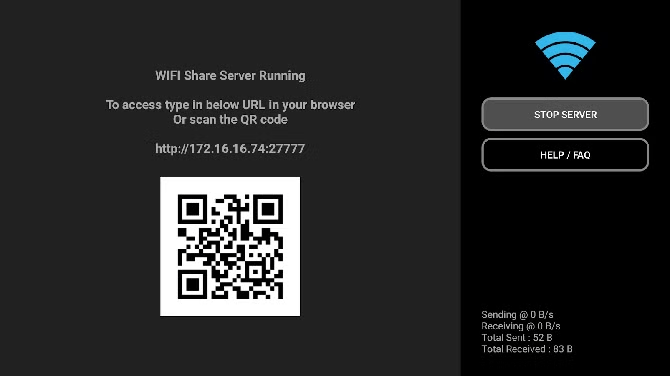
TvExplorer is built for Android TV. It covers copying, moving and renaming files, ZIP extraction and uploads over Wi-Fi. Pick it for browsing local media or sending a file to the TV without using a USB stick. You can check the supported features in its Google Play listing.
AnExplorer: An alternative layout
Try AnExplorer if the other interfaces are hard to read or navigate. Check the available text-size and contrast options in your edition, then test a small copy with the TV remote. Use the video as a tour of the app and check storage access on your own device.
Solid Explorer: Browsing local files and network shares
Solid Explorer combines two-pane browsing with network access such as SMB, SFTP and WebDAV. It makes sense if your files already live on a compatible server or NAS and you want to browse them from the TV. Check the store listing on your device for trial and purchase terms before installing.
NVIDIA SHIELD: Transfer files from a computer without a TV app
On supported SHIELD devices, open Settings > Device Preferences > Storage > Transfer files over local network. The screen shows the address and sign-in details. On a Windows PC on the same trusted network, enter the address in File Explorer using \SHIELD-IP format. On a Mac, use Finder > Go > Connect to Server and enter smb://SHIELD-IP. Replace SHIELD-IP with the address displayed on your device. See NVIDIA’s SHIELD TV Pro guide for details. This feature is specific to supported SHIELD models.
Related Articles
 9 outstanding features of Solid Explorer you may not know
 These Android Apps Could Put Your Passwords at Risk If You're Not Careful
 Top 5 Best File Manager Apps on Android
 Tips for Community managers - best tools to use
 The best RAR file extraction application on Android
 3 best file management applications for Android TV
Reader Comments 0
Sign in with email or Google to join the discussion.