Table of Contents
If Copilot in Microsoft Edge will not open, sign in, load a response, or use the current page, first determine whether the problem is with the Copilot service, your Microsoft account, or the browser. Follow these fixes in order and retest after each one.
1. Test Copilot outside the sidebar
Open Copilot in a normal Edge tab. If it fails there and in another browser, the problem is probably not the Edge sidebar. Check the internet connection, disable a VPN temporarily if permitted, and look for a Microsoft service incident. If Copilot works in a tab but not the sidebar, continue with the browser-specific checks below.
2. Confirm the button is enabled
Open Edge Settings > Copilot and AI and make sure the Copilot toolbar button is enabled. Managed work or school devices may hide or disable the feature through policy. In that case, contact the administrator rather than trying to bypass the restriction. This guide also explains where the Copilot button setting is located.
3. Restart Edge and Windows
Save your work, close every Edge window, and reopen the browser. If that does not help, restart the computer. A full restart clears stuck browser processes and completes pending updates more reliably than closing one tab.
4. Update Microsoft Edge
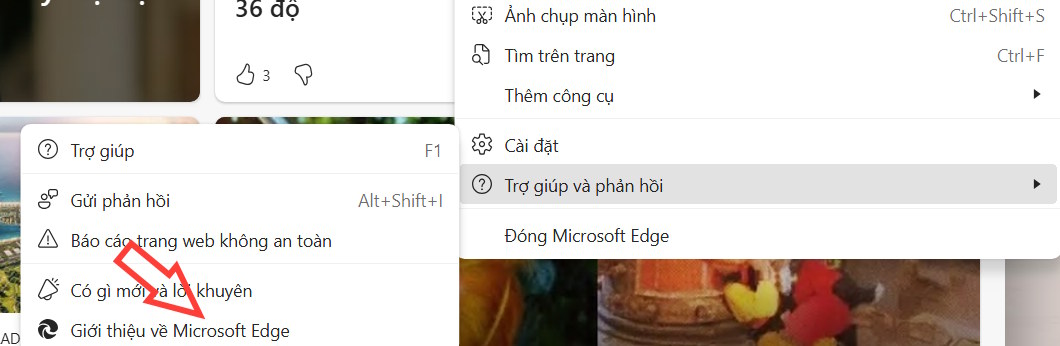
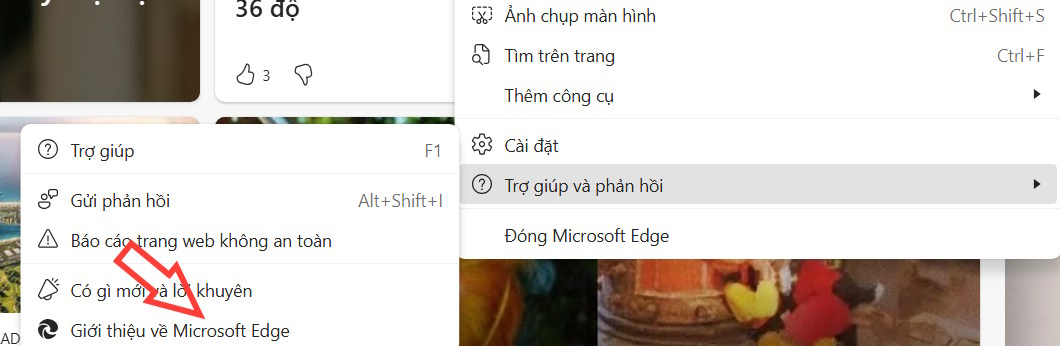
Open Settings and more > Help and feedback > About Microsoft Edge. Edge checks for updates on this page. Install any available update, then select Restart.

5. Check the account and profile
Verify that the sidebar is signed in to the intended Microsoft account. Sign out of Copilot and sign back in. If you have personal and work profiles, switch to the profile that has access. License, age, region, and organizational policy can affect availability.
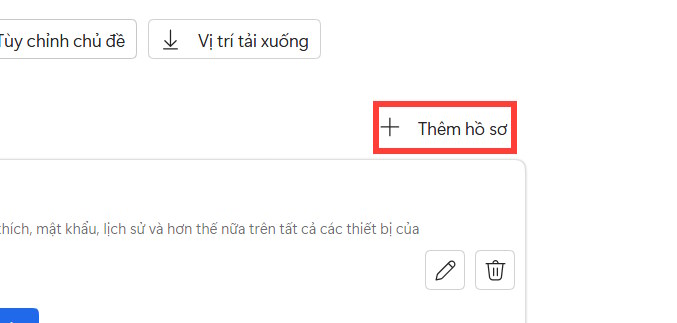
Create a temporary Edge profile from Settings > Profiles > Add profile and test Copilot there. If it works, the problem is likely confined to the original profile's cookies, settings, or extensions.

6. Disable extensions for a test
Open edge://extensions and temporarily turn off privacy blockers, script blockers, VPN extensions, and security add-ons. Restart Edge and test again. Re-enable extensions one at a time to identify the conflict; do not leave required organizational security controls disabled.
7. Delete only Copilot site data
Deleting all cookies signs you out of most websites, so start with the affected site:
- Open Settings > Privacy, search, and services.
- Open the Cookies or site-data controls and choose to view all stored site data.
- Search for Copilot and Microsoft sign-in domains used by the failed page.
- Delete the relevant entries, restart Edge, and sign in again.
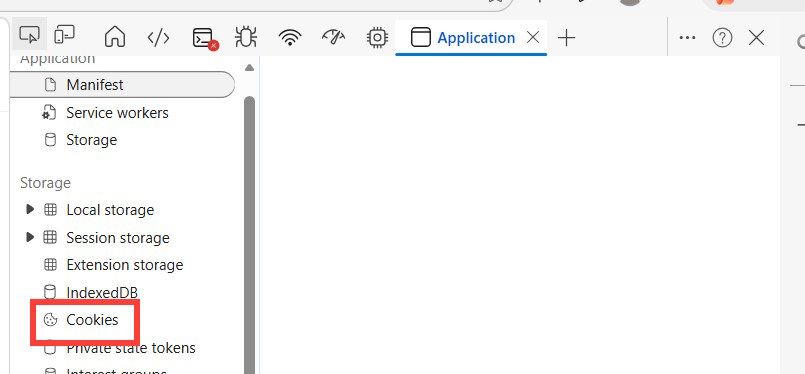

Microsoft's Edge cookie guide provides the current menu path. Developer Tools are not required for routine cookie removal.
8. Clear cached files
Press Ctrl + Shift + Delete, select an appropriate time range, and clear Cached images and files. Leave passwords and autofill data unchecked unless you intentionally want to remove them. Restart Edge and try Copilot again.
9. Check cookie and tracking restrictions
Blocking all cookies can prevent sign-in and page features from working. In Edge privacy settings, make sure sites are allowed to save and read cookie data. If strict tracking protection or third-party-cookie blocking causes the problem, add the minimum site exception needed rather than lowering privacy protection for the entire browser.
10. Repair Edge on Windows
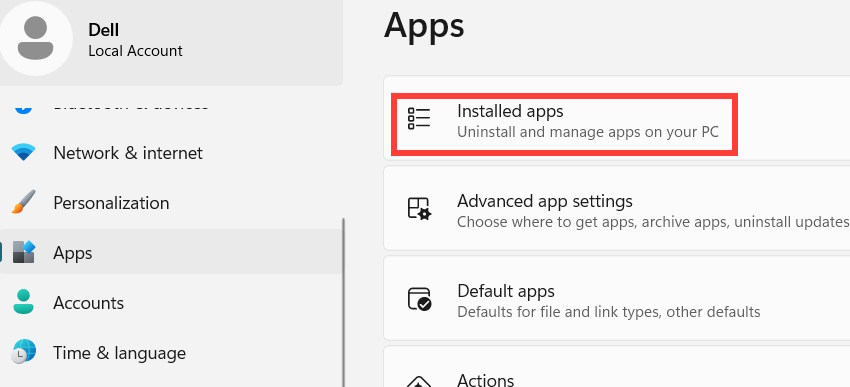
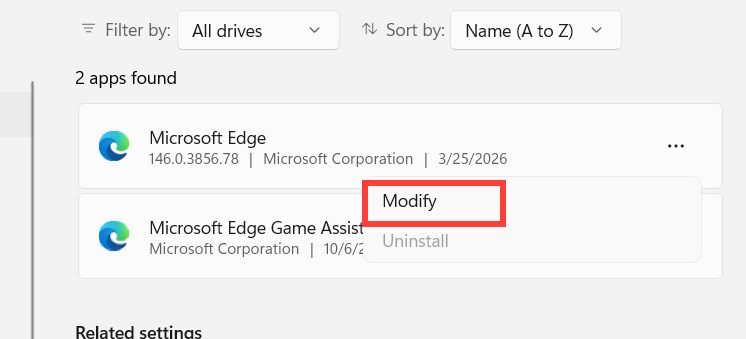
If Edge itself is unstable, open Windows Settings > Apps > Installed apps, find Microsoft Edge, open its three-dot menu, and select Modify or Repair. Save work first and keep the computer connected to the internet.
What the result tells you
| Test result | Likely cause | Next step |
|---|---|---|
| Fails in every browser | Service, network, or account | Check status, network, license, and sign-in |
| Works in a normal tab only | Sidebar setting or policy | Check Copilot and AI settings or admin policy |
| Works in a new Edge profile | Profile data or extension | Remove site data and test extensions |
| Works with extensions disabled | Extension conflict | Re-enable one at a time |
| Edge crashes elsewhere too | Browser installation or system issue | Update or repair Edge |
If none of these steps work, record the exact error text, Edge version, account type, and whether the issue occurs in a normal tab. Provide those details to Microsoft support or your organization's administrator. Avoid reset or reinstall procedures until simpler, reversible tests have ruled out account and service problems.
Related Articles
 Instructions on Disabling New Tab Copilot on Microsoft Edge3 minutes read
 How to disable Copilot on Microsoft Edge in Windows 113 minutes read
 How to Delete Copilot History in Edge Windows5 minutes read
 How to Control Which Sites Copilot Can Browse in Microsoft Edge14 minutes read
 How to Disable Copilot in Microsoft Edge5 minutes read
 Instructions on Using Copilot Suggestions in Microsoft Edge's On-page Search Feature6 minutes read
Reader Comments 0
Sign in with email or Google to join the discussion.