Table of Contents
GeForce Experience was NVIDIA’s companion app for GeForce graphics cards, offering driver updates, game-setting recommendations, and an in-game capture overlay. NVIDIA now directs GeForce users to the NVIDIA App, which brings many GeForce Experience features into a newer interface. The exact options depend on your GPU, driver, game, and region.

What the NVIDIA App can do
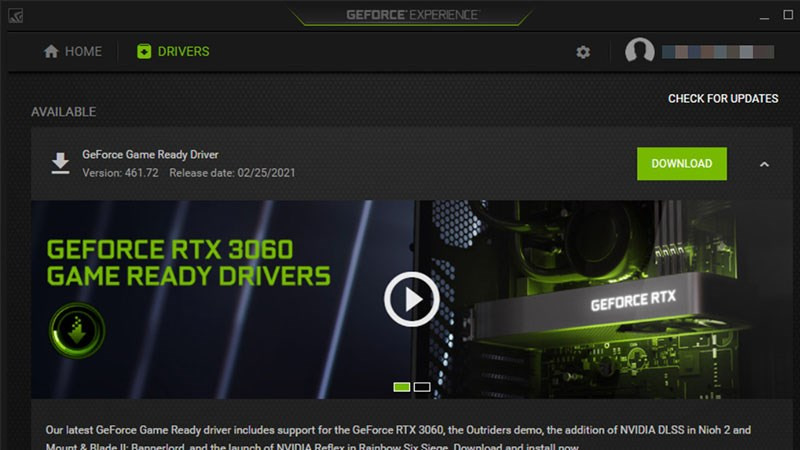
- Manage graphics drivers: Find Game Ready or Studio driver updates and review release notes before installing. Choose the driver category that suits your use; an update is not automatically required just because a newer one exists.
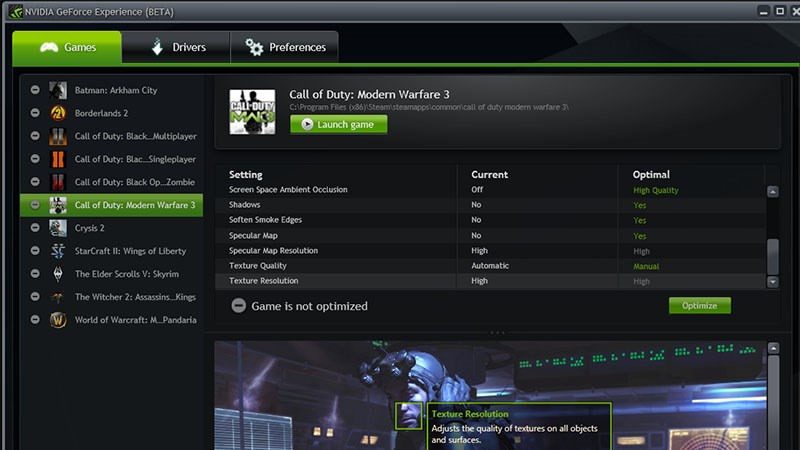
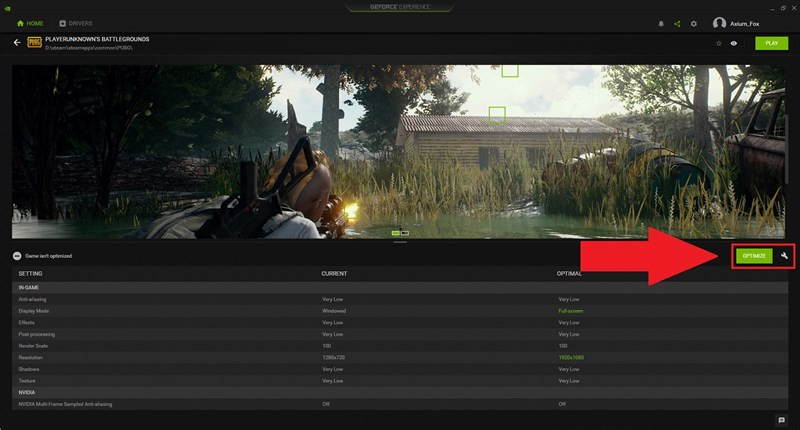
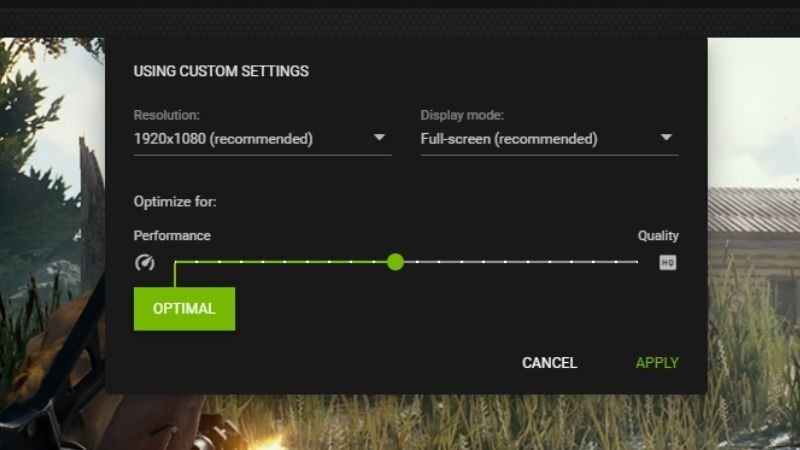
- Recommend game settings: For supported games, the app can suggest graphics settings for the detected system. Treat the recommendation as a starting point and adjust it for image quality, performance, and your preferences.
- Capture and monitor gameplay: The in-game overlay provides supported capture, recording, and performance-monitoring options. Available features vary by GPU and game.
- Adjust selected NVIDIA graphics features: The app provides game and driver controls; it does not replace every control or feature exposed elsewhere in NVIDIA software.
NVIDIA’s NVIDIA App page lists current features and downloads. Its release notes show how options change over time. NVIDIA account sign-in is optional for some features, such as redeeming bundles; individual services may have their own requirements.
Install the current NVIDIA App
- Confirm that the PC has a supported NVIDIA GPU and check the app’s current system requirements on NVIDIA’s site.
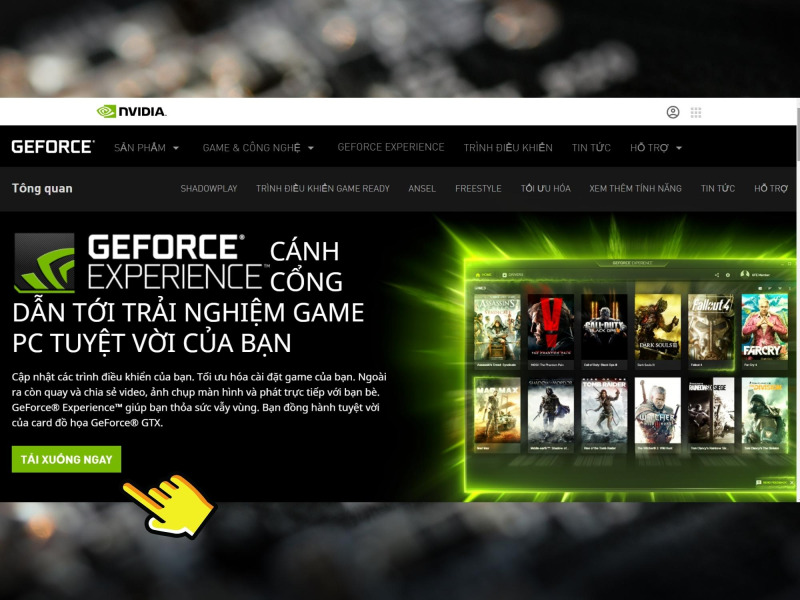
- Download the installer directly from NVIDIA and run it. Do not use a third-party driver-download site.
- Open the app and review its Drivers and Graphics sections. Install a driver only when it supports your GPU and fits your needs; read the release notes if the PC is used for work-critical software.
- Open the game or application you want to configure. If it appears in the app and optimization is supported, review the suggested settings before applying them.
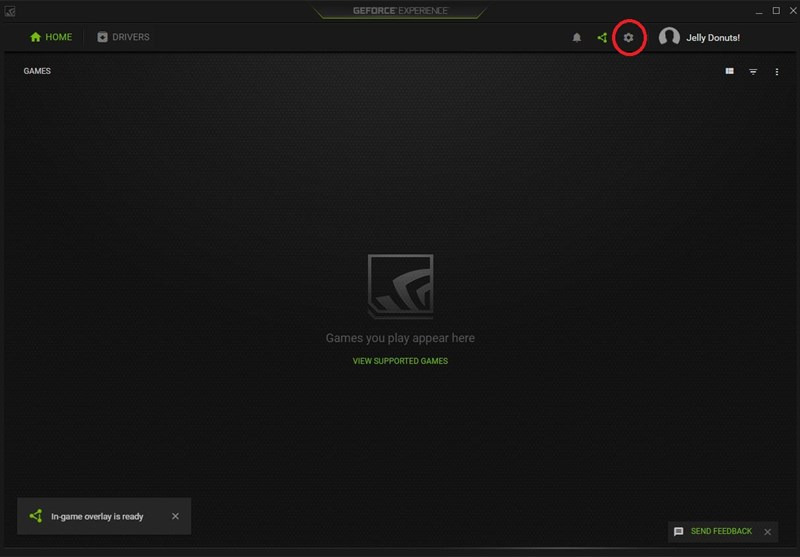
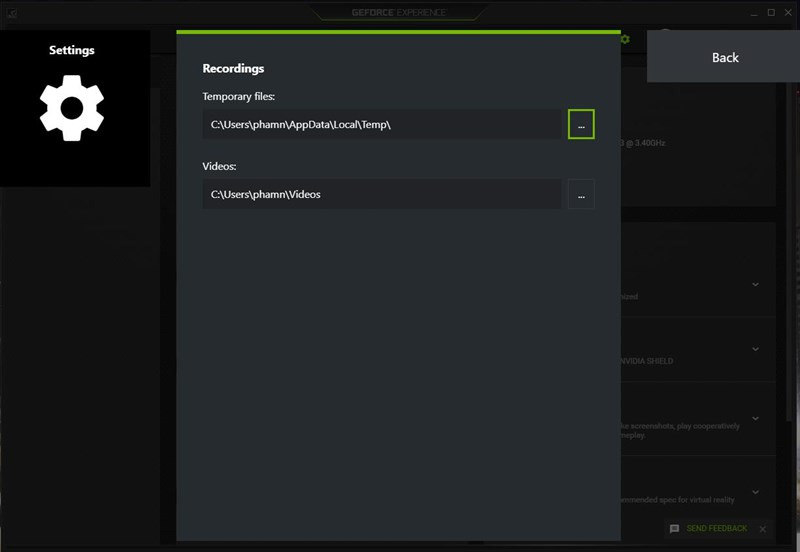
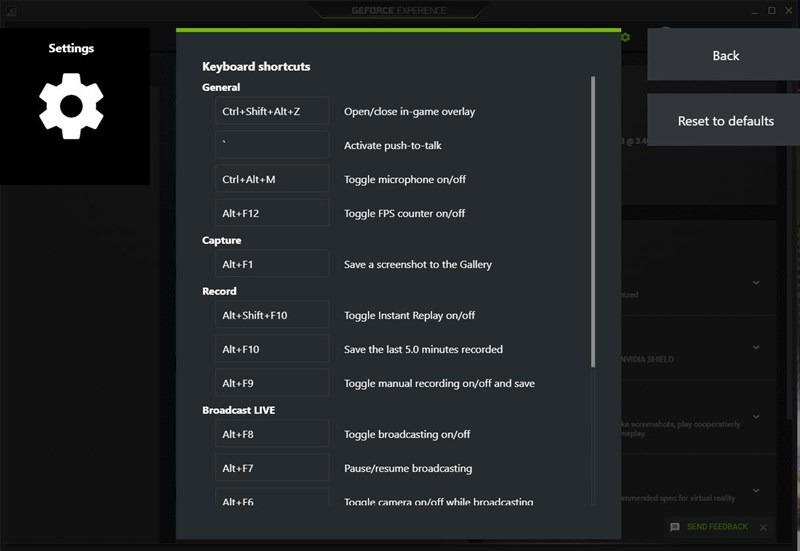
- To record or view metrics, open the in-game overlay and use its current Capture or Statistics controls. Check the app’s settings for the active hotkeys and save location, since older GeForce Experience shortcuts and menus may differ.
For game performance, compare the in-game counter or overlay in a repeatable scene; a single FPS number does not explain frame pacing or image quality. See TipsMake’s guide to what FPS means and how to check it.
Common setup issues
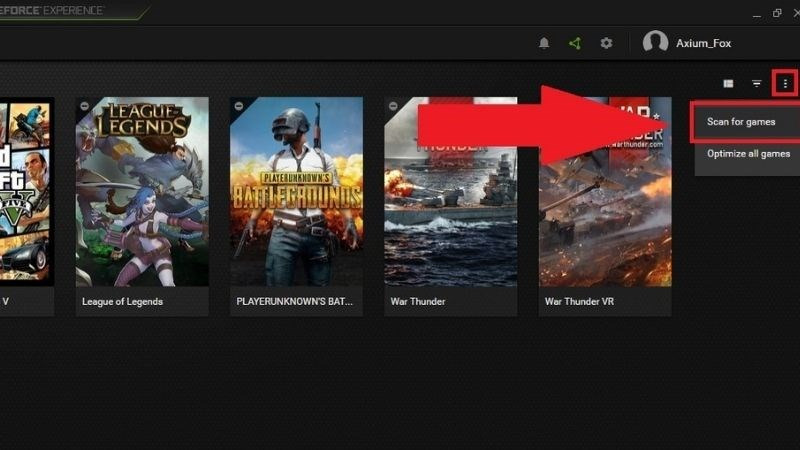
- If the app does not detect a game, confirm the game is installed in a supported location and use the app’s scan or library controls if available. You can still change many settings inside the game.
- If the overlay does not open, check that the in-game overlay is enabled and review its current keyboard shortcut. Some games, capture-protected content, or system configurations may restrict overlays.
- If a driver update causes a new problem, use NVIDIA’s supported driver installation or rollback options for your system, and avoid downloading older drivers from unofficial sites.
Original GeForce Experience screenshots
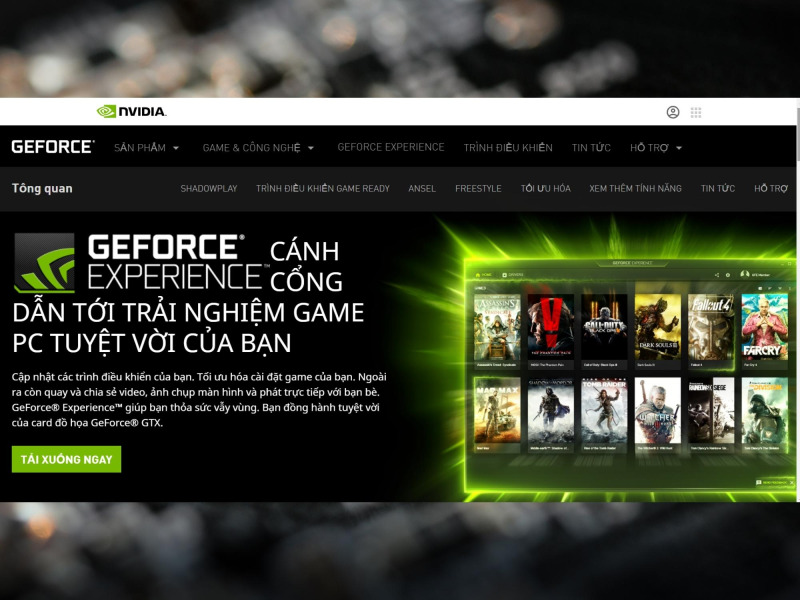
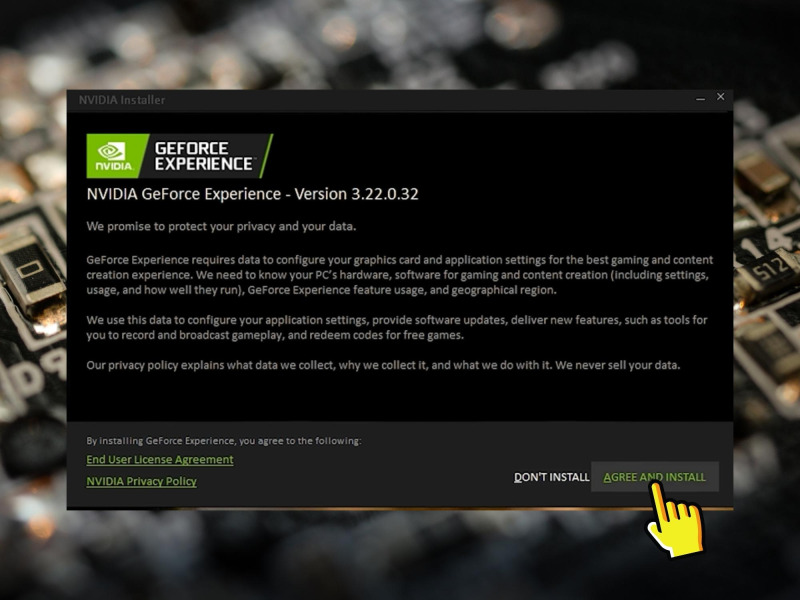
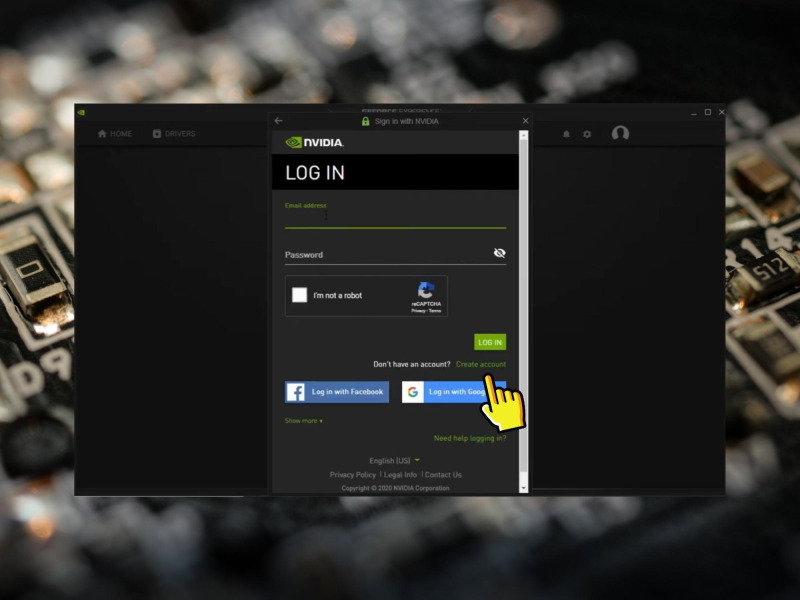
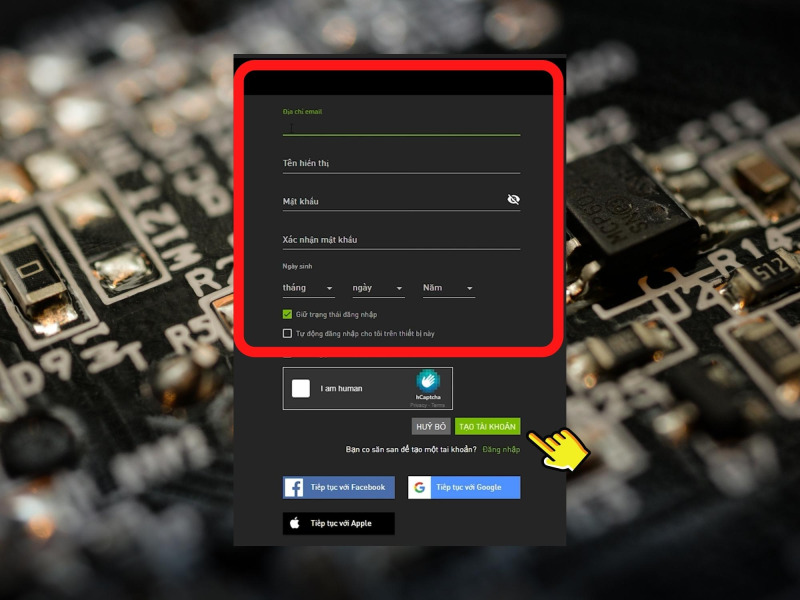
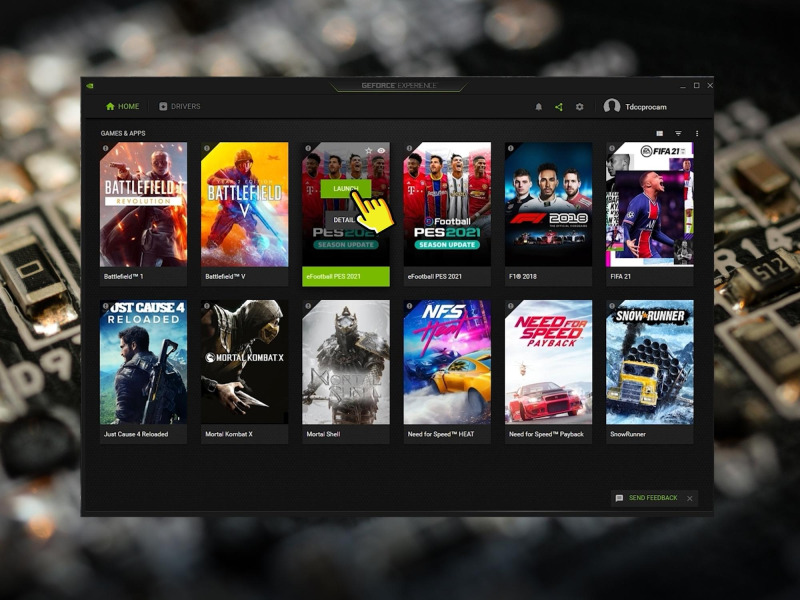
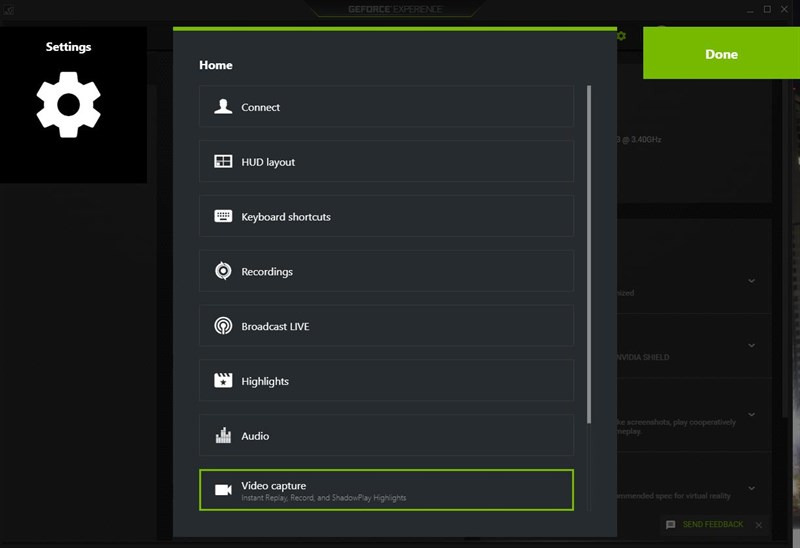
The following images show GeForce Experience interfaces from the source article. NVIDIA’s current app has different menus, and options can vary by GPU and driver. Keep these images as historical context rather than following them as current installation or overlay instructions.

Related Articles
 GeForce Experience: How to download, record games, and update drivers
 GeForce Experience has problems finding games on Windows: Here's how to fix it
 Nvidia released an emergency security patch for the GeForce GPU
 How to turn off the GeForce Experience notification when playing a game
 Fix NVIDIA GeForce Experience 0x0003 error on Windows 10
 NVIDIA GeForce Experience: downloading, installing, and using it.
Reader Comments 0
Sign in with email or Google to join the discussion.