Table of Contents
The Apple Watch not only tracks the user's health and activity, but it can also read and respond to notifications quickly and easily. The convenience of viewing notifications on your wrist and responding with voice commands using this device is undeniable.
However, sometimes the Apple Watch may malfunction and fail to receive and display notifications, causing inconvenience to users. If you are also experiencing this problem, try some of the following troubleshooting steps for Apple Watch not receiving notifications.
Make sure your Apple Watch is connected to your iPhone
Because the Apple Watch uses Bluetooth, the watch must be within Bluetooth range of the iPhone. This is how the two devices connect and cause notifications to appear on the Apple Watch. Swipe up from the bottom of the Apple Watch screen to access Control Center and see if the phone icon appears. This icon indicates that the Apple Watch is connected to the iPhone.
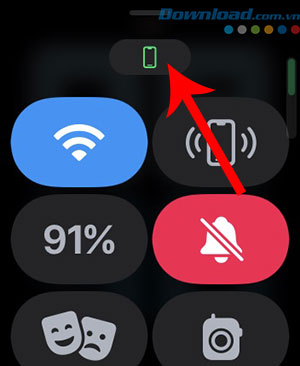
If the icon doesn't appear, bring the watch close to your iPhone to reconnect and you should be able to receive notifications as usual.
Turn airplane mode on and off
Even with Bluetooth and Wi-Fi enabled, the Apple Watch may still fail to connect to the iPhone due to some glitches. Users will need to turn on airplane mode for a few seconds and then turn it off. This will reset all connections and refresh some settings.
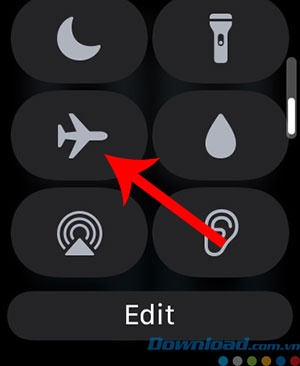
You need to swipe up from the bottom of the Apple Watch screen to access Control Center. Tap the airplane icon to turn on airplane mode and turn it off after a few seconds.
Make sure your Apple Watch and iPhone are signed in with the same Apple ID
Apple devices connect to each other when they are logged in with the same Apple ID. Therefore, using the same Apple ID on both your iPhone and Apple Watch is absolutely essential if you want to receive iPhone notifications on your Apple Watch.
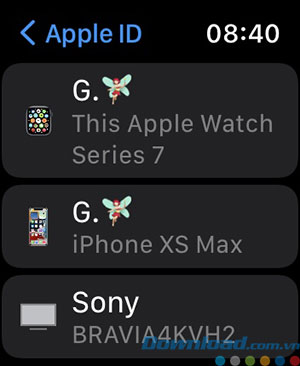
If you accidentally switch to a different Apple ID on your Apple Watch, you'll have to reset and re-pair it with your phone.
Turn on notifications from the Watch app on your iPhone
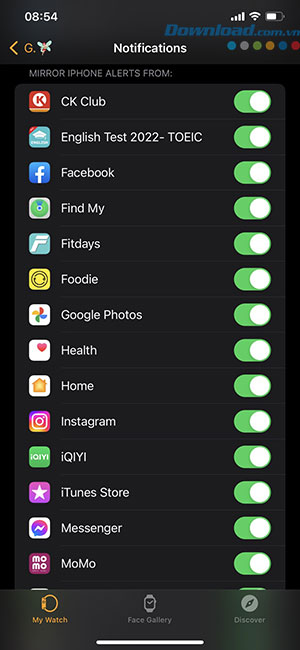
You can use their iPhones to control features and settings on their Apple Watch. A specific section within the Apple Watch app allows you to adjust notification options with the following steps.
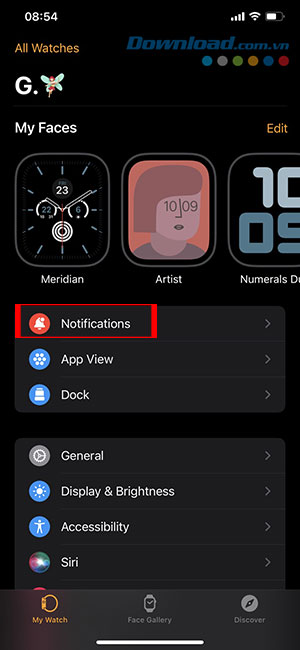
Step 1: Open the Watch app on your iPhone and tap on Notifications.
Step 2: Scroll down to find the list of apps. Turn on the toggle switch next to each app you want to receive notifications from on your Apple Watch.
Make sure it's worn on your wrist and unlocked
For security reasons, your Apple Watch may not receive notifications if you're not wearing it on your wrist or if it's not unlocked. Apple uses intelligent algorithms to detect whether the watch is on your wrist. So, if you're not receiving notifications, make sure you're wearing your Apple Watch.
Additionally, unlock the watch after wearing it on your wrist by entering the passcode. After that, everyone will continue to receive notifications.
Related Articles
 How to View and Adjust Notifications on Apple Watch2 minutes read
 How to Use WhatsApp on Apple Watch: Clear Instructions6 minutes read
 How to Unpair Your Apple Watch5 minutes read
 How to Fix Apple Watch Error of Not Receiving Messages: Clear Instructions8 minutes read
 Instructions to Stop Receiving Email Notifications from Apple3 minutes read
 How to Delete Messages on Apple Watch3 minutes read
Reader Comments 0
Sign in with email or Google to join the discussion.