Table of Contents
Although the Apple Watch offers many unique and eye-catching watch faces, for those who want to completely change up their smartwatch screen, the following astronaut animated wallpaper is a great option. This animated astronaut wallpaper will also display some of the user's health and activity information for easy monitoring at any time.
How to set the moving astronaut wallpaper on your Apple Watch
Step 1: Go to the App Store and download the Clockology app.
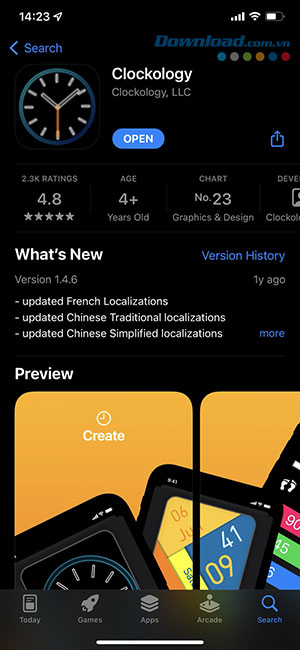
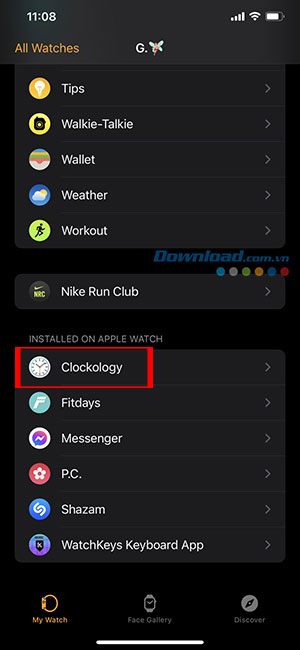
Step 2: After the app has finished downloading, open Watch on your phone and tap Clockology to install the app on your Apple Watch.
Step 3: Use your phone to download the Enable beta file to unlock Sync Mode.
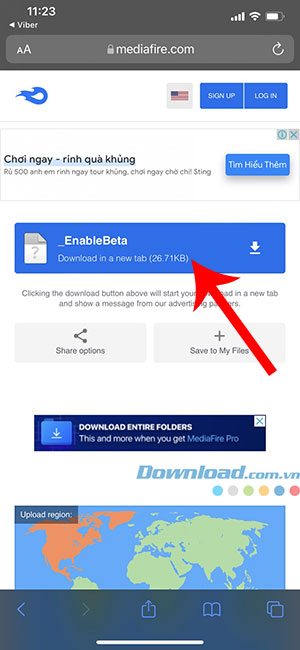
Step 4: Once the beta file has finished downloading, click on the file and it will automatically navigate to Clockology.

Step 5: Open the Clockology app on your Apple Watch to change the sync settings.
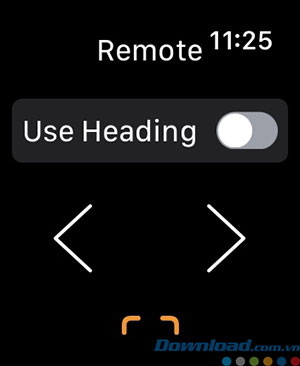
Step 6: Use your phone to download the animated astronaut wallpaper file. Tap the file once it's downloaded to navigate to the application.
Step 7: Press and hold the wallpaper to open a pop-up window and select Sync Clock.
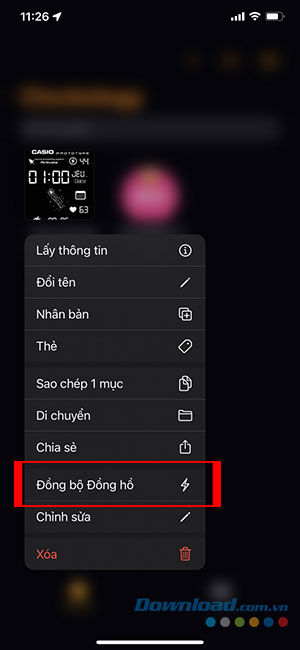
Step 8: Tap Sync to begin the process of adding the animated astronaut wallpaper to your Apple Watch.
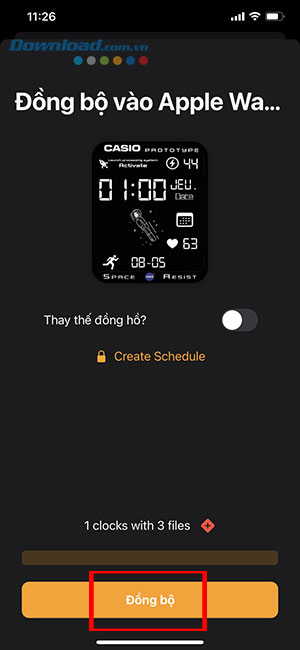
This way, you can add any animation designed by other users in just a few simple steps, instead of just using static images, resulting in a simple, low-detail clock design that doesn't display health information.
Related Articles
 14 Best Free Apple Watch Faces14 minutes read
 Ways to Fix Apple Watch Not Receiving Notifications5 minutes read
 How to Create Custom Apple Watch Faces3 minutes read
 How to Unpair Your Apple Watch5 minutes read
 Basic Apple Watch Operations Users Need to Know5 minutes read
 How to Change the Interface of Apple Watch Background4 minutes read
Reader Comments 0
Sign in with email or Google to join the discussion.