Table of Contents
These are the basic operations on the Apple Watch that users need to know to take full advantage of the features of this smart watch.
Access the Apple Watch app
Just like the iPhone, the Apple Watch comes pre-installed with several apps, which can be accessed as easily as the app library on a phone.
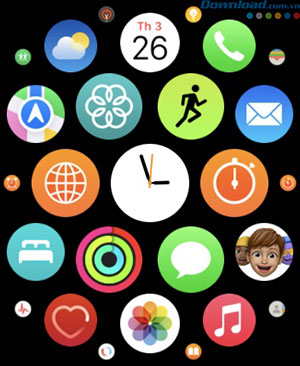
All you need to do is press the Digital Crown (the round button on the right side) on your Apple Watch. This will instantly open the home screen with all your installed apps available. Open any app by tapping its icon .
Arrange your home screen as you wish
After learning how to access the apps on the watch, people may want to rearrange them to their liking. Fortunately, there are several ways to do that.
First, access your home screen by pressing the Digital Crown , and press and hold any app. In the pop-up menu, tap Edit app .
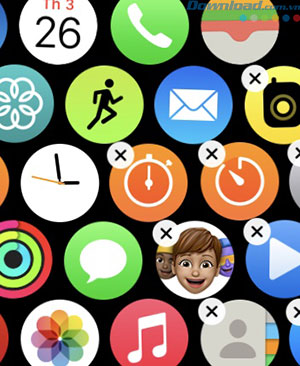
You'll see all your apps start to gently vibrate. Press and hold the app, then drag it to the desired location, with any app you want.
Users can even perform this action directly on their iPhone. Open the Clock app > App View > Arrange . Then, press and hold any app and drag it to your desired location.
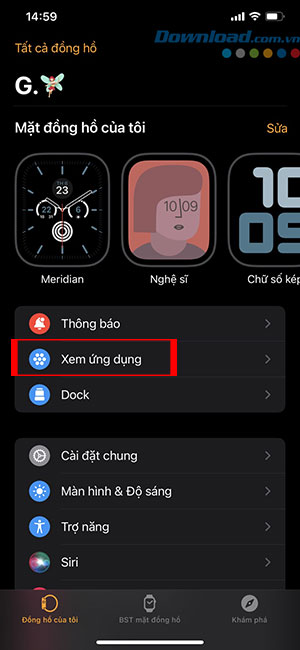
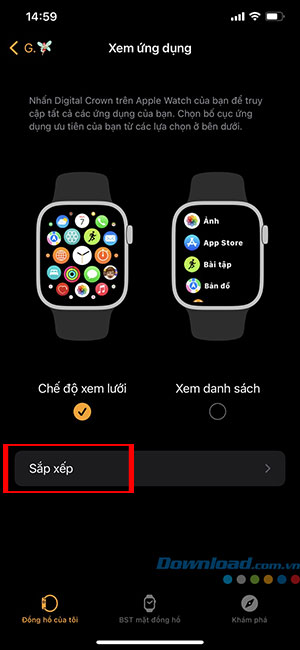
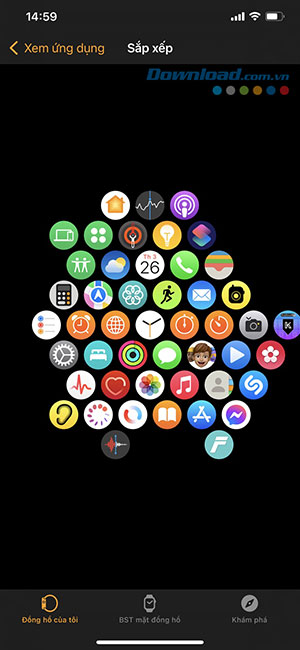
It's important to note that users can only sort apps when using Apple Watch's Grid View. If using List View , the apps will always be in alphabetical order.
Return to the watch face immediately
People can quickly return to their watch face if they have an app or the Apple Watch home screen open.
All you need to do is press the Digital Crown on your watch. If you're currently using an app, this will return you to the home screen. To show the watch face, simply press the Digital Crown again.
Open Control Center on Apple Watch
Just like the iPhone, iPad, or Mac, the Apple Watch also has a Control Center. While it doesn't offer as much customization as the iPhone, the Control Center on the Apple Watch is still quite easy to use.
There are many useful features in the Control Center, including the ability to find your iPhone with your Apple Watch, so knowing how to access it will be very helpful.
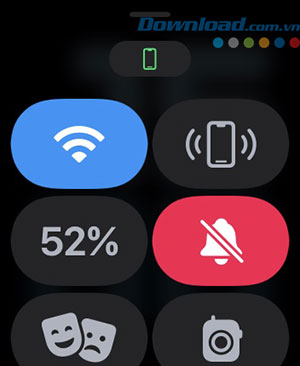
To open Control Center on your Apple Watch, first make sure you're on your watch face. Then, all you need to do is swipe up from the bottom of the screen .
This will open the Control Center to see all the available tools, such as the button to ping your iPhone, flashlight, silent mode, and airplane mode, etc. To exit, press the Digital Crown or swipe down from the top of the screen .
Turn on notifications on your watch
The Apple Watch lets users quickly check notifications without needing their iPhone, thanks to the Notification Center.

To open Notification Center on your Apple Watch, first, make sure your watch face is open. Then, swipe down from the top of the screen , and a list of all your iPhone notifications will appear, with the newest at the bottom and the oldest at the top.
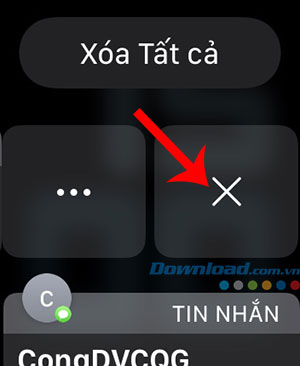
To dismiss a notification, simply swipe it to the left and tap the X button.
FAQ
What should you know about basic apple watch operations users need to know?
These are the basic operations on the Apple Watch that users need to know to take full advantage of the features of this smart watch.
What should you know about access the Apple Watch app?
Just like the iPhone, the Apple Watch comes pre-installed with several apps, which can be accessed as easily as the app library on a phone.
What should you know about arrange your home screen as you wish?
After learning how to access the apps on the watch, people may want to rearrange them to their liking.
Related Articles
 Ways to Fix Apple Watch Not Receiving Notifications5 minutes read
 How to Unpair Your Apple Watch5 minutes read
 How to Take Screenshots on Apple Watch2 minutes read
 Apple Accidentally Removed the Ability to Update on Some Older Apple3 minutes read
 Top Most Useful Apps for Apple Watch4 minutes read
 Comparing Apple Watch Series 11 and Ultra 3: Which Model Should: Key Facts6 minutes read
Reader Comments 0
Sign in with email or Google to join the discussion.