Table of Contents
Learn how to set Up your Apple Watch for Emergencies with clear steps, practical tips, and troubleshooting guidance for common issues.
Share your medical ID on your Apple Watch
Apple Watch Medical ID is one of the hidden features of the Apple Watch that users should try. With Medical ID, people can view important health information about the user, even in emergency situations.
This information includes blood type, allergy history, and any notes or medical conditions that may need to be shared. To grant emergency access to your medical ID, follow these steps:
- Open the Watch app.
- Scroll down and select Health .
- Select medical ID .
- Tap Edit in the upper right corner of the screen.
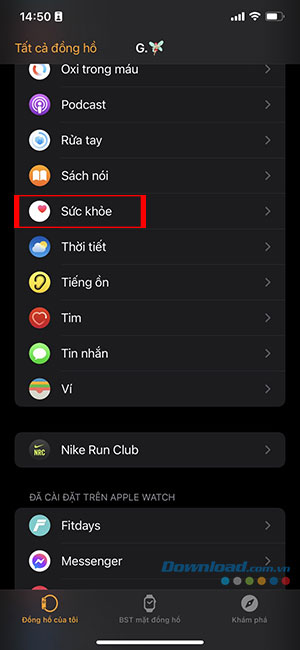


- Scroll to the bottom, under Emergency Access , and toggle the switch for the Show when locked item.
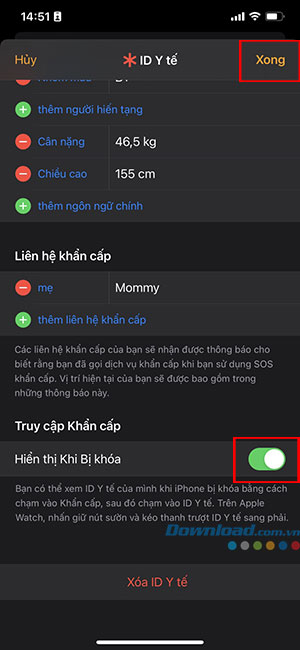
People can also allow anyone to access their medical ID from their Apple Watch in case they are unable to speak at the time. Follow these steps to grant emergency access to your medical ID on your Apple Watch:
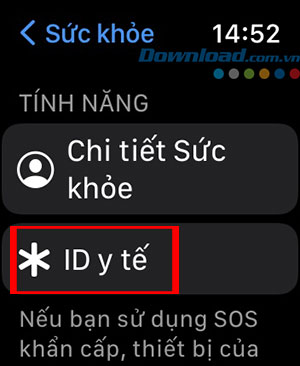
- Press the Digital Crown on your Apple Watch and go to Settings .
- Select Health .
- click Medical ID .
- Scroll to the bottom and tap Edit Medical ID .
- Scroll to the bottom again and tap Show when locked .
- Turn on/off display when locked .

Apple Watch's fall detection feature
One of the best health features on your Apple Watch is Fall Detection. This feature is especially useful for extreme sports enthusiasts or those who are often careless, as it notifies you if it detects a fall.
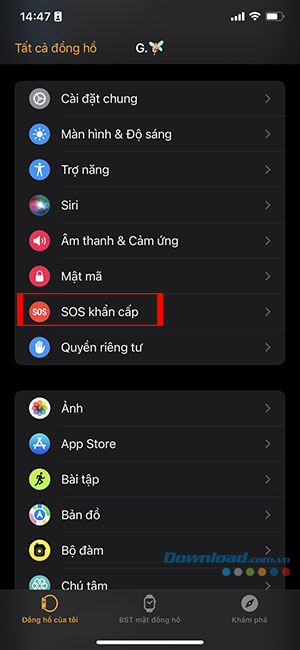
If that happens, the Apple Watch will ask the user if they're okay. If there's no response after a while, the Apple Watch will make an emergency call. Additionally, it will let emergency contacts know that the user may have been in an accident with a text message, and share their current location. To enable fall detection on your iPhone:
- Open the Watch app, scroll down, and select Emergency SOS .
- Turn on the Fall Detection feature.
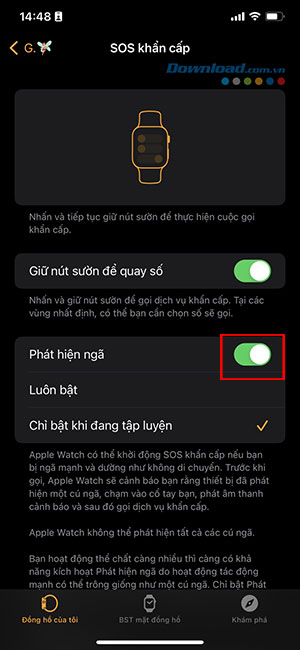
To activate this feature on your Apple Watch, follow these steps:
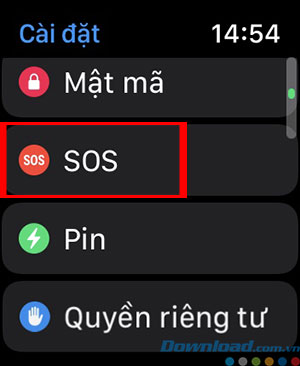
- Press the Digital Crown to open the home screen and select Settings .
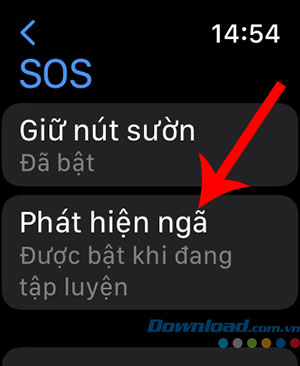
- Scroll down and tap SOS .
- Select Fall Detection and press the toggle switch to activate the feature.
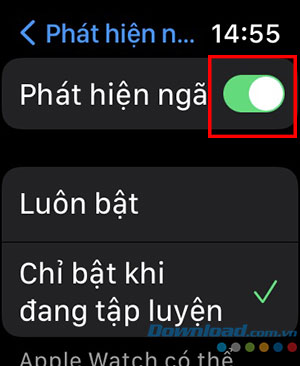
Whether using an iPhone or an Apple Watch, users will find two options for when they want their Apple Watch to detect falls: Always On and Only On during workouts .
If you select Always On , the Apple Watch will continuously try to detect falls. If you select Only On During Workout , the Apple Watch will only focus on detecting falls when it knows the user is physically active.
Add emergency contact information
One of the best Apple Watch features for beginners is adding emergency contacts. Whether it's friends, family, or loved ones, users can add anyone as an emergency contact so the Apple Watch and others know who to call in case of an emergency. To add emergency phone numbers, refer to How to set up emergency contacts on iPhone for details.
FAQ
How can you set Up your Apple Watch for Emergencies?
Learn how to set Up your Apple Watch for Emergencies with clear steps, practical tips, and troubleshooting guidance for common issues.
How do you Share your medical ID on your Apple Watch?
Apple Watch Medical ID is one of the hidden features of the Apple Watch that users should try.
What should you know about apple Watch's fall detection feature?
One of the best health features on your Apple Watch is Fall Detection. This feature is especially useful for extreme sports enthusiasts or those who are often careless, as it notifies you if it detects a fall.
Related Articles
 How to Adjust the Volume on the Apple Watch Watch5 minutes read
 How to Unpair Your Apple Watch5 minutes read
 How to Start and Reset Apple Watch5 minutes read
 How to Set Up and Making Apple Pay Payments on Apple Watch5 minutes read
 How to Take a Screenshot on Apple Watch3 minutes read
 Ways to Fix Apple Watch Not Receiving Notifications5 minutes read
Reader Comments 0
Sign in with email or Google to join the discussion.