Table of Contents
The Apple Watch is a fantastic piece of technology, but even the greatest tech gadgets need to be fully restored in some cases, such as when pairing with a different phone. This article will guide you through two ways to unpair your Apple Watch from your iPhone, including performing the task using the phone's Watch app and directly on the watch.
How to unpair your Apple Watch using the Watch app
Whether you want to connect your Apple Watch to a new phone or upgrade to the latest model, you'll need to unpair your Apple Watch from your current iPhone, back up your device data, and turn off Activation Lock to be able to set it up again. Here's how to unpair your Apple Watch and restore it when needed, using the Watch app on your iPhone.
Step 1: Access the Watch app on your iPhone.
Step 2: Open the My Watches tab and tap All watches in the upper left corner.
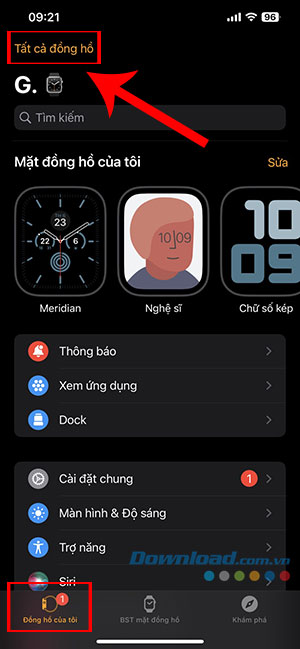
Step 3: Press the information button to the right of the current clock.

Step 4: Select Unpair Apple Watch.
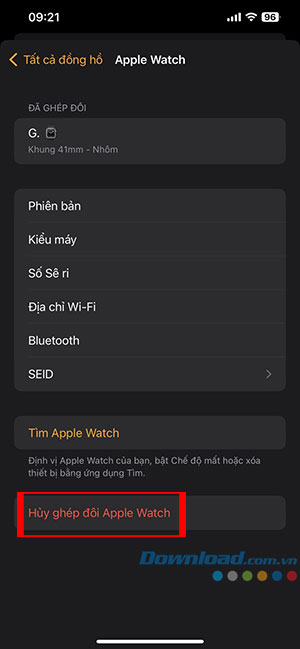
Step 5: Confirm the process by pressing Unpair + watch name.

Step 6: If you have mobile service, choose Keep or Delete plan.
Step 7: Turn off Activation Lock by entering your Apple ID password and tapping Unpair.
The Apple Watch will begin backing up its most recent data to the iPhone. Once complete, it will unpair itself from the current iPhone, remove all active Bluetooth accessory pairings, delete any Apple Pay cards used on the Apple Watch, and erase the passcode. Finally, the watch will restore itself to Apple's factory settings.
How to unpair directly on Apple Watch
When you unpair your Apple Watch via the Watch app on your iPhone, it automatically syncs and backs up the latest data from the smartwatch before restoring it to its factory settings. This is the best and smartest way to save data on your watch.
For the method of unpairing directly from the watch, it will not create a backup or automatically turn off Activation Lock. So if you need a current backup, be sure to unpair using the Watch app. Below are the steps for pairing directly on the Apple Watch.
Step 1: Launch the Settings app on your Apple Watch and tap General.
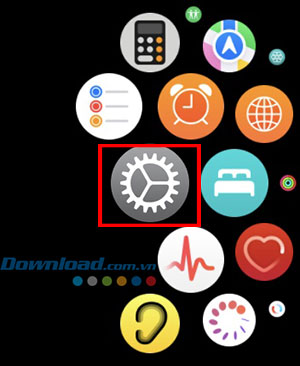

Step 2: Select Reset.

Step 3: Click on Delete all content and settings.

Step 4: Enter your passcode (if enabled).
Step 5: Click on Delete all (or delete/keep the plan if using mobile data).
Step 6: Once your Apple Watch has restored, navigate to iCloud.com from your computer's web browser to disable Activation Lock.
Step 7: Sign in with your Apple ID and password, then tap the Menu icon and select Find.
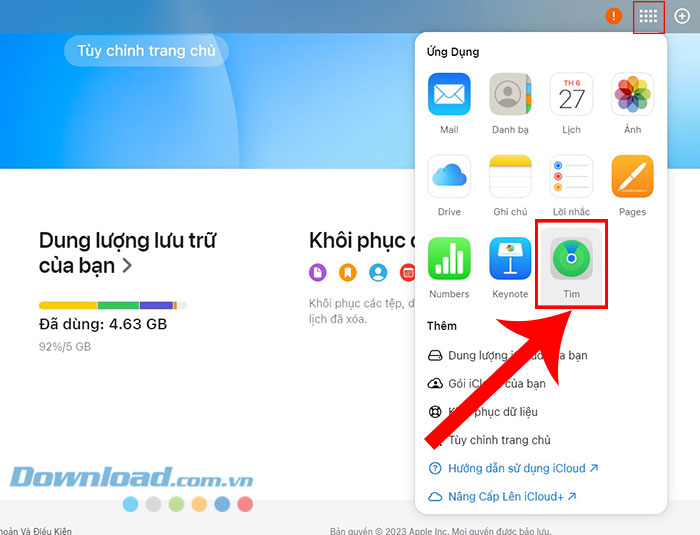
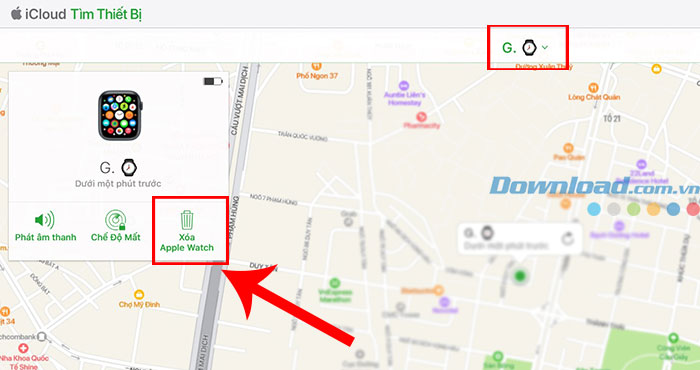
Step 8: Select the watch's name in My Devices, then select Erase Apple Watch.
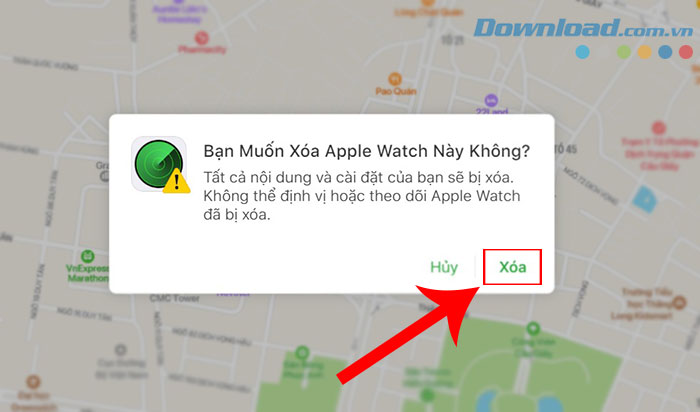
Step 9: Press Delete again to confirm.
Related Articles
 How to Set Up Your Apple Watch for Emergencies5 minutes read
 How to Take a Screenshot on Apple Watch3 minutes read
 Ways to Fix Apple Watch Not Receiving Notifications5 minutes read
 How to Adjust the Volume on the Apple Watch Watch5 minutes read
 How to Take Screenshots on Apple Watch2 minutes read
 How to Set the Moving Astronaut Wallpaper on Your Apple Watch3 minutes read
Reader Comments 0
Sign in with email or Google to join the discussion.