Table of Contents
UltraViewer can help wake a compatible Windows PC from Sleep or Hibernate so you can connect without leaving it fully awake all day. The feature uses scheduled wake checks: the remote PC wakes at the interval you configure, checks for a pending request, and can return to a low-power state when no request is waiting.
This is not the same as guaranteed cold boot from a fully powered-off or unplugged computer. Windows wake timers, firmware support, power settings, and the UltraViewer license all affect whether it works. Configure and test the feature while you are physically at the remote PC before depending on it.
What you need
- UltraViewer installed on the PC you own or are authorized to manage, and on the computer you will connect from.
- A current UltraViewer version. Update from the official UltraViewer site if the wake option is missing.
- A compatible PC that allows Windows wake timers from Sleep or Hibernate.
- UltraViewer set to start with Windows so it becomes available after the PC wakes.
- An UltraViewer plan that includes remote wake. UltraViewer's current help material says the feature may require a Lite or other paid license; check the plan displayed in the app before setting it up.
Configure the remote PC
- Open UltraViewer on the computer you want to access later.
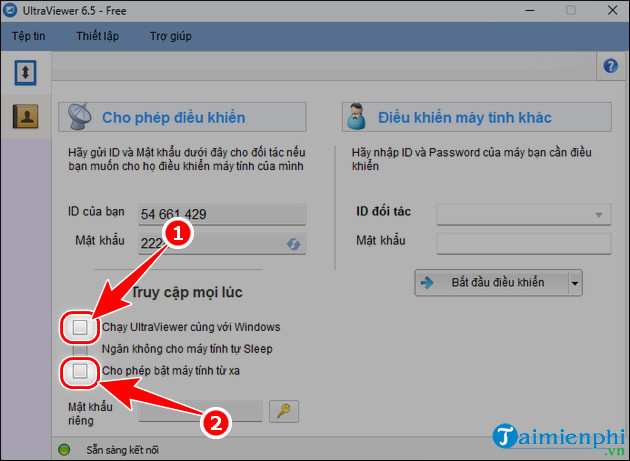
- In the unattended-access area, enable Run UltraViewer with Windows.
- Enable Allow turn on computer remotely. Despite that label, the timer-based method is primarily intended to wake a sleeping or hibernating PC.
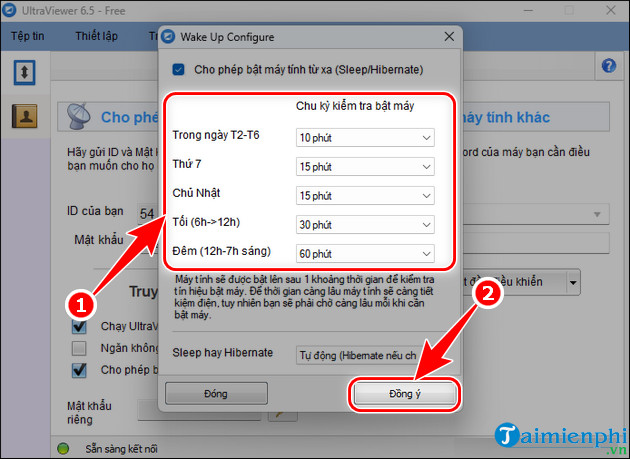
- Open Wake Up Configure.
- Choose the days, hours, and check interval when remote access may be needed, then save the settings.
- Restart the computer after configuration. UltraViewer notes that some systems need a restart before the wake schedule takes effect.
Choose a sensible wake interval
The configured interval determines the maximum wait before the next scheduled check. For example, a 10-minute interval can mean waiting nearly 10 minutes for the remote PC to wake and see the request. A longer interval reduces unnecessary wake-ups but increases the possible delay.
- Use a shorter interval during working hours when quick access matters.
- Use a longer interval in the evening if access is occasional.
- Select Never for periods when the PC should not wake.
- Set a normal Windows sleep or hibernate timeout so the computer does not remain awake indefinitely after an unsuccessful or finished session.
Set up unattended access securely
A changing session password is inconvenient when nobody is at the remote PC. If you need unattended access, create a private or custom password in UltraViewer and store it in a password manager. Use a long, unique password that is not reused for email, Windows, or any other remote-access service.
Do not post the UltraViewer ID or password in a ticket, public chat, screenshot, or article. Give access only to people authorized to use the PC. Remote-control software can expose everything available to the signed-in Windows account, so limit that account's privileges and lock or disable unattended access when it is no longer required.
Send the remote wake request
- Open UltraViewer on the controlling computer.
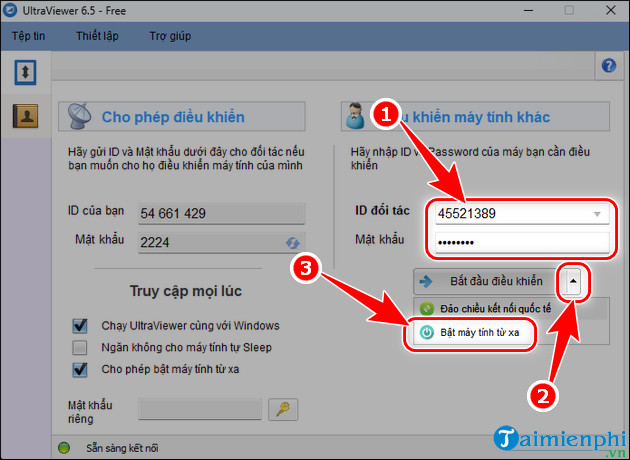
- Enter the remote computer's UltraViewer ID and the authorized password.
- Open the additional-actions menu beside the connection controls.
- Select Turn On PC Remotely or the equivalent wake option in your version.
- Wait for the next configured wake interval. When the remote PC wakes, UltraViewer checks for the pending request and starts the connection process.
If you have not used the core connection controls before, follow TipsMake's guide to control a remote computer with UltraViewer before enabling unattended access.
Test before leaving the site
- Save any work on the remote PC.
- Put it into Sleep, not Shut down, for the first test.
- From another computer and network, send the UltraViewer wake request.
- Wait through at least one complete configured interval.
- Confirm that the PC wakes, UltraViewer starts, the connection succeeds, and the PC later returns to Sleep when idle.
- Repeat with Hibernate only after Sleep works reliably.
Testing from the same room can hide network or account problems. A second test from the connection you will actually use—such as home Internet to an office PC—provides a more realistic check, provided the organization's remote-access policy allows it.
If the PC does not wake
- Update UltraViewer: an older version may not show or correctly handle the wake feature.
- Confirm the license: if the option is unavailable or disabled, verify that the active plan includes remote wake.
- Restart after saving the schedule: some systems do not register the timer until a reboot.
- Test Sleep before Hibernate: firmware and Windows power configurations may allow one state but not the other.
- Check wake timers: Windows power-plan settings can disable wake timers. On a managed device, ask the administrator before changing the policy.
- Check firmware support: a PC that cannot wake from a scheduled timer cannot be fixed solely by changing UltraViewer settings.
- Keep AC power connected: laptops may treat wake timers differently on battery, and a computer with no power cannot wake.
- Check the clock and time zone: an incorrect system time can make the configured window appear to fail.
If the PC wakes but does not connect or sleep again
- Confirm Run UltraViewer with Windows remains enabled and that security software is not blocking the app at startup.
- Verify the UltraViewer ID and custom password from a normal awake session.
- Check whether a Windows update, restart prompt, BitLocker pre-boot screen, or account sign-in requirement is blocking unattended access.
- Move an optical mouse to a stable surface or disconnect it for testing; tiny sensor movements can keep Windows awake.
- Review the Windows sleep timeout and try Sleep instead of Hibernate if the PC remains awake.
- Disable other scheduled-wake utilities temporarily to rule out conflicting timers.
UltraViewer's official remote-wake guide describes the periodic wake behavior and its troubleshooting steps. If your hardware does not support this timer method, compare a properly configured Wake-on-LAN solution or another authorized remote-management platform instead of leaving the computer permanently awake. TipsMake also has a broader list of remote computer control tools for comparing approaches.
Related Articles
 Link Downlaod Ultraviewer 6.24 minutes read
 How to Install Ultraviewer on Windows 11 and How to Use It3 minutes read
 How to Install the Latest Version of Ultraviewer for Remote Computer Control4 minutes read
 How to Fix Ultraview Not Being Able to Retrieve ID7 minutes read
 How to Turn Off Ultraviewer Starts with the Computer3 minutes read
 Simple UltraViewer Usage Guide for Remote Computer Control5 minutes read
Reader Comments 0
Sign in with email or Google to join the discussion.