Table of Contents
Windows 10/8/7 versions come with built-in driver support; however, many hardware devices require specific drivers to function correctly. In the event of driver conflicts, the hardware may not work properly, potentially causing more serious problems.
Continue reading the article below from TipsMake to learn some ways to fix computer driver conflicts.

Fixing computer driver conflicts
1. If you have just installed new hardware but it is not working properly:
- Ensure that the hardware is compatible with your computer and your version of Windows. If the device is incompatible, make sure you have selected the correct driver.
- Check the information that comes with the device. Alternatively, you can search for the device on the Windows Compatibility Center. This website contains a list of computers and devices that have been tested to work on Windows 7 computers.
Many devices require specific drivers to function properly. Therefore, make sure you have installed the software drivers that came with the device.
- Restart your computer if the driver requires it, or if the driver was installed incorrectly.
- If the device is USB, try disconnecting it and then plugging it into a different USB port. Windows will detect the device and install the driver, and will notify the user if the driver is not installed correctly.
- Update drivers if available through Windows Update. Check Windows Update, click " View available updates" to see if any new driver updates are available for your device. Alternatively, you can also try visiting the manufacturer's website to check for the latest available driver versions and update them.
2. The device used to work, but now it doesn't.
- Update your drivers if available through Windows Update. Check Windows Update and click " View available updates" to see if any new driver updates are available for your device.
- If no driver updates are available through Windows Update or the manufacturer's website, try reinstalling the driver that came with the device and check if the problem persists.
3. Set up automatic updates to the latest driver versions via Windows Update.
Even if you've set Windows to automatically update to the latest available driver updates, your device may not install the latest driver versions for your hardware or device. To automatically receive available driver updates for your hardware, set Windows to install suggested updates.
To do this, follow the steps below:
Step 1: Open Windows Update.
Step 2: In the Windows Update window, on the left pane, click Change settings.
Step 3: Under Important updates , click to select an item from the list. You can choose to automatically download and install any updates.
Step 4: Under Recommended updates, select Give me recommended updates , then click OK . If prompted to enter your Admin password, enter it or confirm.
Additionally, to allow any user to install available updates on your computer, check the box " Allow all users to install updates on this computer".
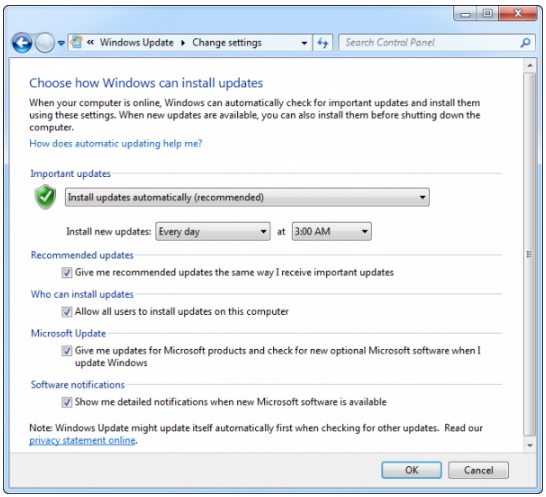
The article above from TipsMake has guided you through several ways to fix driver conflicts on your computer. Additionally, you can set Windows to automatically install important or suggested updates. Optional updates don't need to be downloaded or automatically installed. To receive all available driver updates for your device, TipsMake recommends checking Windows Update regularly for available updates.
Driver conflicts can lead to computer errors, software conflicts, and other problems. You can learn more about computer software conflict errors on tipsmake.
Related Articles
 What Is RAM Conflict? Causes and Ways to Fix RAM Conflict8 minutes read
 Other Fixes for Ip Error on Computer7 minutes read
 Driver: Complete Guide: Amd's Windows 11 Graphics Driver Can Mess Up the3 minutes read
 What Is IP Conflict? How to Fix IP Conflict on Windows and Mac7 minutes read
 3 Great Lessons You Will Get When Working with People Who Make You8 minutes read
 How to Check the Current Driver Version of the Computer3 minutes read
Reader Comments 0
Sign in with email or Google to join the discussion.