Table of Contents
Graphics card manufacturers constantly release new updates to fix system bugs and improve game compatibility. Updates are especially frequent when blockbuster games are released. During the installation process of a standard VGA driver upgrade, errors can easily occur, or there's a risk of errors during use due to conflicts between new and old components in the driver. For example, when you update an Nvidia card , you might see that the installation is normal, but when you play a game, it causes frame rate errors (FPS) or other graphics display issues.

To ensure safe removal of graphics card drivers , minimizing errors during reinstallation or upgrades, TipsMake recently researched and discovered a software called Display Driver Uninstaller that helps you remove graphics card drivers deep within the system. It leaves no trace, not even in the Registry, unlike other uninstallation software. However, Display Driver Uninstaller only works with graphics card drivers. Now, let's see how to use Display Driver Uninstaller to remove your graphics card driver.
How to uninstall and install a new VGA graphics card driver.
Step 1: First, download the Display Driver Uninstaller software here.
Step 2
After downloading the Display Driver Uninstaller software, proceed to extract it using WinRAR.
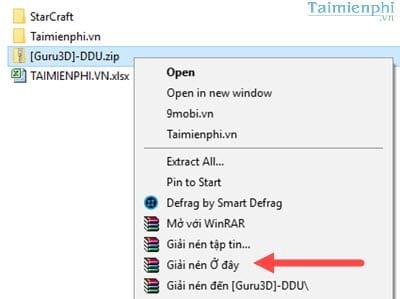
Step 3
Double-click the software to extract Display Driver Uninstaller again.
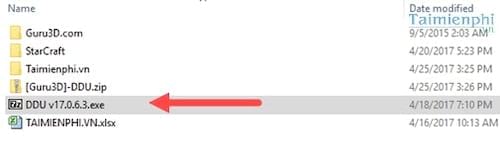
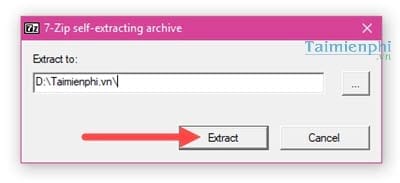
Step 4: Click on Extract again to extract the software to your computer.
Step 5
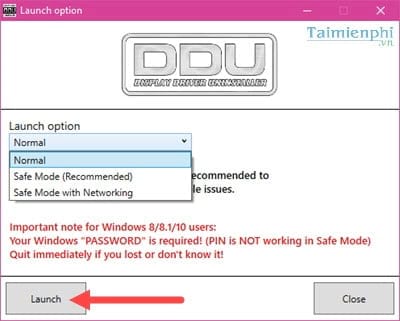
When you open Display Driver Uninstaller, there are three modes to choose from. If you select Safe Mode ( to avoid system-related errors), the computer will restart. Otherwise, just use Normal Mode to uninstall the graphics card driver.
Step 6
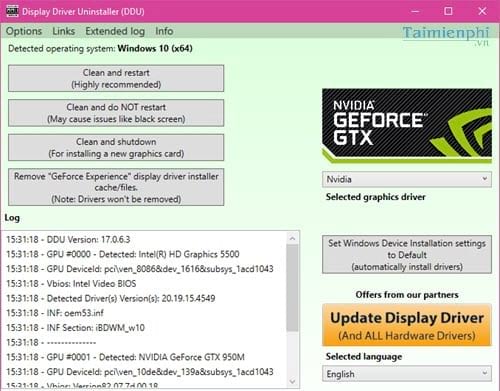
The software interface appears, with a clearly divided layout into two parts: the top part contains the functions, and the bottom part contains the text logs.
Step 7
The above section of the Display Driver Uninstaller software provides functions you can use to uninstall your graphics card driver.
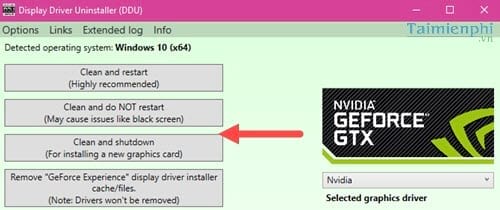
- Clean and restart: This mode will clean up the VGA driver and then automatically restart the computer.
- Clean and do NOT restart: This mode cleans the VGA driver but does not restart the computer. This may cause errors if the computer does not restart.
- Clean and shutdown: This removes all drivers and then shuts down the computer, optimizing the installation of new drivers after removal.
- Remove "GeForce Experience" Displau driver Installer Cache/files: This removes GeForce Experience, the add-on software for Nvidia graphics cards, without damaging the main graphics card driver.
Step 8
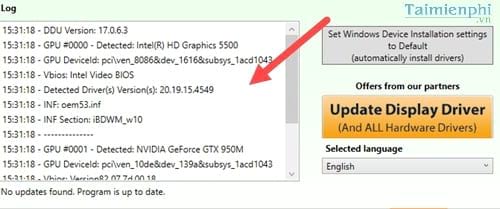
Below is the textlog showing the process when you performed the operations in the previous section. It also displays the types of VGA cards currently used on the computer. On the test machine, we can see two types of VGA cards: Intel GUIDE 5500 and Nvidia GTX950M.
Step 9
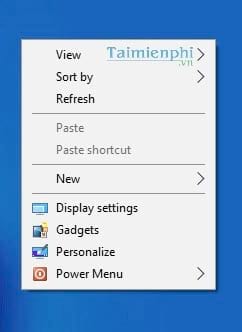
If you choose one of the four modes, especially mode number 1, after restarting your computer you will see that the VGA driver uninstallation is complete. At this point, you need to install a new graphics card driver.
Step 10
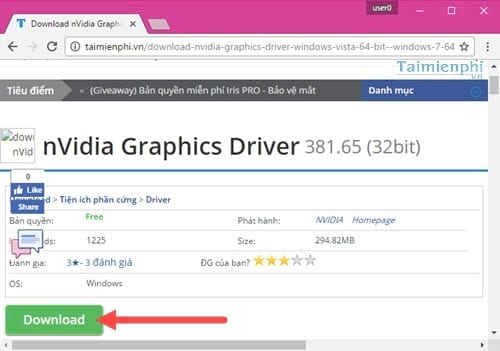
As mentioned in this article, we're using an Nvidia card, so download the latest version of this card here: Download Nvidia .
- For AMD ATi graphics cards , and if your computer doesn't have a dedicated graphics card, download the Intel driver here.
Step 11
After downloading, proceed to install the new graphics card driver as usual.
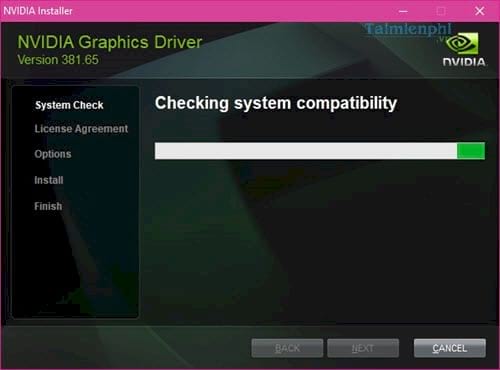
The steps above will help you completely remove your graphics card driver , avoiding errors caused by overwriting or reinstalling the driver. While this takes more time, it ensures your computer and other components function properly. Additionally, you should limit the use of software that automatically finds drivers , as this is one of the causes of computer errors.
Related Articles
 How to Uninstall VGA Drivers, Computer Graphics Card Drivers5 minutes read
 How to Update Graphics Card: Step-by-Step Guide5 minutes read
 How to Update Drivers for Amd Video Cards on Windows 104 minutes read
 How to Install a New Graphics Card (GPU) in the PC5 minutes read
 How to Replace a Video Card: Practical Guide16 minutes read
 Update AMD Graphics Card Drivers on Windows 104 minutes read
Reader Comments 0
Sign in with email or Google to join the discussion.